How to Roblox Install: A Clear Step-by-Step Guide
Learn how to Roblox install across Windows, macOS, iOS, and Android with official sources, safety tips, and troubleshooting. This comprehensive 2026 guide covers prerequisites, download steps, post-install setup, and common issues for a smooth start.


You will learn how to install Roblox on your device, including Windows, macOS, iOS, and Android. This guide covers official download sources, account setup, and safety checks to ensure a smooth first launch. By following these steps, you’ll have Roblox up and running quickly, with guidance for common issues and best practices.
What installing Roblox enables for you and why to start now
Installing Roblox opens access to a vast library of user-generated games and experiences, plus a platform to create your own projects. If you’re asking how to roblox install, this guide will walk you through device-specific steps, safety checks, and verification so you can launch into your first game with confidence. According to Blox Help, starting with the official Roblox site reduces the risk of scams and ensures you download the latest installer. Whether you’re on a Windows PC, a Mac, or a mobile device, a careful setup leads to fewer glitches and a faster, smoother experience. The goal is a reliable, secure install that keeps you in control of updates and security settings as you play and learn.
As you prepare, remember that Roblox runs best with a stable internet connection and a supported OS version. The steps below will help you verify requirements, download the right installer, and complete the first launch with minimal friction.
Supported platforms, versions, and what to expect during installation
Roblox supports multiple devices and operating systems, including Windows, macOS, iOS, and Android. On Windows and macOS, you typically download an installer from the official site, then run it to install the Roblox Player and Launcher. On iOS and Android, you install the Roblox app from the respective app store and sign in to access games you already own or want to explore. Before you begin, check your device’s OS version and available storage. If you have a slower connection, consider starting the download over a stable Wi-Fi network to reduce interruptions. This section helps you choose the right path so you don’t waste time on incompatible setups, and it sets expectations for post-install updates and game performance.
Preparation steps: accounts, safety, and prerequisites
Before you install, make sure you have a Roblox account or plan to create one during the setup to sign in after installation. If you’re setting up for the first time, prepare a strong password and enable two-factor authentication if available. Parents and guardians should review safety settings and parental controls where applicable, especially for younger players. Ensure you have admin rights on a Windows or Mac device if the installer requires elevated permissions. This preparation minimizes errors and helps you complete the install in a single session.
Safe download sources and verifying the installer
Always use the official Roblox site (roblox.com/download) or the app store for your device to obtain the installer. Avoid third-party download sites, which can bundle unwanted software or outdated files. After downloading, verify the file name and extension (exe on Windows, dmg on macOS, or the appropriate app package) and scan for malware if your security software prompts you. This section emphasizes trustworthy sources and file verification to prevent security risks and ensure a clean installation.
Installing on Windows, macOS, and mobile: device-specific paths
Windows and macOS installations typically involve launching the downloaded installer and following on-screen prompts, including permission requests. On mobile devices, you install the Roblox app from the official store and sign in. During installation, grant any necessary permissions (storage, network access) so the app can download games and assets. This section contrasts the main steps by device type to keep you aligned with the correct procedure for your hardware.
Post-install: first launch, sign-in, and initial setup
After installation, open Roblox and sign in with your account. If you don’t have one, create it following the prompts. Check for automatic updates, adjust privacy and safety settings, and test a quick game to confirm everything loads correctly. This stage confirms successful installation and helps you tailor your experience from the start.
Troubleshooting common install issues and quick fixes
If the installer won’t run or the app won’t launch, revisit the download source, re-download the installer, and ensure you granted the required permissions during prompts. Disable temporarily any blocking antivirus or firewall only if you trust the source, then re-enable protection after installation. For slow downloads, switch networks, clear browser caches (for the web installer), or pause other bandwidth-heavy apps. This section provides practical fixes to get you back on track quickly.
Keeping Roblox updated and secure after install
Roblox updates frequently with new features, bug fixes, and safety improvements. Launch the app regularly to receive updates automatically or use the platform’s store page to check for latest versions. Maintain device security by keeping your OS and security software current, and review parental controls if younger players use the device. This ongoing maintenance helps you stay secure and enjoy the latest Roblox improvements.
What to do if you can’t install: alternative paths and support
If installation remains blocked, consult official Roblox support pages for troubleshooting steps. Double-check your device compatibility, storage space, and network status. Consider using a different device or OS to isolate the issue, and contact support if you encounter persistent problems. This final section provides practical options to keep you moving forward even when things don’t go as planned.
Tools & Materials
- Device with internet access(Windows PC, Mac, iOS, or Android device with a reliable connection)
- Stable internet connection(Wired Ethernet or strong Wi-Fi recommended for downloads)
- Roblox account(Sign in or create an account after install)
- Official download source access(roblox.com/download on desktop or the official app store on mobile)
- Administrative access (Windows/macOS)(May be required to install software; ensure you have admin rights)
- Web browser (optional)(Used to access the official download page if needed)
Steps
Estimated time: 15-30 minutes
- 1
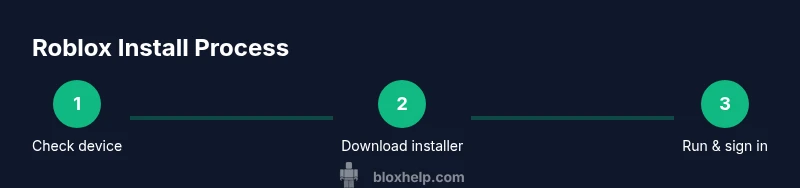
Check device compatibility
Verify your OS version, available storage, and hardware requirements before starting. If your device is outdated, plan an upgrade or use a compatible device to avoid install failures.
Tip: Refer to the official Roblox requirements page for your exact OS version. - 2
Sign in or create a Roblox account
Open Roblox in your browser or app and sign in. If you’re new, create a free account and secure it with a strong password or two-factor authentication where available.
Tip: Use a unique password and enable 2FA if your device supports it. - 3
Download the Roblox installer from the official site
Navigate to roblox.com/download and choose the Windows, macOS, iOS, or Android download as appropriate for your device. Save the installer to your device for a smooth install.
Tip: Always use the official site to avoid bundled software. - 4
Run the installer and grant permissions
Launch the downloaded file and follow prompts. Grant any required permissions (storage, network access) so the launcher and games can install properly.
Tip: If Windows prompts for administrator permission, approve to continue. - 5
Launch Roblox and sign in
Open the Roblox launcher or app, sign in with your account, and allow it to update if prompted. This ensures you have the latest fixes and features.
Tip: Check for any update prompts and accept them to avoid compatibility issues. - 6
Verify functionality by joining a game
Pick a simple game to test loading times and performance. If it runs smoothly, your install is successful and ready for more complex experiences.
Tip: If a game won’t load, try restarting the launcher and testing a different title.
Questions & Answers
Is Roblox installation free?
Roblox is free to download and install. Some games and in-game items may require purchases, but the base platform does not charge simply to install.
Roblox is free to install, with some games or items available for purchase.
Can I install Roblox on a Chromebook?
Roblox does not have a dedicated Chrome OS installer, but you may be able to run it via the Android app on supported Chromebooks or in a compatible browser, depending on the device.
Some Chromebooks can run Roblox via the Android app or supported browser, depending on the device.
Do I need admin rights to install Roblox on Windows?
Yes, Windows installations often require administrator rights to install the Roblox launcher successfully.
Admin rights are usually required on Windows for installing Roblox.
What if the installer won’t run?
Ensure you downloaded from the official source, re-download if needed, and check for antivirus prompts. Temporarily disabling security software should only be done if you trust the source.
If the installer won’t run, re-download from the official site and check security prompts, re-enable protection afterward.
How do I know Roblox is updating?
Roblox typically updates automatically when you launch the app. You can also verify updates in the app settings or store page.
Updates usually happen automatically when you open Roblox.
Is Roblox safe for kids?
Roblox provides safety features and parental controls. Enable appropriate safeguards and supervise younger players as needed.
Roblox includes safety features; use parental controls for younger players where appropriate.
Watch Video
The Essentials
- Install from official sources to prevent scams
- Verify device compatibility before starting
- Sign in and test with a quick game after install
- Keep Roblox and device security up to date