How to Put Roblox in Windowed Mode
Learn to run Roblox in windowed mode across Windows and macOS. This step-by-step guide covers in-game display options, OS windowing, and troubleshooting to ensure a stable bordered window for testing, streaming, or multitasking.


Goal: run Roblox in windowed mode so you can multitask, stream, or test layouts without fullscreen. In this guide, you’ll learn where to find the display/graphics options in Roblox, how to toggle windowed mode on Windows and macOS, and quick OS tricks to force a bordered window if in-app controls aren’t visible. By following these steps, you’ll gain reliable windowed access in most Roblox games by 2026.
What windowed mode means and why players use it
Windowed mode runs Roblox in a bordered window on your desktop rather than occupying the entire screen. This setup is popular for streamers, creators testing UI layouts, and players who want to multitask during a session. According to Blox Help Analysis, users frequently report that windowed mode helps with multi-monitor testing and reduces alt-tab delays when switching between Roblox and other applications. The benefit is not just aesthetics; it can improve accessibility, allow chat or guides to stay visible, and simplify troubleshooting when your game encounters pop-ups or errors. As you experiment, remember that some games or Roblox versions may handle windowed mode differently, so you may need to adjust per-game settings or OS-level windowing.
- Benefits include easier multitasking, improved multi-monitor testing, and better screen capture reliability.
- Some games may reset mode after loading new scenes; you’ll need to re-check the setting.
- On laptops, keeping windowed mode can help manage battery life by avoiding full-screen GPU scaling in some configurations.
tipLinkingNote
true
Tools & Materials
- Roblox installed on your PC or Mac(Ensure you have the Roblox Player/app installed and updated to the latest version.)
- Keyboard and mouse or trackpad(Needed to navigate settings quickly and accurately.)
- Stable internet connection(Optional for saving changes and testing in-game, but recommended.)
- External monitor (optional)(Helpful for testing window sizes across displays.)
- Screen capture or recording setup (optional)(Useful if you plan to stream or record in windowed mode.)
Steps
Estimated time: 10-15 minutes
- 1
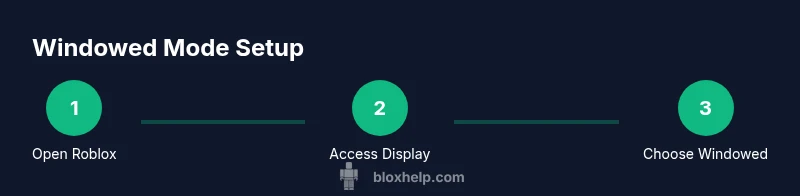
Open Roblox and load a game
Launch the Roblox client or browser version and start any game. Give the game a moment to fully render before attempting to adjust the display mode so you don’t miss the option in the menus.
Tip: If the game is already running in full screen, press Alt+Tab to switch focus before changing display settings. - 2
Open the in-game Settings or Graphics menu
Look for a Display, Graphics, or Display Mode option within the game’s settings. Not all games are identical, but most Roblox games expose a similar section for display preferences.
Tip: If you don’t see a Display Mode option, try the general Graphics or Video settings first. - 3
Select Windowed or Windowed Borderless
Choose a windowed display option. If you see only Fullscreen, try Windowed, Windowed Borderless, or similar wording. Selecting this option should render Roblox in a bordered window rather than full screen.
Tip: Some games may require restarting the game or reloading the scene to apply the change. - 4
Adjust the window size to your preference
Drag the window edges to set a comfortable size or use the system window controls to resize. Aim for a size that leaves space on your desktop for chat, guides, or other tools.
Tip: Avoid too-small sizes that make UI elements hard to interact with; you can always resize later. - 5
Test controls and gaming performance
Move around, open menus, and test performance with the new windowed layout. Check for clipping, tooltips, and frame rate stability as you navigate.
Tip: If you notice stuttering, consider lowering in-game graphics a notch or disabling V-Sync temporarily. - 6
Save your preferences and test on a second game
Reopen a different Roblox title to ensure the windowed mode is preserved across launches. If a game resets the mode, re-apply Windowed in that game’s settings.
Tip: Some titles may override settings on load; reapply the mode after each game boot. - 7
Mac and multi-monitor considerations
On macOS, windowed mode often interacts with Mission Control and display arrangements. If you use multiple monitors, set Roblox to the primary display for consistency, then test on the secondary if needed.
Tip: Remember to grant Roblox screen recording permissions if you plan to stream or record.
Questions & Answers
Can Roblox run in windowed mode on all platforms?
Windowed mode is commonly supported on Windows and macOS via in-game display options or OS-level windowing. Some browser-based play may rely on the browser window itself. If a platform doesn’t expose a specific option, try forcing a bordered window through your system settings.
Most platforms support windowed mode either in-game or via the OS windowing controls; if not, adjust the browser or system window settings.
Where do I find the Display Mode option in Roblox?
In many Roblox games, you’ll find the Display or Graphics section inside the in-game Settings menu. Look for terms like Display Mode, Windowed, or Borderless Window. If you don’t see it, check the general Graphics or Video section.
Look in the in-game Settings under Display or Graphics; some games place the option under a separate Video or Display tab.
What if windowed mode causes performance issues?
Lower the in-game graphics quality slightly and disable any vertical sync to improve responsiveness. If the windowed mode still struggles, test a smaller window size or switch to a bordered window when streaming to reduce GPU load.
If performance drops, try lowering graphics a notch and testing a smaller window size.
Will windowed mode affect screenshots or streaming quality?
Windowed mode can simplify capturing gameplay, as the window is already isolated from the rest of the desktop. Ensure your streaming software is set to capture the Roblox window, not the full screen, to avoid capturing other apps.
Windowed mode often helps with clean screen capture; just set your streaming tool to target the Roblox window.
Is it possible to have multiple Roblox windows at once?
Roblox typically runs a single game window per instance. You can launch two separate Roblox instances, but they may require independent windowed modes and can consume more system resources.
You can run more than one window, but it uses more RAM and GPU. Manage resources accordingly.
How do I revert to full screen after testing?
Return to Roblox Settings > Display Mode and choose Fullscreen, then restart the game if needed. You can also press common fullscreen shortcuts on your OS or within the game if supported.
Go back to Display Mode and select Fullscreen, then reload the game if required.
Watch Video
The Essentials
- Open Roblox and navigate to the Display/Graphics options to find Windowed mode.
- If the in-game option is absent, use OS windowing controls to create a bordered window.
- Test across multiple titles to confirm consistency of the windowed setup.
- Remember to revert to fullscreen if you experience performance issues or streaming conflicts.
- Keep Roblox updated for UI changes related to display modes.