How to Put Roblox in Full Screen
Learn how to put Roblox in full screen across PC, Mac, and mobile with step-by-step instructions, troubleshooting tips, and best practices from Blox Help.


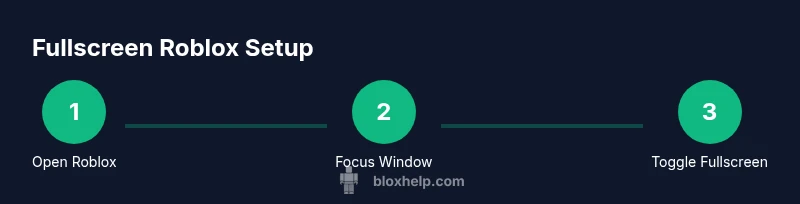
You can put Roblox in full screen by using the in-game fullscreen option or your system's fullscreen toggle. On PC and Mac, press F11 or Alt+Enter when the Roblox window is active, or click the fullscreen icon in the menu. If needed, switch to windowed fullscreen for a stable display.
Why fullscreen matters for Roblox
Beyond sheer immersion, fullscreen mode minimizes on-screen distractions and helps you focus on gameplay or development tasks. According to Blox Help, players who switch Roblox to fullscreen often report a more consistent field of view and fewer accidental clicks on the taskbar. For creators, fullscreen can simplify UI testing and ensure consistent aspect ratios across scenes. In short, fullscreen is a practical setup choice that supports both playing and building in Roblox.
If you frequently share screens or stream your Roblox sessions, fullscreen also reduces window chrome that can block important cues in the game. This section explores how fullscreen behaves across devices and why aligning display settings with your hardware matters for a smooth experience.
noteForReaders_oldItemsTypeNote_0TextNote1_availableCertainPlattformedVendorHeaderContextInThisBlockToAvoidRepetition
Tools & Materials
- Roblox account with access to the game or page you want to fullscreen(Sign in and load the game or experience you’ll fullscreen)
- PC or Mac computer with Roblox installed (or Roblox web player)(Desktop environments allow clearer fullscreen toggling than some mobile setups)
- Keyboard with function keys (F11) and a standard mouse(F11 is a common toggle; Alt+Enter is another option in some setups)
- Web browser or Roblox Client(Fullscreen can differ if you’re using a browser versus the Roblox client)
- Stable internet connection(Keeps assets loading smoothly while fullscreen is active)
- Optional: external monitor or display with adjustable resolution(Useful if you want to test extreme aspect ratios or multi-monitor setups)
Steps
Estimated time: 5-10 minutes
- 1
Open Roblox and select your game
Launch Roblox and choose the exact game or experience you plan to fullscreen. This ensures the correct window focus once fullscreen is activated. By starting from the game menu, you avoid accidentally fullscreening the launcher or browser.
Tip: Focus the game window by clicking inside it before toggling fullscreen. - 2
Focus the Roblox window
Click inside the Roblox window to ensure it is active. Inactive windows may not respond to fullscreen commands, leading to a paused or dimmed display. Once focused, you’re ready to switch modes.
Tip: If you use multiple monitors, be sure Roblox is on the primary display to avoid confusion. - 3
Enable in-game fullscreen first
If the game offers a built-in fullscreen toggle, use it first. This preserves game UI scaling and ensures consistent aspect ratios within Roblox’s rendering pipeline.
Tip: Look for a fullscreen icon in the top-right corner or within the settings menu. - 4
Use OS fullscreen if in-game option is unavailable
If there’s no in-game fullscreen, try the operating system shortcut: F11 on many Windows setups or Alt+Enter where supported. Mac users may need to access the app’s fullscreen option from the window menu.
Tip: Some laptops require the Fn key to access F11 on compact keyboards. - 5
Switch to windowed fullscreen if needed
If you notice screen tearing or scaling issues, try borderless windowed fullscreen. This mode behaves like fullscreen but runs Roblox in a borderless window, which can improve stability on certain hardware.
Tip: Windowed fullscreen is often the most playback-friendly option for streaming. - 6
Test display resolution and aspect ratio
Check that Roblox’s resolution matches your monitor’s native resolution for crisper visuals. Adjust aspect ratio to prevent stretched UI or black bars around the screen.
Tip: Aim for a 16:9 or your monitor’s native ratio for best results.
Questions & Answers
How do I enter fullscreen in Roblox on PC?
On PC, focus the Roblox window, then use F11 or Alt+Enter if the option is available, or click the fullscreen icon in the in-game menu. If you’re playing in a browser, full-screen may be controlled by the browser’s own fullscreen shortcuts.
On PC, focus Roblox, then press F11 or Alt+Enter, or use the fullscreen button in the game menu.
Why isn’t fullscreen working for Roblox on my computer?
Check that Roblox is the active window, try the in-game fullscreen option first, and verify you’re using the correct OS shortcut for your setup. If the issue persists, switch between fullscreen modes (fullscreen vs borderless window) and ensure your drivers are up to date.
Make sure Roblox is active, try the in-game fullscreen option, and switch between fullscreen modes if needed.
Can I fullscreen Roblox on mobile devices?
Roblox mobile apps typically run in fullscreen by default. You can rotate your device for landscape mode or use the in-app settings to adjust UI scale. Fullscreen on mobile is generally automatic and does not require an extra shortcut.
On mobile, Roblox usually runs fullscreen automatically; rotate your device to landscape for the best view.
Does fullscreen affect Roblox performance?
Performance depends on your device and resolution. In some cases, fullscreen mode can slightly increase GPU load, but it often provides smoother rendering when your display settings match your hardware. Monitor FPS and adjust resolution if you encounter lag.
Fullscreen can affect performance a bit, but adjust the resolution to keep a smooth FPS.
What’s the difference between fullscreen and borderless fullscreen in Roblox?
Fullscreen takes exclusive control of the display, while borderless fullscreen runs as a window without borders. Borderless can be more stable when alt-tabbing, but fullscreen can offer slightly better performance on some setups.
Fullscreen uses exclusive display mode, borderless keeps a window feel but avoids minimizing when you switch tasks.
How do I exit fullscreen in Roblox?
Press the same shortcut you used to enter fullscreen (F11 or Alt+Enter) or use the in-game exit fullscreen button. You can also press Esc on some setups to return to windowed mode.
Just press the fullscreen toggle again or hit Esc to exit.
Watch Video
The Essentials
- Fullscreen improves immersion and reduces distractions
- Identify platform-specific methods (PC, Mac, browser) to enable fullscreen
- Use in-game fullscreen when available; resort to OS shortcuts if not
- Test and adjust resolution to avoid stretched UI and ensure performance