How to Download Roblox on PC: A Beginner's Guide
Learn how to download Roblox on PC from the official site, set up your account, install Roblox Player, and troubleshoot common issues with this beginner-friendly guide.


By visiting the official Roblox site, you can download Roblox on PC within minutes. Start by creating or signing into your Roblox account, then run the installer to install the Roblox Player. Ensure you download only from roblox.com to avoid scams, and keep your Windows security up to date. This guide walks you through prerequisites, the download flow, and how to launch Roblox after installation.
How to download roblox on pc: quick overview
If you’re wondering how to download roblox on pc, you’re in the right place. The process is straightforward when you use the official route and verify your PC’s readiness. In this section we’ll outline the high-level steps and the why behind each action. According to Blox Help, starting at the official Roblox site minimizes security risks and ensures you get the legitimate Roblox Player installer. The goal here is to help you understand the flow—from opening a browser to launching your first Roblox game—and to set expectations for common hiccups you might encounter along the way.
Preparing your PC: what you need before you start
Before you begin the download, make sure your PC meets Roblox’s basic requirements: a compatible Windows version, a stable internet connection, and sufficient storage. You should also ensure your antivirus is updated and that you’re using a secure network. The Blox Help team emphasizes staying on the official site to prevent phishing or counterfeit installers. In practice, this means checking that you’re on roblox.com, not a third-party site, and that your browser is up to date. With these checks complete, you’re ready to proceed with confidence.
System requirements and safety checks you should understand
Roblox is designed to run on modern Windows systems, but performance hinges on several factors: available RAM, disk space, and graphics capability. If your PC is older, you may experience longer load times or minor glitches. As a safety note, enable Windows Defender or your preferred security software, and avoid downloading any executable from untrusted sources. In this guide, we’ll distinguish between the official installer and potential scams, and explain how to verify the installer’s authenticity using the checksum or digital signature when available.
Where to download Roblox safely and why it matters
The safest path to obtain Roblox is the official roblox.com download page. Avoid clicking on links from emails, social media posts, or random popups that promise “free Roblox.” Scammers often imitate the Roblox brand with look-alike sites. The key is to navigate directly to roblox.com, click the Start or Download button, and save the installer to a known location. This practice reduces risk and ensures you receive the latest, secure version of the Roblox Player.
Understanding the download and installation flow
Once you’ve started the official download, your browser will save an installer file (often named RobloxPlayerLauncher.exe). Running this file launches the Roblox installer, which will guide you through a standard Windows installation flow. Expect prompts asking for administrator permission; grant it so Roblox can install the necessary components. After installation finishes, Roblox will launch, and you’ll be ready to log in and start playing. The steps are designed to be straightforward, even for first-time Roblox players.
Practical steps to get Roblox up and running on Windows
After installation, launch Roblox and sign in with your Roblox account. If you don’t have an account yet, you can create one quickly on the Roblox site. Once signed in, you’ll enter the Roblox home screen where you can browse games, join friends, and customize your avatar. If you encounter a blank screen or error, restarting the launcher or browser, checking your internet connection, and ensuring the Roblox app is permitted through your firewall can resolve most issues.
Troubleshooting common download and install issues
The most frequent problems include download interruptions, blocked installations by antivirus software, and compatibility warnings. To address these, temporarily disable overzealous security settings for the installer (re-enable afterward), ensure you have enough disk space, and run the installer as an administrator. If you still see issues, verify that your Windows users account has the right permissions and try a different browser. In rare cases, conflicts with other software can cause the installer to fail; a clean boot can help identify the culprit.
Performance optimization after installation
After Roblox is installed, you can optimize performance by updating graphics drivers, lowering in-game graphics settings, and ensuring Roblox is allowed to use your GPU if available. Keeping Windows and your drivers up to date helps prevent compatibility issues. Regularly checking for Roblox updates ensures you have the latest features and security fixes. These steps help create a smoother, more reliable gaming experience on PC.
Keeping your Roblox setup secure and up to date
Security is essential when downloading software. Always use the official site, enable automatic updates for Roblox, and monitor for phishing attempts that mimic Roblox’s branding. Use a strong password and enable two-factor authentication for your Roblox account. Blox Help recommends periodic reviews of connected devices and account activity to spot unauthorized access early.
What’s next: expanding your Roblox knowledge
With Roblox downloaded, you can explore the Roblox Studio for game creation, join creator communities, and experiment with user-generated content. If you’re new to development, start with beginner-friendly tutorials on Roblox’s official resources and community forums. The more you explore, the more proficient you’ll become at navigating the Roblox ecosystem and building your own experiences.
Final checks and a quick recap
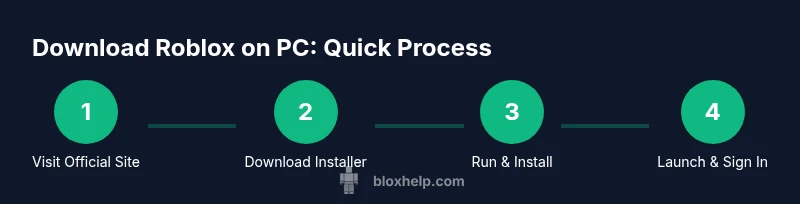
To recap, download Roblox from roblox.com, create or sign in to your account, run the installer, and launch Roblox. Ensure your PC meets requirements, your security software is vigilant, and you’re connecting through a trusted network. By following these steps, you’ll minimize risks and enjoy a smooth Roblox experience on PC. The guidance here consolidates best practices from Blox Help and practical user experience.
Next steps: learn more with structured guidance
If you want to deepen your understanding, explore step-by-step tutorials, troubleshooting checklists, and safety tips available on Roblox-related resources. This structured approach helps beginners build confidence and gradually tackle more advanced tasks, such as scripting or game development, within the Roblox ecosystem.
Tools & Materials
- PC with internet connection(Ensure a stable connection for the download and updates)
- Windows 10/11 (or compatible OS)(Roblox supports recent Windows versions; update if needed)
- Roblox account(Sign in or create one on the official site)
- Web browser (Chrome, Firefox, Edge, or similar)(Use a current browser for compatibility)
- Administrative access on the PC(Needed to install software updates)
- Reliable antivirus/anti-malware enabled(Keep it enabled during the download and install)
- Sufficient disk space (at least 1–2 GB free)(Space for the installer and Roblox cache)
- Optional: external storage or USB drive(Not required, but useful for backups)
Steps
Estimated time: 30-45 minutes
- 1
Open the official Roblox site
Launch your web browser and navigate to roblox.com. This ensures you download the legitimate installer and receive the latest security updates. If you’re uncertain, compare the URL bar to confirm you’re on the official domain.
Tip: Use a bookmark to return to the official site for future updates. - 2
Sign in or create a Roblox account
If you already have an account, sign in with your credentials. If not, choose Create Account and follow the prompts to set up a username and password. Your Roblox identity will be used to save progress and access games.
Tip: Enable two-factor authentication if available for added security. - 3
Initiate the download
On the Roblox homepage, click the Download button. The installer file will begin downloading to your computer. Save it to a known location so you can easily find it later.
Tip: Prefer HTTPS and avoid pop-up download prompts from untrusted pages. - 4
Run the installer with administrative rights
Locate the downloaded RobloxPlayerLauncher.exe and double-click it. When prompted, grant permission to run as administrator so the installer can modify system files as needed.
Tip: If prompted by your antivirus, allow the installer to proceed. - 5
Complete the installation wizard
Follow the on-screen prompts to install the Roblox Player. The wizard installs the necessary components and may require a restart. Do not interrupt the process.
Tip: Ensure you install Roblox Player to the default location unless you have a reason to change it. - 6
Launch Roblox and log in
After installation finishes, Roblox will launch. Sign in with your account to access games, avatar gear, and friends. If Roblox doesn’t start, try launching again from the Start Menu.
Tip: Check your internet connection if the launcher fails to load. - 7
Verify access to games and settings
Enter a game to confirm the client is working. Open Settings to adjust graphics, audio, and control preferences for optimal performance on your PC.
Tip: Adjust graphics to a balance between quality and performance on your hardware. - 8
Update and secure your setup
Check for Roblox updates periodically and keep Windows security, drivers, and your antivirus current. This keeps your experience smooth and safe.
Tip: Turn on automatic updates if possible to reduce manual management.
Questions & Answers
Do I need a Roblox account to download the game?
Yes. You need a Roblox account to sign in and save your progress after installation. You can create one on roblox.com if you don’t have one yet.
Yes, you need a Roblox account to sign in and save progress after installation.
Is Roblox free to download and play on PC?
Roblox is free to download and play, though there are in-game purchases and optional paid features. You can enjoy a large library of free games.
Roblox is free to download and play, with optional in-game purchases.
Why am I seeing a download blocked or error message?
Blockages often come from antivirus prompts or network restrictions. Ensure you’re on the official site, run the installer as administrator, and temporarily adjust security settings if needed (re-enable afterward).
If blocked, run as administrator and check your security prompts; revert changes after installation.
Will Roblox work on Windows 11/10 with minimum specs?
Roblox generally runs on Windows 10 and newer, provided the hardware meets basic requirements. If you’re unsure, check the official Roblox support pages for up-to-date system requirements.
Most Windows 10/11 PCs meet requirements; check official page if in doubt.
What should I do if Roblox won’t launch after installation?
First, restart the launcher and check for updates. If the problem persists, verify your internet connection and firewall settings, and consider reinstalling Roblox.
Restart launcher, check for updates, and verify security settings if launch fails.
How do I keep Roblox secure on my PC?
Always download from the official site, enable two-factor authentication, keep your OS and drivers updated, and review account activity for unfamiliar devices.
Download from official site, enable 2FA, and keep software updated.
Watch Video
The Essentials
- Download only from the official Roblox site
- Create or sign in to your Roblox account before installing
- Run the installer with admin privileges
- Keep security software enabled and updated