Roblox Choose Your Avatar: Ultimate Beginner Guide
Learn how to choose and customize your Roblox avatar with confidence. This guide covers finding options, mixing outfits, saving looks, cross-platform considerations, and tips to keep your avatar readable and unique.


You will learn how to pick and customize a Roblox avatar that fits your style, platform, and gameplay goals. This guide covers where to find avatar options, how to combine clothing, hats, and accessories, and how to save outfits for quick changes. It also highlights cross-platform considerations and common pitfalls to avoid.
Why choosing the right Roblox avatar matters
Your Roblox avatar is more than a picture—it’s your in-game identity, a first impression, and a signal to teammates about your style and role. According to Blox Help, starting with a clear avatar concept makes it much easier to stay consistent across games and communities. When you learn how to choose your avatar, you set expectations for how others perceive you and how you approach gameplay. In Roblox, the avatar carries personality, communicates mood, and can improve readability in team-based games. So, invest time in a thoughtful selection that aligns with your goals and the game’s social context. Remember, an effective avatar helps you feel confident, makes collaboration smoother, and sets a tone for your Roblox journey. As you progress, your avatar can evolve with your skills, interests, and in-game achievements, reflecting growth rather than staying static.
Understanding avatar customization options
Roblox offers a broad palette of customization options to help you express identity and style. Accessories like hats, glasses, backpacks, and jewelry, plus clothing and body colors, let you craft looks that range from casual to iconic. Emotes and accessories can signal a personality or a preferred playstyle, such as a builders’ vibe with tool belts or a fantasy adventurer with cape items. It's important to balance style with readability: items should be distinguishable at typical in-game distances, and color choices should maintain good contrast against common environments. Also, be mindful of platform differences where certain items may be available only on PC or mobile. The aim is to build a cohesive look that communicates character and role without clutter.
Roblox choose your avatar: quick-start steps
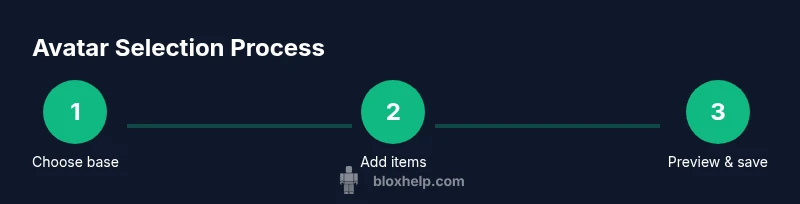
To get started, access the Avatar Editor from the Roblox menu. Begin with a base skin tone and body type that matches your aesthetic, then add clothing pieces, accessories, and hair. Preview frequently in different games and lighting conditions to ensure your look remains clear and recognizable. Save multiple outfits to switch between moods or game genres—this is especially handy for roleplay, competitive games, and social hubs. If you’re unsure where to begin, start with a single statement piece (like a bold hat or jacket) and build around it with complementary colors and textures. The goal is a balanced, readable silhouette that communicates your intent at a glance.
Getting started: where to find avatar options
Avatar options live in the Roblox Avatar Editor, accessed via your profile or the game menu. You’ll find base bodies, clothing catalogs, and accessories organized by category. Use filters to explore free items first, then consider premium options if you want a specific look. Take advantage of the catalog’s search tool to find items that share a common color palette or theme. It’s helpful to save favorite items in a wishlist or note them so you can assemble outfits quickly when you’re ready to customize. Remember to consider item availability on your platform (PC, mobile, console) to avoid compatibility issues during setup.
Best practices for unique but readable avatars
Create contrast between foreground details (hats, bright accessories) and the body silhouette so your avatar stands out against varied backgrounds. Limit the number of bold, competing colors to two or three main shades; this prevents visual noise and makes your avatar easier to recognize at a distance. Favor a cohesive theme—e.g., cyberpunk, fantasy, or sporty—rather than mixing many unrelated elements. Test your avatar in different lighting and in gameplay scenarios (team-based vs. solo) to ensure it remains clear when you move, jump, or crouch. Finally, plan for cross-platform visibility by choosing items that look good on multiple screen sizes and rendering settings.
Troubleshooting common avatar issues
If items don’t appear correctly, first refresh the game and re-open the Avatar Editor. Check item compatibility for your device and ensure you are using items you’ve actually unlocked or purchased. Some items may have rendering issues under low graphics settings; try temporarily increasing graphics quality to verify. If you notice prolonged display discrepancies, clear cached data or re-download catalog assets. For cross-platform play, verify that the items you choose are accessible on both PC and mobile, and adjust as needed to maintain a consistent look across devices.
Authority sources and best practices
Below are some trusted sources that discuss online identity, safety, and design principles relevant to avatar customization. While Roblox-specific guidance varies by platform, these resources help inform good practices for avatar design and safe online participation. For comprehensive safety guidelines, see the Federal Trade Commission’s resources on kids’ online safety and digital identity.
Putting it together: a quick design checklist
- Define your core identity and role in main games.
- Start with one statement item and build around it.
- Check readability from typical in-game distances.
- Save multiple outfits to suit different games.
- Cross-check compatibility across PC and mobile platforms.
Authority Sources
- https://www.consumer.ftc.gov/articles/0030-kids-online-safety
- https://www.nature.com
- https://www.ieee.org
Cross-platform considerations and next steps
Plan outfits with cross-platform visibility in mind. Some catalog items may be platform-locked, so test your outfits on both PC and mobile versions of Roblox. Save your favorites and create shortlists for different game modes, like roleplay versus competitive matches. As you gain experience, refine your avatar by auditing how it reads in crowded scenes and adjusting color balance for the most legible silhouette.
Tools & Materials
- Roblox account login(Ensure you can access the Avatar Editor from your account dashboard.)
- Device with internet connection(Stable internet helps avoid mid-edit loading issues.)
- Avatar Editor access(Navigate via profile menu to customize parts.)
- Catalog items wishlist(Optional: bookmark outfits you like for easy assembly.)
- Optional Robux budget(Used for premium clothing or limited items.)
- Notes on preferred style(Jot down aesthetic goals (theme, color palette, personality).)
Steps
Estimated time: 30-45 minutes
- 1
Open Avatar Editor
Log into Roblox and open the Avatar Editor from your profile or game menu. This is where you’ll choose base body, skin tone, and primary features.
Tip: Take a screenshot of your starting point to compare changes later. - 2
Pick a base and key piece
Select a base body style and a standout item (hat, jacket, or accessory) that defines your look. This single piece often guides the rest of your palette.
Tip: Choose a focal item with a strong silhouette for quick recognition. - 3
Add supporting pieces
Layer clothing items and accessories that complement the focal piece without creating visual clutter. Balance textures and colors for readability.
Tip: Limit yourself to two main color blocks to avoid overwhelming the silhouette. - 4
Preview in different games
Test how your avatar reads in varied lighting and environments. Switch between activities such as social hubs and team-based games.
Tip: Look for strong contrast against typical backgrounds (greens, browns, grays). - 5
Save your outfits
Save at least three outfits: casual, formal, and high-visibility for crowds. This speeds up changes during gameplay.
Tip: Give each outfit a clear name for quick retrieval. - 6
Cross-platform check
If you play on mobile or console, verify item availability and appearance on those devices.
Tip: Use items available across platforms to maintain consistency.
Questions & Answers
How do I start changing my avatar in Roblox?
Open Roblox, go to your profile, select Avatar Editor, and start customizing. You can modify clothing, accessories, and body features. Save changes to apply.
Open Roblox, go to Avatar Editor, customize, then save to apply your changes.
Do I need Robux to customize my avatar?
Some items require Robux, but many free options exist. You can explore the catalog and save outfits without spending.
Some outfits cost Robux, but many free options exist. You can mix those and save.
Can I use the same avatar across different platforms?
In most cases, your avatar appears the same on PC and mobile, but item availability can vary by platform. Check catalog items for cross-platform compatibility.
Your avatar usually looks the same on PC and mobile, but some items may vary.
How can I organize outfits for quick changes?
Create multiple saved outfits in Avatar Editor, then assign hotkeys or quick-access slots if available. This speeds up switching between looks.
Create saved outfits you can switch between quickly.
What if an item doesn’t display correctly?
Refresh the game, reselect the item, or clear cached data if needed. If problems persist, check inventory and item compatibility.
If an item looks off, refresh, reselect, or clear cache.
Watch Video
The Essentials
- Define your avatar identity early.
- Prioritize readability and contrast.
- Save multiple outfits for versatility.
- Test visuals across platforms.
- Balance style with simplicity for quick recognition.