Avatar Maker for Roblox: Create Custom Avatars with Confidence
Learn how to use avatar makers for Roblox to customize faces, outfits, and accessories. This guide covers tools, safety, saving outfits, and best practices for creators and players.


You can create or customize your Roblox avatar using a dedicated avatar maker by selecting facial features, clothing, and accessories, then save and apply to your account. This guide walks you through choosing an avatar maker, gathering assets, and applying changes without breaking Roblox terms. We cover free and premium options, safety tips, and how to export outfits.
What is an avatar maker for Roblox?
An avatar maker for Roblox is a tool (built into Roblox or a third-party app) that lets you customize your character's face, hair, clothing, accessories, and overall style. It streamlines asset selection and previewing in real-time. According to Blox Help, a good avatar maker should integrate safely with Roblox's asset system and respect licensing. The Blox Help team found that players who plan their style before editing save time and avoid licensing issues. This article uses the term avatar maker for Roblox to describe both native Roblox customization panels and external tools that help you prepare outfits and looks before you upload or apply them in-game.
Roblox's built-in avatar customization vs external avatar makers
Roblox offers native customization through the Avatar Shop and character customization screens, but third-party avatar makers can expand options with new textures, items, or batch-edit workflows. Built-in tools tend to be tightly integrated with Roblox's catalog, ensuring asset compatibility and speed. External makers can offer mood boards, color palettes, and export-ready outfits, but they may rely on user-supplied assets or non-standard formats. Always verify that items you create or import comply with Roblox's terms and asset licensing. The choice depends on your goals: quick edits inside Roblox vs broader creative exploration.
Top features to look for in an avatar maker
When evaluating tools, prioritize compatibility with Roblox, real-time preview, and clear licensing terms. Look for: a) adjustable face shapes and hairstyles; b) clothing templates and layers; c) color palettes and texture mapping; d) export options (UGC-friendly formats, Roblox-ready assets); e) safety controls and asset sourcing transparency. A good tool will also offer presets to accelerate iteration and a project save feature to manage multiple outfits.
Safety, copyright, and policy considerations
Always use assets you own or have explicit permission to use. Roblox requires that items stay within its catalog rules and licensing. Prefer makers that clearly indicate source, license type, and whether assets are user-generated or third-party. Be wary of utilities that promise automatic mass-upload or bulk asset conversion, as these can violate terms. For extra protection, keep a record of asset licenses and avoid redistributing assets outside Roblox's platform. When in doubt, consult official Roblox terms and community guidelines available through trusted sources.
Getting started: choosing a maker and outlining your avatar
Start by defining a style—cartoon, semi-realistic, or anime-inspired—and gather visual references (color swatches, hairstyle ideas, clothing silhouettes). Then choose a compatible avatar maker based on your needs and skill level. Create a simple baseline avatar to test infrastructure, catalog access, and export workflows. Remember to name your project folders and outfits consistently to avoid confusion later. Planning ahead reduces redo time and helps you stay organized as you experiment with different looks.
Customizing outfits and accessories: hats, shirts, and emotes
Outfit design is a major part of expression in Roblox. Look for tools that separate base body, clothing layers, and accessories so you can mix and match efficiently. If you plan to publish outfits, ensure textures map cleanly to Roblox avatars and that items render correctly across body types. Use color palettes with accessibility in mind (contrast and readability) to ensure outfits look good on various devices. Emotes and animations can also be synced with outfits for a cohesive character persona.
Saving, exporting, and applying outfits in Roblox
After you design an outfit, save it with a meaningful name and organize assets into folders by theme or project. Use export options recommended by the avatar maker to obtain Roblox-ready formats, then import into Roblox or apply directly if the tool supports live updates. Test on multiple devices to confirm appearance under different lighting and character scaling. Regularly back up your outfits to prevent data loss during updates or device changes.
Common pitfalls and troubleshooting
Common issues include missing textures, misaligned layering, and incompatibilities with older Roblox clients. If textures appear stretched or colors look off, adjust UV maps or re-apply textures with higher resolution. Ensure you are using compatible export formats and that your Roblox client is updated. When in doubt, revert to a baseline avatar and reapply assets step-by-step. Keep a log of changes to track what fixes issues when they arise.
Advanced tips for creators and sharing outfits
For ambitious creators, keep a library of reusable asset packs and templates. Use version control by saving incremental iterations and documenting changes. Share outfits via Roblox-compatible catalogs or in-game social features, and always credit asset sources when required by the license. Stay engaged with the community to learn about new textures, body types, and styling trends. Consider collaborating with other creators to expand your asset library and reach.
Community resources and ongoing learning
The Roblox community offers tutorials, asset libraries, and design challenges. Look for official Roblox developer forums and reputable education resources to stay up-to-date on asset licensing and best practices. For continued learning, follow creators who publish step-by-step breakdowns and who discuss safe asset sourcing, copyright considerations, and tips for efficient iteration. Regular participation in community events helps you refine your craft and receive feedback from peers.
Tools & Materials
- Computer or tablet with internet access(Recommended screen size 13 inches+ for easy editing)
- Roblox account(Active account in good standing)
- Avatar assets (free or paid)(Use assets from reputable sources and check licenses)
- Reference imagery (mood boards, swatches)(Collect color palettes and style references)
- Notes/organizer tool (digital or paper)(Keep track of ideas and asset sources)
- Backup storage (cloud or external)(Preserve iterations and assets)
Steps
Estimated time: 30-60 minutes
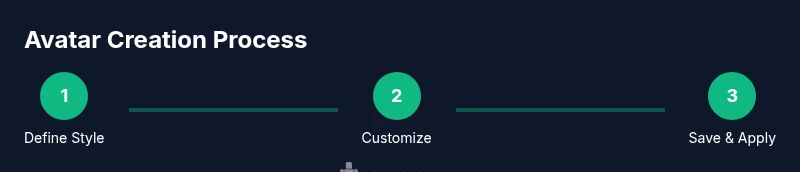
- 1
Define your avatar style
Decide on the overall look (cartoon, semi-realistic, anime) and create a mood board with hairstyles, colors, and outfits. This foundation guides every asset choice you make in the maker.
Tip: Create a quick sketch or screenshot board before editing. - 2
Choose a compatible avatar maker
Evaluate tools for Roblox compatibility, asset licensing, and ease of use. Pick one that supports your preferred export format and keeps your projects organized.
Tip: Prefer tools with at least one free tier to test before buying. - 3
Set up a baseline avatar
Load a simple avatar in the maker to verify that the interface works and that assets map correctly to Roblox avatar parts.
Tip: Save a baseline as a starting point for future outfits. - 4
Customize facial features and hair
Adjust facial attributes, hair styles, and skin tones to match your mood board. Preview in real time to ensure consistency across lighting in Roblox.
Tip: Document color values for consistency later. - 5
Add clothing and accessories
Apply outfits, hats, glasses, and other accessories in separate layers. Ensure textures map properly and that items render well on different body types.
Tip: Test multiple combinations to avoid clashes. - 6
Save and organize outfits
Name outfits clearly and categorize by theme. Use tags like 'cool', 'robotic', or 'fantasy' to simplify retrieval.
Tip: Keep a master list of asset sources for licensing checks. - 7
Test in Roblox
Import or apply the outfit in Roblox and inspect on different devices and lighting settings. Make note of any color shifts or layering issues.
Tip: Verify performance on mobile and desktop. - 8
Refine and iterate
Based on testing, adjust textures, colors, and layer order. Save revised versions as new iterations.
Tip: Use non-destructive edits when possible.
Questions & Answers
Do I need to pay for an avatar maker?
Many avatar makers offer free basic features; premium tiers unlock more outfits and export options. Evaluate cost against your needs.
Most tools have a free option; consider premium if you need more outfits or direct Roblox exports.
Is using third-party avatar makers safe with Roblox terms?
Only use reputable tools with clear licensing and terms of use. Avoid tools that require you to upload Roblox assets to external servers.
Stick to trusted tools and respect asset licenses to stay compliant.
Can I import Roblox assets into an avatar maker?
Some makers support importing textures or meshes, but many rely on built-in assets. Check compatibility before buying.
Some tools allow imports; check compatibility before committing.
How do I save and apply a custom avatar to my Roblox account?
Save outfits within the maker, then export to Roblox-ready formats or apply via live linking if supported. Test in-game to confirm appearance.
Save, export, and test in Roblox to ensure it looks right.
Where can I find royalty-free items for avatars?
Look for reputable asset libraries and verify licenses before use. Avoid items with unclear ownership.
Use trusted libraries and check licenses before using items.
What if I want to share outfits with friends?
Many avatar makers enable sharing presets or exporting files that friends can import. Always credit sources if required.
Share presets or exports and credit sources when needed.
Watch Video
The Essentials
- Define your avatar style before editing
- Choose reputable tools with clear licensing
- Test outfits in Roblox across devices
- Prioritize safety and licensing in every step