Roblox Choose Your Character: A Complete Guide
Learn how to choose and customize your Roblox character with outfits, colors, and accessories. This beginner-friendly guide covers avatar settings, platform differences, and best practices for a unique Roblox identity.


Want to know how to Roblox choose your character? This step-by-step guide shows how to customize your avatar, pick clothes, colors, and accessories, and preview your look across PC, Mac, and mobile. According to Blox Help, avatar customization is a core first-step for new players who want a unique identity in Roblox.
Understanding Roblox Character Customization
The phrase "roblox choose your character" is about crafting an avatar that reflects who you are in-game. Roblox supports two main avatar skeletons: R6 and R15. R6 uses six joints and a classic blocky look, while R15 offers a more articulated model with fifteen joints for smoother movement. Your choice affects how clothes, faces, and accessories fit and move. According to Blox Help, deciding between these two styles is a common first step for players who want a distinctive presence in Roblox worlds. When you tune your character, you also influence how others perceive your gameplay, whether you’re exploring, building, or competing in mini-games.
Keep in mind that customizing your character is not just cosmetic—it signals your in-game role, your mood, and your personal taste. The best approach is to test multiple combinations until you find a consistent look you enjoy across games and scenes. This means trying different color palettes, outfits, and accessories to ensure a cohesive appearance rather than a mismatched mishmash.
Where to Start: Avatar Shop and Starter Items
The Avatar Shop is the central hub for all customizable items in Roblox. Start with free starter items to get a baseline look, then experiment with body colors, hats, glasses, face decals, and backpacks. When Roblox choose your character, prioritize items that fit your chosen theme and are comfortably viewable in-game. Use search filters to explore categories like clothing, accessories, and faces. Remember that Robux purchases unlock premium items, so plan your budget accordingly. If you’re unsure, begin with a cohesive color scheme and build outward with complementary pieces. As you grow more confident, you’ll discover which items align with your personal style and the kinds of games you play most often.
If you’re new to Roblox, keep your eye on the daily deals and limited-time releases, which can offer unique visuals without a huge price tag. The key is consistency: a few well-chosen items can look far better than a long list of mismatched pieces.
Platform Differences: PC, Mac, and Mobile
Platform matters when you’re assembling a character. The Avatar Editor on PC and Mac presents a larger screen with more precise controls, which helps with color picking and item placement. Mobile layouts streamline the process for touch input but can feel cramped when you’re trying multiple outfits. When you choose your character, test outfits on all platforms you play to ensure the look remains appealing and legible from a distance in-game. The ability to save multiple outfits is a lifesaver for switching between casual and formal styles. If you primarily play on mobile, favor simple silhouettes and bold colors that stay recognizable on small screens.
In 2026, smooth cross-platform syncing means you can tweak your avatar on one device and see the changes on another, enabling a more fluid customization workflow. This cross-device flexibility helps you maintain a consistent identity across Roblox’s many experiences.
Styles and Themes: Matching Your Play Style
Your team, game, or mood often dictates your character’s style. Whether you prefer a sleek sci-fi look, a bright cartoon aesthetic, or a rugged explorer vibe, the theme should align with your favorite games. When you roblox choose your character, aim for a core color story (two to three dominant tones) and only a handful of accent colors. This creates a visually cohesive avatar that’s easy to recognize in crowded lobbies. If you’re unsure, a neutral base with a bold accessory (like a signature hat or scarf) can become your signature. As you gain experience, you’ll fine-tune the palette to reflect evolving interests.
The most successful players stay true to a theme across outfits, ensuring immediate recognition regardless of the game. This consistency often translates into a stronger personal brand within Roblox communities.
Accessorizing: Clothes, Shirts, and Accessories
Clothes are the first thing people notice about your character. In the Avatar Shop, you’ll find shirts, pants, and full-body outfits, plus accessories like glasses, hats, backpacks, and emotes. A practical approach is to start with a signature item (e.g., a distinctive hat) and build the rest of the outfit around it. When you choose your character, prioritize items with clear silhouettes, so your avatar reads well at a distance. Layering is key: combine tops with compatible pants and shoes, then add an accent piece to create depth. Free items still offer a polished look if you pick a cohesive color family. Remember to check item compatibility with R6 vs R15 to avoid misfit outfits.
Pro tip: Use the color picker to ensure all pieces share at least one common hue. This creates harmony and reduces the risk of clashing colors in fast-paced gameplay.
Understanding Robux and Free Options
Robux unlocks premium outfits, but you can still craft a strong character using free items. Start with free cosmetics and gradually mix in affordable pieces to keep your look fresh without draining your wallet. Budget-conscious players can rotate outfits weekly to maintain a new vibe without extra costs. Free items often come with seasonal themes, allowing you to stay stylish while you learn the ropes of avatar customization. The key is to balance novelty with consistency so your character remains recognizable across games.
If you do decide to buy, plan ahead and track sales or bundles that maximize value. The most important thing is that your avatar reflects your identity rather than chasing every new item released.
How to Preview and Test Your Look in Roblox Games
Previewing is essential before you jump into a game. Use the Avatar Editor’s Quick Preview to see how outfits read from different camera angles. Try entering a few different game genres—racing, combat, adventure—to see how your look stands up in motion. Some outfits may look great standing still but obscure a character’s movement in action. If an item obstructs visibility or movement, swap it for a simpler accessory. Testing across multiple players and servers helps verify your avatar’s readability in crowded scenes. Practice makes perfect: spend time building an avatar you’re excited to wear in daily play sessions.
For new players, a practical approach is to assemble a two-outfit rotation: a casual daily look and a standout event look. This reduces decision fatigue and ensures you’re always ready for a match or a party.
Tips for Beginners: Quick Wins
- Start with a cohesive color palette and a signature accessory.
- Use free items to test ideas before spending Robux.
- Check item fit for R6 versus R15; some pieces don’t translate well.
- Preview outfits in multiple games to confirm readability and impact.
- Save your favorite outfits and create a personal naming system so you can switch quickly.
These quick wins help you establish a recognizable avatar early and reduce the time spent experimenting in-game.
Safety, Moderation, and Community Guidelines
Roblox avatars should reflect safe, community-friendly content. Avoid clothing or items that imitate others or violate Roblox’s rules. If you see a piece that makes you uncomfortable or breaches guidelines, report it and move on to another option. Maintaining a positive and respectful presence in Roblox communities is part of the overall experience of choosing your character. When you’re uncertain about an item, check user reviews and creator reputations before purchasing. This diligence helps you stay compliant and protect your account.
Advanced Tips for Aspiring Roblox Developers
If you’re learning Roblox development, avatar customization can be integrated into your games as a reward system or character creator feature. Build a small, in-game catalog so players can preview outfits on their characters inside your experiences. Provide a default starter set to help newcomers get comfortable, then unlock premium items as they progress. The more you experiment, the more you’ll understand how avatar visuals influence player engagement and retention. This approach aligns with a development mindset that values user identity as part of the gameplay loop.
Authority sources
To help you verify guidance and stay up to date with best practices, consult reputable sources and official documentation. These links offer broader context on avatar customization, safety, and platform guidelines across Roblox and online communities.
Next Steps: Practice and Iteration
The most important step is consistent practice. Set aside time to experiment with new items, rerun your color palette, and compare looks in your favorite games. Over time, you’ll develop a stable personal style that makes your Roblox character instantly recognizable. Remember, the goal of choosing your character is to feel confident and have fun while meeting your community’s expectations.
Tools & Materials
- Roblox account(Active account; you’ll log into the Avatar Editor and catalog.)
- Device with Roblox access (PC, Mac, or mobile)(Ensure you have a reliable internet connection for updates.)
- Robux balance(Needed for premium outfits; start with free items to test looks.)
- Color palette reference(Helpful for building a cohesive theme across items.)
Steps
Estimated time: 20-30 minutes
- 1
Open Avatar Editor
Navigate to the Avatar Editor from the main menu, where you can view clothing, faces, accessories, and body options. This is your starting point to build a cohesive character.
Tip: Begin with a base outfit in two color tones to establish your palette. - 2
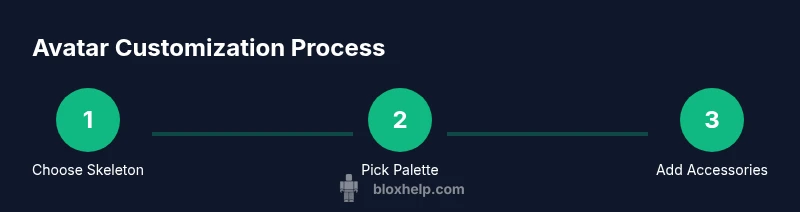
Choose a Skeleton Style
Decide between R6 and R15 based on desired articulation and item compatibility. This choice affects how clothes and limbs move in-game.
Tip: R15 offers more movement possibilities; test outfits on both to check fit. - 3
Pick a Core Color Palette
Select two to three main colors that will drive most outfit choices. Use accent colors sparingly to keep a cohesive look.
Tip: Use the color picker to ensure items share at least one hue. - 4
Add Signature Accessories
Choose one standout accessory (hat, scarf, or backpack) to serve as your visual anchor.
Tip: Limit to one bold accessory to avoid visual clutter. - 5
Test Across Games
Preview your outfit in multiple Roblox experiences to ensure readability and appeal on different backgrounds.
Tip: If something blends into the environment, swap colors or accessories. - 6
Save and Label Outfits
Create at least two outfits (casual and event-ready) and name them for quick switching.
Tip: Use descriptive labels like “Everyday” and “Event” to speed up selection. - 7
Check Platform Consistency
Verify that your look remains appealing on PC, Mac, and mobile to ensure a seamless identity everywhere.
Tip: If you primarily play on mobile, simplify the silhouette for legibility. - 8
Refine Based on Feedback
Ask friends or teammates for input and adjust colors or items accordingly.
Tip: Constructive feedback helps fine-tune your visual identity.
Questions & Answers
How do I change my Roblox character's clothes?
Open the Avatar Editor, browse the Clothing section, and select a shirt and pants that match your color palette. You can mix and match items to create a cohesive look. You can also save outfits for quick switching.
Open the Avatar Editor, browse clothing, and select items that fit your color palette. Save outfits for quick switching.
Is there a difference between R6 and R15 avatars?
Yes. R6 uses a simpler skeleton and may affect how certain clothes fit, while R15 has more joints for smoother movements. Decide based on your preferred movement and item fit.
R6 is simpler; R15 has more joints for smoother movement. Choose based on your preferred look and fit.
Do I need Robux to customize my avatar?
You can start with free items, but Robux unlocks premium outfits. Plan your purchases and look for bundles or sales to maximize value.
You can start with free items, but Robux unlocks premium outfits. Look for bundles and sales.
How can I preview outfits before buying?
Use the Avatar Editor's preview feature and test outfits in several games to see how they read in motion and different backgrounds.
Use the avatar preview and test outfits in different games to see how they look in motion.
Are there safety concerns about avatar items?
Stick to items from reputable creators and adhere to Roblox community guidelines. Report any items that violate the rules.
Stick to safe items from reputable creators and follow community guidelines.
Can I change my avatar look often?
Yes. Regularly updating outfits keeps your look fresh and helps you express evolving interests without spending a lot of Robux.
Yes, you can update frequently to stay fresh without spending a lot of Robux.
Watch Video
The Essentials
- Choose a cohesive color theme early.
- Test outfits across platforms for consistency.
- Use a signature accessory to brand your character.
- Balance free items with affordable purchases.
- Preview outfits in different game contexts before committing.