Roblox download for Windows 10: Safe Setup Guide
Learn how to safely download Roblox for Windows 10, install Roblox Player and Roblox Studio, sign in, and start playing or building Roblox experiences.


By the end you’ll have Roblox installed on Windows 10 and ready to play or develop. This quick answer shows you how to download Roblox from the official site, verify your system meets basics, run the installer, and sign in. No third‑party download sites or risky installers are needed. Follow the steps in the full guide for a smoother setup.
Roblox on Windows 10: What you can do
Roblox on Windows 10 empowers players to explore a vast library of games and creators to publish experiences. With the official Roblox download for Windows 10 you can play a wide range of titles, join social spaces, and even dive into Roblox Studio to build your own games. The Windows 10 environment supports cross‑platform play and ensures you can run Roblox alongside other software. This section introduces the core capabilities you gain after installation, including how you can switch between Roblox Player for playing and Roblox Studio for development, and why keeping your system up to date matters for performance and security. To get started, you will follow a straightforward, official download path that minimizes risk and maximizes compatibility.
System requirements and safety basics
Before you download, confirm your PC meets the basics for Roblox on Windows 10. A modern Windows 10 installation with current security updates provides the best experience. Ensure your device has a reliable internet connection, enough storage space for the installer and game data, and administrative rights to install software. Security best practices include downloading only from the official Roblox site, enabling automatic Windows updates, and keeping your antivirus enabled while you install. Avoid uncertified third‑party installers, which can expose you to malware or unwanted software. By following these safety basics, you reduce the risk of corrupted files and performance issues and set a solid foundation for Roblox gaming and development.
Downloading Roblox safely
The official Roblox installer is available at the Roblox download page on roblox.com. Always verify the site URL and publisher before downloading. After you click the Download button, save the file to a known location such as the Downloads folder. Do not run installers from untrusted emails or third‑party sites. If your browser or antivirus flags the file, pause and verify the source again. Once downloaded, you are ready to begin the installation with the official installer, ensuring you get both Roblox Player and, if desired, Roblox Studio for development.
What to expect during installation
Running the official installer will set up Roblox Player so you can join games, and, optionally, Roblox Studio for building experiences. The installer may prompt you for permissions; grant them to allow files to be written to your system. The process typically completes quickly, and you may see prompts to install related components or updates. Do not disconnect the installer while progress is shown, and avoid launching multiple installations simultaneously. After installation, you’ll see Roblox in your Start menu or desktop and be ready to sign in.
First-time setup: login and launching
Launch Roblox and sign in with your Roblox account or create a free account if you’re new. After signing in, you can immediately start playing games or switch to Roblox Studio to begin a new project. If you want to try Roblox Studio, select Create in Roblox and choose a template or start from scratch. For the smoothest experience, close resource-heavy apps and ensure your Windows background services are running normally. This setup step is essential to access the full Roblox ecosystem.
Troubleshooting common issues and quick fixes
If the download or installation fails, check your internet connection and try again. Ensure you’re using the official site and that your antivirus settings aren’t blocking the installer. If Windows SmartScreen blocks the installer, verify the publisher and select Run anyway. If Roblox won’t launch after install, restart your PC, re-login, or reinstall using the official installer. For persistent problems, consult Roblox support and verify there are no network restrictions or firewall rules preventing access to Roblox services.
Security, updates, and best practices on Windows 10
Keep Windows 10 and all drivers up to date to maintain compatibility with Roblox. Enable automatic security updates and use a reputable antivirus. After installation, periodically check for Roblox updates within the launcher or on the Roblox site to ensure you have the latest features and security fixes. Use a strong password for your Roblox account and enable recovery options to protect your data. Regularly review connected devices and app permissions to maintain control over your Roblox experience.
Authority sources and further reading
When in doubt, consult official and credible sources for software downloads and security:
- https://www.ftc.gov
- https://www.cisa.gov
- https://www.theverge.com
Tools & Materials
- Windows 10 PC or laptop(Ensure OS is up to date with security updates)
- Stable internet connection(Used to download the installer and sign in)
- Official Roblox installer (roblox.com/download)(From the official Roblox site, not third‑party sources)
- Web browser (Edge/Chrome/Firefox)(Access the official Roblox download page and sign in if needed)
- Administrative rights(Needed to install Roblox on the device)
- Optional: up-to-date hardware drivers(Helps with game performance)
Steps
Estimated time: 8-15 minutes
- 1
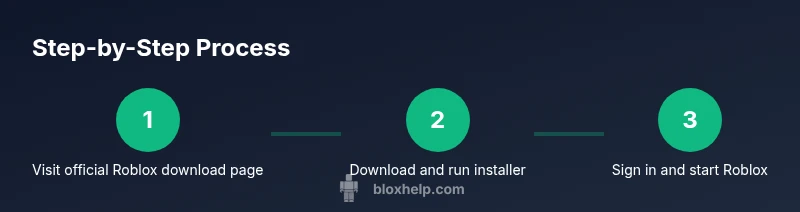
Visit the official Roblox download page
Open your browser and navigate to the official Roblox download page at roblox.com/download to begin the installer. Verify the URL matches the official site before downloading.
Tip: Bookmark the official page to prevent phishing attempts. - 2
Download the Roblox installer
Click the Download button and save the installer to a known folder like Downloads. Do not run executables from untrusted emails or files.
Tip: Save to a dedicated folder and scan for malware before opening. - 3
Run the installer
Locate the downloaded file in your Downloads folder and double-click to start. If Windows prompts for permission, approve to proceed with installation.
Tip: If User Account Control asks, click Yes to continue. - 4
Follow on-screen prompts to install
Let the installer complete; it may install Roblox Player and optionally Roblox Studio. Do not terminate the process.
Tip: Keep the installer window open until the progress reaches 100%. - 5
Sign in or create a Roblox account
After installation, launch Roblox and sign in. If you’re new, create a free account to access games and creator tools.
Tip: Use a strong password and enable account recovery options. - 6
Launch a game or open Roblox Studio
From the Roblox launcher, pick a game to start playing or switch to Roblox Studio to begin building.
Tip: Close other heavy apps to improve performance during first launch.
Questions & Answers
Is Roblox free to download on Windows 10?
Yes, Roblox is free to download and play on Windows 10. Some games offer optional purchases, but the core experience is free.
Roblox is free to download and play on Windows 10, with optional in-game purchases in some games.
Do I need admin rights to install Roblox?
You may be prompted for administrator access during install. This is normal and allows the software to write to system folders.
You might be asked for admin rights during installation. This is normal.
What if the installer is blocked by Windows SmartScreen?
Ensure you’re on the official Roblox site. If blocked, use More info to run the installer after verifying publisher.
If SmartScreen blocks it, confirm it’s the official site and choose to run anyway.
Why is Roblox slow or failing to download?
Check your internet connection, pause other downloads, and retry using the official installer. If problems persist, try another device on the same network.
Check your connection, then retry with the official installer.
Will Roblox run on Windows 10 after installation?
In most cases yes, provided Windows 10 is updated and hardware meets requirements. If issues occur, update drivers and restart.
Most Windows 10 PCs run Roblox after updating.
Can I install Roblox Studio separately?
Roblox Studio is installed via the official installer and can be launched from the Roblox app after login.
Roblox Studio is installed with Roblox and available after login.
Watch Video
The Essentials
- Download from the official site first and verify the URL
- Roblox Player and Studio install via one official installer
- Sign in or create a Roblox account to access games and tools
- Keep Windows and drivers updated for best performance