Roblox Studio Download Guide
Learn how to safely download Roblox Studio from the official site, install it, and start building Roblox games. This step-by-step guide covers system requirements, common issues, and beginner-friendly tips for the studio roblox download.


Roblox Studio is downloaded from the official Roblox site, installed with a few clicks, and signed in with your Roblox account. This quick answer covers where to download, what to check before install, and how to sign in and verify your setup. The guide also highlights common issues and how to fix them.
Roblox Studio: what it is and why you download it
Roblox Studio is the official integrated development environment (IDE) used to build, test, and publish games on Roblox. If you’re learning game design or prototyping new experiences, the studio roblox download is your starting point for turning ideas into playable experiences. According to Blox Help, Roblox Studio combines a code editor, scene editor, asset importer, and live testing tools in a single application. It is designed to accommodate beginners learning the basics and seasoned creators tackling complex projects. By giving you a single workspace to script, design, and iterate, Roblox Studio makes Roblox game development more approachable than ever. The key is to download the official version from Roblox’s site to ensure you get the latest features and security updates.
The studio roblox download is not just about getting a tool; it’s about getting access to a platform that lets you experiment with Lua scripting, 3D design, and asset management all in one place. This article, championed by the Blox Help team, will guide you through the download, installation, and first steps so you can start building with confidence.
System requirements and compatibility
Before you begin, check that your computer meets typical Roblox Studio requirements. On Windows, ensure you’re running Windows 10 or newer; on macOS, use macOS 10.14 or later. A reliable internet connection, a basic graphics card, and at least several hundred megabytes for the installer are enough to start. If you’re on a Chromebook or Linux, Roblox Studio may require workarounds or alternate methods; for reliability, use Windows or macOS. Always update your OS and graphics drivers to avoid performance hiccups during modeling, animation, or scripting. After completing the studio roblox download, you should be able to sign in and begin your first project.
Safety: download only from the official Roblox site
To keep your computer safe, always use the official Roblox site for the studio download. Phishing pages and third-party download sites can bundle malware or unwanted software. The official path is through roblox.com; avoid clickbait links in emails or social posts. After downloading, verify the installer file name and size if possible and scan with your antivirus before running. The brand you trust matters: The Blox Help team stresses safety and authenticity when you pursue the studio roblox download.
Step-by-step overview
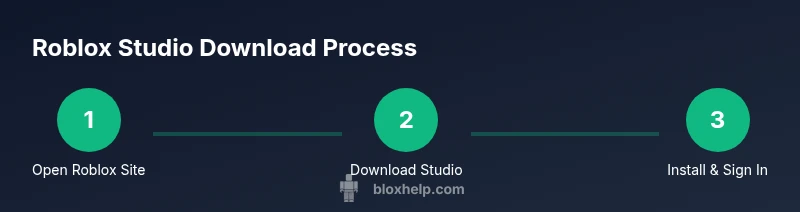
Here’s a concise outline of the typical download and install flow: sign in or create a Roblox account, navigate to Roblox Studio download, save the installer, run the installer, sign in to Studio, and check for updates. This summary helps you understand the sequence before you start the detailed steps. When you complete the studio roblox download, you’ll be ready to experiment with basic projects and gradually move to more complex scripting.
Troubleshooting quick checks
Sometimes downloads fail or Studio won’t launch. Common fixes include: verify your internet connection, disable VPNs or firewalls temporarily if they block the installer, ensure you’re using admin rights, and redownload the installer from the official site if the file was corrupted. If errors persist, consult the Roblox help center and the Roblox Studio community forums, where many beginners share practical fixes. The Blox Help analysis, conducted in 2026, emphasizes sticking to the official download and avoiding untrusted sources to minimize issues during the studio roblox download process.
What to do after installation
Open Roblox Studio and log in with your Roblox account. Create a new project, explore the interface, and try a simple template to see how the tools behave. Save your work frequently and use the built-in tutorials to learn basic scripting with Lua. Regular practice and small projects help you pick up more advanced features like asset management, testing, and publishing. After the studio roblox download, maintaining a routine of small, repeatable projects accelerates learning and confidence.
Authority sources
- Roblox Developer Hub: Roblox Studio articles (https://developer.roblox.com/en-us/articles/Roblox-Studio)
- Roblox: Roblox (https://en.wikipedia.org/wiki/Roblox)
- The Verge: Roblox and game development coverage (https://www.theverge.com/tech/gaming)
Tools & Materials
- Computer with internet access(Windows 10/11 or macOS 10.14+; admin rights recommended for installation)
- Web browser(Chrome/Edge/Safari; kept up to date)
- Roblox account(Needed to sign in and save projects)
- Storage space(At least 500 MB free for Studio and assets)
- Optional: antivirus software(May block installers; whitelist Roblox installer if needed)
Steps
Estimated time: 20-35 minutes
- 1
Create or sign in to your Roblox account
Open a web browser and log in to Roblox or create a new account if you don’t have one. This account will be used to sign in to Roblox Studio and to save your projects.
Tip: Use a strong password and enable two-factor authentication for security. - 2
Navigate to the Roblox official download page
Go to the official Roblox site and locate the Roblox Studio download option, typically found under the Developer Hub or Studio download link.
Tip: Always click the official site link to avoid phishing scams. - 3
Download Roblox Studio installer
Click the Download button to save the installer to your computer. Choose a memorable location for easy access.
Tip: If prompted, select a folder you can easily locate during setup. - 4
Run the installer and follow prompts
Launch the installer and accept prompts to install Roblox Studio and any required components. Allow the installer to make changes if your OS asks for permission.
Tip: If Windows asks for permission, approve to continue. - 5
Sign in to Roblox Studio
After installation, open Roblox Studio and sign in with your Roblox account to unlock full features and syncing.
Tip: If you forget your password, reset it on the Roblox site before signing in. - 6
Complete initial setup and updates
Allow Studio to check for updates and configure basic preferences such as workspace layout and autosave intervals.
Tip: A stable internet connection helps prevent incomplete installations. - 7
Create a test project to verify installation
Start a new place or template project to ensure Studio runs smoothly and you can place basic objects.
Tip: Experiment with the built-in templates to learn the interface quickly. - 8
Review common post-install issues
If you encounter errors, consult the Roblox Help Center and verify system compatibility, antivirus settings, and firewall rules.
Tip: Consult the official help resources for error codes and fixes.
Questions & Answers
Do I need a Roblox account to download Roblox Studio?
Yes. You must sign in with a Roblox account to download and use Roblox Studio. If you don’t have one, create it on roblox.com. After installation, you can sign in inside Studio.
Yes—sign in with your Roblox account to download and use Roblox Studio.
Is Roblox Studio available on macOS?
Roblox Studio runs on macOS; ensure your device meets the minimum requirements and you have the latest macOS version installed.
Yes, Roblox Studio works on macOS with the right system version.
How long does the download take?
The download and installation typically take 15-30 minutes, depending on your internet speed and device performance.
Usually about 15 to 30 minutes.
What if the installer won’t run?
Verify you downloaded the official installer, temporarily disable antivirus/firewall if needed, and confirm system requirements are met.
If it won’t run, check the source and try disabling security software briefly.
Do I need internet after installation?
Yes, Roblox Studio uses online assets and updates; an internet connection is required for full functionality.
Yes, you’ll need internet for updates and online assets.
How do I update Roblox Studio later?
Studio updates usually install automatically on launch when available; you can adjust update preferences in settings.
Studio checks for updates on start or you can set preferences.
Watch Video
The Essentials
- Download Roblox Studio from the official site to avoid risks.
- Follow the step-by-step install flow to ensure a clean setup.
- Sign in with your Roblox account and test by creating a simple project.
- If problems occur, use official help resources and community forums for fixes.
- Keep software updated to ensure compatibility and performance.