Roblox PFP Maker: Step-by-Step Guide to Custom Avatars
Learn how to create standout Roblox profile pictures with a dedicated PFP maker. This guide covers essential tools, step-by-step workflow, export tips, and safety guidelines for crisp, shareable avatars.


Using a roblox pfp maker, you can design a unique profile image by combining a Roblox avatar base, accessories, and backgrounds. Start with the avatar, add hats, shirts, and other items, then tweak lighting and colors. Export as a PNG with transparency for seamless use in your profile. This quick guide covers steps, tools, and best practices.
What is a Roblox PFP Maker and Why Use It
A Roblox PFP Maker is a specialized tool or app that lets you customize a profile picture for Roblox by layering a base avatar with accessories, backgrounds, and visual effects. According to Blox Help, these makers simplify the process of turning a simple avatar into a bold social icon. For players and aspiring creators, a PFP maker provides control over style, color, and composition without needing advanced art software. It also helps maintain a consistent look across platforms and communities, which can improve recognition and engagement. By using presets, you can accelerate your branding while still personalizing key elements like color temperature, contrast, and mood. This approach aligns with the needs of both casual players and DevHub beginners who want quick wins and scalable results.
Key Features of a Good Roblox PFP Maker
A top-tier Roblox PFP Maker should offer a well-integrated avatar base, drag-and-drop accessory layering, and robust color controls. It should include a versatile background library, lighting presets, and real-time previews to avoid guesswork. Export options are essential—PNG with transparency is ideal for seamless overlay onto Roblox profiles or gallery posts. You’ll also want watermarking options for sharing, a saved presets system for consistency, and cross-platform compatibility so you can work on desktop, tablet, or mobile. Based on Blox Help analysis, a strong feature set correlates with faster iteration cycles and higher quality output. The best tools also provide guidance on asset licensing to keep creators compliant with platform rules.
Design Principles for an Effective PFP
Effective PFPs balance visibility and personality. Prioritize high contrast between foreground portrait elements and the background, and keep the focal point near the center or a preferred rule-of-thirds position. Use a limited color palette to avoid clutter, and maintain consistent line weight and shading to achieve a cohesive look across outfits and accessories. Accessibility matters: ensure text or icons are legible against the chosen background, and provide scalable export sizes to accommodate various Roblox interfaces. The goal is a crisp, recognizable image that reads well at thumbnail sizes in feeds and game lobbies.
Building Your Own PFP Maker: The Workflow
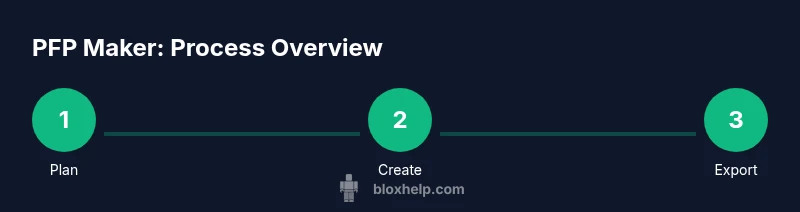
Embarking on a Roblox PFP Maker project requires a clear workflow. Start by defining scope and target audience, then choose a tech stack (web-based or desktop). Build an asset pipeline for avatar bases, clothing layers, and accessories, ensuring licensing is clear. Design an intuitive UI with a live preview pane, color pickers, and layer controls. Implement avatar rendering, lighting, and background compositing, then add an export module that outputs PNG with a transparent or solid background. Test across devices and gather feedback to iterate. The process is iterative by nature, so plan short cycles for user testing and feature refinement to deliver value quickly.
Exporting and Usage Guidelines
Export quality matters. Prefer PNG with transparency to keep overlays clean while preserving color and detail. Provide multiple resolution options (for thumbnails and large banners) and a consistent file naming scheme. Include a versioning system so users can revisit previous looks, and offer a simple copy-to-clipboard link for quick sharing. To maximize compatibility, document recommended export settings and provide sample assets for common Roblox profile contexts (e.g., avatar thumbnails, banner images).
Accessibility, Safety, and Compliance
Accessibility features expand your audience: ensure sufficient color contrast, add alt text for any generated assets used in web contexts, and provide keyboard-accessible controls. Safety matters: avoid including copyrighted or Roblox-restricted assets without permission, and remind users to respect community guidelines in their designs. Compliance means clearly stating licensing terms for all assets and offering opt-outs or licensing checks for shared presets. A responsible approach improves trust and long-term adoption among both players and developers.
Common Mistakes and How to Avoid Them
Common pitfalls include overcomplicating the UI, choosing busy color schemes, and neglecting export transparency. Avoid scaling issues by testing at small avatar sizes; plan a compact design that remains legible when reduced. Don’t skip documenting asset licenses or terms of use for shared presets. Finally, test performance on slower devices to ensure real-time previews remain smooth and accurate.
Tools & Materials
- Computer with reliable internet(Desktop or laptop with a stable connection)
- Graphic design software or web app(Examples: Canva, Figma, GIMP, or equivalent)
- Roblox avatar assets or base models(Legally obtained or provided assets)
- PNG export capability(Ensure transparency option is available)
- Color palette references(Helpful for consistency)
- Screen capture/mockup assets(For tutorials and examples)
Steps
Estimated time: 2-3 hours
- 1
Define target style and features
Outline the look you want: bold cartoon, realistic, or chibi. Decide which accessories and backgrounds will be supported, and set up a simple mood board.
Tip: Write down 3 feature goals before you start. - 2
Gather base assets and framework
Collect a baseline Roblox avatar and a starter set of clothing and accessories. Check licenses and prepare assets in the correct dimensions for prep work.
Tip: Create a named inventory to avoid asset mix-ups. - 3
Sketch layout and palette
Draft a quick layout showing focal point and where the background will sit. Choose a restrained color palette to keep the PFP legible at small sizes.
Tip: Limit to 3-4 primary colors for clarity. - 4
Set up avatar base in maker
Load the avatar base into your design app, align the face or torso as the main focus, and prepare layers for accessories.
Tip: Lock the base layer to prevent accidental edits. - 5
Add accessories and clothing layers
Stack hats, glasses, shirts, and other items. Use layer order to ensure visibility; avoid clutter near the face.
Tip: Test visibility by reducing saturation on the background. - 6
Tune lighting and background
Experiment with light direction and color temperature to make the avatar pop. Try gradients or subtle textures for depth.
Tip: Back up with a neutral or soft gradient background. - 7
Preview and adjust for readability
Zoom to small sizes to verify legibility. Adjust contrast and edge sharpness if needed.
Tip: Keep key details above the 24px scale. - 8
Export and verify transparency
Export a PNG with transparent background and view in a Roblox profile to confirm fidelity.
Tip: Check export at both 512x512 and 1024x1024. - 9
Finalize and document usage
Create a short usage note for users and store presets for future updates.
Tip: Tag assets with licensing terms for easy reference.
Questions & Answers
What is a Roblox PFP Maker and who is it for?
A Roblox PFP Maker is a tool to create custom profile pictures for Roblox by layering avatar bases with accessories and backgrounds. It suits players and aspiring developers who want a personalized, consistent look without advanced art skills.
A Roblox PFP Maker helps you craft a custom profile image by adding layers and backgrounds. It’s great for players and beginner developers who want a unique, consistent style.
Do I need Roblox Studio to create a PFP?
No. A PFP maker typically runs in a web app or desktop tool and uses assets you provide. Roblox Studio is unnecessary unless you’re integrating with game assets directly.
Roblox Studio isn’t required for making profile pictures. Use a dedicated PFP maker or a design app instead.
What export format should I use for Roblox profiles?
Export as PNG with transparency to preserve foreground details when used on Roblox profiles. A solid background PNG can also work if you want a framed look.
Export a PNG with transparency for best results on Roblox profiles.
Can I use Roblox assets in my PFP maker?
Only use assets you have rights to. Respect Roblox’s terms and ensure any third-party assets are licensed for personal or commercial use, as applicable.
Make sure you have rights to all assets and follow Roblox rules.
Are animated PFPs possible for Roblox?
Most Roblox profiles display static images. Some makers support animated previews, but actual profile pictures should be static PNGs for compatibility.
Roblox profile pics are typically static; animation is usually only for previews.
What makes a PFP maker reliable for beginners?
A reliable maker provides a simple UI, clear export options, and presets. It should also offer good documentation and licensing clarity.
Look for simplicity, clear exports, and solid docs.
Watch Video
The Essentials
- Plan design before building
- Keep UI simple and legible
- Export PNG with transparency
- Test across sizes and themes
- Document asset licenses