Roblox Without Microsoft Account: How to Play and Sign In
Learn how to play Roblox without a Microsoft account. Create a Roblox-only login, install the standalone Roblox Player, and play across devices. Includes tips, step-by-step setup, and common troubleshooting.


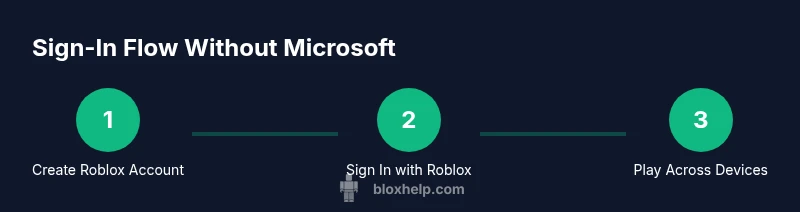
Goal: Play Roblox without a Microsoft account by using a Roblox-only sign-in. Create a Roblox account at roblox.com and sign in on the Roblox website or mobile app. Download the standalone Roblox Player from roblox.com (not the Microsoft Store), then launch games across devices. Xbox play will require a Microsoft account.
Why you might want to play Roblox without a Microsoft account
Many players prefer a Roblox-only login for privacy, easier cross-device access, and to avoid tying their Roblox experience to a Microsoft ecosystem. This approach lets you sign in directly with a Roblox account on web browsers, mobile apps, and the standalone Roblox Player, without needing to sign in with a Microsoft account on Windows. It’s especially helpful if you don’t use Microsoft services or want tighter control over your login credentials. Throughout this guide, we’ll emphasize practical ways to setup and maintain a robust Roblox experience using your Roblox credentials only. When we say "roblox without microsoft account" we mean a Roblox account sign-in that doesn’t require a Microsoft identity for core gameplay on PC and mobile.
Note: Some platforms, like Xbox, inherently rely on a Microsoft account; this guide focuses on PC and mobile workflows.
How sign-in works with Roblox accounts vs Microsoft accounts
Roblox accounts are independent of Microsoft accounts. You create a login on roblox.com or via the Roblox mobile app, then use those credentials to access games on any supported device. Microsoft accounts are typically required for Xbox and some Windows Store experiences, which means cross-platform play on Xbox may still require a Microsoft identity. The distinction matters for players who want to keep their Roblox activity separate from Microsoft services. When you sign in with a Roblox account, your progress, items, and friends list stay tied to Roblox servers rather than an MS account.
If you ever see prompts to sign in with Microsoft on Windows, choose the Roblox sign-in option instead. This keeps your core Roblox identity independent and portable across PC and mobile.
PC setup: playing Roblox without Microsoft account
On a PC, you can avoid the Microsoft Store entirely by using the standalone Roblox Installer from Roblox’s official site. Start by creating a Roblox account on roblox.com, then download the Roblox Player from the same site. Run the installer, sign in with your Roblox credentials, and you’ll be ready to launch games. This method avoids Windows Store authentication, reducing friction for users who don’t want to connect a Microsoft account to their gaming. You’ll access library games through the Roblox client or the web player as needed.
If you’re using a shared computer, consider enabling a strong password on your Roblox account and reviewing device permissions so others can’t sign in with your account on their profiles.
Playing on mobile without a Microsoft account
Roblox mobile apps (iOS and Android) support Roblox-only sign-ins. Install the app from the appropriate store, create or sign in with your Roblox account, and start playing. You’ll enjoy cross-platform progress as long as you remain signed into your Roblox account on each device. Some mobile features may differ slightly from desktop, but the core gameplay remains consistent. Always keep the app updated to ensure compatibility with the latest game versions.
If you have existing Microsoft-related services on your phone, you can still sign in with your Roblox account in the app without linking to Microsoft. This keeps your Roblox experience streamlined and privacy-focused.
Xbox and console considerations
Xbox and some Windows Store experiences commonly require a Microsoft account to sign in. If you plan to play Roblox on Xbox, you will likely need a Microsoft account to access console features and cross-save. For players who want to avoid Microsoft login entirely, PC and mobile access remains viable, while Xbox remains a separate path. If your goal is to stay Microsoft-account-free, focus on PC/mobile play and use the standalone installer on desktop or the mobile app with Roblox sign-in.
Always review platform-specific requirements because policies can change over time. If you need to game on Xbox, prepare a Microsoft account in parallel to maintain access to that ecosystem.
Troubleshooting common issues and security practices
If you encounter sign-in or installation issues, verify you’re using the Roblox credentials (not your Microsoft account) and that your internet connection is stable. Clear cache, reinstall the Roblox Player, and ensure you’re on a supported browser if you’re using the web version. For security, enable 2FA on Roblox when available, and never share your login details. Recognize phishing attempts that imitate Roblox support and never enter credentials on unofficial pages. Keeping your device OS and apps updated reduces compatibility problems.
Safety, privacy, and ongoing maintenance
Maintain safety by using a strong password, enabling 2FA, and reviewing app permissions on mobile devices. Regularly check account activity for unfamiliar devices and sign out from devices you no longer use. Roblox updates may introduce new features or restrictions, so follow official Roblox announcements through their site and trusted sources. With the Roblox-only login, you retain control over your personal data while enjoying cross-device play across supported platforms.
Tools & Materials
- Roblox account(Create on roblox.com; avoid using Microsoft sign-in for core gameplay)
- Device with internet(PC, smartphone, or tablet)
- Web browser or Roblox installer(Download standalone installer from roblox.com (not Microsoft Store))
- Roblox-compatible apps(Mobile apps for iOS/Android if you plan to play on the go)
Steps
Estimated time: 30-60 minutes
- 1
Create a Roblox account on roblox.com
Visit roblox.com and sign up with a valid email. Complete the verification steps and choose a username and password you will remember. This is your independent login, and you’ll use it on all non-Microsoft access points.
Tip: Use a unique password and store it securely in a password manager. - 2
Download the standalone Roblox Installer
From roblox.com, download the Roblox Player installer that does not rely on the Microsoft Store. This ensures your login stays Roblox-only and avoids Windows Store authentication.
Tip: Always download from the official Roblox site to prevent scam installers. - 3
Install the Roblox Player on your device
Run the installer and follow on-screen prompts. Allow any necessary permissions so the game can run smoothly. This step takes only a few minutes depending on your device.
Tip: Close other resource-heavy apps during installation to speed up the process. - 4
Sign in with your Roblox account
Open the Roblox Player and sign in using the Roblox credentials you created. Do not enter Microsoft account information here, as this sign-in is Roblox-specific.
Tip: If you forget your password, use the Roblox password reset flow from the login page. - 5
Launch a game and adjust settings
Browse games, start any title, and adjust graphics and audio settings for your device. Saving preferences helps ensure a smoother experience on replays.
Tip: Set graphics to a balance between performance and visuals based on your device. - 6
Enable 2FA and secure your account
Turn on two-factor authentication (2FA) if available. This adds a layer of security and helps prevent unauthorized access.
Tip: Keep a backup code in a secure location in case you lose access to your authenticator app. - 7
Troubleshoot sign-in issues
If you can’t sign in, check your internet, ensure you’re using Roblox credentials, and verify the time/date on your device. Reinstall the client if needed.
Tip: Clear browser/cache if using web login and ensure you’re not signed in with a Microsoft account by mistake. - 8
Keep accounts separate and maintain cross-device access
Sign in with your Roblox account on each device you want to play from. This preserves your progress and friends list across PC and mobile.
Tip: Regularly review active sessions and devices to maintain control over access.
Questions & Answers
Can I play Roblox on PC without a Microsoft account?
Yes. Create a Roblox account on roblox.com and use the Roblox Player to sign in directly, avoiding Microsoft authentication on PC.
Yes, you can play on PC using Roblox credentials only.
Is Roblox on Xbox possible without a Microsoft account?
Xbox generally requires a Microsoft account to sign in. You can still play Roblox on other devices without MS, but Xbox sign-in uses MS accounts.
Xbox requires a Microsoft account; other platforms don’t.
How do I install Roblox without using Microsoft Store?
Download the standalone Roblox Installer from roblox.com and install the Roblox Player directly, skipping the Microsoft Store entirely.
Get the installer from Roblox's site to avoid the store.
What should I do if I can’t sign in to Roblox?
Check that you’re using your Roblox credentials, verify your internet connection, and try resetting your password if needed. Clearing cache and reinstalling can help on browsers.
Make sure you’re signing in with Roblox, not Microsoft, and retry after a quick reset.
Is my Roblox data safe if I don’t link to Microsoft?
Yes. Roblox keeps your game progress, inventory, and friends on its own servers regardless of Microsoft account linkage.
Your Roblox data stays on Roblox servers when you sign in with Roblox.
Can I use the same Roblox account across multiple devices?
Yes. Sign in with the same Roblox credentials on PC, mobile, or tablet to sync progress and purchases.
Your Roblox account travels across devices when you sign in with the same login.
Watch Video
The Essentials
- Create a Roblox account on roblox.com to stay Microsoft-free.
- Install the standalone Roblox Player from the official site.
- Sign in with Roblox credentials on PC/mobile; Xbox may require MS account.
- Enable 2FA for added security and monitor devices.