What Specs Are Needed for Roblox: A Practical Guide
Discover the minimum and recommended Roblox hardware specs, plus tips for laptops, PCs, and mobile devices. Blox Help analyzes typical setups for smooth gameplay and development in 2026.


Roblox runs on a wide range of devices, but for reliable play and development you should aim higher than the bare minimum. Minimum: a modern dual-core CPU, 4 GB RAM, and an integrated GPU; recommended for smooth fps and Roblox Studio: a quad-core CPU, 8 GB RAM, and a dedicated GPU (or equivalent high-end integrated). On mobile, recent devices with 3-4 GB RAM handle Roblox.
What Roblox Requires Across Platforms
Roblox is engineered to run on a wide spectrum of devices, from modest laptops to high-end desktops and modern mobile phones. When people ask what specs are needed for roblox, they’re really asking how to balance CPU, memory, and graphics to avoid stuttering and long load times. Across platforms, the core recipe is similar: lean the load on your CPU with strong single-thread performance, ensure enough RAM for both the game and any Roblox Studio work, and have graphics capable enough to render scenes at playable frame rates. For gamers who only play Roblox titles, the bare minimum is reachable with recent hardware, but for creators who build and test complex games, you’ll want more headroom. In 2026, most players can expect smooth play on mid-range laptops and desktops, while budget devices may require settings adjustments to maintain stability.
CPU and RAM: The Real Bottlenecks
CPU performance and memory availability are the two biggest levers for Roblox. A modern quad-core processor with solid single-thread performance will handle Roblox titles well, while dual-core CPUs may struggle in busier scenes or during Roblox Studio edits. RAM matters too: 4 GB is the drop-in minimum, but 8 GB or more is highly recommended, especially if you keep multiple tabs or apps open while editing or testing games. If you run into stuttering or frequent texture pop-ins, the first upgrade should be RAM, followed by a look at CPU or GPU bottlenecks depending on your setup. For developers, ensure your workspace leaves headroom for rendering previews and asset imports without throttling.
GPU Considerations for Roblox
Graphics hardware determines how richly scenes render and how smoothly you can edit assets. An integrated GPU is acceptable for basic Roblox play, but a dedicated GPU or a strong modern iGPU greatly improves frame rates and visual fidelity, particularly in larger, more detailed games or when using Roblox Studio’s real-time rendering. If you’re price-conscious, prioritize systems with at least a mid-range GPU or a capable iGPU alongside 8 GB RAM. On mobile, GPUs are fixed by the device, so consider models with newer architectures to ensure stable performance across Roblox titles.
Storage, Network, and Other Considerations
Load times and online play depend on disk speed and network quality, in addition to the main specs. An SSD speeds up world loading, asset streaming, and project exports in Roblox Studio. Network bandwidth and latency influence multiplayer performance and asset downloads. While Roblox is not exceptionally demanding on storage, leaving ample free space helps with texture caching and updates. Don’t neglect a solid Wi-Fi connection or a strong mobile data plan if you’re playing on the go. For creators, keep your project files on an SSD if possible to minimize wait times during iteration cycles.
Roblox Studio vs Roblox Player: Distinctions
Roblox Studio typically requires more RAM and CPU headroom than just playing Roblox, because you’re running editors, asset importers, and render previews in real time. If your goal is to both develop and test frequently, plan for the higher end of the RAM range and consider a processor with extra cores. If you’re primarily gaming, the Roblox Player can be comfortable on mid-range hardware, but you’ll still benefit from avoiding bottlenecks that slow down scene navigation or large tests. Knowing the difference helps you allocate budgets more efficiently.
Laptop vs Desktop: Practical Picks
For beginners, a mid-range laptop with 8 GB RAM and a decent GPU can cover most Roblox experiences and offer portability. For serious development or future-proofing, a desktop with 16 GB RAM, a quad-core CPU, and a dedicated GPU provides ample headroom and easier upgrades. If you’re choosing a laptop, prioritize models with adequate cooling and a fast storage option (SSD). In short, prioritize RAM and CPU performance first, then look at GPU improvements if you plan to run demanding games or heavy Roblox Studio workloads.
How to Check Your Current Specs and Benchmark
Checking your system specs is quick:
- Windows: open Settings > System > About to see CPU and RAM; use Task Manager to check GPU under Performance.
- macOS: click the Apple menu > About This Mac to view CPU and RAM; use Activity Monitor for GPU load.
- Mobile: check Settings > System > About phone for CPU and RAM; ensure you’re on a supported OS version.
Benchmark steps for Roblox-focused testing:
- Run Roblox at your target settings and record frame rates on a stable scene.
- Open Roblox Studio and test a typical project flow, noting any stutters or long load times.
- If fps dips or load times rise, adjust settings or consider upgrading RAM or GPU. This practical approach helps you quantify performance and plan upgrades for future Roblox projects.
Roblox on Mobile: What to Expect
Mobile Roblox is optimized for on-the-go play, but hardware and OS fragmentation means experiences vary by device. A recent device with 3-4 GB RAM can run Roblox smoothly, but high-graphics scenes or complex Roblox Studio-like tasks may be more demanding. If you’re using mobile for development, rely on cloud-based workflows or smaller test projects to stay responsive. Always keep your device's OS updated and free up background apps to maximize available RAM for Roblox.
Future-Proofing Your Setup
Technology evolves, and so do Roblox titles. To future-proof your setup, aim for scalable RAM (8–16 GB or more) and a CPU with strong single-core performance. A GPU that can handle modern rendering tasks for a few years will also help, especially as Roblox introduces more graphically rich experiences and more demanding Studio features. If upgrading, prioritize memory and core performance first, then consider GPU improvements as you broaden your development projects and the size of your games.
Roblox hardware guidelines by platform
| Platform | Recommended CPU | Recommended RAM | Recommended GPU | Storage | OS |
|---|---|---|---|---|---|
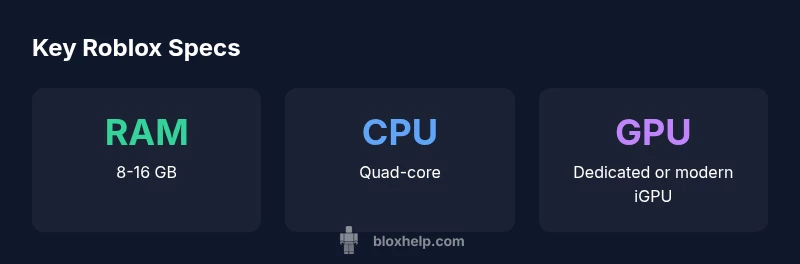
| Windows/macOS | Quad-core CPU (i5-class) | 8-16 GB | Dedicated GPU or modern iGPU | SSD recommended | Windows 10/11, macOS 10.13+ |
| Mobile (iOS/Android) | N/A | 3-4 GB | N/A | N/A | iOS latest/Android latest |
| Chromebook (Chrome OS) | Modern dual-core (ARM/x86) | 4-8 GB | Integrated GPU | Sufficient storage | Chrome OS with Android support |
Questions & Answers
Do I need a dedicated GPU for Roblox?
A dedicated GPU isn’t strictly required for Roblox at lower settings, but it significantly improves frame rates and visual quality, especially in Roblox Studio and heavier titles.
A GPU helps, but you can start with integrated graphics and upgrade later if you want smoother visuals.
Is 4 GB RAM enough for Roblox?
4 GB RAM is the minimum for Roblox, but you’ll experience smoother gameplay with 8 GB or more, especially when running Roblox Studio.
You can run Roblox on 4 GB, but for a smoother experience, 8 GB is recommended.
Do Roblox Studio requirements differ from Roblox Player?
Roblox Studio usually requires more RAM and CPU headroom than the Player, since you’re running editors and real-time previews alongside the game.
Studio needs a bit more power than just playing.
Can Roblox run on Chromebooks or tablets?
Roblox can run on Chrome OS devices with Android app support, but performance varies; tablets and Chromebooks typically perform best with 4 GB RAM or more.
Roblox on Chromebooks is possible, but performance can vary by model.
Should I upgrade RAM or GPU first?
If you’re balancing performance, upgrade RAM first for smoother multitasking and Studio work; upgrade GPU if you want higher frame rates in demanding titles.
RAM first, then GPU for more headroom.
Are there platform-specific notes I should consider?
Windows and macOS follow similar guidelines; mobile platforms rely more on RAM and efficient processors; keep drivers and OS updated for the best Roblox experience.
Keep your device drivers up to date for Roblox.
“In Roblox development and gameplay, balance between CPU speed and memory is key; prioritize single-thread performance and adequate RAM.”
The Essentials
- Prioritize RAM and CPU performance for Roblox play and development
- Aim for 8 GB RAM or more if you plan to use Roblox Studio extensively
- Mobile devices with 3-4 GB RAM can run Roblox well, but complex tasks may be limited
- SSD improves load times and asset handling in Roblox environments
- Regularly check and upgrade your hardware as Roblox titles evolve