How to Download Roblox for Mac: A Complete Guide
Learn how to download Roblox on a Mac with a clear, step-by-step approach. From the official site to launching your first game, this guide covers prerequisites, safety, and troubleshooting.


This guide shows you how to download Roblox on a Mac and start playing fast. You’ll need a Mac with a reasonably recent macOS version, a reliable internet connection, and access to the official Roblox site. By following these steps, you’ll download the installer, run the Mac-specific setup, sign in, and launch your first Roblox game.
Why Mac users download Roblox from the official site
For many Roblox players on macOS, the safest and most reliable method to get started is to download directly from the official Roblox site. This approach minimizes the risk of bundled malware and guarantees that you receive the latest launcher compatible with macOS. According to Blox Help, a lot of frustration can be avoided by sticking to the official channel and verifying the URL before downloading. The Mac download process is streamlined, but it benefits from a little advance preparation and careful navigation of security prompts. Understanding this flow helps new players and aspiring developers install Roblox smoothly without unnecessary detours.
System readiness: prerequisites and compatibility for Roblox on macOS
Before you begin, confirm your Mac is ready for Roblox. You’ll want a relatively recent macOS version and a stable internet connection. Ensure you have enough disk space to accommodate the Roblox launcher and any games you plan to install. You should also be prepared to sign in with a Roblox account once the installer completes. The goal is to minimize interruptions during the installation and avoid security prompts that could derail the download. As a reminder from the Blox Help team, using a secure network and avoiding public Wi-Fi during installation can prevent connectivity issues.
High-level overview of the Mac download process
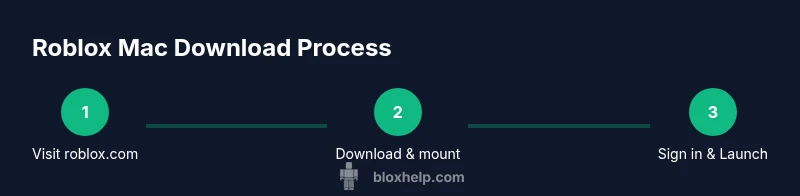
The Mac download flow is straightforward: navigate to the official Roblox site, initiate the download, mount and install the launcher, then sign in and begin playing. This block provides a high-level map so you know what to expect at each stage. You’ll start by visiting roblox.com, click Play to trigger the Mac installer, and then approve the installer in macOS prompts. The final steps involve launching Roblox and selecting a game. This overview helps gamers anticipate where to focus their attention during the install, reducing backtracking and error messages. In practice, most users complete the process within a short session.
Common issues and practical troubleshooting for Mac installations
Installation problems can occur for several reasons, such as security settings blocking unknown apps or a download that didn’t finish cleanly. If you encounter an error, begin by checking macOS Security & Privacy settings to allow apps from Roblox to run. Ensure you downloaded the installer from the official site and that your browser didn’t block the download. If the launcher won’t open, try re-downloading or restarting the browser, then re-running the installer. Community-driven fixes, like clearing cache and restarting the Mac, can also help. This section emphasizes patience and methodical checks rather than guessing at solutions, guided by practical experience shared by the Blox Help Editorial Team.
Performance tips: getting the best Roblox experience on Mac
Once Roblox is installed, you can optimize performance for smoother gameplay. Start by reducing in-game graphics settings if your Mac isn’t handling high fidelity textures well. Close unused apps to free up CPU resources and ensure sufficient RAM is available for Roblox. Keep macOS and Roblox launcher updated to benefit from performance improvements and bug fixes. If you’re using an external monitor, check display scaling settings, as they can impact frame rates. These adjustments are often the difference between a choppy session and a fluid one, especially on older Macs.
Safety and security considerations when downloading Roblox on macOS
Always verify you’re on the official Roblox site before downloading any file. Be cautious of phishing attempts that mimic the Roblox brand and prompt you to enter credentials or payment details. Avoid downloading from third-party mirrors or unsolicited links. Use a reputable network, enable macOS Gatekeeper, and periodically review app permissions to keep your system secure. Remember, protecting your Roblox account credentials is essential—never share login information on untrusted sites.
Advanced tips for developers and power users on macOS
If you’re a developer or power user, you may want to organize Roblox launches across multiple accounts or test different graphic settings. Create a separate user profile on macOS for testing to avoid conflicting settings with your main account. Consider automating routine checks for Roblox launcher updates and keeping a simple note of which settings were most stable for your preferred game genres. These practices help you maintain a smooth workflow while exploring Roblox development and gameplay on macOS.
Final checks before launching Roblox on Mac
Before you run Roblox for the first time, double-check that you completed the installation and that the launcher appears in your Applications folder. Sign in with your Roblox account, accept any required permissions, and perform a quick test by loading a lightweight game to confirm everything works. If you encounter issues, revisit the security prompts and network connection, then try launching again. Achieving a clean start sets the stage for a great Roblox session.
Tools & Materials
- Mac computer (recent macOS version)(Ensure macOS is updated for compatibility)
- Official Roblox download page(Access via a supported web browser on roblox.com)
- Web browser (Safari, Chrome, or Firefox)(Used to download the installer from the official site)
- Roblox account (email & password)(Needed to sign in after installation)
- Sufficient disk space(Space for the installer and games)
- Admin rights to install apps(You may need to approve in System Preferences)
Steps
Estimated time: 20-40 minutes
- 1
Check readiness and prerequisites
Verify you have a Mac with a recent macOS version, a stable internet connection, and admin access. Clear enough disk space and close unnecessary applications to speed up the install. This upfront check prevents interruptions later in the process.
Tip: Close unneeded apps and background processes to free RAM before starting. - 2
Open the official Roblox site
Launch your preferred browser and navigate to the official Roblox site. It’s essential to use roblox.com to avoid malware and ensure you download the legitimate installer. Bookmark the page for easy access during future updates.
Tip: Double-check the URL and look for the green padlock indicating a secure connection. - 3
Trigger the Mac-specific download
Click the Play button on any Roblox game page to start the Mac installer download. The site will prompt you to download a .dmg or similar Mac-specific package. Save the file in your Downloads folder or a known location.
Tip: Only download from roblox.com; beware popups that lead to phishing sites. - 4
Install Roblox launcher on Mac
Open the downloaded disk image and drag Roblox.app to the Applications folder. If macOS prompts you, allow the installer from an unidentified developer or adjust security settings temporarily to complete the install.
Tip: If blocked, go to System Preferences > Security & Privacy and grant access. - 5
Launch Roblox and sign in
Open Roblox from the Applications folder. Sign in with your Roblox account credentials. If you’re new, create an account and verify it as required by Roblox’s onboarding flow.
Tip: Keep your password secure and enable two-factor authentication if available. - 6
Configure basic preferences
Adjust graphics, audio, and control settings to match your Mac’s capabilities. Low graphics may improve performance on older Macs, while higher settings enhance visual quality on newer models.
Tip: Test with a lightweight game first to calibrate performance. - 7
Troubleshoot common issues
If Roblox won’t launch or install, check Security & Privacy settings, ensure the installer was from the official site, and verify network stability. Re-download if the file appears corrupted.
Tip: Always re-download from roblox.com if you suspect a corrupted installer.
Questions & Answers
Can I download Roblox on a Mac without using a browser?
Roblox for Mac is typically downloaded via the official site, which requires a web browser. Be cautious of any third-party downloaders and always verify the URL.
Roblox on Mac is usually downloaded through the official site using a browser; avoid third-party downloaders.
Is Roblox compatible with all Mac models?
Roblox runs on most modern Macs with a supported macOS version. Check your system's requirements and ensure your macOS is up to date for best results.
Most modern Macs work, but you should update macOS for best compatibility.
What should I do if macOS blocks Roblox installer?
Open System Preferences > Security & Privacy and allow apps from Roblox to run. If needed, re-download the installer from roblox.com and try again.
If macOS blocks it, allow Roblox in Security & Privacy and retry the download.
Why won’t Roblox launch after install?
Common causes include blocked permissions, outdated launcher, or login issues. Verify permissions, check for updates, and sign in again.
If Roblox won’t launch, check permissions, update the launcher, and re-sign in.
Do I need admin rights to install Roblox on Mac?
Yes, you may need administrator privileges to install the Roblox launcher on macOS. If prompted, enter admin credentials to continue.
Admin rights are often required to install Roblox on Mac.
How long does it take to download Roblox on Mac?
Download time varies with your internet speed. The entire process—from download to first launch—usually takes a few minutes to a quarter of an hour.
It depends on your connection, but most people complete it in several minutes.
Watch Video
The Essentials
- Download Roblox from the official site to ensure safety
- Sign in with your Roblox account after installing
- Adjust graphics for your Mac to optimize performance
- Resolve macOS security prompts promptly to complete installation