Can You Use Roblox Studio Offline? A Practical Guide
Can Roblox Studio run offline? Learn offline capabilities, setup steps, limitations, and best practices for Roblox development without internet.


Yes, Roblox Studio can run offline to a limited extent. You can edit local projects, write and test scripts, and save changes without an internet connection. However, you still need online access for installation, account login, asset downloads, publishing, and syncing with Roblox services.
Can you use roblox studio offline: an overview
The short answer to can you use roblox studio offline is yes, with important caveats. Roblox Studio is designed to connect to Roblox services when online, but it also supports offline work on local projects. This means you can open a project from your computer, write scripts, organize assets, and run tests in a sandboxed environment without an active internet connection. According to Blox Help, many developers start prototyping ideas offline to iterate quickly before pushing changes online. The offline workflow is especially useful for beginners who want to learn the basics without the pressure of a persistent connection, as well as for creators with spotty internet who still need to practice, refine, or experiment with Lua scripting and game logic. Keep in mind that the offline experience is built around local files and caches rather than real-time Roblox data or live servers.
For most Roblox Studio users, offline capability is a convenience feature rather than a complete replacement for online work. The tools you need to build, test, and save can run locally, but you will rely on an internet connection for downloading new assets, signing in to your account, opening the asset library, and publishing or syncing projects to Roblox.
Offline capabilities and limits
Offline work in Roblox Studio covers several core activities. You can create new places, write Lua code, and run local tests against your own sandboxed environment. You can also save files, export assets, and manage your local project folders without an internet connection. This makes it feasible to prototype ideas, experiment with user interactions, and learn scripting in a distraction-free setting. However, many features require online access. You cannot access the full asset library offline, and you may encounter missing assets if you try to load or reference items that aren’t stored locally. Publishing, collecting analytics, and syncing with your Roblox account are also online-dependent tasks.
From a troubleshooting perspective, offline mode can feel limiting if you rely on real-time collaboration, version control integrated with Roblox’s services, or external APIs. Practically, plan your offline sessions around editing, scripting practice, and local testing, and reserve online time for asset acquisition, publishing, and cloud-backed work.
Prerequisites and setup for offline work
To make the most of offline Roblox Studio work, start with a solid setup. Install Roblox Studio on a computer with adequate storage and a reliable offline workflow. Ensure you run the initial online setup to sign in at least once, download essential assets you’ll need locally, and configure your project folders so you can access them without an internet connection. Create a dedicated offline workspace with clearly labeled folders for scripts, assets, models, and exported builds. Enable autosave and set up a local backup routine to protect your work in case of unexpected disconnects. Blox Help emphasizes that the offline workflow hinges on having a complete local copy of your project and any assets you plan to use, as online assets won’t be immediately available when you’re disconnected.
Step-by-step workflow overview (offline-first approach)
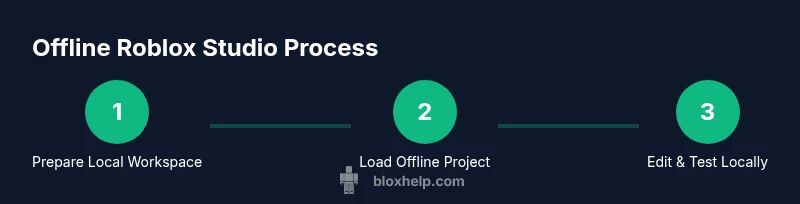
This section outlines a practical offline-first workflow. You’ll find a full, detailed, step-by-step guide in the dedicated STEP-BY-STEP block, but here’s the high-level approach:
- Prepare a clean local project with all assets stored locally.
- Open Roblox Studio while offline and load your project from the local folder.
- Write and test scripts in a controlled, offline environment.
- Save frequently and back up your work to a local drive.
- When online, connect to Roblox, sync changes, and publish updates.
Based on Blox Help analysis, offline prototyping can be a productive way to iterate ideas quickly, then validate them online before sharing with the community.
Common pitfalls and troubleshooting offline sessions
Even with a robust offline setup, you may encounter issues. Missing assets are a common problem when offline; ensure all required assets are stored locally. Path mismatches between your local file system and Roblox studio project folders can lead to missing references. If you run into licensing prompts or asset access errors, perform online verification to refresh credentials or re-download assets. Always keep backups of your local project and keep track of version changes to avoid overwriting work. If you notice that scripts don’t execute as expected, verify that the offline runtime environment is truly isolated from online-only services, and test with a minimal project to isolate the cause.
Tools & Materials
- Roblox Studio(Installed and updated; offline mode ready after first online sign-in)
- Stable local storage(Organize projects and assets in clearly labeled folders)
- Local asset copies(Keep a curated set of assets you’ll need offline)
- Backup medium(External drive or cloud backup for safety)
Steps
Estimated time: 30-60 minutes (offline session), plus online time for publishing
- 1
Verify offline readiness
Confirm Roblox Studio is installed and you can launch it without internet after the initial setup. Prepare a local project folder and ensure all needed assets are stored locally.
Tip: Run a quick offline test with a simple scene before working on a larger project. - 2
Prepare local project files
Copy your project into a dedicated offline workspace and organize assets, scripts, and assets into subfolders. Ensure you have a stable folder structure to prevent missing references.
Tip: Use consistent naming conventions for assets to avoid confusion during offline editing. - 3
Open Roblox Studio offline
Launch Roblox Studio while disconnected from the internet and load the local project from your offline workspace. Verify that scripts compile and run locally.
Tip: If the project won’t load, check that all required assets exist in the local folders and paths are correct. - 4
Edit and test locally
Make changes to scripts and scenes, then test within Studio using local play modes. Save frequently to reduce risk of data loss.
Tip: Enable autosave if available and set a reminder to perform manual saves every 15 minutes during heavy editing. - 5
Manage backups
Create regular backups of your offline project. Keep multiple restore points so you can revert if something breaks offline.
Tip: Store backups in a different drive or cloud folder to guard against drive failures. - 6
Reconnect online for publishing
When you’re ready, connect to the internet to sign in, download any missing online assets, and publish or sync your changes to Roblox.
Tip: Plan publishing steps in advance so you can complete them in a single online session.
Questions & Answers
Can I edit scripts offline in Roblox Studio?
Yes. You can edit and test scripts locally, but some features may require an online connection. Ensure your local files are complete and accessible when offline.
Yes, you can edit scripts offline, but be aware that some features need internet access for full functionality.
Do I need internet to install Roblox Studio?
The initial installation requires internet access. After installation, you can run Roblox Studio offline for local work, but online is needed for updates and logging in.
You must go online to install Roblox Studio, but after that you can work offline for local projects.
Can I publish a project while offline?
Publishing and syncing with Roblox services require an internet connection. You should finish offline work and publish once you’re back online.
Publishing needs internet access, but offline work lets you prepare everything for online publishing.
What are the main offline limitations?
Offline access is limited to local projects and cached assets. The online asset library, real-time data, and collaboration features are unavailable offline.
Offline is great for local editing, but you’ll miss online assets and collaboration features.
How should I organize my offline workflow?
Create a dedicated offline workspace with clear folders for scripts, assets, and builds. Regularly back up local projects and plan online sessions for asset downloads and publishing.
Keep a clean offline workspace and back up frequently; schedule online times for asset updates and publishing.
What should I do if assets are missing offline?
Ensure all needed assets are copied into the local project folder before disconnecting. If something is missing, reconnect online to download it, then continue offline.
If assets are missing, reconnect online to fetch them, then resume offline work.
Watch Video
The Essentials
- Plan offline sessions for editing and testing local projects
- Keep a fully stocked local asset library to avoid online gaps
- Online access is required for installation, login, and publishing
- Regular backups prevent data loss during offline work