How to Make Roblox Animations: Step-by-Step Guide
Learn how to make roblox animations from scratch using Roblox Studio. This step-by-step guide covers planning, rigging, timeline editing, motion curves, and best practices for beginners.


In this guide you’ll learn how to make roblox animations from scratch using Roblox Studio. We’ll cover planning, rigging, keyframes, and playback, so you can create engaging motions for characters and NPCs. By the end you’ll have a repeatable workflow you can reuse for future projects.
Why learning how to make roblox animations matters
If you’re curious about how to make roblox animations, you’re joining a thriving community of creators who bring characters to life in Roblox experiences. Animations are not just about moving joints; they convey personality, emotion, and storytelling. With the right approach, even simple motions can dramatically improve player immersion and gameplay feel. According to Blox Help, mastering a structured animation workflow reduces iteration time and helps you ship polished scenes faster. Whether you’re building a sprinting character, a magical spellcast, or a funny idle pose, the fundamentals stay the same: plan, record, refine, and test in context.
Prerequisites and setup
Before you dive into animation work, ensure you have the essential tools ready. Install Roblox Studio and enable the built-in Animation Editor, which provides a timeline, keyframe controls, and playback preview. Use a basic character rig or a starter model to learn the interface, then upgrade to more sophisticated rigs as you gain confidence. Keep a simple naming convention for animations (e.g., “Character_Wave_01”) to avoid confusion later. A saved project with layers for mechanics like limb motion vs. facial expressions will save you time during iteration.
Key animation concepts you need
To master the craft, you must understand several core ideas. Keyframes mark moments in time where you set a limb’s position or rotation. The timeline lets you arrange these frames to create smooth motion curves. Rigs (or skeletons) define which bones move and how they influence the mesh. In Roblox, Animation objects store keyframes, while Animation Tracks control playback speed and looping. Grasping these basics will make your first project feel approachable rather than overwhelming.
Planning your first Roblox animation
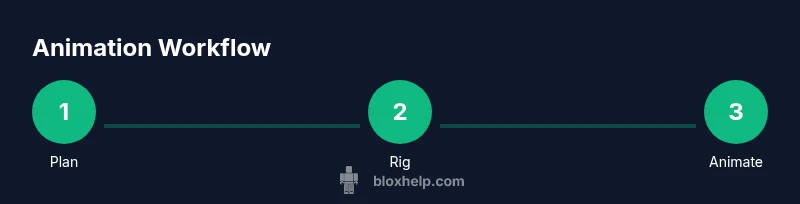
A good animation starts on paper before you touch the screen. Define the pose at key moments (start, peak, and end), estimate duration, and sketch a rough arc of motion. Consider weight and anticipation: a character should nudge before a jump, not snap into it. Break complex actions into smaller segments (idle → wind-up → action → recover) to keep timing consistent and easier to tweak.
Build a simple, practical example
Let’s walk through a basic example: a character wave. Start with a neutral standing pose, then rotate the forearm and hand through the wave cycle. Record keyframes at logical intervals (start, mid-wave, end). Play back frequently and adjust timing to feel natural. This incremental approach helps you validate motion quickly and prevents overcomplication in early experiments.
Best practices and common mistakes
Best practices include keeping animations modular, using clear naming, and testing on target devices to ensure smooth playback. Common mistakes involve over-animating joints, ignoring timing, or failing to blend between actions. Always test transitions between animations to avoid jarring snaps and ensure a cohesive feel across actions.
Troubleshooting and optimization tips
If an animation looks off, check your tween curves and ensure you aren’t exceeding rig limits. Optimize performance by keeping keyframes minimal and avoiding redundant poses. When things go wrong, re-record in smaller segments, verify bone influence, and reset transforms if needed. Regularly save incremental versions so you can compare changes and revert quickly.
Tools & Materials
- Roblox Studio(Install the latest version with Animation Editor enabled)
- Starter Rig or Character Model(Choose a humanoid rig for natural joint movement)
- Animation Editor Toolkit(Use built-in keys, curves, and playback controls)
- A simple storyboard sheet(Plan poses and timing before animating)
- External reference images (optional)(Help guide poses and motion arcs)
Steps
Estimated time: 90-120 minutes
- 1
Open Roblox Studio and load the Animation Editor
Launch Roblox Studio, create a new place or open an existing project, and enable the Animation Editor. This gives you access to the timeline, bone controls, and playback previews for precise motion crafting.
Tip: Use a clean workspace and rename the animation to reflect the action and version. - 2
Select or import a rig for animation
Choose a humanoid rig or import a starter model you intend to animate. Ensure the rig’s bones are properly named to align with the animation tools.
Tip: Verify the rig’s orientation before you start to avoid mirrored or inverted motions. - 3
Create a new Animation asset
In the Animation Editor, create a new Animation asset and set the initial pose as your first keyframe. This establishes the baseline for the rest of the motion.
Tip: Save often under a clear naming convention to track iterations. - 4
Set keyframes along the timeline
Position the timeline markers at meaningful moments (start, peak, end) and adjust bone rotations or translations to capture the desired pose. Add intermediate frames for smoothing.
Tip: Keep the number of keyframes minimal while achieving the desired motion. - 5
Refine motion with curves
Inspect motion curves for each bone and tweak easing to produce natural acceleration and deceleration. Use ease-in and ease-out to mimic real movement.
Tip: Preview frequently at different speeds to catch timing issues early. - 6
Test transitions between animations
If your character has multiple animations (idle, walk, wave), ensure smooth transitions. Adjust transition timings and blend weights to avoid jarring switches.
Tip: Create a short test sequence in-game to verify transitions in context. - 7
Save, export, and document your work
Export the animation as an Asset and document its purpose, duration, and rig requirements. This makes future updates faster and reduces confusion for teammates.
Tip: Keep a changelog for updates and improvements.
Questions & Answers
What is the first step to learn Roblox animation?
Install Roblox Studio, open the Animation Editor, and start with a simple rig. Set your first keyframe with a neutral pose to anchor the animation.
Start with Roblox Studio and the Animation Editor, then set up a simple rig and your first keyframe in a neutral pose.
How long does it typically take to create a basic animation?
A basic animation can take 30 to 60 minutes depending on complexity and iteration. Start with a short 2-3 second motion to learn the workflow.
A basic animation usually takes half an hour to an hour, depending on complexity and how much you refine it.
Do I need external tools for Roblox animations?
Roblox Studio's built-in Animation Editor covers most needs. External tools can help with planning, but the actual animation is created inside Studio.
You can do most of it inside Roblox Studio; external tools are optional for planning.
How can I blend animations for smoother transitions?
Use transition settings and blend weights between animations to create seamless motion. Practice with idle to walk to a gesture sequence.
Adjust transitions and blend weights to make motion flow smoothly between actions.
What are common mistakes beginners make with Roblox animations?
Over-keyframing, ignoring timing, and not testing on target devices. Start with simple motions and test frequently.
Common mistakes include too many keyframes and poor timing; keep it simple and test often.
Where can I find examples to learn from?
Explore Roblox communities and tutorials within Roblox Studio, plus official documentation to see sample animations and best practices.
Look at tutorials in Roblox Studio and official docs for sample animations and tips.
Watch Video
The Essentials
- Plan before you animate and name assets clearly.
- Use keyframes sparingly and refine with easing curves.
- Test transitions for a cohesive motion flow.
- Document changes for easy collaboration.