How to Make a Shirt in Roblox: A Step-by-Step Guide
Learn how to make a shirt in Roblox—from texture design to upload and testing. This beginner-friendly guide covers templates, UV mapping, and publishing tips to help you create wearable assets.


You will learn how to design and publish a Roblox shirt using Roblox Studio and the Clothing Creator, covering texture mapping, UVs, shirt templates, and uploading permissions. By the end, you'll have a wearable asset ready for testing in-game, plus tips for naming, pricing, and sharing with friends. No coding required.
Understanding Roblox shirts: anatomy, templates, and constraints
In Roblox, a shirt is a wearable asset that uses textures mapped onto a standard template. The process combines 2D texture design with 3D UV mapping to ensure the graphic lines up with the model when worn by a Roblox avatar. When you make a shirt, you’re effectively creating a skin for the upper body, which Roblox players can buy or wear in-game. The key to success is keeping the texture within the safe area, respecting the template’s seams, and testing the final look in various lighting. According to Blox Help, beginners should start with clean textures, a simple color palette, and accurate seam alignment to avoid awkward stretching. This foundation helps you make a shirt in roblox that scales well across different avatar shapes and outfits.
Tools you will need to start: Roblox Studio, Clothing Creator, and image editing software
Before you begin, assemble the essentials. Roblox Studio is where you draft and test, the Clothing Creator handles the upload, and a graphics editor (like Photoshop, GIMP, or a pixel editor) lets you design the texture. You’ll also want a few handy templates or reference images showing the shirt panels and seams. Having a reliable color palette, known-safe fonts, and a few test textures will speed up iteration. The Blox Help team recommends setting up a dedicated project folder to keep assets, textures, and version history organized for quick revisions and clean uploads.
Designing textures: from concept to UV mapping
Designing a Roblox shirt texture starts with a concept sketch. Think about character style, color harmony, and how the graphic will wrap around the torso. You’ll map your 2D artwork onto a 3D shirt using the standard Roblox template. This means accounting for the chest, back, sleeves, and shoulder seams. Work in layers and use transparent regions for cutouts or subtle shading. Pay attention to how patterns repeat at the edges and how the seam lines align with the ARMS and torso. The texture must stay within the safe area to avoid clipping during animation. A well-planned UV map reduces distortion and keeps your design crisp across sizes.
Creating the shirt template: template selection and seam awareness
Choosing the right template is essential. Roblox provides or publishes standard shirt templates that correspond to the in-game model. Your job is to position artwork so edges meet at natural seams, especially across the shoulders and chest. Start with a flat, square texture canvas, then overlay the template’s panel outlines to guide your design. If you plan symmetrical patterns, design one half and mirror it to the other to ensure balance. Remember to keep key visuals away from edges where they could wrap and distort when applied to the 3D model.
Applying textures to the template: export and check proportions
Once your texture is designed, export the image in a Roblox-compatible format (usually PNG). Import the texture into Roblox Studio or the Clothing Creator and apply it to the shirt template. Inspect the result on a neutral avatar in both light and shadow environments to catch color shifts or edge artifacts. It’s common to adjust contrast or brightness after initial application to ensure the graphic reads well in-game. If you notice seams or stretching, revisit the UV map and adjust the art placement. This iterative process helps you achieve a cleaner final product for make a shirt in roblox.
Uploading, testing, and iterating: from draft to wearable asset
With your texture prepared, you’ll upload the shirt via the Clothing Creator. Set a descriptive name and a clear description, then add tags so players can discover it. After uploading, test the shirt on multiple avatars and in different games to confirm compatibility. Watch for clipping, color fading, or misalignment during movement. Iterate on the texture until the asset behaves reliably in various contexts. As you gain experience, you can refine your workflow, batch-create textures, and publish a small collection.
Publishing strategy: licensing, ownership, and community sharing
Publishing isn’t just about getting on sale; it’s about setting expectations and community trust. Define whether your shirt is free to wear or requires Robux, specify usage rights in the description, and respect Roblox’s asset policies. Consider creating a consistent naming convention and a small portfolio of shirts to build recognition. Engage with players by collecting feedback through comments and updates. The Blox Help team notes that a transparent description, clear licensing, and prompt updates improve visibility and trust within the Roblox creator community.
Common pitfalls and how to fix them
Even seasoned creators run into issues. Common problems include texture distortion near seams, misaligned edges after resizing, and inconsistent lighting in-game. Fixing these often means reworking the UV map, re-exporting textures with proper color profiles, and testing across avatar variants. Always start with a simple design to validate the pipeline before adding complexity. A robust workflow reduces frustration and increases the likelihood your shirt will be well-received by players.
Advanced tips: optimizing for discoverability and quality
To stand out, optimize both the asset and its presentation. Use cohesive color palettes, test your shirt in different outfits, and create a few variations to cover common styles. Add high-quality preview images and short gameplay clips to demonstrate how the shirt looks in motion. Consider collaborating with other creators to expand your reach. Remember to follow Roblox’s guidelines for asset quality and community standards to avoid removals or restrictions.
Quick recap: continuing your Roblox shirt journey
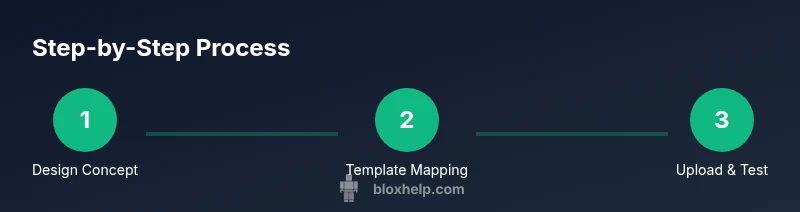
Now you know the core steps to make a shirt in Roblox, from design to upload and testing. Practice by creating a small batch of designs, seek feedback, and refine your workflow. With time, you’ll build a growing library of wearable assets that enhance your Roblox avatar collection and showcase your creativity.
Tools & Materials
- Roblox Studio(Used for drafting and testing the shirt on avatars)
- Clothing Creator(Required to upload and publish the shirt)
- Image editor (e.g., Photoshop, GIMP, or Pixel Studio)(For creating and editing the texture map)
- Roblox asset textures template(Use the standard shirt template for accurate mapping)
- PNG texture file(Export texture at high quality (no compression artifacts))
- Reliable internet connection(For uploading assets and testing online)
Steps
Estimated time: 2-4 hours
- 1
Set up your Roblox Studio project
Open Roblox Studio and create a new project. Organize a dedicated folder for your shirt texture assets, templates, and export copies. This keeps iteration clean and makes it easy to revert to earlier versions if needed.
Tip: Create a dedicated UV grid layer to align textures before painting. - 2
Choose or prepare the shirt template
Select the standard shirt template that matches Roblox's avatar model. Review seams and panel layout, and note where the chest and sleeves will align during wear. This ensures your texture maps cleanly to the 3D model.
Tip: Plan around seam areas to minimize visible distortion. - 3
Design the texture in your editor
Draw or import your design onto the template in your editor. Work in layers, keep the safe area clear, and periodically toggle visibility to preview how it reads on a 3D avatar. Save a high-resolution PNG for export.
Tip: Use a restrained color palette to keep textures crisp at in-game sizes. - 4
Export and import into Roblox Studio
Export the texture as PNG and import it into Roblox Studio or Clothing Creator. Apply the texture to the shirt template and inspect how it maps on the model from all angles.
Tip: If edges seam or warp, adjust the UV placements before re-export. - 5
Test on avatars and refine
Test the shirt on multiple avatar shapes and in different lighting. Note any color shifts, stretching, or clipping and tweak accordingly. Re-upload revised textures after confirming edits.
Tip: Use print statements or side-by-side comparisons to quantify distortions. - 6
Publish via Clothing Creator
Upload your final texture through Clothing Creator with a clear name and description. Add relevant tags to improve discovery and set licensing terms in the description.
Tip: Keep the description honest about usage rights to avoid confusion. - 7
Monitor feedback and iterate
After publishing, monitor user feedback and performance metrics. Prepare a few updated iterations based on comments to improve visuals or compatibility.
Tip: Regular updates keep your shirt relevant in a growing collection.
Questions & Answers
Do I need to know Roblox scripting to make a shirt?
No, making a shirt primarily involves texture design and correct mapping to the template. Scripting may be useful for dynamic features, but is not required for a basic clothing item.
No scripting is required for a simple shirt. You can design and upload using textures and templates.
What file format should I use for textures?
Export textures as PNG files to preserve quality and transparency if needed. PNG is supported by Roblox for clothing assets.
Use PNG textures to ensure quality and compatibility.
How can I test my shirt before publishing?
Test by applying the texture to the shirt template in Roblox Studio and simulating wear on different avatars under various lighting. Iterate based on the results.
Test the shirt in Roblox Studio on multiple avatars before publishing.
Can I publish a shirt for free or for Robux?
Roblox shirts can be set as free or priced in Robux. Choose the option that aligns with your goals and update your asset description accordingly.
Decide whether your shirt will be free or sold for Robux, and describe it clearly.
What common mistakes should I avoid?
Avoid placing important visuals near template edges, ensure UV mapping is clean, and test across avatars to prevent distortion.
Avoid edge clipping, ensure clean UV mapping, and test with different avatars.
Watch Video
The Essentials
- Design with seams in mind to avoid distortion
- Test across avatars and lighting before publishing
- Document licensing and provide clear descriptions
- Iterate designs based on player feedback