How to Make a T Shirt on Roblox: Step-by-Step Guide
Learn how to make a T shirt on Roblox—from texture design to uploading and testing. This beginner-friendly guide covers tools, steps, tips, and publishing best practices to share your shirt with the Roblox community.


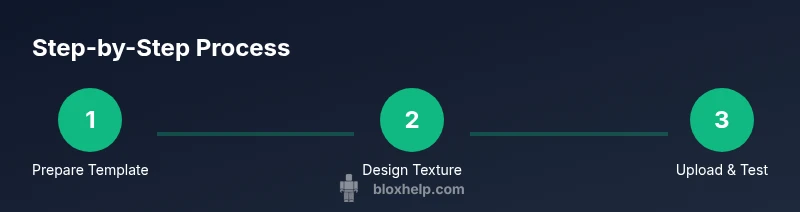
You’ll make a Roblox T-shirt by designing a texture with the official template, saving it as a PNG, uploading it in Roblox Create, and testing it on your avatar before publishing. This guide covers setup, step-by-step actions, safety tips, and best practices so you can share your design with friends.
What is a Roblox T-shirt and why you might design one
Roblox T-shirts are texture-based garments you apply to your avatar to customize appearance. They let players express personal style and share ideas with friends across the platform. According to Blox Help, designing a Roblox T-shirt is a practical, beginner-friendly project that teaches core texture-mapping concepts and 2D-to-3D workflow. If you’re exploring "how to make t shirt on roblox", this section sets the stage by explaining what a shirt texture is and how it wraps around the torso. You’ll learn why shirts matter—from aesthetics to social signaling—and how a simple design can become a signature look in your Roblox world.
- Visualizing your shirt as a wrapped texture helps you plan where the front, back, and sleeves will land on the avatar.
- Start with a simple design to test alignment before adding complex details.
- As you gain confidence, you can experiment with color palettes, patterns, and branding while staying within community guidelines.
Roblox shirt design ethics and policies
Before you begin crafting a texture, understand what is permitted on Roblox. User-generated clothing must comply with the platform’s terms, avoiding copyrighted logos and restricted content. This means you should own the artwork or have explicit permission to use any imagery. Also, ensure your design is appropriate for all ages and aligns with Roblox’s community standards. If you’ve ever wondered about the broader policy implications, this is where you learn how to keep your shirt design compliant while still expressing creativity. The guidance here helps you avoid common pitfalls that can lead to content removal or account issues. Keep notes of what’s allowed and what isn’t so you can iterate confidently without risking your account.
- Use original art or properly licensed assets.
- Avoid logos, brand marks, or trademarked characters unless you have rights.
- Review Roblox’s current guidelines periodically as policies can evolve.
Tools and materials you’ll need
Before you start designing, assemble a small kit of essentials. You’ll need a Roblox account, a computer or tablet with internet access, a 2D image editor (like Photoshop, GIMP, or Krita), and the official Roblox shirt template (PNG). Have a backup copy of your design and a test avatar ready in a private server or Studio for testing. Optional: a sketch pad or reference artwork to map your ideas. This setup keeps things smooth and avoids last-minute scrambles. Remember, a clean workflow reduces iteration time and helps you deliver a polished product.
- Roblox account (active and in good standing)
- Computer or tablet with internet access
- 2D image editor (free options work well)
- Official Roblox shirt template (PNG)
- Final PNG export of your design
- Private test avatar for quick checks
- Optional references for planning and mood boards
Design considerations: colors, seams, and textures
Your shirt texture should balance visibility, color blocking, and alignment with the avatar’s 3D wrap. Consider how seams appear on the torso and sleeves—textures that align with the template look best when viewed from multiple angles. Use high-contrast colors for readability on different backgrounds and ensure legibility of any text or logos. If you’re a beginner, start with a bold, simple motif and then add details as you gain confidence. According to Blox Help, starting with clean shapes and consistent line weights improves the final look, especially for players who view shirts at different distances.
- Test color palettes on both light and dark skins for contrast.
- Keep important elements away from seam lines.
- Use vector-like shapes or crisp raster edges to maintain sharpness when scaled.
- Save iterations frequently to compare changes over time.
Step-by-step concept overview: planning, sketches, and the template
A solid design begins with planning. Sketch a rough idea of your shirt's front, back, and sleeves, then map it onto the template to ensure proper alignment. Decide whether you’ll include initials, a logo, or a seasonal motif. This stage sets concrete goals for what your final texture should achieve and helps you avoid wasted edits later. If you’re wondering how to make t shirt on roblox efficiently, stick to a few focal elements and maintain symmetry where appropriate. The template is your guide for proportion and wrap, so keep your artwork within those boundaries.
- Create a simple layout: center front motif, supporting back and sleeve accents.
- Plan colors and contrast to ensure visibility in-game lighting.
- Keep text legible and avoid tiny details that don’t scale well.
Uploading the texture to Roblox: a practical guide
With your PNG ready, head to Roblox Studio or the Roblox Creator Portal to upload the texture as a T-shirt. The process involves selecting Clothing or T-Shirts from the Create menu, choosing your PNG, and confirming the upload. After the file is uploaded, metadata like the shirt name and description should be added to help other players understand the design. This is where you verify that your texture maps correctly to the template and aligns with the torso area. If something looks off, you’ll need to adjust the image and re-upload. The upload step is straightforward, but precise naming and tagging can improve discoverability in the Roblox marketplace.
- Navigate to Create > Shirts (or T-Shirts) and upload your PNG.
- Confirm that the texture appears correctly on the template preview.
- Name your shirt clearly and add a short description for buyers or testers.
Testing on your avatar and iterating
Testing is the heart of the process. Apply the shirt to a test avatar in Roblox Studio or a private server to check front, back, and sleeve views in different poses. Look for stretching, seam misalignment, or color bleed around edges. If issues appear, go back to your editor, adjust the texture, and re-upload. Repeating tests helps you refine detail placement and overall balance. Remember, rapid iteration speeds up learning and yields a more polished final product.
- Check front, back, and sleeves across various poses.
- Verify edge seams and border lines stay aligned during movement.
- Iterate quickly with small design tweaks to minimize rework.
Publishing, pricing, and sharing your shirt design
After you’re satisfied with the test results, publish the shirt to Roblox. Decide whether to offer it for free or set a price; consider your audience and goals. Write a concise description highlighting its design elements and intended vibe. Share your shirt in groups or with friends to gather feedback and gauge interest. Publishing is not the end—continue monitoring reactions, updating visuals if needed, and responding to feedback to improve future designs. The most successful creators balance aesthetics with accessibility and community engagement.
- Set an appropriate price or choose free access.
- Write a clear, engaging description.
- Promote the design in groups and on social channels.
Common mistakes and how to fix them
Many new designers stumble on alignment, color choices, and file preparation. Common issues include seams wobbling, colors appearing dull in-game lighting, and oversized elements that shrink awkwardly with motion. Based on Blox Help analysis, simple, clean designs with careful alignment tend to perform better than busy compositions. To fix mistakes, re-open the template, simplify shapes, test under game lighting, and re-upload after adjustments. Keeping a consistent workflow also helps you avoid repetitive errors in future projects.
- Mistake: heavy textures that blur under lighting. Fix: simplify shapes and contrast.
- Mistake: misaligned seams. Fix: re-check template alignment in your editor.
- Mistake: unclear naming. Fix: rename files logically and document changes.
Inspiration, next steps, and brand guidance
Designing Roblox apparel is a dynamic skill that improves with practice and experimentation. Explore community shirts for inspiration, then create variations that reflect your personal style or a specific theme. The Blox Help team recommends starting with basic designs, testing rigorously, and iterating based on feedback. As you grow, you can expand into multi-color palettes, seasonal collections, or unique branding logos that respect copyright rules while showcasing your creativity. Use each shirt as a learning project, and share your progress with friends to get constructive input.
Tools & Materials
- Roblox account(Active account with access to Create or Developer Hub)
- Computer or tablet with internet(Stable connection for uploading and testing)
- 2D image editor(Photoshop, GIMP, Krita, etc.)
- Official Roblox shirt template (PNG)(Download from Roblox Developer Hub)
- Final PNG export of design(Ensure it matches template wrap rules)
- Test avatar in Roblox Studio/private server(Helpful for early testing)
- Sketches or reference art(Optional planning aids)
Steps
Estimated time: 45-60 minutes
- 1
Download the template
Go to Roblox’s template hub and download the official shirt template as a PNG. Open it in your editor to see where front/back and sleeve areas map on the 3D torso.
Tip: Save a copy of the original template before editing to preserve a clean baseline. - 2
Plan your design
Sketch a simple concept on paper or digitally. Decide where the main motif will land on the front and what back or sleeve details you want. Keeping balance and readability in mind helps the final texture look sharp in-game.
Tip: Limit complex details in early iterations; bold shapes read better at in-game sizes. - 3
Create your texture
Design directly on the template or on a separate layer that you later merge into the template. Ensure lines stay crisp and colors have sufficient contrast against common in-game lighting.
Tip: Use separate layers for foreground, shading, and outlines to simplify revisions. - 4
Export as PNG
Export the finished texture as a PNG with transparency preserved if needed. Check file size to stay within Roblox limits and preserve image quality.
Tip: Name the file clearly, e.g., yourName_shirt_v1.png, to keep versions organized. - 5
Upload to Roblox
Open Roblox Creator or Studio, choose Shirts/T-Shirts, and upload your PNG. Fill in the product name and description that reflect the design. Verify the texture maps correctly on your avatar.
Tip: Double-check alignment using the template preview before finalizing. - 6
Test on an avatar
Apply the shirt to a test avatar in a private server or Studio to confirm front, back, and sleeve alignment in different poses.
Tip: Look for seam gaps or color bleed and adjust accordingly. - 7
Publish and monitor
Publish the shirt to your catalog or group, set pricing, and share with friends for feedback. Track replies and plan refinements for future shirts.
Tip: Engage with commenters to build interest and improve future designs. - 8
Iterate based on feedback
Use feedback to refine your texture, update the PNG, and re-upload as needed. Consistent iteration is key to higher quality shirts over time.
Tip: Keep versions organized to avoid overwriting your best work.
Questions & Answers
Do I need a Roblox Premium or special permissions to upload shirts?
Uploading clothing generally requires an active Roblox account with access to the Create or Developer Hub features. Some creators may face eligibility checks or community guidelines requirements. Check the latest Roblox documentation for current prerequisites.
You usually need an active Roblox account with the proper permissions in the Create area; confirm current requirements in Roblox's official docs.
Can I use copyrighted art or logos in my shirt?
No. Use original artwork or assets you have rights to. Roblox policies prohibit trademarked content unless you have explicit permission. This protects both you and the community from legal issues.
Use original art or assets you have rights to; avoid copyrighted logos unless you have permission.
What resolution or file type should I use for the shirt texture?
Export your design as a PNG file using the official shirt template. Keep the image at a clean, balanced resolution so it looks good in-game across lighting conditions.
Export as PNG using the template; ensure the resolution preserves clarity in Roblox lighting.
How do I test my shirt before publishing?
Test on a private server or in Roblox Studio with a test avatar. Check alignment, seams, and colors from multiple angles to ensure a high-quality result.
Test on a private server or Studio to check the look from all angles.
How can I price or share my shirt?
You can set a price or offer it for free depending on your goals. Include clear product descriptions and tag your shirt for discovery within Roblox groups or the catalog.
Decide if you want it free or paid, and describe it clearly for buyers.
Where can I find the official shirt template?
The official shirt template is provided by Roblox in the Create/Developer Hub. Use it as the base for your design and ensure it aligns with the torso wrap.
Find the template in Roblox’s Create or Developer Hub and start from there.
Watch Video
The Essentials
- Design with the template in mind to ensure proper wrap
- Test on avatar early and iterate quickly
- Keep assets original or legally licensed
- Use clear naming and versioning for assets
- Publish thoughtfully and gather community feedback