Can Roblox Use GPU Instead of CPU? A Practical Guide
Discover whether Roblox can use your GPU instead of the CPU and learn practical steps to optimize drivers, OS settings, and in-game options for smoother Roblox gameplay.


The short answer is that Roblox relies on the GPU for rendering, while the CPU handles game logic and scripting. You can’t toggle a universal GPU-for- Roblox switch, but you can influence usage by keeping drivers current, configuring OS GPU preferences, and adjusting Roblox’s graphics settings. With these steps, you’ll typically see smoother visuals and steadier FPS, especially on mid-range PCs.
Why the question matters: can you make roblox use gpu instead of cpu
In practice, the exact split between CPU and GPU work in Roblox depends on your hardware, driver version, and Roblox’s rendering pipeline. Roblox does not offer a single toggle to force GPU-only rendering. However, you can nudge the system toward using the GPU more consistently by keeping software current, configuring the OS, and tuning in-game graphics. This means smoother frames and fewer stutters during fast-paced scenes or large scenes with many textures.
For players on laptops or desktops across Windows, Mac, and mobile, the core concept remains the same: GPU-accelerated rendering handles frames, while the CPU processes scripts, physics, and logic. You can optimize the balance so the GPU shoulders more of the rendering load, which often translates into better visuals and steadier performance, especially in graphically intense Roblox games.
What affects GPU utilization in Roblox
GPU utilization depends on several interacting factors: the complexity of the scene (textures, lighting, shadows), the quality of the assets, driver optimizations, and how Roblox issues rendering calls to the GPU. If you’re seeing low FPS, stuttering, or inconsistent frame times, it’s usually a mix of rendering demands and thermal limits rather than a single setting that flips GPU usage on or off. This means you’ll get the best results by targeting several levers at once rather than chasing a magic switch.
The OS/driver layer matters
Operating system GPU preferences and driver configurations strongly influence whether Roblox uses the GPU consistently. Windows, macOS, and mobile platforms expose different options for assigning preferred processors or rendering paths. Keeping drivers up-to-date and correctly assigning Roblox to your high-performance GPU is one of the most reliable ways to move the needle without changing the core game logic. This is a practical reality for can you make roblox use gpu instead of cpu, because the OS can nudge the game toward the GPU when available.
Practical impact: what you can expect
Most players notice smoother textures, fewer frame-time spikes, and more consistent frame rates when the GPU handles rendering-heavy scenes. The extent of improvement varies by title and scene complexity. In lighter Roblox games, the FPS gain may be modest, but in visually demanding experiences, you’ll experience noticeably smoother gameplay and less CPU bottleneck, particularly on mid-range GPUs. The key is to approach optimization in small, verifiable steps.
What to do next
Arming yourself with up-to-date drivers, targeted GPU assignments, and calibrated in-game graphics settings provides a repeatable path to better Roblox visuals. If you want to maximize GPU utilization without sacrificing stability, combine OS-level tweaks with Roblox graphics tuning and monitor the results using simple tools. This approach aligns with best practices for can you make roblox use gpu instead of cpu and helps you achieve a more responsive Roblox experience.
Tools & Materials
- Windows PC or Mac with Roblox installed(Ensure you meet minimum system requirements and have admin access for driver changes.)
- Dedicated GPU (NVIDIA/AMD/Intel)(A reasonably modern dedicated GPU will offer the most benefit for rendering.)
- Latest GPU drivers(Update from the official NVIDIA/AMD/Intel websites before changing settings.)
- Windows Graphics settings access(Know how to add RobloxLauncher.exe to per-app GPU preferences (Windows).)
- Roblox Launcher/RobloxPlayer(Keep Roblox up to date with the latest build.)
- Power plan set to High Performance(This helps ensure the GPU isn’t throttled by power-saving settings.)
- Tools to monitor GPU usage(Task Manager, MSI Afterburner, or GPU-Z for verification.)
Steps
Estimated time: 20-40 minutes
- 1
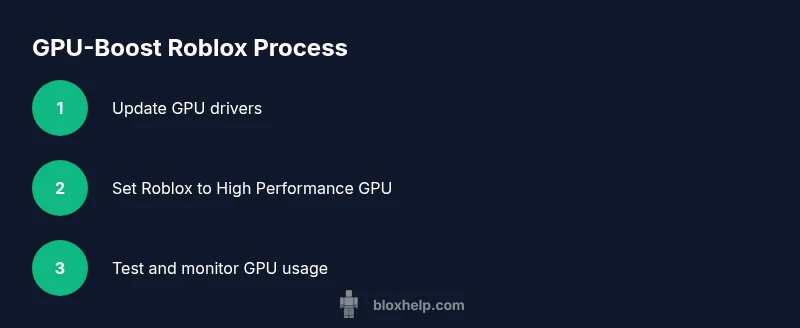
Update GPU drivers
Visit the GPU vendor’s site and install the latest stable drivers for your model. After installation, reboot your PC to ensure all new components are loaded correctly.
Tip: A clean reboot helps the new driver take effect and avoids stale pipelines. - 2
Set Roblox to use high-performance GPU via Windows graphics settings
Open Windows Settings > System > Display > Graphics settings. Add RobloxLauncher.exe and set it to High performance. This instructs Windows to prefer your dedicated GPU when Roblox runs.
Tip: If you don’t see RobloxLauncher.exe, browse to the Roblox installation folder and select the executable. - 3
Configure GPU control panel for Roblox
Open your NVIDIA Control Panel or AMD Radeon Settings. In Program Settings, select RobloxLauncher.exe and choose the High-performance GPU. This ensures the dedicated GPU handles rendering rather than the integrated option.
Tip: Apply changes and restart Roblox to apply the new GPU assignment. - 4
Adjust Windows power plan to High Performance
Open Control Panel > Hardware and Sound > Power Options, and select High performance. This reduces CPU throttling and maintains steady power for the GPU to render consistently.
Tip: On laptops, ensure you’re plugged in to prevent aggressive power-saving throttling. - 5
Tune Roblox in-game graphics for GPU efficiency
In Roblox, set Graphics Quality to High or Automatic, disable ultra-heavy effects if needed, and adjust texture/shadow settings to reduce peak GPU load without sacrificing playability.
Tip: Test both High and Auto modes to find the best balance for your setup. - 6
Monitor GPU usage during play
Launch Task Manager (Ctrl+Shift+Esc) and check the GPU column during gameplay. Alternatively, use MSI Afterburner or GPU-Z to observe memory bandwidth and clock speeds.
Tip: Look for sustained GPU usage above 60-70% during intensive scenes for confirmation. - 7
Address overheating or throttling
If temperatures rise, pause to cool the system, improve airflow, or reduce in-game settings. Prolonged overheating can throttle performance even if GPU is active.
Tip: Clean fans and ensure vents aren’t blocked for optimal cooling. - 8
Platform-specific notes
On macOS or mobile devices, the GPU usage model differs and may not allow the same per-app settings. In those cases, rely more on in-game graphics options and device performance.
Tip: Check platform-specific guides for best practices on those devices. - 9
Test, compare, and decide on upgrades
Play multiple Roblox games to compare FPS and stability before and after changes. If improvement is modest, consider hardware upgrades for longer-term gains.
Tip: Document FPS and latency to track progress over time.
Questions & Answers
Can Roblox truly use only the GPU instead of the CPU?
No. Roblox uses the GPU for rendering and the CPU for logic and scripting. You can’t force GPU-only mode, but you can optimize both OS and in-game settings to shift more work to the GPU and improve visuals.
Roblox relies on the GPU for rendering while the CPU handles logic; you can’t switch to GPU-only mode, but you can optimize to favor the GPU.
How can I tell if Roblox is using the GPU during play?
Open Task Manager and view the GPU engine or usage column while Roblox runs. You can also use tools like MSI Afterburner or GPU-Z to monitor clock speeds and memory usage.
Check the GPU tab in Task Manager or use GPU monitoring tools to confirm GPU activity during gameplay.
Does Roblox on Mac or mobile behave differently regarding GPU usage?
Yes. macOS and mobile devices use their own rendering paths and may not expose the same per-app GPU controls as Windows. In these platforms, rely more on in-game graphics settings and device optimizations.
On Mac and mobile, GPU handling varies by platform, so use platform-specific tweaks and in-game options instead.
Why is Roblox still laggy after optimization?
Lag can come from CPU bottlenecks, networking, or VRAM limits, not just GPU capability. Optimize both graphics settings and network conditions, and ensure your CPU and RAM meet or exceed game requirements.
Lag can be from CPU or network issues as well as GPU; check all angles and test incrementally.
Is there a Roblox setting to enable GPU acceleration directly in-game?
There isn’t a universal in-game toggle to force GPU acceleration. Use OS-level GPU preferences and driver settings in combination with Roblox graphics options for best results.
There’s no direct in-game switch; you’ll want OS and driver tweaks plus Roblox graphics tweaks.
Will enabling GPU usage affect battery life on laptops?
Yes. Using the GPU more intensively increases power consumption and can reduce battery life. Plug in when gaming and optimize graphics to balance FPS and duration.
GPU use drains battery faster, so stay plugged in when possible and adjust settings to preserve life.
Watch Video
The Essentials
- Update GPU drivers before tweaking settings
- Assign Roblox to the dedicated GPU via OS and GPU control panels
- Balance in-game graphics with GPU capacity to maximize FPS
- Monitor GPU usage to validate improvements while avoiding overheating