Roblox & Minecraft on Chromebook: A Practical Guide
Learn how to play Roblox and Minecraft on a Chromebook with practical setup paths, performance tips, and troubleshooting guidance from the Blox Help team.


Yes. Roblox runs on Chromebooks most commonly through the Chrome browser, while Minecraft can be played either via the Android app from Google Play or, if you enable Linux (Beta), by installing Java/Bedrock editions. Performance varies with hardware, so expect different results across devices. This guide walks you through setup and optimization.
Roblox on Chromebook: Quick reality check
Roblox on a Chromebook is feasible on many devices, but not every model will offer the same experience. The simplest path is to use Roblox directly in the Chrome browser, which relies on your device's GPU and RAM to render the 3D environments. If your Chromebook supports Google Play, you can also install the Roblox Android app for touch-friendly controls. In either case, a stable internet connection is essential for sign-in, updates, and online multiplayer. According to Blox Help, most standard Chromebooks released in the last few years can handle Roblox at modest graphics settings, but expect performance variability across models and network conditions. This section helps you decide which path matches your hardware and play style.
For beginners, start with browser play to confirm basic access. If you want more features or smoother performance, consider the Android app path on Play-enabled devices, or experiment with Linux-based options if you’re comfortable with more technical setup.
Minecraft on Chromebook: Two viable routes
Minecraft presents two practical routes on Chrome OS. The easiest route is the Minecraft Android app from Google Play, which runs well on Chromebooks that support the Play Store. This path offers familiar controls, built-in multiplayer, and regular updates, with performance largely dependent on CPU and RAM.
A more advanced route is to enable Linux (Beta) (Crostini) and install a Java Edition or Bedrock Edition variant. This route is more technical, may require additional steps to install dependencies, and can broaden compatibility, particularly for Java mods or custom launchers. If you choose Linux, plan for longer setup time and potential tweaks to ensure stability. Across both paths, keeping Chrome OS updated and closing unused applications helps maintain smoother gameplay.
Hardware and performance expectations
Chromebooks vary widely in CPU power, RAM, and storage. Entry-level devices with 4 GB RAM may struggle with modern Minecraft textures or Roblox’s dynamic scenes at higher settings. Mid-range Chromebooks with 8 GB RAM generally offer a more stable experience, especially when running Android apps or Linux environments in parallel with other tasks. Consider the following guidelines:
- RAM: 4 GB is workable but limits multitasking; 8 GB is strongly preferred for smoother gameplay.
- CPU: A newer Intel/AMD or high-end ARM processor improves frame rates and reduces stuttering.
- Storage: Games, updates, and local saves can consume space quickly; keep some free space available.
- Network: A wired or fast Wi-Fi connection reduces latency in multiplayer sessions.
These factors will shape your in-game experience more than anything else. Blox Help analysis shows that most Chromebooks intended for light gaming can handle Roblox in browser decently, while Minecraft performance benefits noticeably from the Android app or Linux-based setups on higher-end devices.
Step-by-step setup paths: Roblox browser, Minecraft Android, or Linux
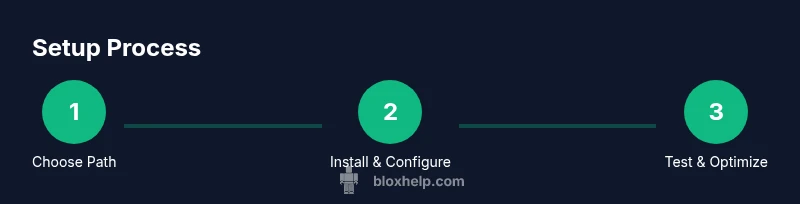
To avoid confusion, start by choosing one of the primary routes below and follow the corresponding steps. The browser route requires a stable internet connection and a modern Chrome browser; the Android app route requires Google Play Store on your Chromebook; the Linux route requires enabling Linux (Beta) and installing the game files. Each path has its own benefits and potential pitfalls, so pick the method that aligns with your device and comfort level.
Troubleshooting and common issues you’ll encounter
If you run into problems, start with the simplest checks: verify internet connectivity, clear browser cache, and ensure the game client is up to date. For Roblox, ensure you are signed into a valid Roblox account and that your browser has WebGL support enabled. For Minecraft, confirm that the Android app or Linux environment is properly installed and that you’re using supported editions. Common issues include graphics glitches, audio desync, or frequent crashes, which are often resolved by adjusting in-game settings, updating graphics drivers (where applicable), and lowering resolution. The key is to isolate whether the problem is device-based, network-related, or software-related, then apply the targeted fix.
Best practices to maximize stability and battery life
On Chromebooks, prolonged gaming can drain the battery quickly. To maximize stability and longevity:
- Play at modest resolutions and lower graphics presets to reduce GPU load.
- Close background apps and disable unnecessary extensions or tabs.
- Use a wired network when possible and ensure your Chromebook is charged or plugged in during long sessions.
- Keep your system and apps updated to benefit from performance and security improvements.
- Consider using a game mode or performance profile if your device supports it to limit background processes during play.
A word on safety, accounts, and updates
Always download Minecraft and Roblox from official sources (Google Play Store or official websites). Keep your Roblox account credentials secure, and enable two-factor authentication where available. Regular OS updates are important to maintain compatibility and security, especially on Chromebooks that will continue to receive browser and software improvements over time. Blox Help emphasizes staying within supported configurations to minimize unexpected crashes and ensure a smooth gaming experience.
Tools & Materials
- Chromebook with Chrome OS (latest version)(Ensure hardware acceleration is supported; aim for 4 GB RAM or more for better performance.)
- Google Play Store access (optional for Minecraft Android)(Enable this if your device supports Play services and you plan to run the Android Minecraft app.)
- Linux (Beta) enabled (Crosh/Terminal access)(Choose this path to install Java Edition or Bedrock on Chromebook; requires comfort with Linux commands.)
- Roblox account(Required for cloud saves and multiplayer progression when using Roblox in browser or Android app.)
- Stable internet connection(Low latency improves online play; consider wired Ethernet dongle if supported.)
- Charger and power backup(Gaming sessions can be power-intensive; keep the device plugged in during play.)
- External keyboard/mouse (optional)(Improves control in Minecraft, especially in keyboard-driven builds or combat.)
- Headset (optional)(Useful for voice chat in multiplayer modes.)
Steps
Estimated time: 60-90 minutes
- 1
Decide your path
Assess whether your Chromebook supports Google Play, or if you’re comfortable enabling Linux (Beta). Choose Roblox browser, Minecraft Android app, or Linux-based Minecraft to begin.
Tip: Starting with the browser route is the simplest; move to Android or Linux if you need features or performance improvements. - 2
Prepare your Chromebook
Update Chrome OS to the latest version, check that hardware acceleration is enabled, and ensure you have a reliable internet connection for initial setup.
Tip: A fresh reboot after updates can clear lingering performance issues. - 3
Enable Google Play (if using Minecraft Android)
On supported Chromebooks, open Settings and enable Google Play Store. Follow prompts to link or sign in to your Google account.
Tip: If Play is unavailable, use the Linux route or browser-based Minecraft instead. - 4
Install Minecraft Android or Linux components
If using Android, install the Minecraft app from Google Play. If using Linux, install a compatible Java/BEDROCK setup following official guides.
Tip: For Linux, you may need to install dependencies and set up a launcher; read prompts carefully during install. - 5
Open Roblox in Chrome and sign in
Navigate to the Roblox website, sign in, and launch a game. Confirm graphics settings and ensure WebGL is enabled in the browser.
Tip: If Roblox runs slowly, switch to a lower graphics preset and close other tabs. - 6
Configure in-game settings
Lower resolution, disable shadows, and reduce texture quality to boost frame rates and reduce stutter.
Tip: Keep a balance between visual quality and performance for your device. - 7
Test multiplayer and fine-tune
Join a local or online session to test latency and stability; adjust network and in-game settings based on results.
Tip: If you experience lag, switching to a 5 GHz network can help significantly. - 8
Optimize for battery and heat
Monitor device temperature and avoid long sessions with heavy background processes running in parallel.
Tip: Take periodic breaks to prevent overheating on less powerful Chromebooks.
Questions & Answers
Can I play Roblox and Minecraft on a Chromebook without internet?
Roblox requires an internet connection to log in and play online. Minecraft on Chromebooks can work offline if you’re using a local world in the Android app or a Linux setup with a locally installed game, but many features—especially multiplayer—need internet access.
Roblox needs internet for login and multiplayer. Minecraft can work offline in some configurations, but multiplayer and updates require online access.
Do I need Google Play on my Chromebook for Minecraft?
Not necessarily. If your Chromebook supports Google Play, you can install Minecraft as an Android app. If not, you can use Linux to install a Java or Bedrock edition, though this path is more technical.
If your Chromebook supports Play, Minecraft can be installed from the Play Store. Otherwise, Linux is an alternative, but more complex.
Is Roblox playable on Chromebook strictly in the browser?
Roblox can run in the Chrome browser on many Chromebooks without additional software. For some devices, the mobile Android app offers better controls and performance when Play is available.
Yes, Roblox works in Chrome on many Chromebooks, and you may get a smoother experience using the Android app where supported.
What about Linux for Minecraft on Chromebook?
Enabling Linux (Beta) lets you install Java/Bedrock editions, expanding compatibility and mods. It’s more setup-heavy and may require troubleshooting to get stable performance.
Linux gives you Java or Bedrock on Chromebook, but it requires more setup and tweaking.
How can I maximize performance on a Chromebook for these games?
Lower in-game resolution, reduce graphics quality, close background apps, and keep your OS updated. A stable Wi‑Fi connection also helps reduce latency in multiplayer modes.
Short on power? Lower the graphics, close other apps, and ensure a strong network for best results.
Watch Video
The Essentials
- Choose a path that matches your device: browser, Android app, or Linux.
- Performance scales with RAM, CPU, and network quality.
- Start with lower graphics and adjust as needed to balance visuals and speed.
- Keep OS and apps up to date for better stability.