Decals Roblox: Create, Upload, and Use in Roblox Games
A practical guide to decals Roblox: design, export, upload, and apply decals in your worlds. Learn best practices, file formats, and how to use decals effectively in games.


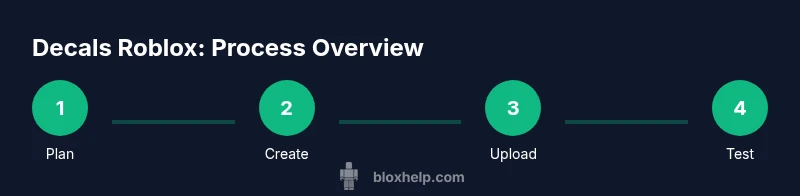
You will learn how to create, export, upload, and use decals Roblox to customize games, posters, and items. This guide covers design tips, file formats, asset submission steps, and practical in-game implementation. By the end, you’ll have a repeatable workflow for producing professional decals that elevate your Roblox projects. Whether you're new or building a collection, this structured approach keeps you compliant and creative.
What decals Roblox are and why they matter
Decals Roblox are image assets used to splash color and detail on surfaces within Roblox games. They can be simple icons, faction logos, poster art, or decorative textures that players see on walls, vehicles, billboards, crates, or shop displays. Decals are distinct from textures or meshes, yet they share a common pipeline: design, export, upload, and reference an asset ID in your place. For creators, decals Roblox unlock a scalable way to customize environments without editing every object, and they enable community art to animate and personalize games. When used thoughtfully, decals enhance readability, convey branding, and heighten immersion. A well-chosen decal can guide players to an objective, reinforce a game theme, or celebrate events like in-game milestones. Beyond aesthetics, decals serve practical roles in tutorials, UI cues, and shop visuals. The essential takeaway is to begin with a precise concept, respect file-size limits, and preview the decal from typical camera angles. This guide builds a repeatable workflow with practical steps, examples, and safety guidance for responsible art sharing.
Design considerations for Roblox decals
When designing decals Roblox, you must balance visual clarity with file efficiency. Start with a clean concept that scales well across surfaces and lighting conditions. Consider the surfaces your decal will appear on—walls, crates, or UI panels—and test contrast against both dark and light scenes. Color choices should be vibrant enough to read from a distance but not so saturated that they distort details up close. Transparency is crucial for icons or logos that should blend with real-world textures or game themes. Treat decal composition like a badge: keep typography legible, simplify complex elements, and avoid tiny details that disappear at smaller sizes. Remember to design within Roblox’s technical constraints, such as aspect ratios and maximum texture sizes. To maintain consistency, establish a small set of color swatches and a quick-reference style guide for future decals. By planning ahead, you’ll reduce iterations and keep your decal workflow efficient and repeatable.
Artwork guidelines and best practices
Good decal artwork balances aesthetic appeal with practical limits. Use high-contrast colors that remain legible under varied lighting. Favor simple shapes and bold outlines to anchor recognition on busy backgrounds. If you include text, choose a clean, bold font and ensure it remains readable at reduced sizes. Prefer PNGs with transparent backgrounds so decals can blend into any surface. When creating multiple decals for a set, maintain consistent margins and safe zones to prevent important details from clipping on curved surfaces. Save versions with descriptive filenames and keep a master source file in your design repo. Test the artwork against different Roblox surfaces—brick, glass, metal—to verify how reflections and textures affect visibility. Finally, document your design decisions so you can reproduce similar decals in future projects.
Preparing your decal file for upload
Prepare your decal as a PNG with transparency and a square or near-square aspect ratio. Aim for a size that looks clear at typical in-game viewing distances, then resize based on Roblox guidelines before exporting. Name the file descriptively so it’s easy to locate later. Check that the image uses web-safe color values to prevent color shifts after upload. If you’re using layered artwork, flatten layers to avoid stray edges that show up as artifacts in-game. Save a backup in your original working format so you can edit later without starting from scratch. Finally, test the PNG in an image viewer that simulates transparency and edge leakage to catch issues early.
Uploading decals to Roblox and obtaining asset IDs
To upload decals Roblox, log in to the Roblox website or Creator Dashboard, navigate to the Decals tab, and start a new decal upload. Upload the PNG file, add a descriptive name, and fill optional tags to improve discoverability. After submission, Roblox assigns an asset ID that you’ll reference to place the decal in games or stores. Copy this ID and store it in your project documentation or asset registry for quick reuse. If the upload fails, verify file integrity, transparency, and file size. It may help to re-export from your editor with a fresh PNG export. Regularly review your decal’s status and settings, especially if you plan to publish updates.
Implementing decals in games and places
Applying decals Roblox within a place involves referencing the asset ID in surfaces, signage, or UI previews. In Roblox Studio, you can create a Part or SurfaceGui and assign the decal texture using the Decal or ImageLabel properties. Position decals thoughtfully to avoid obstructing player movement or readability. Test decal placement across different camera angles and lighting setups to ensure visibility; consider adding subtle glow or shadow effects for emphasis. For dynamic environments, you can swap decals using scripts to reflect events or seasons. Remember to maintain consistency with your game’s visual language and branding, and keep user experience in mind when placing decals in high-traffic areas.
Testing, optimization, and accessibility
Testing involves checking decals under varied lighting, resolutions, and devices. Confirm that decals remain legible on mobile screens and low-end hardware. Optimize by ensuring transparent pixels don’t render as unwanted halos and by avoiding overly complex artwork that can slow draw calls. Accessibility matters: use high-contrast decals for readability and avoid color combinations that trigger color-vision deficiencies. Document test results and note any adjustments to scale, color, or placement. Keep a changelog for decal iterations so players see consistent improvements without breaking existing placements. Finally, solicit feedback from teammates or players and implement practical adjustments quickly.
Copyrights, licenses, and community guidelines
Respect copyright by using original artwork or properly licensed assets. Avoid copying logos, brand marks, or protected imagery unless you have explicit permission. When creating fan art decals, clearly attribute sources and adhere to Roblox’s community guidelines. If you’re collaborating, maintain a written agreement on ownership and usage rights. Disclose any third-party content and ensure your decals do not promote hate, violence, or illegal activities. Regularly review Roblox’s terms for decals to stay compliant as platform policies evolve. By following these rules, you’ll protect yourself while contributing safe, enjoyable content to the Roblox community.
Advanced tips: workflow improvements and automation
Create a reusable decal template with safe margins, color swatches, and nomenclature to speed future designs. Build a simple checklist for each upload: export PNG, metadata, asset ID copy, in-game test, and feedback note. If you produce batches, automate file naming and versioning to avoid confusion. Use a version control strategy for design files and maintain a centralized, searchable decal library. For more complex projects, develop a small workflow that exports previews of decals on mock surfaces to quickly validate appearance before uploading. Finally, explore automation for repetitive tasks like resizing or exporting common sizes to streamline your process.
Real-world examples: decals that worked
Successful decals Roblox often combine bold visuals with clear branding. A storefront decal set, for example, uses a consistent color palette and legible typography that remains readable when applied to posters or signs in-game. Another effective approach is seasonal decals that align with events, using seasonal color schemes and icons to boost engagement. Community-created decals that feature original art rather than copied logos tend to perform better in terms of discoverability and acceptance. When you study successful decals, note how they balance simplicity with personality—so your future decals Roblox feel both recognizable and fresh. By analyzing real-world outcomes, you’ll refine your own decal portfolio and deliver art that resonates with players.
Tools & Materials
- Roblox account(Needed to upload decals and manage assets)
- Graphic design software(Photoshop, GIMP, or equivalent; export PNG with transparency)
- PNG export of decal(Transparent background; optimized size for Roblox)
- Reference sketches or placeholders(Optional quick planning aids)
- Screenshots of decal in context(Helpful for iterative feedback)
Steps
Estimated time: 1-2 hours
- 1
Plan your decal concept
Define the decal’s purpose, target surface, and emotional tone. Create rough sketches to map composition, color, and typography. This planning reduces revisions later and keeps the asset aligned with your game’s style.
Tip: Draft a one-page concept brief before you start drawing. - 2
Create initial design draft
Build a clean draft in your design tool. Use bold shapes and high contrast to ensure visibility on varied Roblox surfaces. Keep typography large enough to read from a distance.
Tip: Work at a simplified size first, then scale up for fine details. - 3
Prepare canvas and export settings
Set up a square or near-square canvas with a transparent background. Keep your design within a reasonable resolution to balance clarity and performance.
Tip: Use a transparent PNG export to preserve flexibility. - 4
Save as PNG with transparency
Flatten layers if needed and ensure crisp edges. Verify no stray pixels bleed into transparent areas, which can create halos in-game.
Tip: View the PNG on a transparent background to catch issues. - 5
Upload to Roblox as a decal
Go to Roblox Creator or DevHub, create a new decal, and upload the PNG file. Fill in a descriptive name and optional tags to improve discoverability.
Tip: Check for any upload warnings and fix before publishing. - 6
Copy and store the asset ID
Once Roblox assigns an asset ID, copy it into your asset registry. This ID is what you’ll reference to display the decal in-game.
Tip: Keep a versioned log for future updates. - 7
Apply decal on surfaces in Studio
Create a surface or UI element and assign the decal via the Decal or Image properties. Position it to fit the intended surface and scene.
Tip: Test on multiple surfaces to ensure legibility. - 8
Test visibility and performance
Run the scene with lighting and different resolutions. Confirm decals read well on phones, tablets, and PCs and don’t cause slowdowns.
Tip: Avoid complex, near-edge details that don’t render well. - 9
Iterate and publish
Solicit feedback, adjust scale or color as needed, and push updates. Maintain documentation for future decal packs or iterations.
Tip: Publish batches to keep your portfolio organized.
Questions & Answers
What is a Roblox decal?
A decal in Roblox is a PNG image with transparency that can be applied to surfaces or UI elements in a game. Decals are submitted through Roblox DevHub and receive an asset ID used to reference them in your places.
A Roblox decal is a PNG image with transparency that you upload to Roblox and reference by its asset ID in your game.
Do decals Roblox support transparency?
Yes, decals are designed with transparency to blend into surfaces. Ensure the PNG exports preserve transparency and no opaque edges.
Yes, decals support transparency, so export as PNG with transparent areas.
Can I monetize decals I create?
Decals can contribute to game visuals and branding, but monetization depends on your game’s design and Roblox's policies. Review Roblox’s monetization guidelines for asset usage.
Decals can support your game visuals, but monetization depends on Roblox rules and how you use the assets.
Are there size limits for decals?
Roblox recommends keeping decals at appropriate resolutions to balance quality and performance. Large, high-resolution decals can impact loading times on lower-end devices.
Keep decals at a practical resolution to avoid slowdowns on devices with less power.
How long does decal approval take?
Roblox decals do not follow a public, fixed approval time. If issues arise, you’ll be prompted to adjust files or metadata.
There isn’t a fixed approval time; you may need to adjust the file if Roblox flags issues.
Where can I learn more about decals and guidelines?
Visit Roblox’s Developer Hub and the decal submission guide for official instructions, best practices, and policy updates.
Check Roblox’s Developer Hub for official decal guidelines and how-tos.
Watch Video
The Essentials
- Plan decals with a clear concept
- Export PNGs with transparency
- Upload and reference asset IDs correctly
- Test visibility across surfaces and lighting
- Iterate based on feedback and guidelines