How to Get Rid of Chat on Roblox PS5
Learn how to get rid of chat on Roblox PS5 with practical steps, parental controls, and safety tips. Disable chat, limit messages, and troubleshoot issues for a safer Roblox experience.


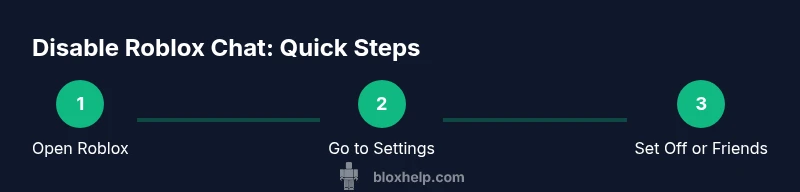
If you want to get rid of chat on Roblox PS5, disable in-game chat or limit it to trusted players. Start with Settings > Privacy > Chat and choose Off or Friends only. For stronger safety, combine Roblox privacy options with PS5 Family Management parental controls and test by joining a game.
Understanding why chat control matters on PS5 Roblox
On Roblox PS5, chat can be a valuable tool for teamwork and social interaction, but it also opens doors to harassment, scams, and age-inappropriate content. If you are asking how to get rid of chat on roblox ps5, this guide provides actionable steps to disable chat globally or limit it to trusted players. The aim is to keep gameplay engaging while reducing exposure to risky messages. Alongside in-game toggles, you’ll learn how to leverage PS5 parental controls and account settings to enforce safer communication. By applying these controls and testing them in real scenarios, you can play with confidence and minimize unwanted interactions. The path to a safer Roblox session is practical, not punitive, and it centers on clear choices you can implement today.
Roblox PS5 chat: options you can configure
Roblox on PS5 supports several levels of chat control. You can turn off global chat to block messages from all players, or switch to Friends-only chat to allow messages from people you know. Some games may still present game-specific chat prompts, so cross-check in-game options. Additionally, you can enable account-level restrictions and use PS5 parental controls to reinforce limits. While these tools reduce exposure, they’re most effective when used together, because no single toggle covers every scenario across all games and modes.
Step-by-step approach: starting points for disabling chat
To get rid of chat on roblox ps5, begin by opening Roblox, then navigate to Settings. Look for Privacy or Chat settings and set the option to Off or Friends. Save changes and relaunch Roblox to ensure the new rule takes effect. If you share a family-managed PS5 with younger players, add a layer of safety with PS5 Family Management: restrict app access and enforce content controls. After you apply changes, test by joining a public game and attempting to chat. If messages still appear, there may be other layers (game-specific settings or account restrictions) to address.
Limiting chat to friends and managing invitations
If you prefer to keep some communication, set chat to Friends only and explain that to players before joining groups or games. Be aware that invitations to private servers or voice channels may still occur through other channels, so monitor those separately. For a more robust safeguard, disable friend requests or set rules for who can join you, especially in large public servers. Remember: some Roblox features rely on chat for coordination, so only disable as much as you’re comfortable with and be ready to re-enable if essential teamwork is needed.
Role of parental controls and account settings
Parental controls extend protection beyond Roblox by leveraging PS5 Family Management and account privacy settings. On PS5, you can limit app access, set content restrictions, and ensure younger players cannot modify critical settings without approval. Within Roblox, enable account restrictions or use the safest privacy posture you’re comfortable with. Combined, these controls reduce the chance of exposure to inappropriate language or unsolicited messages, while still allowing you to enjoy multiplayer features that don’t rely on plain text chat.
Practical safety tips for day-to-day play
Whenever you enter a new game, take a moment to review the chat options for that title. If a game seems chat-heavy or risky, disable chat for that session or switch to Friends-only. Teach younger players to report abusive messages promptly and to block suspicious accounts. Keep voice chat off unless you’re confident in your child’s network and privacy settings. Finally, periodically revisit settings as Roblox and PS5 updates can change how chats are handled.
Troubleshooting: when chat still appears after changes
If chat persists after you’ve changed settings, consider these steps: (1) log out and back into Roblox; (2) sign out of PS5 and sign back in; (3) check if a specific game overrides global settings in its menu; (4) ensure parental controls are synchronized across your devices; (5) contact Roblox support if you notice account restrictions are not applying. Persistence is common, but most users see changes after relaunching the app and confirming the correct profile is active.
Tools & Materials
- PS5 console(Stable internet connection and updated firmware)
- Roblox account(Logged in on the PS5 Roblox app)
- Controller(Navigate settings and menus)
- PS5 Family Management account (optional)(For additional parental controls from the console)
- Smart device with Roblox app (optional)(To review settings from another screen)
Steps
Estimated time: 12-20 minutes
- 1
Open Roblox on PS5 and access Settings
Launch the Roblox app on your PS5 and sign in to the correct profile. Use the controller to reach the gear icon or Settings menu and open it. This is where chat options are typically located. The goal is to start from a clean, updated settings panel before making changes.
Tip: Navigate with the D-pad for precise selection and avoid accidental changes elsewhere. - 2
Find Privacy/Chat settings
In Settings, locate Privacy or Chat sections. Depending on the account age and region, the exact labels may differ (e.g., 'Chat & Messages' or 'Who can talk to me'). Open the chat options to review available toggles.
Tip: If you see multiple sections, check both 'Privacy' and 'Account' categories to catch all controls. - 3
Choose Off or Friends-only
Set the global chat option to Off to completely disable text chat, or select 'Friends' to limit chats to people you know. Confirm by saving changes before exiting the Settings screen.
Tip: If you’re unsure which choice to pick, start with Friends-only and test before moving to Off. - 4
Restart Roblox and test
Close Roblox entirely and relaunch it to apply the new chat rules. Join a game and attempt to send a message to verify the new behavior is in effect.
Tip: Test with both a known friend and a random player to ensure the settings apply broadly. - 5
Enhance with PS5 parental controls
If you have a family-managed PS5, enable PS5 Family Management features to restrict app usage and content. This creates a second layer of safety beyond Roblox settings.
Tip: Document the changes with screenshots for future reference and easier updates. - 6
Test across games and scenarios
Some games may have their own chat options. Join several titles, test both chat-off and friend-only modes, and check if any game-level preferences override global settings.
Tip: Keep a simple log of which games respect the global setting and which don’t.
Questions & Answers
Can I still chat in Roblox PS5 messages after turning off chat?
Turning off in-game chat typically restricts text chat during gameplay. Private messages and other messaging features may still be limited by account or parental controls. If you need a tighter setup, equip PS5 parental controls and Roblox account restrictions together.
Turning off chat usually blocks in-game messages; private messages might still be affected by parental controls. If needed, enable account restrictions for extra safety.
Will parental controls on PS5 affect Roblox chat?
Yes. PS5 Family Management can limit app access and content, which complements Roblox privacy settings. Use both to ensure messages and interactions stay within safe boundaries.
Yes. PS5 controls can reinforce Roblox chat settings for better safety.
What should I do if a game overrides my chat settings?
Some games provide their own chat options that override global settings. Check the in-game menu and mute or disable chat there if available. If issues persist, re-apply your Roblox settings after leaving the game.
Some games ignore global chat; disable in-game chat when available and re-check settings after leaving.
How do I revert chat settings later?
Go back to Settings > Privacy, select Off or Friends, and save. Re-test in a game to confirm changes. Maintain a note of your preferred configuration for quick future edits.
Open Settings, change the option, save, and test.
Does disabling chat affect voice chat or party invites?
Disabling text chat does not automatically disable voice chat or invitations through other channels. If you need a fully silent experience, disable voice or manage invites via party settings where supported.
Text chat off doesn't always affect voice chat; check voice settings separately.
Watch Video
The Essentials
- Turn off global chat to minimize exposure.
- Choose Friends-only to balance safety and social play.
- Combine Roblox and PS5 parental controls for stronger protection.
- Test settings across multiple games to confirm coverage.