How to Get Rid of Chat on Xbox Roblox: A Practical Guide
Learn how to get rid of chat on Xbox Roblox with step-by-step privacy, parental controls, and blocking tips. Silence in-game text and voice chat across Roblox titles while keeping safety intact.


Goal: Learn how to get rid of chat on Xbox Roblox by adjusting Roblox privacy settings, Xbox privacy controls, and player blocks. This quick guide shows you how to silence in-game text chat, disable voice chat where available, and apply parental controls for safer play across console and mobile platforms.
Why you might want to get rid of chat on Xbox Roblox
If you’re growing tired of noisy messages or worried about younger players encountering inappropriate language, you’re not alone. Many Roblox players on Xbox use the console's built-in settings to quiet chat, protecting their experience without leaving Roblox entirely. If you're wondering how to get rid of chat on xbox roblox, the best approach is to align both Roblox's chat controls and Xbox's privacy settings. You can reduce casual text chat, disable voice chat in compatible games, and restrict who can contact you. This section explains the problem, the scope of options, and how the two platforms interact. Remember: you don't have to turn off every feature to regain calm; smart, layered controls can maintain safety while preserving gameplay. We'll cover in-game options first, then system-level controls, then the practical steps to apply them across several games and sessions.
Understanding where chat is controlled: Roblox vs Xbox privacy
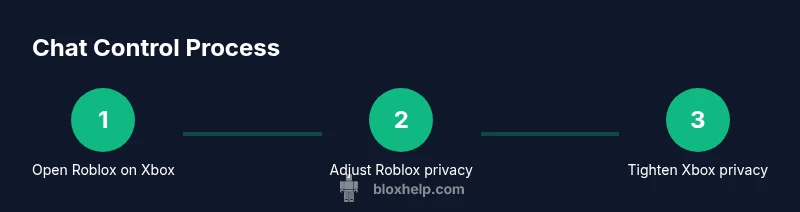
Chat control happens at different layers. Roblox offers account-based options for who can chat with you and who can message you, while Xbox privacy settings govern overall communication with other players on the console. When you want to minimize chat, you’ll typically adjust Roblox’s “Who can chat with me?” and “Who can message me?” options, then tighten Xbox privacy related to communication and online safety. This layered approach ensures that even if a game allows chat, your account and console-level controls keep it quiet. In practice, settings often interlock: Roblox may still permit messages from Friends if Xbox privacy isn’t restricted accordingly, so it’s essential to apply both sides. Across platforms, you’ll want to test by starting a new session to confirm the chat behavior aligns with your preferences.
Roblox in-game chat settings: where to start
Within Roblox, you’ll locate chat controls in your account settings. The core options typically include who can chat with you and who can message you. For Xbox players, this means selecting tighter visibility: set to Friends or Only Me, or use the “No one” option if available. Some games override global settings, so you may need to adjust per-game chat options as well. If you’re protecting a younger player, consider enabling content filters and stricter language controls. Remember that some chat features can be game-specific; you might need to repeat the process in a few popular titles to ensure consistency across sessions. The goal is a clean chat experience without blocking essential communication for friends and teammates.
Xbox privacy settings: limiting communications at the console level
Xbox privacy settings provide a broad safety net beyond Roblox. Navigate to Settings > Privacy & online safety > Xbox privacy > View details & customize. Look for options like 'Communication with others' and 'Join multiplayer games.' Setting these to Friends or Blocked can drastically reduce unsolicited messages and voice chat from unknown players. If you share a console with younger players, enable Family Settings to lock these preferences in place. This step is especially useful if Roblox chat remains active despite in-game changes, as Xbox controls apply system-wide and propagate to Roblox sessions.
Blocking, muting, and reporting: hands-on tools for immediate relief
Blocking is a powerful, immediate tool. In Roblox, you can block individual players directly from their profile or chat window; on Xbox, you can block a user via the profile or system-wide block features. Muting a user prevents their messages from appearing in your feed, and reporting helps the platform take action against abuse. These actions do not remove all chat globally, but they stop interactions from specific offenders. If you encounter persistent harassment, combine blocking with reporting to reduce repeat issues and keep your Roblox experience safer and more enjoyable.
Parental controls and content filters for ongoing safety
Parental controls provide a longer-term safety net. Use Roblox parental controls to limit who can chat with a child account or restrict direct messages. On Xbox, Family Settings enable you to enforce chat restrictions across devices, adding another layer of protection. Enabling language filters, screen limits, and daily time allowances can help manage exposure to risky chat. If you rely on these controls, test them regularly and adjust as your child’s usage evolves. The aim is steady protection without unduly limiting the player’s social experience.
Troubleshooting common issues and caveats
If chat reappears after adjusting settings, confirm you’ve saved changes on both Roblox and Xbox. Some games cache chat permissions, which can cause delays in applying new rules. Log out and back in to ensure settings propagate, or try a fresh Roblox session. Check if your account is part of a family group with overridden permissions; if so, adjust the parental controls from the family account to restore the intended restrictions. Finally, verify you’re using the latest Roblox and Xbox app versions, as updates sometimes include new privacy controls or bug fixes that affect chat behavior.
Quick checklist to maintain a chat-free Roblox session
- Confirm Roblox privacy settings restrict chat to Friends or No one.
- Verify Xbox privacy settings block unwanted communications at the console level.
- Regularly test chat behavior in a private session before inviting friends.
- Keep parental controls aligned with your child’s age and usage.
- Block or report abusive players when necessary to prevent repeat incidents.
Tools & Materials
- Xbox console or Xbox app(Ensure you are signed into the correct account with admin privileges to adjust privacy settings.)
- Roblox account(Used to apply account-level chat restrictions.)
- Stable internet connection(Required for changing settings and syncing across devices.)
- Access to settings menus on both Roblox and Xbox(You may need to switch between platforms to enforce controls.)
Steps
Estimated time: 20-40 minutes
- 1
Open Roblox on Xbox
Launch the Roblox app on your Xbox console and sign in with the account you wish to modify. This initial step ensures you access the correct profile for chat controls.
Tip: If you use multiple profiles, perform these steps in each profile you want to protect. - 2
Navigate to Roblox Settings
From the Roblox home screen, go to Settings or the gear icon to reach account options. This is where you’ll find privacy-related controls for chat and messages.
Tip: If you don’t see chat options immediately, look under “Privacy” or “Security” subsections. - 3
Adjust Roblox privacy: Who can chat with me
Find the option for ‘Who can chat with me?’ and select a tighter setting such as Friends or Only Me if available. This reduces direct chat from strangers.
Tip: Some games may still show prompts; ensure global privacy settings are applied first. - 4
Adjust Roblox privacy: Who can message me
Similarly, locate ‘Who can message me?’ and apply a restricted choice. This prevents unsolicited messages inside or outside games.
Tip: In some interfaces, this may be labeled as ‘Direct Messages’. - 5
Save Roblox changes and test
Save your changes and start a quick Roblox session to verify chat behavior. If messages still appear, repeat for other profiles or games you use.
Tip: Test with a friend you trust to confirm your settings are effective. - 6
Configure Xbox privacy: Communication with others
Press the Xbox button to open Settings > Privacy & online safety > Xbox privacy > View details & customize. Set ‘Communication with others’ to Friends or No one.
Tip: Changes here affect all apps, including Roblox, not just the game. - 7
Apply Xbox Family Settings (if applicable)
If this is a family account, enable Family Settings to lock down chat options across devices and apps.
Tip: Family Settings can override individual profiles, so review per-family controls. - 8
Block/mute problematic players and report if needed
When harassment occurs, block the offender and consider reporting. This provides immediate relief while contributing to platform safety.
Tip: Document the incident if you need to reference it later for support.
Questions & Answers
Can I completely disable chat in Roblox on Xbox?
You can suppress most chat by combining Roblox privacy settings with Xbox privacy controls. Some games may still prompt for chat, but the default is a quieter experience when both layers are tightened.
Yes, you can largely disable chat by using Roblox and Xbox privacy settings together, though a few games might still prompt for chat.
Will turning off chat affect voice chat in Xbox parties?
Disabling Roblox chat does not automatically disable Xbox party voice chat. Xbox privacy settings control voice communication separately, so you can keep parties while limiting Roblox text messages.
No, Roblox chat controls don’t automatically mute Xbox party voice chat.
How do I block a player in Roblox on Xbox?
Open the player’s profile or chat window, select Block, and confirm. Blocking prevents future messages and interactions from that user across Roblox.
You block from their profile; it stops messages from that person.
Do these settings apply to all games on Xbox and Roblox?
Most settings apply system-wide and across Roblox titles, but some games implement their own chat features. Check per-game options if you notice discrepancies.
Most limits apply broadly, but some games may override settings.
What if a family member changes the settings?
If you’re using Family Settings, parents can override some privacy options. Review Family Safety settings to ensure consistent restrictions across accounts.
Family controls can override, so double-check those settings.
Will these changes affect my ability to play with friends outside Roblox?
The changes primarily affect Roblox chat and Xbox messaging. Other apps or platforms may have separate controls.
Other apps might have their own chat rules, but Roblox and Xbox controls cover the Roblox experience.
Watch Video
The Essentials
- Set Roblox chat to a restricted audience (Friends/Only Me)
- Limit Xbox communications at the console level
- Block/mute/report offenders for immediate relief
- Use parental controls for ongoing safety
- Verify settings across games by testing in private sessions