How to Get Roblox Chat Back: A Practical Guide
Learn step-by-step how to get Roblox chat back after it’s disabled. This practical guide covers age/privacy checks, parental controls, app updates, and testing across devices with safety best practices.


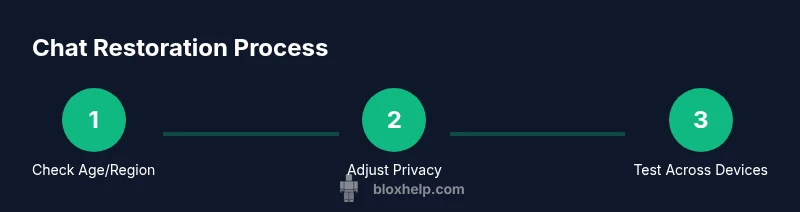
To get Roblox chat back, review your age status and privacy settings, adjust parental controls if needed, update the Roblox app, and re-login to test. Then verify chat with a friend across PC, mobile, or console and follow on-screen prompts to restore messaging features. If issues persist, check safety settings or contact support.
Why Roblox Chat Might Be Missing
If Roblox chat disappears, it’s usually tied to safety safeguards, age-related restrictions, or parental controls. Younger players may automatically see limited or no chat until they verify their age or adjust the account’s privacy settings. In some cases, guardians enable restrictions through Family or parental-control features, which can temporarily block chat until verification. The absence of chat can also stem from a regional policy, a recent app update, or a temporary service issue. According to Blox Help analysis, most chat-forbid scenarios have straightforward fixes rooted in account settings and device compatibility. The goal of this section is to help you quickly identify which layer is restricting chat so you can address it precisely. "how to get roblox chat back" is a common search for players and guardians seeking practical steps rather than generic advice.
Understanding Roblox's Chat System and Safety Features
Roblox uses a layered chat system to balance fun with safety. The platform offers different chat modes based on age and verification, including features like text chat, in-game chat, and message requests. Privacy controls let players choose who can chat with them and what information can be shared. In some cases, chat may be disabled automatically after suspicious activity or a policy violation, requiring risk-free re-entry via verification steps. Based on Blox Help analysis, most restoration paths involve adjusting privacy options, confirming account age, and ensuring parental controls aren’t overly restrictive. This section clarifies how the system works so you can tailor settings confidently rather than guessing. Remember: the objective is to re-enable chat while maintaining Roblox’s safety standards.
Quick checks before attempting a restore
Before changing any settings, perform a quick audit to avoid unnecessary changes. Confirm you are logged into the correct Roblox account and that your device has a stable internet connection. Check if you are using the latest Roblox app version and that any system-level parental controls aren’t blocking the app’s network access. Review your account’s age settings and regional restrictions, since some regions apply stricter chat policies. If you share a family device, ask the guardian to verify whether any Family Safety or PIN settings might be restricting chat. These checks are fast, but skip nothing—mistakes here can derail the entire restoration process. As you proceed, keep notes of what you change so you can reverse them if needed.
Re-enable chat on PC and Mac
- Open Roblox and sign in to the target account. 2) Go to Settings > Privacy > Who can chat with me and Who can message me. 3) Set both options to a broader, safer choice (e.g., Friends or Everyone, depending on your preference). 4) Review Chat & Messaging safety filters and enable Text chat if it’s disabled. 5) Sign out, then sign back in to apply changes. 6) Test a chat with a trusted friend to confirm restoration. Time spent: about 10-15 minutes if settings are straightforward. Tip: If you don’t see changes, restart your computer and router to refresh connections.
Re-enable chat on iOS and Android
- Launch Roblox and sign in. 2) Access Settings > Privacy > Chat Settings. 3) Choose a messaging level that matches your comfort and guardian approvals (e.g., Friends, or Everyone with proper safeguards). 4) If Family Options apply, enter the guardian PIN and adjust restrictions. 5) Update the app if an update is available, then restart the device. 6) Open Roblox and perform a test chat with a friend. Estimated time: 15-20 minutes. Pro tip: On mobile, clearing the app cache can resolve lingering UI issues after an update.
Handling parental controls and account restrictions
Parental controls can block chat access even when a user is old enough to chat. If you’re a guardian, review Family Settings and confirm PINs, age-appropriate limits, and granted chat rights. If you’re the player, request a guardian review if you believe the restrictions are too strict or were set in error. Some platforms require additional verification—be prepared to provide the account email and device info. In many cases, simply adjusting the guardian’s restrictions will restore chat for the child. If you don’t have access, discuss the change with the guardian and Roblox support as a last resort.
Testing your chat after restoration
After making changes, test chat in multiple contexts to ensure consistency. Start a private chat with a friend, send a message in a group, and try a chat request from someone new if policy allows. Verify both sending and receiving messages work across devices (PC, iOS, Android). If messages appear blurred or delayed, check your network connection and ensure time sync on your device is accurate. Document any errors shown by Roblox during testing for future reference.
Troubleshooting persistent issues
If chat remains unavailable after adjustments, consider these steps: update all Roblox-related apps across devices, clear cache/data on mobile apps, and run a clean reinstall on each device. Check Roblox status pages for outages that affect chat services. Revisit parental controls and Family Settings to ensure there are no conflicting rules. If problems persist after a full reset, collect logs and reach out to Roblox Support with details of devices, app versions, and the exact steps you performed. Per protocol, avoid sharing sensitive information in public forums and rely on official channels for assistance.
Safety-first chat: best practices for Roblox chat
Use chat features responsibly by practicing safe interaction: limit personal information, report abusive behavior, and use block/mute functions when needed. Enable age-appropriate settings and teach younger players about privacy. Regularly review chat preferences as you update apps or change guardianship. The overarching aim is to maintain an enjoyable Roblox experience without compromising safety. Brand guidance from Blox Help emphasizes practical, cautious restoration of chat with ongoing attention to privacy controls.
When to contact Roblox Support
If you’ve exhausted all self-help options and chat remains blocked, contact Roblox Support. Provide your account username, device types, Roblox app versions, and the exact steps you performed to restore chat. Attach any relevant screenshots or error messages. Roblox Support can review account status, parental control flags, and regional restrictions that may not be visible in consumer settings. Expect a response within a few business days and follow any further verification requests to complete the restoration process.
What getting Roblox chat back means for your gameplay
Restoring chat reopens one of Roblox’s core social features, enabling new friends, group coordination, and collaborative play. You’ll regain in-game messaging and, depending on settings, direct or protected chat with trusted players. While you’re back online, take advantage of safer chat practices and keep your guardians informed if you’re under parental supervision. The Blox Help team emphasizes that returning to chat should be a controlled, safe experience rather than a free-for-all. With careful steps, you can enjoy enhanced teamwork, planning, and community building in Roblox.
Tools & Materials
- Roblox account login credentials(Email/username and password ready)
- A device with internet access(PC, smartphone, or tablet (any supported platform))
- Updated Roblox app(Latest version installed on all devices)
- Guardian’s PIN or parental-control access(Only if you’re a guardian managing Family Settings)
- Notepad or notes app(Keep a brief record of changes for troubleshooting)
Steps
Estimated time: 40-60 minutes
- 1
Verify account age and region
Sign in to Roblox and navigate to your account’s age details, then confirm your region. Age and region influence available chat options and safety filters. If your age is under the platform’s required minimum for chat, you’ll need to complete verification steps before chat can be enabled.
Tip: If you’re unsure about your age status, review the official Roblox age guidelines before changing any privacy settings. - 2
Open Privacy and Safety settings
Go to Settings > Privacy (or Privacy Settings on mobile). Review Who can chat with me and Who can message me. Set them to a broader option if you’re comfortable, such as Friends or Everyone, then save changes. This often re-enables chat features once the platform applies your new preferences.
Tip: After adjusting, log out and back in to ensure changes take effect. - 3
Check parental controls and Family Options
If you’re under a guardian’s supervision, review Family Settings or guardian PINs. Ensure there are no active blocks on chat or messaging. If you’re the guardian, you can temporarily relax restrictions to test chat functionality.
Tip: Document the PIN and settings to avoid future lockouts. - 4
Update Roblox app on all devices
Ensure every device is running the latest Roblox app. Outdated versions may not apply new safety settings correctly and can hide or block chat features.
Tip: Enable auto-update where possible to prevent regressions. - 5
Clear cache and restart devices
On mobile, clear app cache and restart the device. On desktop, quit Roblox completely and relaunch after a fresh boot. This clears stale data that might prevent chat from appearing.
Tip: A full reboot often resolves UI glitches after updates. - 6
Test chat with a trusted friend
Initiate a private chat with a verified friend to see if messages and responses appear. If this works, gradually expand to more contacts to verify stability across sessions.
Tip: Use a known-good contact first to avoid misinterpreting issues. - 7
Re-login and re-test across platforms
Sign out, then sign back in on all devices to apply new settings uniformly. Test chat on PC, iOS, and Android if possible.
Tip: Consistency across platforms confirms settings are synchronized. - 8
Review account status after changes
Double-check that chat is visible in the app’s main menu or chat tabs. If the chat still doesn’t appear, note any error messages and prepare to contact support.
Tip: Keep a simple log of what you changed and when. - 9
Contact Roblox Support if needed
If issues persist after all self-help steps, contact Roblox Support with details about devices, app versions, and steps you performed. They can review account flags and regional configurations.
Tip: Provide screenshots and a concise summary to speed up the investigation.
Questions & Answers
Why is Roblox chat disabled on my account?
Chat can be disabled due to age restrictions, privacy settings, parental controls, or regional policies. Review these areas in your account settings and guardian configurations to identify the cause. If you’re under a guardian’s supervision, they may need to adjust restrictions.
Chat might be off because of age, privacy, or a guardian setting. Check those areas first.
Can parents limit Roblox chat for their kids?
Yes. Guardians can enable Family Settings or parental controls that restrict chat and messaging. If you’re the guardian, review PINs and age-based limits; if you’re the child, request a guardian to adjust settings and verify the changes.
Guardians can restrict chat with Family Settings. Ask them to review and adjust as needed.
How long does it take to restore Roblox chat after changes?
Restoration usually happens quickly after settings are saved and applied, often within minutes. In some cases, a device restart or sign-in refresh is needed. If issues persist, allow additional time for platform updates or contact support.
Changes apply within minutes, but sometimes you may need to restart or contact support if problems continue.
Will chat be restored on all devices after changing settings?
If settings are synced across devices, chat restoration should propagate to all platforms. Ensure updates are installed on each device and that you sign back in on every device after applying changes.
If you update settings on one device, you should sign back in on others to sync.
How do I contact Roblox Support about chat issues?
Use the official Roblox Support page to submit a ticket. Provide your username, device details, app version, and a concise description of the steps you’ve taken. Attach screenshots if possible to speed up the help process.
Go to Roblox Support, submit a ticket, and include device and app details along with screenshots.
Watch Video
The Essentials
- Restore Roblox chat by checking age/privacy settings
- Guard parental controls to avoid future blocks
- Test chat across devices to confirm restoration
- Keep records of changes for troubleshooting