How to Private Chat in Roblox: A Complete Step-by-Step Guide
Learn how to private chat in Roblox with clear privacy controls, from desktop to mobile. This beginner-friendly guide covers settings, messaging actions, safety tips, and troubleshooting for secure, direct conversations with friends.


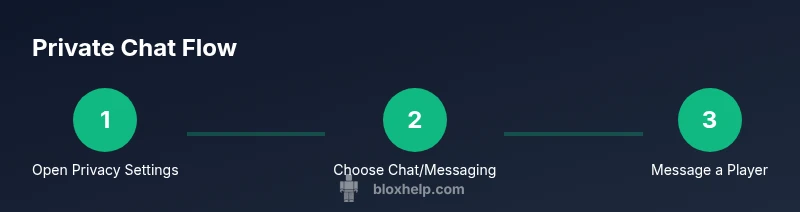
According to Blox Help, private chat in Roblox is controlled by privacy settings and in-game messaging. To private chat, adjust 'Who can chat with me?' and 'Who can message me?' in Settings > Privacy, then open a player's profile and use the Message button to start a private chat. This quick guide covers desktop and mobile steps.
Understanding Roblox private chat and safety basics
Roblox chat is a core way to connect with friends, team up in games, and coordinate strategies. However, private conversations are governed by privacy settings and age-related protections. The Blox Help team found that most players start by reviewing who can contact them and how Roblox filters content. Before you private chat, you should understand two key ideas: who can initiate a conversation with you and what kinds of messages are allowed. Roblox offers two related controls: one decides who can chat with you in general, and the other decides who can send you private messages. By configuring these correctly, you can enjoy safer, more focused conversations with friends or teammates. If you are under 13, you will have stronger filtering and more restrictions, which is normal and part of Roblox’s safety policy. Clear privacy boundaries also help prevent unwanted contact and potential scams. Always prioritize conversations with trusted players and report any abuse immediately.
Privacy controls explained: chat vs messages, age and safety filters
Roblox distinguishes between general chat access and direct private messages. The first control governs who can participate in public or semi-private chats within games or the in-game chat window, while the second controls direct private messages sent to you. Age-based safety filters automatically apply to younger accounts, translating into stricter content moderation and messaging limitations. For guardians and mature players alike, understanding these settings is essential to prevent unsolicited contact and to tailor your Roblox experience. When you adjust these options, you’re shaping your online safety, reducing distractions, and ensuring that conversations remain relevant and constructive. Always review both settings together, because changing one without the other can leave gaps in protection. As part of best practices, periodically recheck these controls after major account changes or platform updates. In addition, consider enabling content moderation prompts or warning messages where available to reinforce safe dialogue.
Desktop vs mobile: finding privacy settings and sending private messages
On desktop, you’ll typically access privacy controls via the gear icon (Settings) in the Roblox app or website, then navigate to Privacy. Look for sections labeled “Who can chat with me?” and “Who can message me?” and select among options like Friends or No one. On mobile, the flow is similar, but the layout is condensed; you may need to tap your profile picture to reach Settings, then Privacy. The key is to confirm your selections are saved, which ensures changes take effect immediately. After you’ve configured privacy, you can send a private message by visiting a friend’s profile and selecting Message, or by using the direct Message button from the chat window. If you’re unsure where to start, try a simple test message with a trusted friend to confirm everything works as intended. Blox Help’s guidance emphasizes testing privacy changes in a controlled way to avoid miscommunication and privacy mishaps.
How to start a private chat with a specific player
Private messages in Roblox are initiated from a profile or from the chat interface. Begin by locating the player you want to message—this could be a friend or a player you’ve recently interacted with. If the player has not enabled direct messages for you, the Message button may be disabled; in that case, adjust your privacy settings or add the person as a friend if appropriate. Click Message, type your message, and press Enter to send. Remember that under-13 accounts may experience stricter filters and message limits. When composing your first private message, keep it concise, friendly, and relevant to your shared in-game goals. If the recipient does not respond, respect their privacy settings and avoid repeated messages. For ongoing chats, consider organizing conversations with clear topics and boundaries to keep interactions constructive.
Troubleshooting common issues when private chatting
If private messages aren’t delivering, first verify both your privacy settings and the recipient’s. If you’ve restricted who can message you, you may need to temporarily widen permissions or request that the other player send you a friend request. Check for parental controls or account restrictions that might block messages, especially for younger players. Network issues can also prevent messages from sending; ensure a stable internet connection and retry. Clear the chat cache or sign out and back in if problems persist. If a user consistently cannot receive messages from you, gather a few example messages and contact Roblox Support for assistance. It’s important to document dates and usernames when seeking help. Blox Help notes that simple misconfigurations are the most common cause of messaging hiccups, so a quick privacy audit often resolves the issue.
Safety best practices for private chats
Private chats should be constructive and safe. Do not share personal information, such as real names, addresses, or contact details, and avoid clicking unknown links. Report harassment or abuse immediately using Roblox’s reporting tools. If you suspect a scam, discontinue the conversation and block the sender. Regularly review chat history with trusted friends to ensure conversations stay within agreed boundaries. Remember that you can always mute or block players who make you uncomfortable, and you should use these features without hesitation. Practicing good digital citizenship helps everyone enjoy Roblox more securely.
Quick privacy routine: routine checks to run now
A simple privacy check helps maintain a safer Roblox experience. Start by confirming your “Who can chat with me?” and “Who can message me?” settings are appropriate for your current age and usage. Ensure your chat filtering is enabled if you’re under 13, and test a private message with a trusted friend to verify access. Review your recent chats for any inappropriate content and use reporting tools as needed. Schedule a monthly privacy review to adapt to changes in Roblox policies or in your social circle. Staying proactive reduces the risk of unwanted contact and enhances your overall Roblox experience.
Tools & Materials
- Roblox account(You must be logged in to adjust privacy settings and chat.)
- Device with Roblox installed(PC, Mac, iOS, Android, or Xbox.)
- Stable internet connection(Ensure reliable connectivity for messaging.)
- Friend list or potential recipient(Helpful for testing or real chats; not strictly required.)
- Parental controls access (if applicable)(Needed for accounts managed by guardians.)
Steps
Estimated time: 5-15 minutes
- 1
Open Roblox and access privacy settings
Log into your Roblox account, then open Settings. Navigate to the Privacy section to review the controls for who can chat with you and who can message you. Make a note of any restrictions you plan to adjust and save changes before proceeding.
Tip: Take a quick screenshot of current settings before changing anything so you can revert if needed. - 2
Adjust 'Who can chat with me?' and 'Who can message me?'
Choose the preferred audience (e.g., Friends or No one) for general chat and direct messages. This step determines who may initiate conversations and who can send direct messages. Always align these choices with your safety preferences and in-game needs.
Tip: If you’re unsure, start with 'Friends' and test communications with trusted players first. - 3
Confirm chat filtering and age-related safety
If your account is under 13, ensure chat filtering is enabled and understand that some features may be restricted. Review any additional safety prompts or parental controls. These measures help protect you from inappropriate content and unsolicited messages.
Tip: Keep in mind that filtering can affect how certain words are displayed in messages. - 4
Open a player’s profile to send a private message
Navigate to the profile of the player you want to message. If the Message button is visible, click it to open the chat window. Type your message and press Enter to send. If the button is not available, recheck privacy settings or friend status.
Tip: For mobile users, look for a chat icon beside the player’s profile picture. - 5
Test and verify delivery
Send a short test message to confirm delivery. If it doesn’t arrive, revisit privacy settings and confirm you’re connected to the internet. Retry after applying any changes and ensure the recipient can receive messages.
Tip: Prefer short messages initially to verify connectivity and access. - 6
Handle issues and report when needed
If messages still fail to send or you encounter harassment, use Roblox’s reporting tools and consider blocking the other user. Document incidents with dates and usernames if you need to contact support for help.
Tip: Use the report feature promptly for any safety concerns.
Questions & Answers
Can I private chat with someone who is not on my friends list?
Not unless your settings allow direct messages from non-friends. Generally, you’ll need to adjust privacy to permit messaging or send a friend request first.
Direct messages from non-friends depend on your privacy settings; you may need to adjust them or add them as a friend.
Is private chat available on mobile?
Yes. The mobile Roblox app supports private messages; use the profile's Message button or the chat interface to send a direct message.
Yes, you can private chat on mobile by using the Message option from a profile.
How do I block or report someone in Roblox chat?
Open the chat or profile, select the user, and choose Block or Report. Provide details if reporting harassment or unsafe behavior.
You can block or report players directly from their profile or chat window.
What are the age restrictions for chat in Roblox?
Younger accounts have stricter chat controls and filtering. Privacy settings may limit who can message or chat with you.
Young accounts have stricter chat settings and filters to protect safety.
Why can’t I send messages to a friend?
Check privacy settings and ensure the recipient is in your allowed chat list. You may need to be friends or for them to permit messages.
Make sure you both have messaging enabled and that you’re authorized to message each other.
How can I improve privacy when chatting in-game?
Keep conversations within the Roblox chat window, avoid sharing personal data, and use reporting tools for anything unsafe.
Improve privacy by sticking to in-game chat, not sharing personal details, and using reports if needed.
Watch Video
The Essentials
- Review privacy settings before chatting
- Differentiate between who can chat and who can message
- Under-13 accounts have stronger filtering
- Use Message from profiles to start private chats
- Report and block for safety