How to Get Roblox Out of First Person: A Step-by-Step Guide
Learn how to get Roblox out of first person with simple camera changes, settings tweaks, and lightweight scripts. A complete, beginner-friendly guide from Blox Help.


By the end of this guide, you will know how to get Roblox out of first person by switching to a third-person camera, adjusting settings, and applying simple scripts to enforce the view. We cover in-game options, platform nuances, and practical steps that work for players and developers alike. This approach improves visibility and control in most Roblox experiences.
Understanding First-Person in Roblox
First-person view in Roblox places you at the player’s eye level, which can feel immersive but also limiting for navigation and awareness in many games. The decision to stay in first person often comes from game design choices or default camera settings. According to Blox Help, many players encounter this issue when a game or device forces a camera into first-person; in many cases it’s due to game scripts, VR mode, or mobile UI. This guide explains how to get Roblox out of first person by using built-in options where available, and by implementing straightforward developer-side fixes to ensure third-person view stays consistent. We’ll cover practical, beginner-friendly steps, potential platform differences, and best practices to keep players comfortable across encounters. By adjusting camera type, subject, distance, and controls, you can regain situational awareness and smooth navigation in most Roblox experiences. The goal is to give you reliable methods that work across popular games and across devices, from PC to mobile to VR. The Blox Help team found that practical tweaks often resolve most camera issues without complicated workarounds.
type_section_marker":true}
Quick assessment: Is it you or the game?
Determining whether the first-person view is caused by the game or the device helps you pick the right fix quickly. Start by checking in-game options for a camera or view toggle; many Roblox experiences offer a simple switch between First Person and Third Person. If you don’t see a toggle, the game may rely on a fixed camera or script-driven behavior. Also consider platform-specific quirks: VR headsets, mobile touch controls, and console controllers can unintentionally lock the camera into a limited perspective. The Blox Help team recommends testing the same game on a different device or account to isolate the issue. If the problem persists, it may be due to a script in the game forcing First Person; in that case, you’ll need a targeted fix from the developer or a local workaround. Remember, some games intentionally favor immersion in First Person; in those cases, you’ll need to adapt your playstyle or seek a different game.
type_section_marker":true}
How to switch to third-person using in-game options
If the game exposes a camera or view option, use it to switch from First Person to Third Person. Look for a camera icon, a Settings menu, or a View option labeled as Third Person, Camera, or Follow. In many experiences, changing this setting will immediately update your perspective and allow you to navigate with more spatial awareness. If you cannot locate a toggle, proceed to the developer workaround described below. Always test after changing the setting to confirm the camera holds its new position during movement and combat.
type_section_marker":true}
Developer-side fixes for consistent camera behavior
For developers, enforcing a stable third-person view can prevent unexpected reversion to First Person. Add a LocalScript in StarterPlayerScripts to set the camera to a non-first-person mode and ensure it follows the player's character. Example (Roblox Lua):
local player = game.Players.LocalPlayer
local camera = workspace.CurrentCamera

function setup()
  if player and camera then
    camera.CameraType = Enum.CameraType.Custom
    camera.CameraSubject = player.Character or player.CharacterAdded:Wait()
    camera.FieldOfView = 70
  end
end

player.CharacterAdded:Connect(setup)
if player.Character then setup() end
This script keeps the camera in a traditional Roblox perspective and helps avoid accidental switches to First Person when the player moves or fights. You can adjust the FieldOfView to suit the game’s pace and comfort. If your game uses a custom camera script, ensure it does not override these settings unexpectedly.
type_section_marker":true}
Troubleshooting common scenarios
Camera behavior can vary by platform. On VR headsets, some games automatically enable a First Person focus to reduce motion sickness; in those cases, rely on the game’s own comfort options or disable VR temporarily to test the camera. Mobile devices often have different control schemes; ensure there is a fallback for Third Person in the UI and that touch gestures do not force a First Person view during quick pivots. If a conflict arises from other scripts, search for code that sets CameraType, CameraSubject, or FieldOfView and resolve or comment out conflicting lines. When debugging, use Roblox Studio’s Play mode to simulate multiple devices and verify that your changes persist across sessions and re-entries.
type_section_marker":true}
Testing your changes across devices
Validation across devices ensures your solution works everywhere. Begin by testing in Roblox Studio using Play Solo to verify camera transitions across different environments. Then try on a connected PC, a mobile device, and (if applicable) a VR setup. Confirm that switching to Third Person remains stable during sprinting, jumping, and combat. If you notice jitter or camera clipping, adjust the distance, angle, or smoothing parameters in your camera code. Document any device-specific quirks for future reference and maintain a root cause log to guide future fixes.
type_section_marker":true}
Best practices for camera behavior in Roblox games
A robust camera approach improves accessibility and enjoyment. Keep Third Person as the default where immersion permits, but allow First Person as an explicit override for players who prefer it. Provide a clear UI path to switch views, avoid automatic camera resets during critical actions, and maintain a consistent camera distance to prevent sudden jolts. Balance Field of View (FOV) to avoid distortion while keeping enough peripheral vision for situational awareness. Consider accessibility: offer options to adjust sensitivity, FOV, and camera speed to accommodate players with different needs.
type_section_marker":true}
Advanced tips for robust camera control in Roblox Studio
Developers can implement more refined camera behavior by combining subject tracking with smooth transitions. Use interpolation (lerp) when changing CameraSubject or CameraType to reduce abrupt moves. Add guards to prevent unintended re-entry into First Person during cutscenes or UI overlays. Provide a fallback to your preferred view if a script fails, and document all camera-related defaults in your game's README so future updates don’t revert to First Person by accident.
type_section_marker":true}
Real-world examples: common scenarios and how to resolve
Scenario A: A platformer level automatically switches to First Person when entering a narrow tunnel. Resolution: ensure the tunnel script doesn’t override the camera and set a default Third Person on entry. Scenario B: A VR-enabled experience locks the camera to First Person. Resolution: check for VR-specific camera code and add a non-VR fallback. Scenario C: A mobile shooter uses a fixed camera to keep aim accuracy. Resolution: offer a user toggle to switch to Third Person or adjust controls to feel natural without breaking the intended gameplay. By applying the fixes above, most players regain comfortable perspective quickly.
type_section_marker":true}
Authorities and References
For camera-related concepts in Roblox, consult official and reputable sources:
- Roblox Camera documentation: https://developer.roblox.com/en-us/articles/Camera
- Roblox Roblox Wiki overview: https://en.wikipedia.org/wiki/Roblox
- Roblox Terms of Use (official): https://www.roblox.com/legal/terms
type_section_marker":true}
Tools & Materials
- Roblox account with access to the game or Studio(A Roblox account with editor permissions or access to the game to test camera changes)
- PC or Mac with Roblox client or Roblox Studio installed(Ensure you have the latest Roblox app installed and permissions to test changes)
- Internet connection(Stable connection for testing and syncing changes across devices)
- Access to in-game settings or a LocalScript editor(Useful for applying or testing camera-related code)
Steps
Estimated time: 20-40 minutes
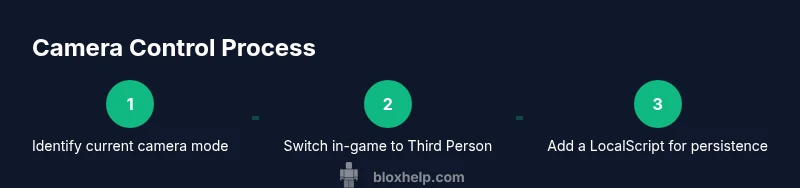
- 1
Identify current camera mode
Open the game and observe whether you are stuck in First Person or if the game already offers a Third Person option. Note any UI cues, settings, or in-game buttons related to the camera. This initial check helps determine whether you need to adjust in-game options or implement a script.
Tip: If you can’t find a camera toggle, proceed to the developer-side fix in the next steps. - 2
Open camera settings or locate a toggle
Navigate to the Settings or Camera section and look for a mode labeled First Person, Third Person, or Follow. If a toggle exists, switch to Third Person and test the result. Some games require you to confirm changes or restart the session for the new camera mode to take effect.
Tip: Test the change immediately after selecting Third Person to confirm it sticks during movement. - 3
Apply a LocalScript for consistent third-person
If the game lacks a stable camera toggle, add a LocalScript that sets the camera to a custom/third-person mode and assigns the player's character as the CameraSubject. This ensures the camera remains in a comfortable view during gameplay.
Tip: Place the script in StarterPlayerScripts so it runs for every play session. - 4
Test in Studio and across devices
Use Roblox Studio’s Play mode to simulate different devices and input methods. Then test on PC, mobile, and (if applicable) VR to validate consistent Third Person behavior and identify platform-specific issues.
Tip: Document any deviations per device and adjust the code or settings accordingly. - 5
Add safeguards against reversion to First Person
Incorporate checks that prevent other scripts from forcing a First Person view during key actions like combat or cutscenes. Logic can reapply the desired CameraType and CameraSubject when needed.
Tip: Keep the safeguards lightweight to avoid performance issues. - 6
Finalize and publish
Once consistent across devices, commit the changes to your game and update the documentation. Ensure players know how to switch views via the UI, and provide a visible option to revert to First Person if desired.
Tip: Include a changelog entry describing the camera improvements. - 7
Document and share the approach
Add notes to your game’s README or developer documentation about the camera setup and why Third Person is preferred. This aids future maintenance and onboarding for new developers.
Tip: Share the code snippet and steps with teammates for quick adoption. - 8
Continuous testing
Regularly re-test after updates or new content. Camera behavior can drift with new assets or scripts, so periodic checks help preserve the intended perspective.
Tip: Schedule quarterly reviews for camera logic or after major feature deployments.
Questions & Answers
What is the quickest way to exit first person in Roblox if there is no in-game toggle?
If there’s no in-game toggle, use a LocalScript to set the camera to a non-first-person mode and assign the player as the CameraSubject. This ensures the camera remains in a third-person perspective across gameplay.
If you can’t find a switch, apply a small script to keep the camera in a third-person view.
Will forcing a third-person camera affect gameplay or performance?
For most games, switching to Third Person does not impact performance significantly. It mainly changes what the player sees and how the camera moves, which can improve navigation without adding heavy processing.
Usually no, it mainly changes what you see, not how the game runs.
Can VR experiences work with a non-first-person camera?
VR experiences may have safety guidelines that override camera modes. If VR is enabled, check the game’s settings or developer notes for recommended camera behavior and test carefully for comfort.
VR modes can override camera settings to keep things comfortable.
What should I do if the camera keeps snapping back to first person after changes?
Check for other scripts that set CameraType or CameraSubject and ensure your fixes run after those scripts. Add a guard to reapply the desired camera settings when necessary.
If it keeps snapping back, look for conflicting scripts and re-apply your camera settings.
Is there a universal hotkey to switch camera views in Roblox?
There is no universal Roblox hotkey for camera mode across all games. Use in-game toggles where available or implement a developer-side solution to control the camera.
There isn’t a universal hotkey; use in-game options or a script-based fix.
How can I test camera changes on mobile devices?
Install the game on a mobile device and use Play mode with touch controls to verify Third Person remains active. Adjust UI elements if touch input interferes with the camera.
Test with real devices to ensure the camera works with touch controls.
Watch Video
The Essentials
- Switch to a stable third-person view to improve navigation
- Use in-game options or a LocalScript to enforce camera behavior
- Test across devices and provide clear UI for view switching
- Document camera setup for easier maintenance and updates