How to Get Roblox Out of Controller Mode in 2026
Learn how to exit Roblox controller mode with practical steps, input checks, and troubleshooting tips. Aimed at keyboard/mouse users on PC and console in 2026.


To exit Roblox controller mode, start by checking input settings, disconnecting any attached controllers, and switching to keyboard and mouse. This guide covers PC, Mac, Xbox, and mobile, with practical steps to prevent auto-switching and ensure Roblox uses the intended input. Blox Help provides a concise, effective method for 2026.
Understanding Roblox Controller Mode and Why It Happens
Roblox is designed to accept multiple input devices, including keyboards, mice, and gamepads. Controller mode occurs when Roblox prioritizes or remains locked onto a gamepad input, even if you want to play with a keyboard and mouse. This behavior can be frustrating, especially if you're building or testing a game and need precise input. According to Blox Help, controller mode can be triggered at startup if a connected controller is detected, or after a system update when input priorities reset. In 2026, more players report this issue across PC, Mac, Xbox, and mobile, often after Windows or console firmware updates. The good news is that most cases are resolveable with a few settings changes. The goal is to force Roblox to recognize your preferred input method consistently, so you can type, aim, and navigate with keyboard and mouse without interference from a stray controller signal. The steps below are designed for beginner-to-advanced users and assume you have Roblox installed and an active internet connection.
Common Scenarios and Symptoms
Controller mode manifests in a few common ways: the on-screen keyboard may not respond to typing, the cursor moves with a gamepad instead of the mouse, or gamepad button prompts appear even when you use a keyboard. In 2026, this issue appears across platforms, frequently after device reconnects or firmware updates. Based on Blox Help analysis, root causes often include residual controller bindings, stale input cache, or background software that auto-detects gamepads. Understanding these patterns helps you choose the most effective fix and reduces trial-and-error time. If you notice your character spinning or camera controls behaving oddly when you press a key, you’re likely experiencing a controller-detection hiccup rather than a core game bug.
Immediate Troubleshooting Checklist
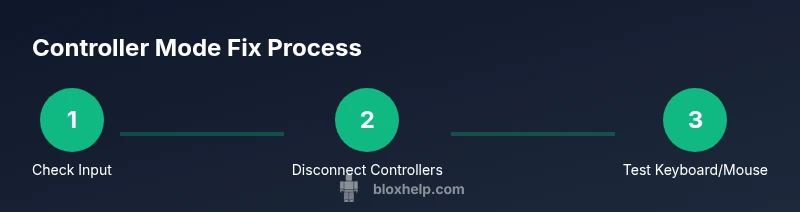
Start with a quick set of checks before diving into deeper fixes. First, ensure a keyboard and mouse are recognized by your device and Roblox. Then, disconnect all controllers (USB and Bluetooth) and re-launch Roblox. If the issue persists, reboot your device and re-check settings. Disable any third-party software that adds extra input mapping (like macro tools) to avoid conflicts. Finally, test in a fresh Roblox game or a sandbox experience to verify whether the problem is game-specific or device-wide.
In-Depth Diagnosis and Why It Works
When Roblox detects a controller, it may lock to that input until it’s explicitly overridden by a keyboard/mouse preference. A common pitfall is leaving a controller “connected” in the OS even after you unplug it, allowing the game to re-detect the device on startup. Another frequent cause is outdated driver software or firmware that reports inconsistent input capabilities. By refreshing input devices, clearing cached bindings, and validating Roblox’s internal input list, you reset Roblox’s perception of available devices. The net effect is a clean slate where keyboard/mouse control is prioritized again, and in-game actions respond as expected. This approach aligns with best practices for multi-input games and is consistent with guidance from the Blox Help Editorial Team.
Authority Sources and Further Reading
For system-level input management, consult reputable sources for device handling. Xbox and Windows support pages provide official steps to disconnect and re-pair controllers. How-To Geek articles offer practical guidance on disabling or reconfiguring gamepads on Windows and macOS. Roblox’s own Help Center (Roblox Support) covers controller input conventions and how to configure devices within Roblox settings. These resources help validate the troubleshooting steps and offer platform-specific tweaks if needed.
Authority Sources
- Xbox Support: https://support.xbox.com
- How-To Geek: https://www.howtogeek.com
- Roblox Help Center: https://en.help.roblox.com/hc/en-us
Tools & Materials
- Roblox-capable device(PC, Mac, Xbox, or mobile with the latest Roblox version)
- Keyboard and mouse (or primary input device)(To test and confirm keyboard/mouse input)
- Gamepad/controller (optional for testing)(Use if you need to reproduce controller mode scenarios)
- Stable internet connection(For settings sync, updates, and testing online games)
- USB cable or Bluetooth adapter(Only if you’re reconnecting a wired controller)
Steps
Estimated time: Total time: 25-40 minutes
- 1
Check current input device in Roblox
Open Roblox and go to Settings > Input. Verify which device is currently active. If Controller is selected or shown as active, prepare to switch to Keyboard/Mouse and test the change.
Tip: Save your settings before switching to avoid losing preferences. - 2
Disconnect all controllers
Physically unplug any USB controllers and disable Bluetooth connections that might re-link a gamepad automatically. Relaunch Roblox after disconnecting. This clears any lingering controller state that could cause auto-detection.
Tip: If you use Bluetooth, fully remove the device from your system's Bluetooth settings and re-pair later if needed. - 3
Switch input to Keyboard/Mouse
In Roblox Settings, set Keyboard/Mouse as the preferred input method. Restart Roblox to ensure the change takes effect and retest in a simple game area.
Tip: Disable any Steam Input or third-party input remappers that could ghost the controller. - 4
Test input in-game
Enter a controlled mini-game or test place and verify that typing, moving the cursor, and camera control respond to keyboard/mouse actions. Confirm there’s no lingering controller influence.
Tip: Use a test area with neutral controls to avoid weapon or character-specific input confusion. - 5
Update drivers and Roblox client
Check for Windows/macOS driver updates for any connected devices and install the latest Roblox patch. Updates can fix input recognition discrepancies that trigger controller mode.
Tip: Restart after updates to ensure changes are applied. - 6
Reboot device and re-launch Roblox
Fully reboot your computer or console, then start Roblox again. A full reboot clears any stale input caches and helps Roblox re-detect the correct input method.
Tip: If you’re on console, try rebooting the console instead of just relaunching the app. - 7
On consoles, re-pair the controller if needed
If you still see a controller prompt, remove and re-pair the gamepad with the console. Ensure the console prioritizes keyboard/mouse when tests are done outside Roblox.
Tip: Check your console accessibility settings for any automatic controller re-pair options. - 8
If issues persist, contact support
If Roblox still defaults to Controller mode, gather screenshots, device specs, and a brief description of the steps you tried, then reach Roblox Support or your platform’s support channel for deeper troubleshooting.
Tip: Document exact steps and times so support can reproduce the issue quickly.
Questions & Answers
What exactly is Roblox controller mode?
Controller mode means Roblox detects and prioritizes gamepad input. If it activates, in-game actions may respond to the controller even when you try to use a keyboard and mouse.
Controller mode is when Roblox uses a gamepad by default. You can switch back to keyboard and mouse in settings.
How do I permanently disable controller mode?
There isn't a universal permanent switch. The goal is to set your preferred input in Roblox settings and ensure all controllers are disconnected when you play. Recheck after each update.
Set your preferred input in Roblox settings and disconnect controllers when playing; re-test after updates.
Will this affect Roblox on consoles?
On consoles, controller input is often primary. You can adjust in-game settings if available, but some consoles may require controller use by design.
Console games usually rely on controllers by default; adjust settings where possible and test.
Does resetting settings erase progress?
Resetting input preferences typically does not affect saved progress or game data; it only changes how input is interpreted by Roblox.
No—resetting input settings usually only changes preferences, not your progress.
What if inputs still don’t switch properly after following steps?
Check for background software that intercepts input, update device drivers, and consider contacting Roblox Support with detailed steps and system specs.
If it still happens, update drivers and reach out to Roblox Support with details.
Watch Video
The Essentials
- Identify which input Roblox is prioritizing and switch to Keyboard/Mouse first.
- Disconnect all controllers and test input changes across platforms.
- Update drivers and Roblox version to fix detection issues.
- Test across multiple games to ensure the fix is robust in 2026.