Getting Roblox Out of Portrait Mode: Step-by-Step Guide
Learn how to stop Roblox from staying in portrait mode across devices. This comprehensive guide covers iOS, Android, Windows, and Mac setups, with practical steps, tips, and troubleshooting to restore landscape play.


This guide shows you how to get Roblox out of portrait mode by adjusting device orientation, in-app and system settings, and troubleshooting steps across major platforms. Follow the steps for mobile (iOS/Android) and desktop to restore landscape play. No special tools required.
Understanding portrait mode in Roblox
If you’re wondering how to get roblox out of portrait mode, this guide dives into why Roblox sometimes locks orientation and how to regain landscape play. Portrait mode can appear when a device has rotation lock enabled, when the Roblox app is updated with orientation changes, or when a game temporarily forces portrait for UI reasons. The goal is to give you practical, device-agnostic steps to switch Roblox back to landscape so the game fills your screen and controls are comfortable. According to Blox Help, orientation issues can disrupt Roblox play and frustrate new players, so tackling them early saves time and reduces interruptions. Though individual devices behave differently, the core fix remains consistent: adjust system orientation, confirm app behavior, and test across platforms. By following these steps, you’ll reliably exit portrait mode and enjoy a wider, easier-to-use gameplay area.
Quick checks on your device orientation
Before diving into platform-specific fixes, perform a quick orientation sanity check:
- Ensure your device’s rotation lock is disabled. On iOS and Android, a locked orientation forces portrait regardless of how you rotate the device.
- Confirm your Roblox window or screen is actually allowed to rotate. Some apps display fixed portrait layouts if accessibility settings or launch options override rotation.
- Test rotation with another app (like a video player) to confirm the device can switch to landscape. If other apps rotate normally but Roblox does not, the issue is likely Roblox-specific or a recent app change.
- Restart Roblox after changing orientation settings. Apps occasionally cache orientation state and need a restart to apply changes.
- If you’re using a tablet or large phone, try landscape in a simple scene first (home screen → rotate → open Roblox) to verify the device can rotate without obstacles. Based on Blox Help research, some devices experience portrait-lock prompts that require a quick toggle of system settings to resolve.
iOS-specific steps to switch to landscape
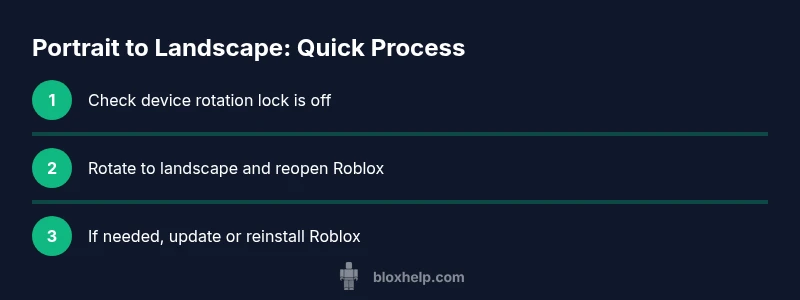
iOS devices handle orientation through both the device settings and the Control Center. Start by swiping down (iPhones with Face ID) or up (older models) to access Control Center and ensure the Orientation Lock icon isn’t highlighted. Then rotate your device to landscape and re-open Roblox. If the app still stays portrait, go to Settings > Display & Brightness > View and select Standard (or Zoomed) to reset orientation handling, then reopen Roblox. If Roblox offers an in-app option to lock orientation, disable it so the system governs rotation instead. Finally, ensure you’ve installed the latest Roblox version from the App Store, as older builds may ignore orientation changes.
Android-specific steps to switch to landscape
On Android, rotation behavior is controlled by both the system and the app. Open Settings > Display > Auto-rotate, and ensure it’s turned on. If Roblox still sticks to portrait, swipe down to access Quick Settings and toggle Auto-rotate off and on again, then relaunch Roblox. Some devices also expose a per-app permission to restrict rotation; if Roblox is listed, allow it to rotate. Clearing Roblox cache or reinstalling the app can fix stubborn cases where the game ignores orientation changes after an update.
Windows and macOS: Ensuring Roblox runs in landscape
Desktop platforms don’t rely on device rotation the same way mobile does. To ensure landscape gameplay on Windows or Mac, start by resizing the Roblox window to a landscape aspect ratio, or switch Roblox to Fullscreen mode (F11 on Windows, Ctrl+Cmd+F on macOS). If Roblox opens in a tall, portrait-like window, maximize the window or drag the edges to enforce a landscape shape. Some games within Roblox may enforce a portrait UI; in that case, changing the game’s built-in settings (if available) or switching to a different game can help. Always ensure your graphics drivers and Roblox client are up to date, since performance issues can cause odd UI scaling that resembles portrait mode.
Roblox settings and gameplay options
Roblox itself doesn’t typically expose a strict “orientation” toggle in most game plays, so landscape behavior is largely governed by system settings. If you see persistent portrait layouts in specific games, try switching to another game to verify if the issue is game-specific. You can also reset Roblox app preferences by reinstalling the app, which clears orientation caches that might cause an ongoing portrait UI. For players using external displays, ensure the display’s rotation setting matches the desired orientation and that the monitor’s graphics scaling isn’t distorting the viewport. In some cases, playing Roblox in a windowed mode on PC helps maintain a comfortable landscape layout regardless of monitor rotation.
Troubleshooting common issues
If none of the above steps fix the problem, consider these targeted actions: verify you’re on the latest Roblox version, clear the app cache, and perform a clean reinstall. Check for OS updates that might affect rotation handling and ensure your device isn’t in a restricted mode (like a kiosk or classroom setting) that forces portrait. If a particular game continues to force portrait even after all fixes, it may be a developer-implemented UI choice; in that case, switching to a different game or platform can restore landscape play. Remember to back up progress before reinstalling, as this can reset settings and saved data for Roblox on your device.
Best practices to prevent portrait-mode issues in the future
To minimize future interruptions, adopt a routine when starting Roblox:
- Always verify device orientation lock and Auto-rotate settings before launching Roblox.
- Keep Roblox updated to the latest version so orientation handling improvements are applied automatically.
- When possible, test orientation on a fresh game session to ensure changes take effect.
- Use a landscape-friendly device or external monitor whenever you need precise control layouts and UI visibility. The goal is to ensure landscape readiness before gameplay begins.
Authority sources
For broader device orientation and accessibility guidelines, consult these references:
- https://www.nist.gov
- https://www.w3.org
- https://www.acm.org
Tools & Materials
- Smartphone or tablet with Roblox installed(Use the latest Roblox version; update if needed)
- Desktop computer (Windows/macOS) with Roblox(Useful for testing landscape on larger screens)
- Stable internet connection(Needed for updates and re-downloads)
- Access to device orientation settings(Know how to toggle Auto-rotate and orientation lock)
- Roblox app reinstallation option(Backup progress before reinstalling)
Steps
Estimated time: 15-25 minutes
- 1
Check your Roblox version
Open the app store and confirm you’re running the latest Roblox client. If an update is available, install it and restart Roblox to apply fixes that may affect orientation handling.
Tip: New builds often include orientation fixes; don’t skip updates. - 2
Disable device rotation lock
On iOS, access Control Center and ensure the rotation lock is off; on Android, pull down the quick settings and toggle Auto-rotate off and back on to reset the system state.
Tip: A quick toggle often resolves stubborn orientation issues. - 3
Rotate to landscape
Physically rotate your device to landscape orientation and reopen Roblox. If the app remains portrait, proceed to the next step.
Tip: Test with another app to confirm the device supports landscape rotation. - 4
Test across platforms
If Roblox still shows portrait on mobile, try launching Roblox on a desktop in landscape to verify whether the issue is device-specific or game-specific.
Tip: Cross-platform testing helps isolate the cause. - 5
Reset or reinstall Roblox
If issues persist, uninstall and reinstall Roblox to clear caches and reset orientation preferences. Reinstall only after backing up necessary data.
Tip: Reinstallation often fixes stubborn orientation bugs introduced by updates. - 6
Check game-specific behavior
Some Roblox games may enforce portrait UI; if a single game is affected, try another game to see if landscape is available there.
Tip: Orientation behavior can vary by game; use landscape-friendly titles for practice. - 7
Adjust windows and external displays (PC)
On PC, resize the Roblox window to a landscape aspect ratio or use fullscreen mode to ensure a wide viewport.
Tip: If using a monitor with a vertical orientation, ensure you’re in landscape mode and that scaling is appropriate. - 8
Seek official updates if needed
If the issue persists, monitor Roblox support channels for a known bug fix and follow any official guidance released by the developers.
Tip: Check patch notes after each Roblox update for orientation fixes.
Questions & Answers
Does Roblox support landscape mode on mobile devices?
Roblox generally supports landscape when the device orientation allows rotation, but some games or builds may force portrait UI. If you’re facing issues, check your device rotation settings and test different games.
Roblox usually works in landscape if your device is allowed to rotate, but some games may force portrait UI. Check your rotation settings and test different games.
Why is Roblox still in portrait after updating?
Updates can reset orientation settings or cache data. Ensure Auto-rotate is enabled, restart the app, and consider reinstalling if the issue persists.
Updates can reset orientation. Enable auto-rotate, restart, and reinstall if needed.
Can I force landscape using in-app settings?
There is typically no universal in-app toggle for orientation in Roblox; landscape is controlled by the device. Use device rotation settings and try restarting the app to apply changes.
There isn’t a universal in-app landscape toggle; use your device settings and restart the app.
Is orientation different on iOS vs Android?
Both platforms rely on system orientation settings. iOS uses Control Center toggles; Android uses Quick Settings. Ensure Auto-rotate is enabled on both and test with Roblox.
Both iOS and Android rely on system orientation. Check auto-rotate and test in Roblox.
What if a game UI is still portrait in landscape devices?
If a single game enforces portrait, switch to a different title or reach out to the game developer. Landscape workarounds may not apply to that game’s UI.
Some games force portrait UI. Try a different game or contact the developer.
Will portrait mode affect recording or streaming?
Viewport orientation can influence how recordings look. Ensure the display is in landscape before recording for a more natural composition.
Orientation affects how your video looks; use landscape during recording.
Watch Video
The Essentials
- Verify orientation locks on all devices before playing.
- Keep Roblox updated to ensure landscape support.
- Test across platforms to pinpoint where the issue occurs.
- Reinstall Roblox if orientation changes fail.
- Prefer landscape-friendly games for a consistent experience.