How to Keep Roblox from Freezing
Learn practical, step-by-step methods to stop Roblox from freezing. Improve performance, fix lag, and ensure stable gameplay with network tweaks, driver updates, and in-game settings.


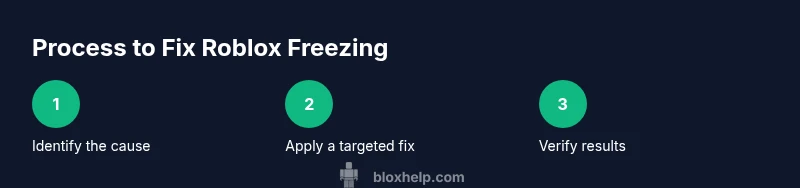
This guide provides a practical, step-by-step approach to stop Roblox from freezing by optimizing your device, network, and in-game settings. You’ll learn how to diagnose the cause, apply targeted fixes, and verify improvements across PC, Mac, and mobile platforms, using a low-friction checklist that scales if the problem persists.
Why Roblox freezes and how to diagnose
Roblox freezing can feel incredibly frustrating, especially during a battle or a build session. Freezes typically arise from a mix of local resource limits, software conflicts, and occasional server hiccups. According to Blox Help, the most reliable fixes start with a quick diagnosis: determine whether the issue sits with your device, your network, or Roblox servers, then apply a targeted fix. Start with a simple triage: note recent changes (new apps, OS updates, or patches), check your internet connection, and test with a different game or account to isolate variables. This process helps you avoid wasting time on unrelated steps and sets you up for a successful optimization run.
- Look for patterns: does freezing happen only during heavy scenes, in older devices, or on certain networks?
- Record baseline performance: note FPS averages, latency, and whether the freeze is brief or long-lasting.
- Separate variables: test with a wired connection, then re-test on Wi-Fi to compare results.
Brand context in this guide: the Blox Help team emphasizes practical, repeatable fixes that players can perform without specialized tools.
Check your system resources and requirements
Even a modern PC or console can struggle to run Roblox smoothly if resources are constrained. Start by checking available RAM, CPU load, and storage speed, then compare against the game’s demands. If you notice memory or CPU saturation during gameplay, you’ll want to trim back background tasks and ensure your system isn’t paging data to disk excessively. On mobile devices, close background apps and disable animations where possible to allocate more resources to Roblox. Regular maintenance—like cleaning temporary files and ensuring sufficient free disk space—helps sustain peak performance. In addition to the hardware check, ensure your Roblox client is up to date so you’re benefiting from the latest performance improvements.
- Close unused apps and browser tabs before launching Roblox.
- Keep at least 20% free disk space on your primary drive.
- If you’re on a laptop, use power settings optimized for performance rather than energy saving.
Verify Roblox server status and region
Server-side issues can cause freezing or stuttering for players even when their devices are healthy. Always check Roblox server status and consider switching regions if you suspect a regional outage or routing problem. When server problems are the culprit, the fix is waiting for Roblox to restore service, not changing your hardware. To isolate issues, test on different Roblox games or invite a friend to join the same server and compare experiences. If server status is green but you still freeze, proceed with device and network optimizations.
- Check official Roblox status pages and social channels for outage notices.
- Try a different game or private server to compare performance.
- If possible, use a direct Ethernet connection instead of Wi‑Fi to rule out local network variability.
Optimize network connection and latency
Network health is a frequent culprit for Roblox freezes. A stable, low-latency connection reduces buffering and frame drops. Start with a wired Ethernet connection if you can; this eliminates most Wi-Fi interference. If wired isn’t possible, move closer to your router and reduce competition on your network by pausing other bandwidth-heavy activities. Disable VPNs or proxies that can add latency and instability, and ensure your router’s firmware is current. You can also run a quick speed test and ping check to assess latency spikes during gameplay. If your ISP has congestion at certain times, plan gaming sessions for off-peak hours when possible.
- Use a wired connection when available.
- Pause other devices or apps using bandwidth during play.
- Disable VPNs and ensure router firmware is up to date.
In-game graphics and performance settings
Graphics settings are a common source of freezing, especially on lower-end devices. Lowering texture quality, shadows, and post-processing effects reduces GPU load and memory usage. Locking a steady frame rate within Roblox, enabling V-Sync if supported, and selecting the appropriate rendering mode (auto or manual) can stabilize performance. If you’re on mobile, lower the draw distance and disable high-quality effects. Avoid running other heavy apps in the background while playing and adjust the game’s graphics settings to a level your device can handle reliably. After making changes, test to confirm improvements and iterate if needed.
- Start with a moderate graphics preset and adjust upward if you have headroom.
- Enable V-Sync or cap frame rate to reduce tearing and spikes.
- Turn off background rendering features you don’t need.
Clear cache, update software, and clean your device
Corrupted cache or outdated software can trigger freezes. Clear Roblox cache, update the Roblox client, and keep your OS and drivers current. On computers, consider a quick cache purge and a restart to reset transient data. On mobile, clear app cache (or reinstall if necessary) to reset in-app caches. If problems persist, a clean reinstall of the Roblox app can help as a last resort. Be sure to back up any local creations before reinstalling, especially if you’re using Roblox Studio content.
- Clear cache from the Roblox client or device settings.
- Install the latest Roblox release and system updates.
- Reinstall only if cache clearing and updates don’t resolve the issue.
Routine maintenance and hardware checks
Long-term stability comes from ongoing maintenance. Regularly monitor RAM usage, CPU temperatures, and drive health. Keep your device free of dust and ensure adequate cooling to prevent thermal throttling that can cause freezing during intense game moments. For desktops, adding RAM or upgrading to an SSD can yield noticeable improvements in load times and smoothness. On consoles or mobile devices, routine restarts and avoiding heavy multitasking during play help maintain consistent performance. This proactive approach minimizes the odds of freezing during sessions.
- Check temperatures during gaming with a trusted utility.
- Maintain clean hardware and adequate cooling.
- Consider hardware upgrades if performance remains inconsistent after software fixes.
Common pitfalls and mistakes to avoid
Players often misdiagnose freezes by assuming a single cause. Don’t ignore software conflicts, outdated drivers, or misconfigured power settings. Avoid cranking up graphics beyond your device’s capability in an attempt to improve visuals, which often worsens stability. Don’t rely on a single fix to solve all issues; instead, apply a layered approach that addresses network, software, and hardware together. Finally, avoid reinstalling Roblox as the first step; exhaust cache clearing and updates first, as reinstalling can reset local projects or saved data.
- Don’t assume one solution fixes all issues.
- Don’t rely solely on increasing graphics quality to solve freezes.
- Don’t skip background-task management during troubleshooting.
Build your own troubleshooting checklist you can reuse
Creating a reusable checklist helps you act quickly the next time Roblox freezes. Start with a quick server check, move to network validation, apply in-game and software optimizations, and finish with a hardware health assessment. Save the checklist to your notes or a document for easy reference. Reuse the same structure for other games or apps that experience stuttering, since most symptoms share common root causes.
- Create a brief, repeatable protocol you can follow from memory.
- Update the checklist after each freezing incident to capture what worked.
- Share the checklist with friends to help them fix similar issues.
Tools & Materials
- Stable internet connection(Wired Ethernet is best; avoid mobile hotspots)
- Up-to-date Roblox app/client(Install the latest version from official sources)
- Device with sufficient RAM(Minimum 4 GB; 8 GB+ recommended for streaming or Studio)
- Updated graphics drivers(NVIDIA/AMD/Intel driver updates help graphics stability)
- Background process management(Close unused apps to free CPU/RAM)
Steps
Estimated time: 45-60 minutes
- 1
Check server status and region
Begin by confirming Roblox servers are operational and that you’re connected to a reasonable region. If a regional outage is detected, there’s little you can do beyond waiting for Roblox to fix it. Try a different game to see if the issue is game-specific.
Tip: Note any outages and their duration for future reference. - 2
Test network stability with a wired connection
If you can, switch from Wi‑Fi to a wired Ethernet connection. A stable, low-latency link minimizes lag and reduces the chance of freezes caused by network jitter. If wiring isn’t possible, move closer to the router and minimize interference.
Tip: Disable VPNs and background network-heavy tasks during testing. - 3
Close background apps and scan for resource hogs
Quit unnecessary programs and browser tabs to free CPU and RAM. On Windows, use Task Manager to identify processes consuming memory. On macOS, use Activity Monitor to monitor energy and memory usage.
Tip: Restart your device if you notice persistent resource spikes before starting Roblox. - 4
Tune Roblox graphics and rendering settings
Lower textures, shadows, post-processing, and resolution if needed. Cap the frame rate to reduce spikes. For mobile, reduce draw distance and disable extra effects. Test after each change to gauge impact.
Tip: Use a guided preset and adjust gradually; avoid jumping to extreme settings. - 5
Clear cache and update software
Clear Roblox cache, ensure the game and OS are up to date, and restart. If issues persist, consider a clean reinstall of Roblox after backing up local content. These steps fix corrupted cache or stale data that can trigger freezes.
Tip: Always backup local assets before reinstalling. - 6
Check hardware health and temperatures
Monitor GPU/CPU temperatures during play. If temperatures climb rapidly, improve cooling, dust out vents, or adjust fan curves. Hardware throttling can masquerade as freezing or stuttering.
Tip: Use a trusted hardware monitoring tool during a test session. - 7
Re-test and compare results
Run Roblox again with the same scene to verify whether the changes reduced freezes. If the issue returns, iterate on other settings or attempt a hardware upgrade if necessary.
Tip: Keep notes of what you changed and the observed effect. - 8
Maintain a routine check
Schedule periodic maintenance: driver updates, cache clearing, and verifying game patches. Consistent upkeep reduces the chance of unexpected freezes over time.
Tip: Set a monthly reminder to perform these checks.
Questions & Answers
What are the most common reasons Roblox freezes?
Roblox freezes usually stem from device performance limits, outdated drivers, background processes, or network issues. Isolating which category is causing the freeze makes it easier to apply the correct fix.
Common freezes come from your device, drivers, or network, so start by checking server status and closing background apps.
Can I fix a freezing Roblox game on mobile?
Yes. On mobile, close other apps, ensure a strong Wi-Fi connection, update Roblox, and lower graphics. If it remains, clear cache or reinstall the app.
On mobile, close other apps, update Roblox, and lower graphics.
Will reinstalling Roblox solve freezing issues?
Reinstalling can fix corrupted files, but it’s not always necessary. Start with cache clearing and updates, then consider reinstalling if issues persist.
Reinstalling can help if files are corrupted, but you should try other fixes first.
How often should I update drivers to prevent Roblox freezing?
Keep graphics and system drivers up to date and check for updates after major OS patches. Regular maintenance helps prevent stability issues.
Update drivers regularly, especially after system updates.
What should I do if Roblox servers are down?
If Roblox servers are down, you cannot fix it on your end. Wait for Roblox to restore service and try again later.
If Roblox is down, you just need to wait.
Watch Video
The Essentials
- Identify the root cause with a quick triage.
- Stabilize the network before changing hardware.
- Tune in-game settings to match device capability.
- Maintain software and hardware health regularly.
- Create and reuse a troubleshooting checklist.