How to Stop Roblox from Lagging: Practical Fixes
Learn practical steps to reduce Roblox lag, boost FPS, and enjoy smoother gameplay across devices with expert tips from Blox Help.


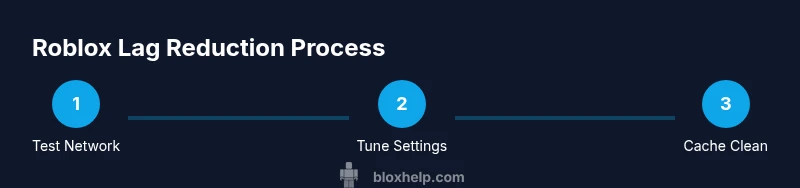
You can stop Roblox lag by optimizing your network, updating hardware drivers, adjusting in-game graphics, and keeping Roblox updated. Begin with a stable wired connection, then tune your settings, clear cache, and test in a nearby region. This guide walks you through practical steps to reduce lag across PC, Mac, mobile, and consoles.
Why Roblox lag happens
Lag in Roblox is rarely caused by a single issue. More often, it results from a mix of network instability, device performance limits, and server load. When you ask how to stop roblox from lagging, you’re really looking at a multi-pronged approach: improve your connection, optimize the game and device settings, and understand Roblox server dynamics. In many cases, players experience lag due to momentary network congestion, high background activity, or insufficient GPU/CPU headroom. The goal is to reduce latency, balance resources, and maintain a stable frame rate. If you’re asking how to stop roblox from lagging, start with the simplest root causes—your internet connection and device performance—and then layer in in-game adjustments for a smoother experience across devices. This is especially important for players who jump between PC, Mac, mobile, and consoles.
Throughout this guide, you’ll see practical steps you can take today, plus why those steps matter for latency and FPS. By addressing both client-side factors (your device and settings) and server-side considerations (regional load and routing), you’ll build a robust plan to minimize lag in most Roblox sessions. Remember: the sooner you diagnose where lag originates, the faster you can apply the right fix and return to your game.
Check your connection and network basics
To understand how to stop roblox from lagging, start with the network. Roblox performance hinges on stable latency (ping) and minimal jitter. Run a quick speed and latency check outside of Roblox to establish a baseline. If your tests show high ping or inconsistent speeds, consider connecting via a wired Ethernet connection, upgrading your router firmware, or temporarily pausing other bandwidth-heavy tasks. If you’re on Wi‑Fi, minimize interference by placing your device closer to the router, switching to a less congested channel, and turning off neighboring devices that spike traffic. NAT type and firewall settings can also influence routing efficiency. By tightening these basics, you’ll reduce the odds of remote server latency translating into visible lag in-game.
If you’re wondering how to stop roblox from lagging, this step sets the stage for the next fixes: your goal is a stable, low-variance connection that Roblox can rely on for consistent gameplay.
Optimize Roblox settings for performance
In-game options are a powerful lever for reducing lag. Roblox’s graphics quality and rendering settings determine how hard your device works to render frames. Start by lowering the Graphics Quality or switching to a lower preset, which reduces the GPU load and can dramatically improve FPS on lower-end devices. If you’re playing on mobile, enable the lowest suitable setting while keeping gameplay readable. Also consider disabling any advanced post-processing effects, shadows, or anti-aliasing if the option is available. In addition, ensure the game isn’t trying to render at a higher internal resolution than your device can sustain. By tailoring these settings, you reduce frame drops that feel like lag and improve consistency across play sessions on all platforms.
As you adjust visuals, test the impact after each change. Small tweaks can yield noticeable improvements without sacrificing too much visual clarity. The objective is smooth, responsive controls with a steady frame rate rather than peak graphical fidelity.
Improve device performance and background apps
A lag-free Roblox experience often hinges on available system resources. Close unnecessary background apps, tabs, and downloads that compete for CPU, RAM, or network bandwidth. On Windows, use Task Manager to end processes that spike CPU usage or memory and disable startup programs that aren’t needed for gaming. On
Reduce server-side lag and regional factors
Sometimes lag isn’t purely client-side. Roblox servers can experience congestion or hidden routing inefficiencies that raise latency for certain regions. If you notice lag spikes during peak hours or when playing with players from far regions, try switching to a closer server region if the option is available. You can also opt to play at off-peak times to take advantage of lighter server load. Remember that server-side issues are common across many online titles and can be mitigated by choosing nearby regions or waiting for maintenance windows to pass. While you can’t eliminate all server-side lag, you can minimize its impact by selecting the server that offers the lowest latency in your area.
When you’re troubleshooting how to stop roblox from lagging, this step helps you distinguish client issues from server-related delays and guides your next moves accordingly.
Clear cache and maintain your Roblox app
Cache and temporary files can accumulate and cause performance hiccups. Clearing the Roblox cache periodically helps the client load fresh assets and reduces potential lag due to corrupted caches. On Windows, navigate to the Roblox cache folder and delete its contents; on
Clear cache and maintain your Roblox app
Cache hygiene is a simple yet effective habit that pays off over time. A clean cache often translates to snappier menu navigation, faster asset loading, and fewer lag spikes during gameplay. Pair cache maintenance with periodic updates to Roblox and your device drivers so you’re always running a modern, optimized stack. If lag persists after clearing, move to more advanced steps, such as hardware checks or network optimizations, to identify deeper bottlenecks and resolve them.
Advanced tips for persistent lag on PC, Mac, or mobile
If you still experience lag after implementing the basics, it’s time to go deeper. Update your graphics and network drivers to the latest versions, as older drivers can cause inefficiencies with newer game assets. Check your NAT type and router settings; enabling UPnP or configuring QoS to prioritize game traffic can reduce latency. Consider using a wired connection instead of Wi‑Fi, and if you use a VPN, disable it for Roblox, as VPNs can add hops and increase latency. For laptops and desktops, ensure the system isn’t thermally throttling; clean dust from fans and ensure proper ventilation. On mobile devices, close background apps aggressively and ensure power-saving modes aren’t throttling performance during gameplay. These steps address underlying bottlenecks that standard fixes can miss, delivering tangible improvements for those asking how to stop roblox from lagging in persistent scenarios.
Troubleshooting flowchart and quick checks
If you’ve exhaustively tested settings and still experience lag, follow this quick flow: (1) confirm your connection is stable with a latency test; (2) try a wired connection or dedicated gaming router; (3) reduce in-game graphics and background load; (4) clear Roblox cache and update the client; (5) attempt a different server region if available; (6) contact Roblox support if the issue affects multiple games or persists after all adjustments. This structured approach ensures you don’t miss common culprits and helps you track what fixes have worked over time. By following a clear sequence, you’ll quickly identify whether the lag originates from your setup or from external factors beyond your control.
Tools & Materials
- Stable internet connection(Test with wired connection when possible; ensure consistent bandwidth with minimal spikes)
- Wired Ethernet cable(Use if Wi‑Fi is unstable or congested)
- Up-to-date Roblox client(Keep Roblox app/game client updated to the latest build)
- Device performance basics (RAM/CPU/GPU)(Close other apps; ensure hardware isn’t maxed out during gameplay)
- Speed test tool(Optional diagnostics to gauge your network quality)
- Router with QoS or updated firmware(Prioritize gaming traffic and keep firmware current)
- Clear cache instructions by device(Follow device-specific steps to clear Roblox cache)
Steps
Estimated time: 45-60 minutes
- 1
Test your internet speed and stability
Run a speed test to measure latency (ping) and throughput. Compare results to typical gaming needs and Roblox's requirements. Record the baseline to gauge the impact of future changes.
Tip: Use a wired connection when possible to obtain the most accurate results. - 2
Switch to a wired connection or improve wireless conditions
If possible, connect the device via Ethernet. If you must use Wi‑Fi, move closer to the router, reduce interference, and switch to a less congested channel. Ensure your router supports modern standards and is not overloaded.
Tip: A stable wired link often yields the largest and most consistent lag reduction. - 3
Update Roblox to the latest version
Check for updates in the app store or launcher and install any available patches. Updated builds often include performance improvements and bug fixes that reduce lag.
Tip: Enabling automatic updates helps maintain a clean baseline for performance. - 4
Close background apps and pause downloads
Quit apps that consume CPU, RAM, or network bandwidth. Pause any large downloads or cloud backups running in the background while you game.
Tip: Caffeine or task manager tools can help you automate this during gaming sessions. - 5
Adjust Roblox graphics settings for performance
Lower the Graphics Quality slider and disable nonessential effects. Test in small increments to balance readability with performance.
Tip: Start with the lowest acceptable settings and raise only if you have spare headroom. - 6
Clear Roblox cache and restart
Clear cached assets to prevent stale data from causing hiccups. Restart Roblox and relaunch to ensure changes take effect.
Tip: Clearing cache is a quick win for many lag-related symptoms. - 7
Update device drivers and check network settings
Install latest graphics and network drivers. Verify the NAT type is open and consider enabling QoS or UPnP on your router to improve routing.
Tip: Driver updates can yield substantial FPS and stability gains. - 8
Consider server region and testing patterns
If Roblox allows server region selection, pick a nearby region or test at different times to identify best conditions.
Tip: Avoid peak hours when server load can cause additional lag.
Questions & Answers
What causes Roblox lag?
Roblox lag can be caused by network issues, device performance bottlenecks, and server load. Identifying whether the lag is client-side or server-side helps you apply the right fix.
Lag can come from your network, device, or Roblox servers—identify the source to fix it.
How can I tell if lag is on my end or Roblox servers?
If other apps also show latency or slowdowns, it's likely your network. If Roblox-only lag occurs while others are fine, server or game-specific factors may be involved.
If other apps lag too, fix your connection; if Roblox lags alone, server or game issues are likely.
Does changing server regions help with lag?
Sometimes switching to a closer region reduces latency. Not all Roblox games allow region changes, and results vary depending on server load.
Switch to a nearby region if possible, but results vary by game.
Will turning off antivirus or firewall fix lag?
Security software can add overhead or block traffic briefly. Temporarily testing with protections paused can reveal if they’re contributing to lag, but re-enable them promptly.
Security software can affect latency; test cautiously and re-enable protection.
Is lag the same on PC, mobile, and console?
Yes, platform-specific constraints like hardware, background processes, and network behavior can change performance. Adjust settings on each device accordingly.
Lag differs by device; tailor settings for each platform.
How long should I test after making changes?
Test for several minutes after each change to observe the impact. If improvements plateau, try a different adjustment.
Test each change for several minutes to see results.
Watch Video
The Essentials
- Prioritize a stable network connection
- Lower in-game graphics for smoother FPS
- Close background apps to free resources
- Clear Roblox cache regularly
- Test changes incrementally to measure impact