How to Keep Roblox from Timing Out: Troubleshooting Guide
Proven fixes to stop Roblox timing out. A step-by-step troubleshooting guide with quick network checks, device tweaks, and server-status tips to keep sessions stable and low-latency.


Roblox timing out is most often caused by a weak or unstable connection, server issues, or device bottlenecks. Start with a quick fix: switch to a wired or more stable Wi‑Fi, restart your router, and verify Roblox servers aren’t down. If problems persist, try lowering in-game graphics, closing background apps, and updating network drivers. If issues persist, contact Roblox support.
Why Roblox Timing Out Happens
Timing out in Roblox usually occurs when the game cannot establish or maintain a stable connection to Roblox servers, or when local resources fail to respond quickly enough. According to Blox Help, the most common culprits are unstable networks, high latency, and device-side bottlenecks. When these factors converge, your client may drop packets or time out before the game can render your actions. Recognizing these factors helps you target fixes quickly rather than chasing random glitches. By systematically addressing network, device, and server-side health, you increase the odds of a smooth session.
First Quick Checks You Should Do
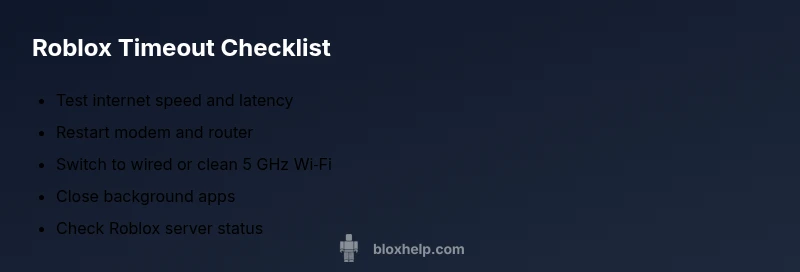
Before diving into deeper troubleshooting, run through these fast checks. Test your connection with a speed test to gauge download and upload performance, then ping a Roblox server to measure latency. Restart your modem and router, and ensure no other devices are saturating your network. Check the Roblox status page to see if servers are under maintenance. Finally, pause heavy background processes and disable VPNs if possible, as they can introduce extra latency or routing complexity.
Common Causes of Timeouts in Roblox
A poor balance between bandwidth, latency, and device load leads to timeouts. If your home network experiences congestion or unstable jitter, Roblox packets can be dropped, causing disconnects. Server-side issues—such as maintenance windows or outages—also trigger timeouts even on good local networks. On the device side, outdated drivers, background software, and insufficient memory can bottleneck the game, producing timeouts during peak moments. Based on Blox Help analysis, players on unstable networks report higher timeout frequency, underscoring the value of a stable connection.
Network and Router Tips to Improve Stability
To reduce timeouts, prioritize a robust connection: use a wired Ethernet cable when possible, or move closer to your router for a stronger 5 GHz signal. Enable QoS rules on your router to favor gaming traffic and disable bandwidth-hungry services during play. Regularly reboot your router and modem to refresh connections, and ensure your firmware is up to date. If you must use Wi‑Fi, try a less crowded channel and minimize interference from other devices.
Device, Settings, and In-Game Tweaks
On PC or console, close unnecessary background apps and disable auto-updates during gaming sessions. Ensure you have enough free RAM and consider lowering Roblox graphics quality to reduce GPU load. Update network drivers and firmware for your network adapter, and check firewall settings to permit Roblox traffic. In-game, consider lowering texture and shadow quality if you notice stuttering or freezing that precedes timeouts.
When to Seek Help and How to Prevent Future Timeouts
If timeouts persist after all the above steps, gather your device specs, network details, and timestamps of the issues, then contact Roblox support with this information. Regular maintenance—such as keeping drivers up to date and monitoring network health—helps prevent future timeouts. The Blox Help team recommends establishing a routine network check and setting aside a wired fallback option for crucial sessions.
Steps
Estimated time: 40-60 minutes
- 1
Verify Internet Connection
Confirm your router is giving you stable speeds (ping under 70 ms to Roblox servers is ideal). If latency spikes, address the bottleneck before playing.
Tip: If you notice high jitter, try a wired connection or move closer to the router. - 2
Restart Network Equipment
Power cycle your modem and router by unplugging for 30 seconds, then plugging back in. This clears minor glitches and refreshes your connection.
Tip: Avoid turning devices off halfway through the restart to ensure a full reset. - 3
Test Roblox Server Status
Open the official Roblox status page or reliable community status trackers to confirm Roblox isn't undergoing maintenance or outages.
Tip: If there is a known outage, waiting it out is often the best fix. - 4
Switch to Wired or Clean Wireless
If a wired Ethernet cable isn't possible, ensure you're on a clean, less congested Wi‑Fi channel (prefer 5 GHz if your router supports it).
Tip: Use a dedicated gaming device on the same network when possible. - 5
Close Background Apps
Quit programs that use bandwidth or CPU (cloud backups, updates, streaming). These can spike latency and trigger timeouts.
Tip: Pause cloud syncs during gaming moments. - 6
Lower In-Game Load
In Roblox, reduce graphics quality and disable heavy effects to minimize GPU and memory usage during gameplay.
Tip: Lowering settings can significantly reduce timeouts on low-end devices. - 7
Update Drivers and Firmware
Update your network adapter drivers and router firmware to fix bugs that could cause connectivity issues.
Tip: Check manufacturer websites or device support pages for the latest versions. - 8
Test After Each Change
After each fix, test Roblox to see if the timeout issue recurs before moving to the next step.
Tip: A methodical approach prevents unnecessary steps.
Diagnosis: Roblox times out or disconnects during gameplay
Possible Causes
- highWeak or unstable home network with high latency
- mediumRoblox server maintenance or outages
- lowOutdated network drivers or router firmware, or conflicting firewall settings
Fixes
- easyCheck your internet connection stability by running a quick speed test and ping test to Roblox servers
- easyRestart your modem and router to refresh your network connection
- easySwitch to a wired Ethernet connection or dedicated 5GHz Wi‑Fi channel to reduce interference
- mediumUpdate your network drivers and firmware, and ensure firewall allows Roblox traffic
Questions & Answers
Why does Roblox time out even on strong Wi‑Fi?
Even strong Wi‑Fi can time out if latency spikes or if Roblox servers are undergoing maintenance. Check your network stability and the server status.
Even strong Wi‑Fi can fail when latency spikes or servers have outages, so check both your network and Roblox's status.
Should I switch to a wired connection to stop timeouts?
Yes. A wired Ethernet connection reduces latency and interference, often solving timeouts. If possible, switch to Ethernet for gaming.
Switch to a wired connection if you can; it often fixes timeouts.
How do I check Roblox server status?
Use the official Roblox status page or reliable trackers to see if there are ongoing outages or maintenance.
Check Roblox’s status page to see if there’s a maintenance or outage.
Do background apps cause Roblox timeouts?
Yes. Bandwidth-heavy or CPU-intensive apps can cause interruptions. Close unnecessary programs while playing.
Background apps can cause timeouts; close them while gaming.
Can lowering graphics fix timeouts?
Lowering graphics reduces GPU/memory load and can help on lower-end devices, potentially reducing timeouts.
Lower graphics can help reduce timeouts on weaker devices.
When should I contact Roblox support?
If timeouts persist after trying the basic fixes, contact Roblox support with device specs, network details, and time stamps.
If it still times out after trying fixes, contact Roblox support with details.
Watch Video
The Essentials
- Stabilize your network first to stop timeouts
- Wired connections often beat wireless for gaming
- Follow a step-by-step diagnostic flow for best results
- Update drivers/firmware to close software gaps