What Causes Roblox Servers to Go Down and How to Troubleshoot
Find out what causes Roblox servers to go down, from maintenance to outages, traffic spikes, and network issues. Get practical troubleshooting steps to get back in-game quickly.


Roblox server outages happen for several core reasons: maintenance windows, unplanned outages, traffic surges, and network routing problems. A quick fix is to check the Roblox Status page, confirm service disruption, and retry after a short delay. Also verify your own internet connection and try a different device if possible. Following these steps helps you decide whether the problem is on Roblox’s side or your setup. According to Blox Help, starting with status checks saves time and reduces frustration.
What causes Roblox servers to go down
When players experience disconnects or temporary logins fail, the root causes usually fall into a few broad categories. First, Roblox performs regular maintenance and updates, which can momentarily take services offline. Second, outages can be unplanned due to software or hardware failures at Roblox data centers. Third, traffic spikes—think big game launches or popular events—can overwhelm servers if capacity isn’t scaled quickly enough. Fourth, network routing problems or DNS hiccups between your device and Roblox’s infrastructure can prevent a clean connection even if the servers are technically online. Finally, third-party services that Roblox relies on for authentication, voice chat, or analytics may suffer issues that ripple to user experiences. Keeping a running eye on the official status page is the fastest way to separate these causes. In practice, most players see a clear pattern: either a scheduled maintenance notice or a brief outage followed by a rapid recovery.
Why this matters for players and developers
As a player, you value consistency: outages steal playtime and break progression in live events. For developers using Roblox Studio or hosting experiences, outages can halt testing and delay updates. Understanding the typical causes helps you plan around maintenance windows, implement local workarounds, and communicate with your community. It also informs you about when to check server health independently and when to shift focus to offline tasks or alternative servers. According to Blox Help, recognizing whether a disruption is globally scoped or region-specific can guide the best next steps.
How outages are detected and communicated
Roblox monitoring teams constantly track service health, and publicly visible status dashboards summarize active incidents, expected resolution times, and affected services. When problems are detected, Roblox may post incident reports with details such as impacted regions and services (e.g., authentication, game servers, or chat). For players, this means you’ll often learn about an outage before you piece together the cause from personal troubleshooting. It’s important to note that status pages may update in stages as information becomes available, so checking back a few minutes apart is common practice.
Steps
Estimated time: 40-60 minutes
- 1
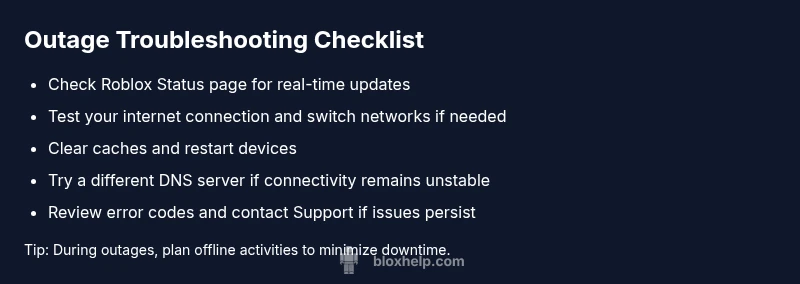
Check Roblox Status and announcements
Open the official Roblox Status page and social channels to confirm if there is a known outage or maintenance window affecting your region. Note any incident IDs and the estimated restoration time. If a disruption is active, proceed with the suggested wait time and plan alternatives.
Tip: Bookmark the status page for quick checks during future outages. - 2
Test your own connection
Run a quick test of your internet by visiting another site or app. If other services are slow, the issue may be local. Try a different network (mobile hotspot, another Wi-Fi) to see if Roblox loads there.
Tip: If you’re on Wi-Fi, move closer to the router or switch to a wired connection if available. - 3
Restart devices and clear caches
Restart your computer or console and clear the Roblox cache or app cache as applicable. Reopen Roblox and attempt to connect again. This eliminates corrupted temporary data that can mimic outages.
Tip: On consoles, fully power cycle instead of quick restarts for a clean cache reset. - 4
Retry with minimal load
If you suspect a surge, try loading a low-traffic experience or a simple world first to ensure the client can connect, then jump to the full game. This can help determine if the issue is service-wide or scope-limited.
Tip: Close background apps that may consume bandwidth during the retry. - 5
Check DNS and IP configuration
If access remains inconsistent, switch DNS servers (e.g., to a public resolver) or flush DNS cache. This can resolve stale routes that hinder Roblox connectivity.
Tip: Document any changes you make so you can revert if needed. - 6
Consult support channels and logs
Review any error codes shown by the client and capture screenshots. If problems persist, contact Roblox Support with incident details and any relevant logs or timestamps.
Tip: Include device, OS version, and network type to speed up assistance. - 7
Apply game-specific workarounds
If only a particular game experiences trouble, check with the developer’s social feeds or announcements for known issues or patches. Some problems are isolated to a single title's servers.
Tip: Test multiple games to determine if the issue is universal or title-specific. - 8
Plan for downtime and communicate
Share updates with your community if you’re a creator or streamer. Communicate expected downtime, who is affected, and when to retry. This reduces frustration and sets realistic expectations.
Tip: Keep a backup plan for content you can publish during outages.
Diagnosis: Game disconnects or cannot connect to Roblox servers
Possible Causes
- highScheduled maintenance or known outage
- mediumRegional data-center issue or hardware failure
- mediumUnexpected traffic spike causing overload
- lowNetwork routing or DNS problem between user and Roblox
Fixes
- easyCheck Roblox Status page and official posts for outage notices
- easyRestart router, switch networks, and retry login after a few minutes
- easyClear browser/app cache or reinstall Roblox client if needed
- easyIf outage persists beyond the notice period, wait and monitor until service returns
Questions & Answers
Why did Roblox servers go down during a normal play session?
Downtime during normal play can result from planned maintenance, unexpected outages, or capacity issues during peak activity. Reviewing the Roblox Status page will usually reveal the cause and estimated restoration time. If you don’t see a notice, try the steps in the diagnostic flow to verify your setup.
Downtime can come from maintenance, outages, or heavy traffic. Check Roblox Status and follow the troubleshooting steps to confirm your setup.
How can I check if Roblox is down for everyone in my area?
Use the official Roblox Status page or trusted social channels to see real-time incident reports. If a regional outage is reported, individual players will usually need to wait for a fix from Roblox. You can also ask friends to check from their locations to compare experiences.
See Roblox Status for real-time outage reports. If it shows an incident, wait for Roblox to resolve it.
Will outages affect my Roblox Studio projects?
Outages can impact authentication and cloud services, which may affect Roblox Studio access or updates. Local editing usually remains possible, but syncing and publishing online could be delayed. Check the status page and developer channels for title-specific notices.
Studio access can be affected if Roblox services are down. Check status and developer notices for guidance.
What should I do if the outage lasts longer than expected?
If the outage extends beyond the initial notice, monitor the status page and community updates. Avoid repeatedly attempting to connect, which can flood logs. Use the downtime to perform offline tasks or preparation for your next session.
If the outage lasts, keep an eye on status updates and focus on offline tasks until services are restored.
Are there safety tips I should follow during outages?
Never share login details, avoid third-party fixes, and beware phishing attempts promising instant fixes. Always use official Roblox channels for information and updates. If something seems off, pause and verify through trusted sources.
Stay safe by using official channels and avoiding suspicious fixes during outages.
When should I contact Roblox Support?
If status pages show no outage but you still cannot connect, or you’re experiencing persistent errors after retries, contact Roblox Support with device details, timestamps, and incident IDs. They can investigate on their end and provide tailored guidance.
If you’re still stuck after checks, contact Roblox Support with details to get help.
Watch Video
The Essentials
- Identify if outage is Roblox-wide or region-specific.
- Start with status checks before deep troubleshooting.
- Keep timing notes and document steps you tried.
- Know when to pause and wait for a service restore before drastic fixes.