Roblox Connection Troubleshooting: Fix Roblox Connectivity Issues
Learn practical steps to diagnose and fix Roblox connection issues. Check server status, test networks, adjust settings, and optimize devices with clear, actionable guidance.


The Roblox connection issue is usually caused by a local network problem or a Roblox server outage. Start by checking Roblox’s server status, then verify your internet connection, disable VPNs, and reboot your router. If the problem persists, reset your network settings on the device and reinstall Roblox to establish a fresh connection.
Why Roblox connection problems happen
According to Blox Help, the most common Roblox connection problems stem from local network settings, temporary ISP issues, or intermittent Roblox server load. A misconfigured router, strict NAT type, or outdated firmware can block traffic to Roblox game servers. DNS hiccups or VPNs can also divert Roblox traffic away from optimal routes, causing latency, lag, or failed handshakes. By understanding where the fault likely lies, you can triage effectively: start with your own network, then test alternative devices, and finally check Roblox’s status. This approach keeps you focused and reduces wasted time chasing server-side ghosts. The goal is to establish a stable path between your device and Roblox servers while preserving safety and device integrity.
Why Roblox connection problems happen - quick recap
- Local network issues (Wi‑Fi strength, router firmware, or DNS)
- Roblox server outages or maintenance windows
- VPNs, proxies, or firewalls blocking traffic
- Outdated Roblox app, OS, or drivers
By addressing these areas first, most players regain a clean, responsive connection. If you’re uncertain, log activity for evidence and keep a simple checklist to avoid repeating steps.
Common network culprits you can test now
- Check if your internet is working by loading a simple site on the same device. If it’s slow elsewhere, the issue is likely your network or ISP.
- Run a quick speed test to verify you’re getting your rated bandwidth and stable latency.
- Temporarily disable VPNs or proxies, then try Roblox again to see if routing changes help.
- Reboot your modem and router. Unplug for 60 seconds, then plug back in and retry.
- Ensure your device’s date/time settings are correct, as misaligned clocks can cause TLS errors and server handshakes to fail.
These steps are low-cost, quick, and often resolve most transient connection problems. If you notice consistent outages, move to device-specific checks and Roblox server status verification.
Diagnostic-flow at a glance: server vs. device vs. network
A systematic approach helps you pinpoint where the fault lies. Start with server status, then test local internet connectivity, then verify device settings, and finally assess router-level issues. This sequence minimizes wasted effort and ensures you don’t overlook common bottlenecks. The goal is to reproduce the issue across different devices or networks to confirm whether the problem is systemic or device-specific.
Device-level checks to broaden your investigation
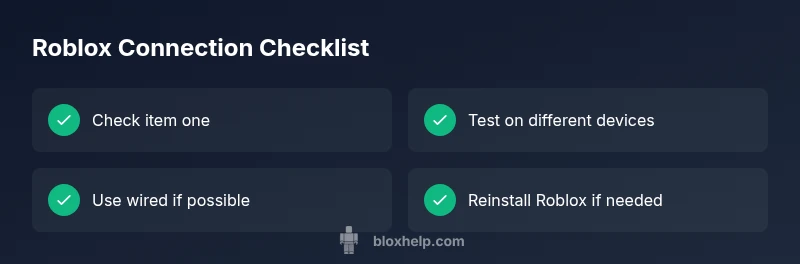
- Try Roblox on a different device (phone, PC, or tablet) connected to the same network. If it works on another device, your primary device may have a local config issue.
- Use a wired ethernet connection where possible to eliminate wireless interference.
- Check for system updates (OS, drivers) and install any pending patches.
- Clear Roblox cache or reinstall the app to rule out corrupted files.
- Temporarily disable third‑party security software to test whether it blocks Roblox traffic. Do not leave protections disabled long-term; re-enable after testing.
Steps
Estimated time: 25-45 minutes
- 1
Check Roblox server status
Open a browser and visit the official Roblox status page or the down detector for Roblox activity. If outages are reported, your fix is patience and trying again later. If status shows green lights, move to the next step to rule out local issues.
Tip: Bookmark Roblox status pages for quick reference during future outages. - 2
Test your internet connection
Run a speed test and compare results to your ISP’s advertised speeds. If latency is high or packets are dropped, troubleshooting should focus on the network rather than Roblox. Try a different device on the same network to confirm baseline connectivity.
Tip: If you’re on Wi-Fi, place the router closer to your device or switch to a 5 GHz band. - 3
Disable VPNs and proxies
Turn off any VPNs or proxies temporarily to see if Roblox connects more reliably. VPNs can route traffic through congested or blocked paths, causing timeouts.
Tip: If you must use a VPN, choose a server close to your location and ensure it allows Roblox traffic. - 4
Reboot network hardware
Power cycle your modem and router: unplug, wait 60 seconds, plug back in, and allow the devices to reboot fully. Then reconnect your device and test Roblox again.
Tip: Avoid unplugging devices during peak usage times to minimize disruption. - 5
Switch to a wired connection
If possible, connect your device via Ethernet. Wired connections reduce interference and improve stability, especially for competitive Roblox gameplay.
Tip: Disable unused Wi‑Fi networks on your device to avoid roaming between networks mid-game. - 6
Update and reinstall if needed
Check for updates to Roblox, your operating system, and drivers. If issues persist, uninstall and reinstall Roblox to fix corrupted files.
Tip: Back up any saved Roblox data if applicable before reinstalling.
Diagnosis: Roblox cannot connect to servers or keeps disconnecting during gameplay
Possible Causes
- highInternet connectivity issues (weak Wi-Fi, ISP outage)
- highRoblox server outage or maintenance
- mediumVPN or firewall blocking Roblox traffic
- lowOutdated Roblox app or device firmware
Fixes
- easyRun a speed test and check for outages; try a different network or temporarily disable VPN
- easyRestart router and modem; reboot the device running Roblox
- mediumDisable firewall temporarily or add Roblox exclusions; adjust antivirus settings
- easyUpdate Roblox app, OS, and drivers; reinstall Roblox if the issue persists
Questions & Answers
What should I check first when Roblox won't connect?
Begin by confirming Roblox server status, test your internet connection on the same device, and ensure VPNs or proxies aren’t blocking traffic. If servers are up and your network is solid, proceed through device and router checks.
First, check Roblox status, test your connection, and disable any VPNs to see if traffic routes properly. If that doesn’t help, move on to device and router checks.
How can I tell if the issue is Roblox-side or my network?
If other apps on the same device work but Roblox doesn’t, the issue is likely Roblox-side or app-specific. If Roblox fails on all apps and devices, it’s more likely a network or router issue.
If other apps work, Roblox might be the problem. If Roblox fails on everything, check your network.
Does using a VPN affect Roblox connection stability?
Yes. VPNs can route traffic through distant servers and cause higher latency or blocks. Disable VPNs for testing and then re-evaluate Roblox connectivity.
VPNs can cause Roblox to slow down or fail. Try disconnecting and testing again.
Is resetting network settings safe for my device?
Resetting network settings on your device can fix misconfigured network entries. Expect to re-enter Wi‑Fi passwords and reconnect peripherals afterward.
Resetting network settings can fix config issues, but you’ll need to reconnect Wi‑Fi and devices afterward.
When should I contact Roblox support or my ISP?
Contact Roblox support if the issue persists after all local fixes. If outages are widespread or performance remains poor across devices, reach out to your ISP.
If issues persist after all checks, contact Roblox support. If it seems like an ISP problem, ask them for assistance.
Watch Video
The Essentials
- Check Roblox status first before deep troubleshooting
- Test with multiple devices and network types
- Prioritize simple fixes: reboot, VPN off, wired connection
- Reinstall Roblox if corruption is suspected
- Escalate to ISP or support if problems persist