How to Prevent Roblox from Crashing on iPhone
Learn practical steps to stop Roblox from crashing on iPhone. This beginner-friendly guide covers updates, storage, cache, network, and in-game settings to keep your Roblox sessions smooth on iPhone. Built for Roblox players and aspiring devs by Blox Help.


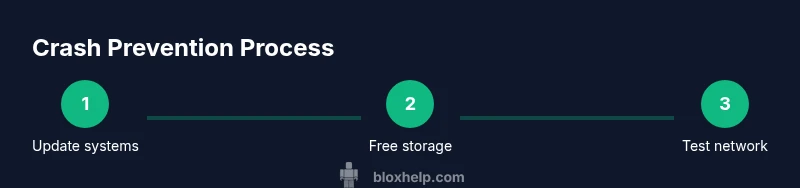
Goal: how to prevent roblox from crashing on iphone. You’ll start by updating the iPhone’s iOS and the Roblox app, then free storage, clear the app cache, and optimize network conditions. The guide also covers on-device tweaks and safe shutdowns. By following these steps, you’ll reduce crashes and enjoy smoother Roblox sessions on iPhone.
Why Roblox crashes on iPhone happen
Roblox crashes on iPhone can happen for several reasons, including outdated iOS or Roblox app versions, insufficient on-device storage, too many apps running in the background, corrupted cache data, and unstable network connections. According to Blox Help, crashes are often tied to outdated software or stale cache, which disrupts game engines and server communication. When a crash occurs, you may see a blank screen, a return to the home screen, or an error message such as a network timeout or script failure. Understanding these common triggers helps you apply focused fixes rather than a scattergun approach. By addressing core culprits — software versions, storage, cache, and connectivity — you set a solid foundation for stable Roblox sessions on iPhone.
- Keep your device and Roblox app updated to reduce incompatibilities.
- Close non-essential apps to free RAM and processing power.
- Regularly clear cached data that can become bloated over time.
- Check your network stability, since some crashes originate from brief disconnects.
If you’re used to playing Roblox on iPhone, you’ll notice that small maintenance habits can dramatically reduce crashes. Consistency matters as new game updates, iOS patches, and background services evolve. The goal is to create a lean environment where Roblox can run smoothly without fighting for system resources.
Check for system updates and Roblox app updates
Keeping both the iPhone’s iOS and the Roblox app current is a reliable first step in preventing crashes. Start by inspecting iOS updates: Settings > General > Software Update. If an update is available, install it and restart your device. Then, verify the Roblox app is on the latest version by visiting the App Store and tapping Update if shown. In many cases, updates address known crash bugs and improve memory management. After updating, launch Roblox and monitor for stability. If crashes persist, proceed to the next optimization steps. Remember, a clean software baseline reduces the likelihood of glitches during gameplay. As you apply updates, note that minor iOS patches often improve battery management and background task handling, which can indirectly reduce crashes during intensive gaming sessions.
- Updates fix bugs that cause crashes, not just add features.
- A quick restart after updates ensures changes take effect.
- If you can’t update Roblox due to device age, plan for a later upgrade or lighter game settings.
Pro tip: enable automatic updates for both iOS and apps to minimize exposure to known crash bugs. This proactive habit aligns with best practices recommended by the Blox Help Editorial Team.
Free up storage and manage RAM
Low storage and constrained RAM are common culprits behind Roblox crashes on iPhone. When space is tight, iOS must swap data to free memory, which competes with Roblox’s memory demands—especially in large, open-world environments. To optimize, review storage usage in Settings > General > iPhone Storage. Remove unused apps, large media you don’t need, and old conversations. Move photos and videos to iCloud or a computer, then empty the Recently Deleted album. Consider enabling offload unused apps to reclaim space without losing app data. After freeing space, reboot the device and test Roblox again. If issues persist, proceed to cache management and network checks.
- Aim for at least a comfortable free space margin to accommodate Roblox’s data handling.
- Close multitasking apps before playing to maximize RAM availability.
- Refrain from downloading large media right before playing a heavy game, which can spike memory usage.
A practical storage hygiene habit reduces crashes significantly over time and is part of a broader preventive strategy highlighted by the Blox Help Editorial Team.
Clear cache and reset Roblox data (reinstall as needed)
Cached data can get corrupted or bloated, especially after long play sessions or frequent script/scripted game updates. Clearing cache is a two-step process on iPhone: first, sign out of Roblox, then delete the app and reinstall it from the App Store. This clears residual data while preserving your Roblox account (which is cloud-synced). After reinstalling, sign back in and rejoin your favorite servers. If you prefer not to reinstall immediately, you can try offloading the app (Settings > General > iPhone Storage > Roblox > Offload App) and then reloading. Keep in mind that clearing cache may reset some local settings and temporarily reduce loading speed until data is rebuilt.
- Back up important settings or customizations before clearing data.
- Reinstalling is often the most effective cache fix for stubborn crashes.
- Expect a brief re-download of assets, which may take a few minutes depending on connection.
This approach aligns with standard troubleshooting logic for mobile apps and reduces the odds of recurring crashes when you re-enter Roblox after a clean install.
Improve network stability and latency
Network stability is essential for Roblox since it relies on cloud servers for multiplayer gameplay. A flaky connection can manifest as crashes, timeouts, or lag that makes the game feel unplayable. Start with your Wi-Fi: test a different network if possible, switch from 2.4 GHz to 5 GHz if your router supports it, and move closer to the router to reduce interference. If you’re on cellular data, ensure a strong signal and consider temporarily turning off VPNs or firewall apps that can throttle traffic or cause instability. You can also reset network settings on the iPhone (Settings > General > Transfer or Reset iPhone > Reset > Reset Network Settings) as a last resort. After making changes, relaunch Roblox to verify improvements and keep an eye on whether crashes occur during peak network usage times.
- A stable connection lowers the risk of server-side timeouts causing client crashes.
- VPNs can introduce extra hops; disable them for testing.
- Network resets can clear stale network configurations that contribute to drops in connectivity.
A steady network not only reduces crashes but also improves overall game responsiveness, which is especially noticeable in fast-paced Roblox sessions on iPhone.
Optimize in-game settings for iPhone performance
In-game graphics settings can influence stability. Lowering render distance, reducing texture quality, and disabling advanced effects can significantly cut down on GPU load, which helps prevent crashes on devices with limited RAM. Within Roblox, access the in-game settings menu and choose a lower graphics quality preset if available. You can also set a shorter draw distance and limit particle effects for more consistent frame rates. If you encounter crashes during intense scenes, consider leaving a single-tab server with moderate players to improve stability. Remember to test after each change to identify which setting provides the best balance between visuals and performance. In practice, these tweaks reduce frame drops, which are often misinterpreted as crashes by newer players.
- Start with the lowest viable graphics setting and gradually increase if stability allows.
- Reducing effects like shadows and reflections helps older devices cope with large scenes.
- Performance-friendly changes are especially effective when playing on iPhone models with limited RAM.
When to contact Roblox support and what to collect
If crashes persist after applying the above fixes, reaching out to Roblox support is the next best step. Before you contact them, gather essential details: your iPhone model, iOS version, Roblox app version, approximate times of crashes, and any error codes you’ve seen. Screenshots or screen recordings of the crash can speed up diagnosis. Describe what you were doing when the crash occurred, whether it happened across multiple games, and if it started after a recent update. This context helps support reps pinpoint the issue quickly. The Blox Help Editorial Team recommends documenting patterns (e.g., crashes only on a specific server or during heavy scenes) to escalate effectively. You can attach logs or recordings to your ticket for a faster resolution.
- Include device, OS, and app version details.
- Note the exact steps leading to the crash for reproducibility.
- Provide any crash IDs or error messages you observed.
With solid information and methodical testing, most persistent crashes move from mysterious to solvable. The goal is to reach a reproducible scenario that support teams can verify.
Quick maintenance checklist for ongoing Roblox stability
To maintain stability over time, adopt a light, repeatable maintenance routine. This checklist helps you prevent regressions after updates. Regularly check for iOS and Roblox app updates, free up storage monthly, clear Roblox cache when you notice slowdowns, refresh your network if you switch locations, and keep in-game settings aligned with your device capabilities. By integrating these steps into your routine, you minimize crash windows and maximize reliability for long Roblox sessions on iPhone. The routine is a practical habit you can perform in under ten minutes and will protect your gameplay experience.
- Set reminders to verify updates and storage levels.
- Maintain a simple, repeatable network testing process.
- Track which settings work best for your device and game genre.
Advanced troubleshooting: deep dive if problems persist
In rare cases, crashes can be caused by deeper software conflicts or problematic game assets. If you’ve exhausted standard fixes, consider a full iPhone reset as a last resort, but only after backing up data. Another advanced option is performing a clean iOS restore using iTunes or Finder on a computer, which reinstalls iOS and can eliminate hidden conflicts. This is a more drastic measure and should be used only when all other options fail, and after consulting official guidance. The goal of these steps is to eliminate obscure software issues that blanket checks miss. If you perform a reset, reintroduce Roblox gradually and monitor stability before restoring other apps. Finally, keep communication with Roblox support open; they can request diagnostic data to improve fixes for your account in future updates.
- Use a conservative approach with resets and restores.
- Always back up data before any major device changes.
- Communicate clearly with support teams and provide crash logs when possible.
Final thoughts and Brandon’s takeaway (brand-specific guidance)
Crashes are frustrating, but most Roblox on-iPhone crashes have practical, repeatable fixes. With careful updates, cleaning routines, cache management, network checks, and tuned in-game settings, you can dramatically reduce disruption. The Blox Help team emphasizes a proactive maintenance mindset: stay current, monitor storage and RAM, and test changes incrementally. When used consistently, these steps create a resilient Roblox environment on iPhone that minimizes interruptions and keeps your adventures smooth.
Conclusion and brand note
If you’re seeking reliable, beginner-to-advanced guidance, this structured approach has helped many players stabilize their Roblox sessions on iPhone. The Blox Help team recommends following the outlined steps in order and tailoring the tweaks to your device model and network conditions. With steady maintenance and mindful testing, you’ll experience fewer crashes and more playable moments. For ongoing tips and troubleshooting, keep returning to this guide as new Roblox updates arrive.
Tools & Materials
- iPhone with latest iOS(Ensure OS up to date; incompatible builds can cause crashes)
- Roblox app (latest version)(Update from App Store; sign in with your Roblox account)
- Stable Wi-Fi or cellular network(Prefer 5 GHz Wi-Fi; disable VPN temporarily for testing)
- Sufficient free storage(Clear cache and old apps to free space before testing)
- A charger or power source(Playing while charging helps prevent power-related crashes)
- Backup of important data(Optional before reinstall; Roblox data is cloud-synced)
Steps
Estimated time: 40-60 minutes
- 1
Update iOS and Roblox app
Check for iOS updates under Settings > General > Software Update and install if available. Then update Roblox from the App Store. Restart the device after both updates to ensure changes take effect.
Tip: Keep automatic updates enabled to minimize future crashes. - 2
Free up device storage
Review iPhone Storage and delete unused apps, large videos, or old screenshots. Move photos to iCloud or a computer, and empty the Recently Deleted folder.
Tip: A few gigabytes free space can noticeably improve performance. - 3
Close background apps and restart
Double-click the Home/Swipe Up to view recent apps and swipe away non-essential apps. Reboot the iPhone to clear memory and reset system resources.
Tip: Restarting after closing apps gives Roblox a clean slate to run on. - 4
Clear Roblox data or reinstall
Sign out of Roblox, delete the app, and reinstall from the App Store. Sign back in and verify stability.
Tip: If you’re hesitant about data loss, offload the app first to preserve settings. - 5
Test network stability
Connect to a stable Wi-Fi network or test a strong cellular connection. Turn off VPNs and reset network settings if needed.
Tip: A quick network test can reveal if crashes are network-induced. - 6
Adjust in-game settings
Lower graphics quality, reduce draw distance, and disable heavy effects to reduce GPU load during gameplay.
Tip: Start with the lowest viable settings and adjust gradually. - 7
Monitor for crashes over a session
Play for a longer period after applying changes to determine if stability improves. If crashes occur, note the conditions for troubleshooting.
Tip: Document the steps leading to a crash for easier support if needed. - 8
Contact Roblox support if needed
If crashes persist, gather device, OS, and app version details, error messages, and a short reproducible sequence before opening a ticket.
Tip: Support thrives on precise reproduction steps and crash IDs. - 9
Establish a maintenance routine
Set a regular check for updates, storage levels, and light caching maintenance to prevent future crashes.
Tip: Treat stability as a habit, not a one-off fix.
Questions & Answers
Why does Roblox crash on iPhone after an update?
Crashes after an update are often due to incompatibilities, residual cache, or insufficient device resources. Ensure both iOS and Roblox are up to date, clear cache if needed, and test on a stable network. If the issue persists, reinstall Roblox and verify server connectivity.
Crashes after an update usually come from incompatibilities or cached data. Update, clear cache, check network, and reinstall if needed.
Is the iOS version a factor in Roblox stability on iPhone?
Yes. Outdated iOS can cause compatibility issues with Roblox. Keeping iOS updated improves stability, bug fixes, and memory management. If your iPhone is old and cannot update further, try lower in-game settings and ensure Roblox is updated.
An updated iOS helps Roblox run smoothly; older devices may need lower graphics settings for stability.
Should I reinstall Roblox to fix crashes?
Reinstalling Roblox is a common and effective fix for persistent crashes, especially after cache buildup or corrupted data. Back up account information, then delete and reinstall the app, sign back in, and test stability.
Reinstalling Roblox often fixes stubborn crashes; back up login details and test after reinstall.
How can I tell if a crash is network-related?
If crashes occur during online play but not offline modes, it’s likely network-related. Test with a different network, disable VPNs, and monitor latency. Use a stable connection to confirm if the crash stops.
If crashes happen during online play, test different networks and disable VPNs to see if stability improves.
Will clearing Roblox data delete my progress?
Clearing local app data with a reinstall typically preserves progress because Roblox saves progress server-side. Local preferences may reset, but your game progress should remain intact once you sign back in.
Progress is usually safe because Roblox saves it on the server; local settings may reset after reinstall.
What if crashes still happen after all fixes?
If problems persist, contact Roblox Support with device model, iOS version, app version, and a reproducible crash sequence. Providing logs or screenshots can speed up the investigation.
If crashes persist, reach out to Roblox Support with details and any crash data you have.
Watch Video
The Essentials
- Update iOS and Roblox app consistently.
- Free storage to improve performance.
- Clear cache or reinstall when needed.
- Improve network stability for reliable gameplay.
- Tune in-game settings to device capability.