Why Roblox Keeps Crashing: A Practical Troubleshooting Guide
An urgent, step-by-step troubleshooting guide to fix Roblox crashes, covering network checks, cache cleanup, software updates, and prevention tips to keep Roblox sessions running smoothly.


The quickest fix is usually one of: restart your router and device, update Roblox to the latest version, and clear the Roblox cache. If it still crashes, check your internet connection, test on a different network or device, and review Roblox server status. Disable VPNs or overzealous security software if present.
why does roblox keep crashing
If you're asking why does roblox keep crashing, you're not alone. This guide is designed to help you diagnose the issue quickly and get back to playing. According to Blox Help, most crashes fall into a few predictable patterns: unstable network, outdated software, or corrupted local data. In the sections that follow, we break down the causes, checks, and fixes in a practical, step-by-step way so you can take decisive action now. The goal is to empower you with clear, actionable steps that reduce downtime and frustration. By following these steps, you’ll understand what to test first, what to ignore, and how to document your results for faster help if you need it.
Blox Help emphasizes that a calm, methodical approach beats guesswork. We’ll guide you through safe, low-risk actions first, and only move to more involved fixes if necessary. This keeps your Roblox sessions smooth and minimizes data loss or account risk. Remember: rapid changes without testing can compound problems, so stay organized and document what you try.
Common causes of why does roblox keep crashing
Most crashes come from three domains: device/network, the Roblox client/game data, and server-side issues. On the device side, outdated graphics drivers, insufficient RAM, or heavy background processes can cause Roblox to crash mid-game. On the network side, unstable Wi-Fi, high latency, or VPN interference often triggers disconnects. On the server side, outages or regional instability can affect players. Blox Help analysis shows that staying current with the Roblox app, ensuring a stable connection, and clearing cache address the majority of frequent crashes. Keeping your OS and drivers updated reduces the risk of software conflicts, which are a common cause of random shutdowns during play.
Quick checks you can do before deeper fixes
Before diving into more involved steps, perform quick, low-risk checks. Verify your internet connection with a speed test and try a different network if possible. Restart your router and the device to clear transient states. Make sure Roblox is updated to the latest version and that you’re not running conflicting background apps or VPNs. If you’re on PC, close resource-heavy programs; on mobile, ensure battery saver modes aren’t throttling performance. These checks often reveal the simplest cause and save you time.
Diagnostic flow overview
This section outlines a simple diagnostic flow you can follow: symptom → diagnosis → solution. If Roblox crashes happen at startup, the likely causes include a corrupted cache or outdated app. If crashes occur during gameplay, it may be due to network lag or insufficient device resources. Use the flow to prioritize fixes: start with safe, low-risk steps (restart, update, clear cache) and move to more involved actions (reinstall, test on another device) only if needed. Throughout this process, keep notes of what you tested and the outcomes so you can share precise information if you need to contact support.
In-depth fixes: Most common causes and how to solve them
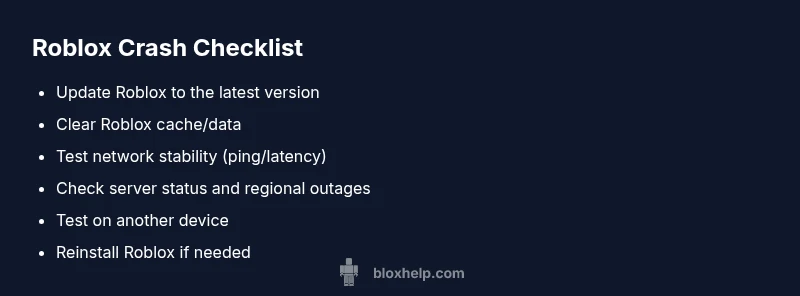
Fix 1: Update Roblox and system drivers. Ensure you’re on the latest Roblox client and that your OS and graphics drivers are up to date. Fix 2: Clear cache and reset app data. In Windows, clear Roblox caches; on mobile, clear cache or reinstall. Fix 3: Check network stability. Use a wired connection if possible or reset the router, test different networks. Fix 4: Reinstall Roblox. If corruption persists, uninstall and reinstall. Fix 5: Check for server status and regional outages. While server issues are outside your control, you can avoid playing during known outages and spread your play sessions across times when servers are stable. Pro tip: keep a crash log with timestamps to help support diagnose more efficiently. This approach covers the most common causes and minimizes downtime for players who rely on Roblox for entertainment or learning. As you follow these fixes, be mindful of software conflicts and ensure you aren’t running security software that blocks Roblox traffic.
Safety, prevention, and when to seek help
Safety notes: Avoid disabling security software permanently. When testing, temporarily disable VPNs or firewall rules to see if they are the culprit, but re-enable them after testing. Prevention tips: run a clean boot to minimize background processes, keep software updated, and monitor hardware temperatures during long sessions. If you’ve tried the above fixes but Roblox continues crashing, contact Roblox support with your device model, OS version, and a detailed crash report. For players using multiple devices, replicate the issue on another device to confirm whether the problem is device-specific or systemic. Always back up important game data where possible and maintain a clear record of steps you’ve taken for faster assistance.
Steps
Estimated time: 25-40 minutes
- 1
Perform a quick connectivity check
Test your internet speed and reliability. If you’re on Wi-Fi, consider swapping to a wired connection or a different network to see if the crash persists. Reboot the modem/router to refresh the connection.
Tip: A quick ping test to popular servers can reveal stability issues. - 2
Update Roblox and related software
Open the store or launcher and install any available updates for Roblox. Also verify that your operating system and graphics drivers are current, as outdated software often triggers compatibility problems.
Tip: Enable automatic updates to reduce future crashes. - 3
Clear cache and reset Roblox state
Clear the Roblox cache on your device and, if possible, reset app data. This removes corrupted files that can cause crashes without affecting your saves. On mobile, you may need to reinstall for a clean slate.
Tip: Back up important game data if needed before clearing. - 4
Disable conflicting software temporarily
Temporarily disable VPNs, firewall rules, or security apps that could be blocking Roblox traffic. Re-enable them after testing to ensure continuing protection.
Tip: If the crash stops when VPN is off, you’ve identified a routing issue. - 5
Test on a different device or platform
Log into Roblox from another device (phone, tablet, PC, console) to determine whether the issue is device-specific or systemic.
Tip: If it works on another device, compare software versions and settings. - 6
Reinstall Roblox if needed
Uninstall Roblox completely and reinstall from a trusted source. This action resolves deep-seated data corruption that other fixes can miss.
Tip: Ensure you have your account credentials ready before reinstalling. - 7
Check Roblox server status
Visit Roblox’s official status pages or social channels to verify if outages are affecting players in your region.
Tip: If servers are down, you may need to wait for the fix from Roblox.” - 8
Document results and seek support
If the crash continues, document the steps you took, include device specs, OS version, and crash timestamps, and contact Roblox support for targeted help.
Tip: Provide a crash dump or error codes when available.
Diagnosis: Roblox crashes or freezes during gameplay
Possible Causes
- highUnstable internet connection
- highOutdated Roblox client or drivers
- mediumCorrupted cache or game data
- lowServer-side outages or regional issues
- lowConflicting VPN/security software
Fixes
- easyRestart router and device; ensure a stable network
- easyUpdate Roblox and system drivers; install OS updates
- easyClear Roblox cache/data and reset app state
- mediumReinstall Roblox if corruption is suspected
- easyTest on another device/network to isolate issue
Questions & Answers
Why does Roblox crash on startup?
Startup crashes are commonly caused by an outdated client, corrupted cache, or a conflicting background app. Update Roblox, clear the cache, and check for interfering software. If the problem persists, try reinstalling.
Startup crashes are usually due to outdated software or cache issues; update and clear cache, then reinstall if needed.
Why does Roblox crash only on one device?
If it only happens on one device, the problem is likely device-specific: outdated drivers, system settings, or conflicting apps. Compare with a working device to pinpoint the cause and apply the appropriate fix.
If it’s only on one device, check drivers and settings, then compare with a working device to spot the difference.
How can I check Roblox server status?
Use Roblox's official status page or trusted social channels to verify outages or regional issues. If servers are down, you’ll need to wait until Roblox resolves the problem.
Check the Roblox status page or official social channels for any outage alerts.
Is it safe to reinstall Roblox?
Yes. Reinstalling removes corrupted game data and resets settings that might be causing crashes. Back up any local data you care about before uninstalling.
Reinstall Roblox to fix deep corruption, and back up your data first.
What should I do if a VPN is causing the crash?
Temporarily disable the VPN and test Roblox again. If it works, the VPN or its routing path is the culprit; consider a different server or terminating the VPN when playing.
Disable the VPN to test. If Roblox runs fine, the VPN is the likely cause.
The Essentials
- Check basic connectivity first
- Update all relevant software
- Clear cache before deeper fixes
- Test on another device to isolate the issue
- Document results when seeking help