How to Stop Roblox from Crashing: A Practical Troubleshooting Guide
Urgent guide to stop Roblox from crashing. Learn quick fixes, diagnostic flow, and prevention tips to keep your Roblox sessions smooth and enjoyable.


The most likely causes are outdated GPU drivers, insufficient memory, or a corrupted Roblox install. Start with quick fixes: update graphics drivers, close background apps, verify Roblox integrity, and reinstall if needed. If crashes persist, try lowering in-game settings and freeing disk space. Also check for conflicting software like overlays or antivirus. Then restart your device to apply changes.
Understanding why Roblox crashes
Roblox crashes can feel mysterious, but most issues fall into a few predictable categories. According to Blox Help, the most common culprits are outdated graphics drivers, limited system memory, and a corrupted Roblox installation. When you learn how to stop roblox from crashing, you’ll fix root causes rather than applying temporary workarounds. You’ll also uncover how toggling in-game and system settings can prevent future instability. Regular maintenance—driver updates, cache cleanup, and a clean startup—goes a long way toward smoother sessions. By starting with the simplest fixes, you can often recover gameplay quickly and avoid longer downtime.
Quick checks you can do now
Before you dive deeper, run through these rapid checks to establish a baseline. Ensure you have a stable internet connection, and restart your device to clear temporary glitches. Check for OS updates and ensure Roblox has the latest patch installed. Close unnecessary background programs and overlays (such as screen recorders or VOIP apps) that might compete for RAM or trigger conflicts. Disable antivirus overlays momentarily if they interfere with Roblox. Finally, make space on your drive so Roblox can swap files if needed, reducing freezes or crashes during gameplay.
Diagnostic flow overview
This section outlines a practical flow you can follow if the quick checks don’t resolve the issue. Start by confirming whether the crash happens in all games or just one title. If it’s universal, focus on drivers, memory, and Roblox installation. If it happens only with certain games, the problem is likely game-specific or related to your network. Use the steps below to guide a structured investigation, and remember to document what you change so you can backtrack if needed. The diagnostic approach complements the formal diagnosticFlow block that follows.
Step-by-step fixes for the most common causes
- Update graphics drivers: Visit the GPU vendor’s site and install the latest stable driver. This often resolves runtime errors and crashes caused by rendering issues. Tip: create a system restore point before updating.
- Close background applications: Quit unnecessary apps that consume memory or use overlays. This frees RAM and reduces conflicts during gameplay. Tip: use Task Manager to review startup programs and disable nonessential ones.
- Verify Roblox integrity or reinstall: Use Roblox’s built-in verify option if available, or uninstall and reinstall the client to repair corrupted files. Tip: back up saved data if the game stores progress locally.
- Check memory and storage: Ensure enough free RAM and disk space. Consider increasing virtual memory if you frequently hit memory limits. Tip: run a disk cleanup to remove temp files.
- Network sanity check: Test your connection with a wired Ethernet if possible; reset your router and disable VPNs or firewalls that block Roblox. Tip: run a speed test to confirm stable bandwidth.
Roblox-specific tips to reduce crashes
- Disable in-game overlays and third-party recording software to prevent conflicts with Roblox’s rendering pipeline. Tip: re-enable one feature at a time to isolate the culprit.
- Adjust in-game settings: lower graphics quality, disable motion blur, and set a fixed resolution to reduce GPU load. Tip: conserve resources by turning off anti-aliasing if you don’t notice a visual difference.
- Optimize Windows/macOS power settings: set to High Performance and avoid battery-saving modes for laptops. Tip: ensure your computer isn’t thermally throttling by cleaning vents.
- Clear Roblox cache periodically: corrupt cache can trigger crashes. Tip: delete cache folders safely following official guidance.
When to seek help and prevention
If crashes persist after applying fixes, it’s time to contact Roblox support and consult the Roblox help forums. When you reach out, provide device specs, OS version, Roblox version, and a list of recent changes. For ongoing reliability, establish a routine: update drivers quarterly, perform monthly cache cleanups, and monitor game patches. Prevention reduces downtime and speeds up recovery when issues arise.
Final checklist before you play again
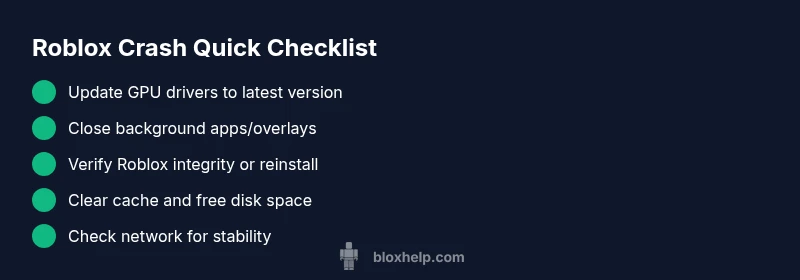
- Confirm Roblox is up to date and your drivers are current
- Close all nonessential programs and overlays
- Verify game integrity or reinstall Roblox
- Check your internet stability and try a wired connection if possible
- Free up disk space and clear cache if issues persist
Steps
Estimated time: Estimated total time: 60-90 minutes
- 1
Update GPU drivers
Visit your GPU vendor’s site and download the latest driver. Install and reboot. This often resolves crashes caused by rendering issues or driver bugs.
Tip: Create a system restore point before updating drivers. - 2
Close background programs
Close apps that consume RAM or cause conflicts (overlay tools, VOIP, recording software). After closing, relaunch Roblox to test stability.
Tip: Use Task Manager or Activity Monitor to identify heavy apps. - 3
Verify or reinstall Roblox
Use the built-in verify option if available, or uninstall and reinstall Roblox to repair corrupted files.
Tip: Back up local saves if the game stores data locally. - 4
Check memory and storage
Ensure sufficient free RAM and disk space; adjust virtual memory if you often hit limits.
Tip: Run a cleanup to remove temp files and unnecessary data. - 5
Test network stability
If crashes occur during online play, test wired Ethernet or disable VPNs; reboot router.
Tip: Run a speed/test stability check to confirm bandwidth is reliable.
Diagnosis: Roblox crashes or freezes during gameplay
Possible Causes
- highOutdated graphics drivers
- mediumInsufficient memory or RAM
- mediumCorrupted Roblox installation
- lowBackground software conflicts (overlays/antivirus)
Fixes
- easyUpdate GPU drivers to the latest stable version
- easyClose background apps and overlays to free RAM
- easyVerify Roblox integrity or reinstall the client
- mediumClear cache and increase virtual memory if needed
Questions & Answers
Why does Roblox crash on PC?
Crashes are usually caused by outdated drivers, insufficient memory, or a corrupted Roblox installation. Updating drivers, freeing memory, and reinstalling Roblox typically resolves the issue.
Roblox crashes on PC are commonly driver, memory, or installation problems. Update drivers, free up memory, and reinstall Roblox to fix it.
Fix crashes without reinstall?
Often you can fix crashes by updating drivers, closing overlays, clearing cache, and verifying game files. Reinstall only if these steps fail.
You can usually fix crashes without reinstalling by updating drivers and clearing cache.
Crashes after a system update?
System updates can cause compatibility issues. Check for driver updates, verify game integrity, and consider rolling back problematic software if available.
Sometimes after an update, drivers or settings shift and cause crashes.
Is internet stability a factor?
Yes. Unstable connections can cause disconnections and crashes during online play. Test with a wired connection or adjust router settings.
A flaky internet connection can trigger Roblox crashes during online play.
When to contact Roblox support?
If crashes persist after following fixes, gather system details and contact Roblox support for deeper diagnostics.
If crashes keep happening, reach out to Roblox support with your system details.
Watch Video
The Essentials
- Identify the likely culprits first: drivers, memory, installation
- Follow a trusted, stepwise fix flow for best results
- Verify and reinstall Roblox if corruption is suspected
- Check hardware and network for stability to prevent crashes
- Preventive maintenance keeps Roblox sessions smooth