What Causes Roblox to Crash? Quick Fixes & Troubleshooting
Discover the top causes of Roblox crashing and how to fix them fast. This guide covers network, device, software, and server issues with a clear, step-by-step approach to get you back to gameplay quickly.


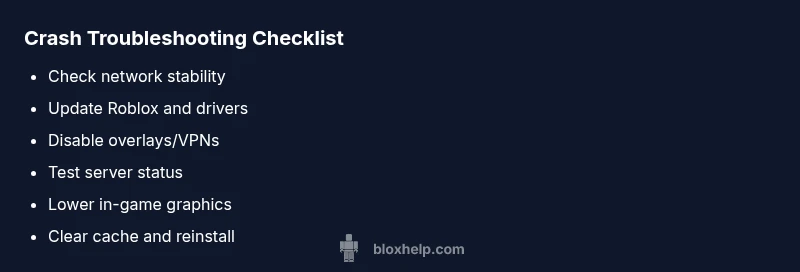
According to Blox Help analysis, the short answer to what causes roblox to crash is usually network instability, outdated Roblox client, or conflicting software on your device. Start by testing your connection, updating Roblox, and rebooting your computer. If it persists, temporarily disable overlays or VPNs, check server status, and lower in-game graphics to a safe level.
Common Crash Scenarios and Symptoms
Roblox players frequently report crashes during startup, login, or while loading into a game. The phrase what causes roblox to crash is often tied to a few recurring patterns: an unstable internet connection that drops packets, an outdated Roblox client that can't negotiate new game assets, or interference from other software running in the background. In 2026, the Blox Help team has observed this triad across Windows, macOS, and mobile devices. Noticeable symptoms include a frozen splash screen, error codes, or a sudden system reboot. By cataloging symptoms, you can quickly narrow down the root cause and apply the right fix instead of trying random steps. This section outlines typical crash scenarios so you can spot the pattern fast.
- Tip: Keep a rough log of when crashes occur (time of day, game, location) to identify patterns faster.
- Note: Server-side outages can masquerade as client crashes; always check Roblox server status before diving deep.
Check 1: Network and Connectivity
Most Roblox crashes stem from unstable networks or fluctuating latency. Start by running a speed test and ping check to your nearest Roblox region. If latency is high or jitter is present, switch to a wired Ethernet connection or move closer to the router. Disable VPNs or proxies temporarily to test if they are causing routing loops. Restart your router and modem to refresh the connection, and ensure no other devices are hogging bandwidth during peak play times. If you use a mobile hot‑spot, switch to a stable home network when possible. A simple network reset or changing DNS servers to a trusted option can also reduce connection drops that trigger crashes.
- Pro tip: Pause other devices during gaming sessions to stabilize your ping.
- Caution: Avoid overclocking or altering router settings unless you’re comfortable with advanced networking.
Check 2: Roblox Client Updates and System Requirements
Outdated software is a frequent culprit behind Roblox crashes. Confirm that you are running the latest Roblox client by triggering an update check within the app or reinstalling the launcher cleanly. Additionally, ensure your operating system and device drivers are current, especially graphics and audio drivers, since stale drivers can cause crashes during asset loading or rendering. Review minimum and recommended system requirements for Roblox on your device and compare memory, CPU, and GPU capabilities. If your hardware barely meets the specs, you may experience more frequent crashes when rendering complex scenes or high‑FPS gameplay.
- Pro tip: Enable automatic updates for both Roblox and your OS when possible.
- Caution: Do not download unofficial patches; stick to legitimate update channels to avoid malware.
Check 3: Background Apps, Overlays, and Antivirus
Overlays (like recording software), background updaters, and antivirus scans can interfere with Roblox operations, particularly during startup or scene loading. Temporarily disable overlays (screen capture, GPU capture tools) and close unnecessary background apps before launching Roblox. Some antivirus suites may block Roblox components or create false positives that crash the launcher. If you suspect an overzealous security product, add Roblox to the exception list or temporarily suspend real‑time protection during a test session. Remember to re‑enable protections after testing.
- Pro tip: Run Roblox with minimal background software to isolate the issue.
- Caution: Never disable security functionality for long periods; only test with proper re‑enablement.
Check 4: Roblox Server Status and Regional Issues
Sometimes crashes are not on your end but server‑side or regional routing problems. Check Roblox’s official status pages or social channels for reported outages or maintenance windows. If services are degraded in your region, crashes can occur when assets fail to load or matchmaking queues stall. In such cases, the best approach is to wait for Roblox engineers to stabilize the service. You can also switch to a different region in the app settings if available, which can bypass a congested route.
- Pro tip: Bookmark Roblox status pages for quick reference during play sessions.
- Caution: Do not attempt aggressive workarounds during a known outage; patience and official updates are key.
Check 5: In-Game Settings and Graphics
High graphics fidelity and aggressive FPS can overwhelm some devices, leading to crashes during asset streaming or physics calculations. Lower the graphics quality, disable motion blur, shadows, and anti‑aliasing, and cap the frame rate to a stable level. If crashes occur during specific games, try lowering texture quality or turning off environmental effects. On mobile devices, reduce resolution and enable the Battery Saver mode if available. These adjustments help Roblox run more smoothly on limited hardware and can prevent crashes caused by overtaxed resources.
- Pro tip: Create a separate “Performance” profile for resource‑intensive games.
- Caution: Avoid lowering settings too far if you value visuals; balance performance with acceptable quality.
Check 6: Cache, Roaming Data, and Installation Integrity
Corrupted cache data or partially downloaded assets can trigger crashes when Roblox attempts to load game content. Clear Roblox cache and reset local roaming data where applicable. If problems persist, consider a clean reinstall of Roblox to repair damaged files and replace missing components. When reinstalling, ensure you completely remove the old installation directory, clear residual files, and reboot before a fresh install. This can resolve crashes caused by corrupted downloads, faulty assets, or misconfigured settings stored in the app data.
- Pro tip: Back up important Roblox assets or saves if applicable before a full reinstall.
- Caution: Don’t delete system folders; target the correct Roblox directories to avoid OS issues.
Check 7: Account, Permissions, and Roblox Cache Hygiene
Sometimes login or account‑level issues can trigger crashes during sign‑in or asset loading. Verify your account status, ensure you are not logged in on multiple devices simultaneously in a way that conflicts with session data, and clear any residual Roblox cookies or cache in the browser if you use Roblox on web. If you recently changed account permissions or migrated devices, sign out and back in to refresh session tokens. For parents or guardians, ensure parental controls aren’t inadvertently restricting Roblox services, which can manifest as crashes in certain contexts.
- Pro tip: Sign out of all sessions and sign back in after major account changes.
- Caution: Avoid sharing credentials; always use secure authentication methods.
Quick Recap: When to Seek Professional Help
If you have methodically worked through all the checks above and Roblox still crashes, professional help may be needed. Document your troubleshooting steps, note error codes, and gather system information (OS version, hardware specs, driver versions). You can contact Roblox Support or consult with a local technician for hardware diagnostics if you suspect faulty RAM, disks, or overheating. The goal is to restore stable play without data loss, so don’t hesitate to escalate when needed.
- Pro tip: Create a concise report with steps taken and results to speed up support.
- Caution: Avoid opening your computer to hardware repairs unless you’re trained to do so; improper handling can be dangerous.
Steps
Estimated time: 45-90 minutes
- 1
Verify internet stability
Run a speed test and ping check to the Roblox region; switch to a wired connection if possible and restart your router to refresh the network. This step isolates network issues that often trigger crashes.
Tip: A stable ping under 50-100ms is ideal for smooth gameplay. - 2
Update Roblox and drivers
Launch Roblox to check for updates; update your graphics and audio drivers from the official vendor site or via your OS update tool. A clean install can fix corrupted components that cause crashes.
Tip: Enable automatic updates where possible to prevent future issues. - 3
Check for background conflicts
Close unnecessary apps, disable overlays, and pause antivirus real‑time scanning during a test session. Reintroduce items one by one to identify the offender.
Tip: Use a clean boot to test if third‑party software is the culprit. - 4
Test server status and regional routing
Visit Roblox status pages or official channels to confirm outages. If available, switch to a different server region or try again later during low traffic periods.
Tip: Server issues are common; patience and official updates help avoid wasted troubleshooting. - 5
Adjust in‑game settings
Lower graphics quality, disable effects, and cap FPS to relieve GPU/CPU load. Test with a simple game to gauge stability before moving to more demanding titles.
Tip: Record a baseline with standard settings for comparison. - 6
Clear cache and reinstall
Clear Roblox cache and, if needed, perform a full reinstall of the Roblox client. Remove residual files carefully to prevent conflicts with new installations.
Tip: Back up saves or important data before reinstalling. - 7
Review account and permissions
Sign out from all devices, verify account status, and ensure permissions are not restricting Roblox services. Check parental controls if applicable.
Tip: Use a single primary account for testing to avoid session conflicts. - 8
Consider professional help
If issues persist after all checks, contact Roblox Support or a qualified technician with a documented troubleshooting log. This ensures a precise path to resolution.
Tip: Bring error codes, timestamps, and system specs to speed up support.
Diagnosis: Roblox keeps crashing during startup, loading, or gameplay
Possible Causes
- highUnstable network connectivity
- highOutdated Roblox client or system drivers
- mediumConflicting background software/overlays/antivirus
- mediumServer outages or regional routing issues
- mediumCorrupted cache or installation files
- lowIn-game settings too high for hardware
Fixes
- easyTest and stabilize your internet connection; switch to wired Ethernet or a different network if possible
- easyUpdate Roblox and all device drivers; consider a clean reinstall if updates fail
- easyDisable overlays/VPNs temporarily and adjust background software to minimize conflicts
- easyCheck Roblox server status and regional routing; switch region if available or wait out outages
- easyClear Roblox cache and reinstall the launcher to repair corrupted files
- easyLower in-game graphics, cap FPS, and reduce effects to match hardware capacity
Questions & Answers
Why does Roblox crash on startup and how can I fix it quickly?
Crashes on startup are commonly caused by outdated software, faulty cache, or conflicting background apps. Start with a quick network check, update Roblox, clear the cache, and temporarily disable overlays or antivirus. If the problem persists, reinstall Roblox and verify your system drivers.
Crashes on startup are usually due to old software or cache issues. Start by updating and clearing cache, then disable overlays and test again.
How can I verify Roblox server status and avoid client-side fixes when servers are down?
Visit Roblox’s official status page or social channels to see if there is a regional outage. If servers are down, the best course is to wait for the issue to clear rather than pursuing client-side fixes.
Check the official Roblox status page to confirm outages before troubleshooting on your end.
Is my device hardware a frequent cause of Roblox crashes, and how do I know?
Hardware limitations can cause crashes, especially with high‑end games. Compare your device specs to Roblox recommended requirements, and try lowering in‑game settings to test stability.
If your device struggles with graphics, lowering settings may fix the crashes.
Do VPNs or proxies affect Roblox stability?
Yes. VPNs can introduce latency or routing issues causing crashes. Disable VPNs temporarily to test, and reconnect if you need to.
Try playing without a VPN to see if stability improves.
Should I clear cache or reinstall Roblox, and when?
Clear the Roblox cache first; if issues persist, perform a clean reinstall of the client to repair corrupted files.
Clear cache first; if that doesn’t help, reinstall the app.
When is it necessary to contact Roblox Support?
If you’ve systematically tried all common fixes and the crashes continue, reach out to Roblox Support with your troubleshooting log, error codes, and system specs.
If nothing works after trying everything, contact support with details.
Watch Video
The Essentials
- Start with network checks and updates
- Disable conflicting overlays and background apps
- Lower graphics settings before deeper fixes
- Reinstall Roblox if cache is corrupted
- Check server status before pushing device-level fixes