Roblox Crash Troubleshooting Guide
Facing a roblox crash? This comprehensive guide provides quick fixes, diagnostics, and prevention tips to restore Roblox stability and keep gaming smooth across devices.


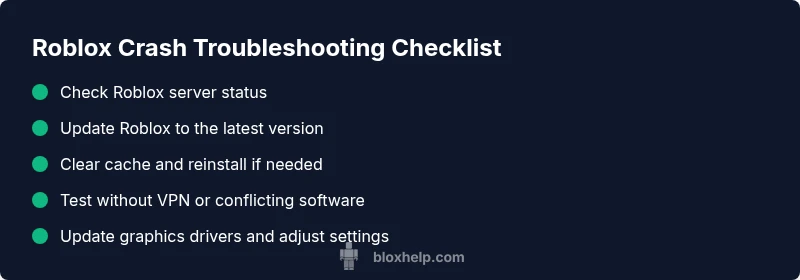
According to Blox Help, most roblox crash issues stem from connectivity problems, an outdated client, or corrupted cache. Quick fixes: 1) restart your device and router, 2) update Roblox to the latest version, 3) clear the Roblox cache and reinstall if needed, 4) disable VPN or overly aggressive antivirus, 5) check Roblox server status. If the problem persists, follow the diagnostic flow below.
roblox crash: Common Causes
A roblox crash can happen for a variety of reasons. Server-side outages or maintenance can abruptly end sessions, while client-side issues—such as outdated game files or corrupted cache—prevent Roblox from loading assets correctly. Hardware restraints (insufficient RAM, overheating, or an older GPU driver) can also trigger crashes during intense scenes or large downloads. Finally, conflicting software like antivirus/firewall settings, VPNs, or other background apps can interfere with network traffic or game processes. The Blox Help Editorial Team notes that most crashes stem from a small set of repeatable problems, so focusing on a few high-impact checks yields faster results.
Quick Checks You Can Run First
Before diving into deeper troubleshooting, run these fast checks:
- Verify your internet connection is stable and that other online services aren’t experiencing issues.
- Check Roblox status pages or social channels for outage announcements.
- Ensure your device clock/time are correct; time drift can affect authentication.
- Close unnecessary background apps that might steal memory or CPU.
- Temporarily disable VPNs or antivirus overlays to see if they’re causing interference. If you’re on mobile, switch from mobile data to Wi-Fi and vice versa to test connectivity.
Diagnosing with a Structured Flow
A solid diagnostic approach helps you identify the root cause without guesswork. Start with symptoms (crashes on startup vs. during gameplay), then map to likely causes, and apply the matching fixes. Recording steps you take and noting any error codes can speed up support interactions. For blinds spots, try cross-testing on a different device or account to isolate device-specific issues. This method aligns with the recommended workflow from the Blox Help Editorial Team and keeps you focused on practical, solvable problems.
Fix for the Most Common Cause: Outdated Client
The most frequent cause of roblox crash is an outdated Roblox client. Update steps vary by platform:
- Windows: Open the Roblox app, go to Settings, and check for updates. If no update prompts, reinstall Roblox from the official site.
- macOS: Visit the Roblox website to download the latest launcher and run it to update the app.
- iOS/Android: Open the App Store or Google Play Store, search for Roblox, and tap Update.
- Console/Smart TV: Check system firmware for Roblox updates or reinstall from the platform store if available. After updating, launch Roblox and test a few different games to confirm stability. If issues persist, proceed to cache clearing and deeper checks.
Resolve Cache and Files Issues
Corrupted cache or local files can trigger crashes, especially after long sessions or failed updates. Clear cache and verify integrity:
- Windows: Quit Roblox, delete files in AppData\Local\Roblox and AppData\Roaming\Roblox, then relaunch to rebuild cache.
- macOS: Remove ~/Library/Application Support/Roblox, then reopen the app to redownload assets.
- Mobile: Clear app cache in Settings (Android) or Offload/Reset (iOS), then reopen Roblox.
- PC/Laptop: If you use launchers or third-party launchers, clear their caches too. Reinstall Roblox if corruption persists. Notice how performance improves after clean cache and fresh assets are downloaded.
Network and System Checks
If crashes persist after updating and cache clearance, dive into network and system diagnostics:
- Reset your router/modem and reconnect devices.
- Run a speed test and measure latency; aim for stable ping under typical thresholds.
- Flush DNS (ipconfig /flushdns on Windows, sudo dscacheutil -flushcache on macOS) and renew your IP.
- Temporarily disable firewall rules that might block Roblox traffic, then test.
- Ensure your GPU drivers are current and that Windows/macOS power settings aren’t throttling performance.
Advanced Config Tweaks (Graphics & Hardware)
Some crashes occur due to rendering demands or overheating. Apply safe tweaks:
- Lower in-game graphics quality and disable frame-heavy effects.
- Reduce background processes and set Roblox to high priority in Task Manager/Activity Monitor.
- Ensure laptop/PC has adequate cooling and clean vents; re-seat hardware if overheating persists.
- Update graphics drivers from official vendor sites and consider rolling back if a recent driver caused instability.
- If you’re on a laptop, run Roblox on battery saver mode only if you can tolerate reduced performance; otherwise connect to power.
Safety, Backups, and Prevention
Good habits prevent frequent roblox crashes. Regularly back up game data and ensure you have restore points for your OS. Use reputable security tools and keep software from trusted sources. When adjusting settings or installing updates, create a system restore point in case the change causes instability. Finally, maintain a simple, clean startup environment by disabling unnecessary startup apps that could conflict with Roblox.
When to Seek Help and How to Report
If you’ve exhausted the above steps and Roblox still crashes, it’s time to contact support with a detailed report. Gather: device model, OS version, Roblox version, last successful game, exact error messages or crash screenshots, and steps that reliably reproduce the crash. Share this with Roblox Support or the Blox Help Editorial Team for faster triage. Consider testing on another device to confirm whether the issue is device-specific.
Steps
Estimated time: 30-60 minutes
- 1
Restart devices and network
Power down your computer or device, restart your router, and reconnect. This clears transient network glitches that can cause crashes.
Tip: Always start with a clean boot to rule out temporary software conflicts. - 2
Update Roblox client
Open Roblox and check for updates. If an update prompt isn’t visible, reinstall the latest Roblox launcher from the official site.
Tip: Avoid third-party installers; use the official Roblox download to prevent corrupted files. - 3
Clear cache and verify files
Clear the Roblox cache on your platform and relaunch to force fresh asset downloads.
Tip: Back up important data before clearing caches if you’re unsure. - 4
Check hardware and drivers
Update GPU drivers and ensure your hardware isn’t overheating. Lower in-game graphics if needed.
Tip: Keep your laptop on a hard surface for better cooling. - 5
Test on another network or device
If the crash stops on another device or network, the issue is likely local to your primary device.
Tip: Document findings with timestamps to share with support. - 6
Reinstall Roblox (last resort)
Uninstall Roblox completely, restart, then reinstall the latest version.
Tip: This step often resolves deep-seated file corruption.
Diagnosis: Roblox crashes during startup or gameplay
Possible Causes
- highNetwork/Internet issues
- highOutdated Roblox client
- mediumCorrupted cache or files
- lowHardware overheating or insufficient RAM
- mediumConflicting software (antivirus, VPN, overlays)
Fixes
- easyTest and stabilize network: reset router, try another network, disable VPN/firewall overrides
- easyUpdate Roblox to the latest version or reinstall if needed
- easyClear Roblox cache and verify local files; reinstall if corruption persists
- easyUpdate graphics drivers and adjust in-game graphics settings to lower levels
- mediumTest on a different device or account to isolate device-specific issues
Questions & Answers
Why does Roblox crash on startup?
Startup crashes are usually caused by outdated software, corrupted cache, or network issues. Run through the quick checks, update the client, clear cache, and test your connection before escalating to support.
Startup crashes are commonly caused by updates, cache, or network problems. First update Roblox, then clear cache and test your connection.
Does clearing cache fix Roblox crash on all devices?
Clearing cache can fix many crashes by forcing Roblox to re-download assets. If the problem persists, move to driver updates or reinstall Roblox.
Clearing cache fixes many crashes, but if it persists, try drivers or reinstall.
Can antivirus or VPN cause Roblox crashes?
Yes. Some security tools block Roblox traffic or interfere with connections. Temporarily disabling them can help you test, but re-enable protection after testing.
Security tools can block Roblox; test with them disabled briefly, then re-enable.
How do I contact Roblox support for crash issues?
Collect device details, OS version, Roblox version, steps to reproduce, and any error messages, then submit a ticket via the Roblox Help Center.
Gather details and reach out through the Roblox Help Center for a faster response.
Is Roblox crash more common on certain platforms?
Crashes can vary by platform due to differing drivers, OS updates, and network handling. Always tailor fixes to your platform (Windows, macOS, iOS, Android, or consoles).
Crashes differ by platform; fix steps should match your device.
What should I do if Roblox crashes only on one device?
Isolate the device: test on another network, clear cache, update drivers, and reinstall if necessary. If it persists, contact support with the device details.
If only one device crashes, isolate the device and gather details for support.
Watch Video
The Essentials
- Start with quick network and update checks
- Clear cache and verify files before deep fixes
- Test across devices to isolate the issue
- Update drivers and lower graphics if needed
- Seek help with precise diagnostics if unresolved