How to Stop Roblox from Opening in VR
Learn practical steps to prevent Roblox from launching in VR, disable VR mode across Roblox and headset software, and force desktop mode on Windows. This beginner-friendly guide from Blox Help provides safe, tested methods.


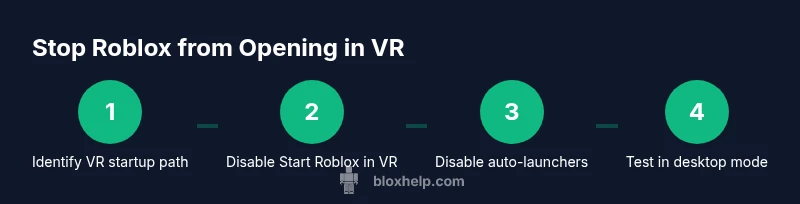
Roblox can start in VR due to a built-in VR mode or platform launch settings. This guide shows how to stop Roblox from opening in VR by turning off the VR option in Roblox, disabling SteamVR/Oculus auto-launch, and forcing desktop mode. Follow the steps to ensure Roblox launches normally without VR prompts.
Understanding how Roblox launches in VR
Roblox's VR behavior depends on a mix of the Roblox client settings and the VR runtime active on your computer. If headset software such as SteamVR or the Oculus/Meta PC app is running, or if the Roblox launcher detects a VR-capable environment at startup, Roblox may default to VR mode. According to Blox Help, the most reliable way to prevent this is to explicitly disable the VR option in the Roblox desktop client and to remove any auto-launch triggers from headset software. This section explains the common pathways that trigger VR mode and how to interrupt them with concrete actions.
- VR toggle in Roblox: Check Settings > General (or Preferences) for a Start Roblox in VR switch and turn it off to stop VR at launch.
- VR runtimes: SteamVR, Oculus, or Windows Mixed Reality can start automatically when a game launches; these backdoors can cause Roblox to run in VR even if Roblox settings are off.
- System startup: Some devices re-enable VR through startup services or headset launchers; disabling those entrances helps ensure desktop mode.
Understanding these pathways helps you apply a minimal, repeatable set of changes that force Roblox to launch in desktop mode.
Prerequisites and quick checks
Before you start, identify which path is triggering VR on your PC. Check whether you have SteamVR or the Oculus software installed and whether it’s set to auto-start with apps. Ensure you’re aiming for a desktop experience rather than VR by keeping the VR toggle off in Roblox. If you’re on a managed device, be mindful of policy restrictions that might re-enable VR settings after changes. This quick-check phase helps you pick the right sequence of steps and reduces backtracking. According to Blox Help analysis, many players resolve this issue by addressing both Roblox settings and headset runtimes, not just one side of the equation. Have these ready: a PC with Roblox installed, keyboard/mouse, and access to SteamVR or Oculus software to adjust preferences.
Disable VR from the Roblox desktop client
Open the Roblox desktop app and sign in. Navigate to Settings (or Preferences) and look for the Start Roblox in VR option. Turn this toggle off, then restart Roblox to confirm the change took effect. If the toggle is missing, search for any VR-related options in Advanced Settings or under a beta features section and disable them. After saving changes, launch Roblox from a desktop shortcut to ensure desktop mode is used. This step is the most direct way to prevent VR from triggering at startup. As a precaution, keep SteamVR or Oculus closed while testing.
Disable SteamVR auto-launch and headset runtimes
If SteamVR is installed, open SteamVR and access Settings. Disable any option like Start SteamVR when an application starts or auto-launch at system startup. Do the same in the Oculus software: disable auto-launch on PC startup and ensure Oculus won’t start automatically when you run non-VR apps. With SteamVR and Oculus effectively neutralized, Roblox should no longer switch to VR unless you re-enable VR in the headset software. This approach prevents the VR runtime from grabbing focus at game launch.
Turn off headset auto-launch on Windows and other platforms
Some headsets (Windows Mixed Reality, Quest via Air Link, SteamVR) can wake and launch VR when a PC app starts. In Windows, disable startup entries for VR runtimes or set them to manual startup. On headset software (Oculus/Meta, Windows MR), switch off auto-launch features and ensure desktop mode remains the default. If your PC is shared or managed, check with IT for group policies that might re-enable VR on reboot. This step eliminates background VR activity that can override Roblox's desktop mode.
Set Roblox to Desktop mode by default
If a VR toggle exists in Roblox, ensure it is OFF and that you’re launching Roblox from a desktop icon rather than a VR launcher. Use the standard Windows desktop shortcut or Start Menu entry for the Desktop Roblox client. Avoid launching Roblox via any VR-specific launcher. If you still see a prompt to enter VR, recheck the Roblox Settings after a full restart and confirm there are no startup scripts enabling VR. This solidifies the desktop-first behavior you want.
Manage startup shortcuts and platform defaults
Review your startup programs and remove any VR-related shortcuts that might launch Roblox in VR. Create a dedicated desktop shortcut for the Roblox Desktop client and use that for future launches. If you use multiple launchers (Steam, Epic, Roblox), ensure only the desktop client runs by default. These steps reduce the chance that a VR launcher reopens Roblox in VR after you have disabled VR settings.
Troubleshooting if Roblox still opens in VR
If Roblox still opens in VR, verify that no background services or third-party tools re-enable VR on startup. Recheck SteamVR and Oculus for any residual auto-launch rules, and review Windows startup items. Ensure you are running the latest Roblox desktop client and headset software. If all else fails, reinstalling the Roblox desktop client can reset launch behavior to desktop mode. The aim is a clean, VR-free boot path that reliably defaults to desktop mode.
Final verification and test run
Close all apps, including VR runtimes, and restart your PC. Launch Roblox from the desktop shortcut and confirm it loads in desktop mode without any VR prompts. If it still asks for VR, revisit the Roblox Settings and headset software to confirm options were saved correctly. A successful desktop launch should occur consistently after these steps.
Tools & Materials
- PC with Roblox installed(Desktop client, not mobile or console version)
- Keyboard and mouse(To navigate Roblox settings efficiently)
- SteamVR software(Install if you use SteamVR; disable auto-launch)
- Oculus software / Meta PC app(Use to manage VR auto-launch; disable when testing desktop mode)
- Internet connection(Optional, for software updates)
Steps
Estimated time: 15-25 minutes
- 1
Open Roblox Desktop Client
Launch the Roblox desktop application and sign in. Navigate to Settings and search for a VR or Start Roblox in VR option. If you find it, disable it. If the option is missing, proceed to the next step. This establishes the desktop-first starting point.
Tip: Close any VR runtimes before changing settings to avoid conflicts. - 2
Close VR runtimes
Exit SteamVR and the Oculus/META PC app completely. Ensure there are no background processes related to VR services running in Task Manager before retesting Roblox.
Tip: Check the system tray for active VR services and quit them if needed. - 3
Disable SteamVR auto-launch
Open SteamVR settings and uncheck Start SteamVR when an application starts. Apply changes and restart SteamVR to confirm it no longer launches automatically with Roblox.
Tip: If SteamVR has multiple profiles, ensure the correct profile is selected for desktop apps. - 4
Disable Oculus auto-launch
Open the Oculus software and disable any option like Auto-Launch on PC startup or Always Start. Restart the PC to ensure changes take effect.
Tip: Verify Oculus is not set to auto-launch on power-on from the boot settings. - 5
Set Roblox to Desktop mode
Launch the Desktop Roblox client via its standard shortcut. Confirm the VR toggle is off and avoid launching Roblox from VR-specific launchers.
Tip: Create a dedicated desktop shortcut for reliability. - 6
Review startup shortcuts
Remove any VR-related shortcuts from startup folders or startup apps. Rely on the desktop Roblox launcher for consistent behavior.
Tip: Keep a backup of your desktop shortcut in case you need to restore settings. - 7
Test desktop-only launch
Reboot and start Roblox from the desktop shortcut. Ensure it loads in desktop mode without VR prompts and that settings persist after reboots.
Tip: If VR prompts recur, re-check all VR settings and headset software for auto-launch rules.
Questions & Answers
Why does Roblox open in VR by default on some systems?
Roblox may start in VR if the VR toggle is enabled or if headset runtimes auto-launch at startup. Verify both Roblox settings and headset software.
Roblox can start in VR when VR is enabled or when headset software auto-launches; check both sides.
Can I disable VR without uninstalling Roblox?
Yes. Disable the VR option in Roblox settings, and turn off auto-launch in SteamVR and Oculus software. This keeps VR components installed for future use.
Absolutely. You can disable VR in Roblox and stop auto-launch in the headset apps.
What if Roblox still opens in VR after changes?
Recheck all VR-related startup items, verify the desktop Roblox shortcut is used, and confirm headset software isn’t auto-launching. Consider a fresh Roblox desktop reinstall if issues persist.
If it still VRs, recheck startup items and consider reinstalling the desktop client.
Does this affect Oculus Quest or SteamVR usage later?
No, these changes only affect how Roblox launches by default. You can re-enable VR by toggling the settings and restarting if you want VR mode later.
You can re-enable VR by toggling settings and restarting when needed.
Is there a Roblox setting to always launch in desktop mode?
There isn’t a universal global default switch for desktop mode across all Roblox versions; use the in-app VR toggle and headset settings to enforce desktop launches.
No universal default; use the VR toggle and headset settings to enforce desktop launches.
What should I do if I use SteamVR only occasionally?
Keep SteamVR installed but disable auto-launch and use the Roblox desktop shortcut whenever you don’t want VR. Re-enable SteamVR when you want VR gameplay.
Disable auto-launch when not using VR, and re-enable SteamVR when needed.
Watch Video
The Essentials
- Disable Start Roblox in VR in Roblox settings
- Turn off SteamVR/Oculus auto-launch
- Launch Roblox in desktop mode by default
- Test after changes to confirm desktop-only startup