How to Stop Roblox Auto-Launch
Learn how to stop the Roblox app from opening automatically with safe, step-by-step fixes for Windows and macOS. This beginner-friendly guide from Blox Help covers launcher settings and troubleshooting to restore control.


To stop the Roblox app from opening automatically, disable auto-launch in the launcher settings, remove Roblox from startup items, and adjust your operating system's startup programs. On Windows, disable Roblox in Task Scheduler and the Startup folder; on macOS, remove Roblox from Login Items; if needed, reinstall Roblox to reset defaults.
Why stopping Roblox auto-launch matters
According to Blox Help, players often want control over startup behavior to improve performance and reduce distractions. Auto-launch can drain system resources, slow down boot times, and interrupt focus during gaming or development sessions. By taking ownership of when Roblox starts, you reduce resource use, improve boot times, and avoid interference with other tasks. This section explains why you might want to stop Roblox from opening automatically and how to approach the change safely, especially if you juggle Roblox Studio, plugins, and multiple games. The guidance here is designed for beginners and intermediate users alike, with practical steps that won’t require professional IT support.
Quick fixes you can try first (non-destructive)
If Roblox unexpectedly opens on startup, you can often fix it without touching system settings. Start by closing Roblox, ensuring it isn’t running in the background, and checking the launcher for a startup toggle. Remove any Roblox shortcuts from the Startup folder in Windows and verify Login Items on macOS. These quick actions don’t uninstall Roblox or affect game data, but they often stop automatic launches. If the issue persists, continue with OS-level steps in the sections below.
Windows: disable auto-launch steps
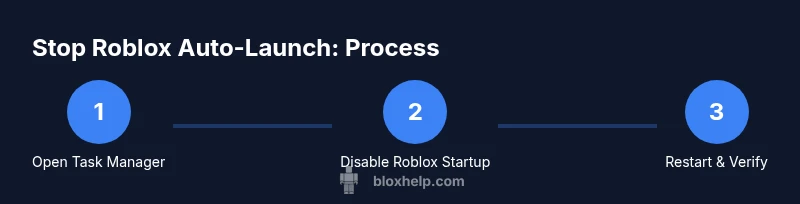
- Open Task Manager (Ctrl+Shift+Esc) and switch to the Startup tab. If you see Roblox listed, right-click and choose Disable. This prevents the launcher from starting at logon. 2) Open Run (Win+R) and type startup, then delete any Roblox shortcuts from the Startup folder. 3) Open Task Scheduler (search in the Start menu) and search for Roblox-related triggers. Disable or delete any tasks that launch Roblox at logon. 4) Restart your PC to apply changes. 5) Open Roblox Launcher Settings and turn off any option that says Open at startup. 6) Test by rebooting and confirming Roblox does not auto-launch. Pro tip: keep a backup of launcher settings in case you want to revert.
macOS: disable auto-launch steps
- Open System Settings (or System Preferences) and go to Users & Groups > Login Items. Remove Roblox from the list. 2) Check the Library folders for any LaunchAgent items related to Roblox and delete them if present. 3) Restart your Mac to ensure changes take effect. 4) Launch Roblox manually to confirm it no longer opens automatically on login. Pro tip: if you’re using multiple user accounts, repeat the steps for each account.
Roblox launcher settings and in-app options
- Open the Roblox Launcher and go to Settings. 2) Find options related to startup behavior, such as Open Roblox on startup or Launch at login, and toggle them off. 3) Clear any saved launcher data that could cause a reset on reboot, then relaunch the launcher. 4) Reboot and verify the app no longer opens automatically. Pro tip: keep a notes file with your preferred launcher state for future reference.
Advanced: using startup folders and task scheduler
- For Windows, ensure the Startup folder is clean of Roblox shortcuts and that no Roblox-related Scheduled Tasks exist. 2) Inspect Task Scheduler for tasks under Microsoft > Windows, then under your user profile, and disable or delete Roblox tasks. 3) On macOS, inspect LaunchAgents in ~/Library/LaunchAgents and /Library/LaunchAgents for Roblox entries and remove them. 4) Reboot and test to ensure no auto-launch occurs. Pro tip: document any changes to avoid confusion later.
Troubleshooting common issues after changes
If Roblox still opens on startup after changes, re-check Task Manager Startup items and Login Items, and verify there are no background services or third-party apps triggering Roblox. Some enterprise-managed devices may have policies that auto-launch software; if so, you’ll need IT assistance. Pro tip: check for Roblox updates that might reset startup behavior. Warning: avoid deleting system-critical startup items.
How to test and verify changes
After applying changes, perform a clean restart and observe whether Roblox launches automatically. Then try launching Roblox manually to confirm it behaves normally and that there are no auto-launch triggers remaining. Repeat the checks across user accounts if needed. Pro tip: keep a changelog of each adjustment to simplify future troubleshooting.
Authorities and further reading
For additional context on managing startup programs, see official support and reputable guides:
- https://support.apple.com (macOS login items)
- https://support.microsoft.com (Windows startup apps)
- https://www.howtogeek.com (how to manage startup programs)
Tools & Materials
- Admin access to Windows/macOS user account(Needed to modify startup items and system settings.)
- Roblox launcher installed(Ensure you’re editing the correct launcher on your device.)
- Web browser(Helpful for accessing online support pages if needed.)
- Backup of current settings(Optional but recommended before making changes.)
- Restart capability(A reboot is often required to apply changes.)
Steps
Estimated time: 15-25 minutes
- 1
Open Task Manager and locate Startup items
Open Task Manager (Ctrl+Shift+Esc) and switch to the Startup tab. Look for Roblox in the list of startup programs and select Disable to prevent auto-launch.
Tip: If you don’t see the Startup tab, click More details to expand. - 2
Remove Roblox from the Startup folder
Open Run (Win+R) and type shell:startup to access the startup folder. Delete any Roblox shortcuts to stop it from launching at login.
Tip: Check both the current user and All Users folders to cover all bases. - 3
Check Task Scheduler for Roblox triggers
Open Task Scheduler and search for Roblox entries under Task Library. Disable or delete triggers that launch Roblox at logon.
Tip: Be careful not to delete unrelated tasks; verify the task name and publisher. - 4
Adjust Roblox launcher settings
Open the Roblox Launcher, go to Settings, and toggle off any option related to opening at startup or on login.
Tip: Apply changes and restart the launcher to ensure the setting sticks. - 5
Test changes with a reboot
Restart your PC and verify that Roblox does not launch automatically at login. If it does, revisit the startup sources you edited.
Tip: If necessary, perform steps 1-4 again and re-check all startup locations. - 6
Consider a clean reinstall if needed
If Roblox still opens on startup, uninstall Roblox, delete lingering launcher files in AppData (Windows) or Library (macOS), and reinstall from the official site.
Tip: A clean reinstall can reset stubborn startup behavior and restore expected control.
Questions & Answers
Will stopping auto-launch affect Roblox updates or game saves?
No. Stopping auto-launch only affects startup behavior. Updates and game saves occur when you manually launch Roblox or during automatic updates, which are separate processes.
Stopping auto-launch doesn’t affect updates or saves; you’ll still get updates when you open Roblox yourself.
Is this safe for Windows and macOS?
Yes. The methods described focus on startup controls and launcher settings, which are standard, non-destructive configurations on both Windows and macOS.
Yes, the steps are safe and non-destructive for both Windows and Mac.
Will this prevent Roblox from opening when I click it manually?
No. Disabling startup only prevents automatic launch at login. You can still open Roblox manually from the Start menu, Dock, or launcher.
You can still open Roblox yourself; this only stops automatic opening at startup.
What if Roblox continues to open after reboot?
Double-check all startup sources (Task Scheduler, Startup folder, Login Items) and ensure no Roblox-related tasks exist. Some apps create background processes that re-enable startup behavior after an update.
If it keeps happening, review every startup source and consider a clean reinstall.
Can third-party software manage startup behavior?
Third-party tools exist but are not necessary. Built-in Windows/macOS startup controls are usually sufficient and safer for this task.
You don’t need third-party tools—OS-native controls are enough for most users.
How do I revert changes if I don’t like them?
Revert by re-enabling Roblox in the Startup tab, re-adding it to Login Items, and re-creating any Task Scheduler or LaunchAgent entries you removed.
If you want to undo, simply re-enable the startup items you disabled.
Watch Video
The Essentials
- Disable auto-launch to improve boot times
- Use system startup tools to control apps
- Test changes after each reboot
- The Blox Help team recommends verifying changes across accounts