How to Use a Mic in Roblox: Setup, Tips, and Safety
Learn how to use a microphone in Roblox across PC, Mac, mobile, and Xbox. This guide covers permissions, in-game voice chat, testing, and safety tips to talk clearly and safely with friends.


Goal: learn how to use a mic in Roblox across PC, Mac, mobile, and Xbox. This quick-start covers permissions, in-game voice chat settings, testing, and safety considerations, so you can talk clearly in voice-enabled Roblox experiences. Follow platform-specific steps and test in a private game before joining public servers.
Why Microphone Access in Roblox Matters
Voice communication can dramatically change how players coordinate in team-based Roblox experiences. According to Blox Help, microphone use opens up opportunities for cooperative play, trading, and group challenges in user-generated experiences. The platform supports voice chat in specific games and regions, but enabling it requires understanding both device permissions and Roblox settings. In 2026, voice-enabled experiences continue to grow, and learning how to use mic in roblox safely becomes essential for players who want smoother teamwork and richer social interactions. You’ll also find a practical roadmap for setup, testing, and troubleshooting so you can jump into voice-enabled Roblox content with confidence. This guidance focuses on real-world scenarios players encounter during quests, build sessions, or competitive play, and aims to help you avoid common misconfigurations that disrupt voice clarity. By the end, you’ll know what to check first, how to navigate platform-specific hurdles, and what to do if your mic isn’t detected.
How Roblox Handles Voice Chat Across Platforms
Roblox voice chat is not universal; it depends on device, region, account age, and the specific game you’re playing. Roblox provides a built-in voice chat API that some developers enable for their experiences, but you cannot simply turn on voice chat to talk with anyone in every game. This section clarifies how voice chat is presented in the Roblox client, how to locate the options, and what limitations you may encounter on PC, Mac, iOS, Android, and Xbox. You’ll learn about in-game indicators that show who is talking, how to mute or block disruptive players, and how to respect privacy controls when joining public servers. If you’re new to Roblox voice features, this section gives you a clear mental model before you start enabling permissions, so you avoid surprises during your first voice-enabled session. You’ll also find notes on which game experiences support voice chat and how to verify you’re in a voice-enabled lobby.
Enabling Microphone Permissions on Your Device
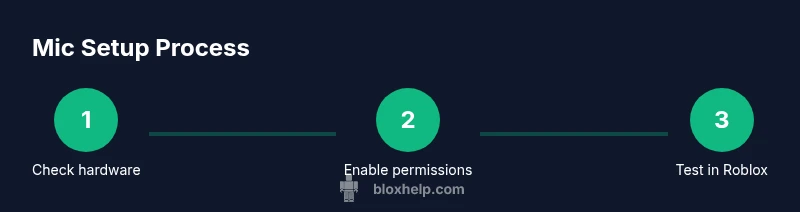
To use a mic in Roblox, you must grant microphone permissions at the system level and then allow Roblox access within the app. On Windows, go to Settings > Privacy > Microphone and ensure Roblox is listed with access enabled; you may also need to enable device access for apps. On macOS, open System Settings (or System Preferences) > Security & Privacy > Microphone and check Roblox. For iOS and Android devices, visit Settings > Privacy > Microphone and enable Roblox for the app. Console users on Xbox typically manage voice chat permissions through the console’s privacy settings and the parent/guardian controls if applicable. After adjusting OS permissions, restart Roblox to refresh device access and ensure the chosen microphone is detected. Always test basic mic function in the OS before testing in Roblox to rule out hardware issues.
Configuring Roblox Voice Settings Inside the Game
With permissions granted, you’ll configure how voice chat works inside Roblox. Open Roblox, sign in, then head to Settings > Privacy > Voice Chat. Toggle Voice Chat On and select your input and output devices. Decide between Open Mic and Push-to-Talk and set the sensitivity or mic level so your voice is clear without picking up too much background noise. If your game supports it, explore per-game voice options or in-game mute controls to manage conversations during group play. For best results, ensure your headset is prioritized as the input device and test with a friend to calibrate levels. This step is crucial for minimizing feedback and maximizing clarity during long sessions.
Testing Your Microphone in a Safe Environment
Always test in a controlled setting before joining crowded servers. Create a private game or invite a trusted friend group to a test session. Speak at your normal volume and observe how your voice translates through the game’s audio; adjust input levels or mic boost as needed. If possible, enable a quick test in the Roblox Studio or a private experience that already supports voice chat to validate latency and audio balance. Use a brief, consistent mic check routine: say your name, describe your actions, and listen for echoes or cutouts. Continuous testing helps you refine setup and reduces frustration in public lobbies.
Common Issues and Quick Fixes
If your mic isn’t detected, recheck OS permissions, then restart Roblox. Latency or choppy audio often stems from network instability or driver problems; try a wired connection or update audio drivers. Echo can appear if input and output levels are too close; lower the input level or enable noise suppression if available. Some games may disable voice chat by default; verify per-game settings and ensure you are in a supported region and age group. If you still encounter problems, consult Roblox help resources or the device manufacturer’s support pages for deeper troubleshooting steps.
Tools & Materials
- Headset with microphone(USB preferred or 3.5mm with noise rejection)
- Compatible device(PC, Mac, iOS, Android, or Xbox)
- Stable internet connection(Wired recommended for low latency)
- Roblox account with Voice Chat capability(Age/region requirements apply)
- Updated Roblox app or browser(Latest version)
Steps
Estimated time: 15-25 minutes
- 1
Check hardware and mic connection
Verify that your microphone is plugged in and recognized by the operating system. If you normally use a headset, ensure both the mic and headphone jacks are seated securely.
Tip: Test the microphone in another app to confirm basic functionality. - 2
Grant OS microphone permissions
Open your device settings and ensure the microphone permission is enabled for Roblox or the Roblox app. On Windows, Mac, iOS, and Android, permissions are distinct from app installation.
Tip: If permissions are disabled, you may need to restart the device after enabling. - 3
Enable Roblox voice chat
Launch Roblox, go to Settings > Privacy > Voice Chat, and toggle Voice Chat On. Select your input/output devices and choose Open Microphone or Push-to-Talk.
Tip: If you change devices, reselect them in Roblox settings. - 4
Fine-tune input levels
Adjust the microphone level and sensitivity to balance clarity with background noise reduction. Use headphones to prevent feedback.
Tip: Set Push-to-Talk if you’re in noisy environments. - 5
Test in a private session
Join a private Roblox game with a friend or use Roblox Studio testing features to confirm everyone can hear you with minimal lag.
Tip: Ask your testers to confirm volume and phrasing clarity. - 6
Apply final checks
Revisit all platform and Roblox permissions, verify mute lists, and ensure the correct mic is active. Repeat the test if you switch games.
Tip: Keep drivers updated and maintain a clean mic setup.
Questions & Answers
Is voice chat available on all Roblox platforms?
Voice chat is platform dependent and requires a supported device, region, and age. Not all games enable voice chat by default.
Voice chat on Roblox depends on your device and the game; check permissions and settings.
Do I need Roblox Premium to use a mic?
No premium is required to use a microphone or voice chat in Roblox, but some features may vary by region.
No, you don't need Premium to use a mic.
Can I use a headset or built-in mic?
Both headset mics and built-in mics are supported as input devices in Roblox. Use the one with better noise rejection for clarity.
Yes, both types work fine; choose the one that sounds best.
How do I mute someone in voice chat?
While in a voice-enabled game, use the in-game menu to mute or adjust volume for individual players.
Use the mute option in the game’s voice controls.
What should I do if my mic isn’t detected?
Make sure the mic is connected, permissions are granted in OS settings, and Roblox has access in its settings. Try restarting Roblox after changes.
Check hardware, then re-open Roblox to refresh device access.
Are there safety features for younger players?
Roblox provides parental controls and privacy settings to limit voice chat exposure for younger players. Parents should review settings.
There are safety options; use them to control who can talk and when.
Watch Video
The Essentials
- Enable voice chat in Roblox and OS permissions
- Choose Open Mic or Push-to-Talk based on context
- Test in a safe environment before joining public games
- Keep software up to date for best compatibility
- Be mindful of privacy and safety guidelines