Why is Roblox Not Working? Urgent Troubleshooting
Roblox not loading or crashing? This urgent guide from Blox Help walks you through quick checks, fixes, and prevention tips to get you back to your games fast.


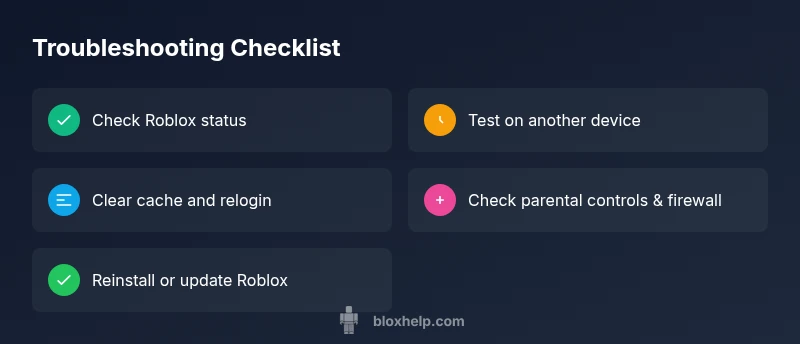
Start with the simplest checks: verify your internet connection, restart Roblox and your device, and ensure Roblox servers are online via status.roblox.com. If Roblox still won’t load, test another device on the same network and clear the Roblox cache. For account-related issues, re-login and confirm parental controls aren’t blocking access.
Common Causes of Roblox Not Working
If you’re wondering why is roblox not working, you’re not alone. According to Blox Help, most outages or access problems stem from three broad areas: connectivity, platform status, and account restrictions. First, check Roblox server status using the official Roblox status page or trusted social channels to confirm whether there is a known outage. Even when the service is up, a poor internet connection or congested network can prevent Roblox from loading or syncing data. Local device problems—like outdated apps, corrupted cache, or misconfigured firewall—can also block Roblox. Finally, parental controls or age-restriction settings on your account or network can prevent access to certain Roblox features. By recognizing these common causes, you can quickly triage and apply the most likely fixes. The question “why is roblox not working” becomes easier to answer once you categorize the issue as connectivity, server status, or access controls. This approach is echoed in the Blox Help workflow, which emphasizes quick verification and minimal disruption to your playtime.
tipInboundMovementNoteOnlyListInitPreview_IgnoreThisNoteNow?null
Steps
Estimated time: 20-35 minutes
- 1
Verify Roblox Server Status
Open status.roblox.com and confirm there are no active outages affecting your region. If there is an outage, your only option is to wait until Roblox resolves the issue. If status is clear, proceed to the next step.
Tip: Bookmark the status page for your quick reference. - 2
Test Internet on a Different Device
Try launching Roblox on another device on the same network to determine if the problem is network-wide or device-specific. If the second device works, your primary device likely has a local issue like cache or settings.
Tip: If available, connect via a wired Ethernet instead of Wi‑Fi to rule out wireless interference. - 3
Restart Network Hardware and Device
Power-cycle your modem, router, and the device running Roblox. After 60 seconds, reconnect and retry. This can resolve transient network glitches that block Roblox from loading.
Tip: Disable VPNs or proxies during testing to avoid routing issues. - 4
Clear App/Data Cache and Sign In Again
Clear Roblox cache on your device (or clear app data on mobile) and sign back in. A corrupted cache can prevent proper loading and cause crashes.
Tip: On PC, you may clear temporary files and restart Roblox before signing back in. - 5
Check Security Settings and Parental Controls
Ensure your firewall, antivirus, or parental controls aren’t blocking Roblox. Temporarily disable them to test, then re-enable with appropriate allowances for Roblox.
Tip: If you share a family account, confirm permissions for the Roblox app. - 6
Reinstall or Update Roblox
If issues persist, update the Roblox app to the latest version or reinstall it completely. This resolves file corruption and ensures you’re on the supported build.
Tip: Back up game data if your device stores local saves.
Diagnosis: Roblox won’t start or keeps crashing during launch
Possible Causes
- highPower/Internet issue
- mediumServer outage or maintenance
- lowAccount restrictions or parental controls
Fixes
- easyCheck Roblox status page and social channels for outages
- easyRestart router, modem, and device to refresh network connection
- easyClear Roblox cache and re-login to refresh session
Questions & Answers
What should I check first when Roblox won’t load?
Start with the basics: confirm Roblox server status, test your internet connection, and restart both the Roblox app and your device. These steps resolve the majority of quick-not-working issues.
Check server status, test your connection, and restart Roblox and your device to resolve most quick-not-working issues.
Why does Roblox crash after startup only on my device?
This often points to a corrupted cache, outdated app, or conflicting security settings on the device. Clearing cache and updating the app typically fixes the problem.
If it crashes after startup, clear the cache and update Roblox on your device.
Can parental controls block Roblox from loading?
Yes, parental controls or network restrictions can block access. Check your account settings, device restrictions, and router-level controls.
Parental controls can block Roblox, so review account and device restrictions.
What if none of the fixes work?
Collect error messages, device model, OS version, Roblox version, and steps you’ve tried. Contact Roblox Support with this information for tailored help.
If nothing works, gather details and contact support for targeted help.
How can I prevent Roblox not working in the future?
Keep the app updated, maintain a stable network, and periodically clear cache. Regularly check status pages during updates or major events.
Stay updated and keep caches clear to reduce future issues.
The Essentials
- Verify server status before changing devices
- Isolate network vs device issues with cross-testing
- Clear cache and re-login to refresh Roblox session
- Check parental controls and security software settings
- Document error codes for faster support