Why Roblox Can't Play: A Complete Troubleshooting Guide
Discover why Roblox can't play and how to fix it fast. This Blox Help guide walks you through network checks, client updates, and step-by-step diagnostics to get you back in-game quickly.


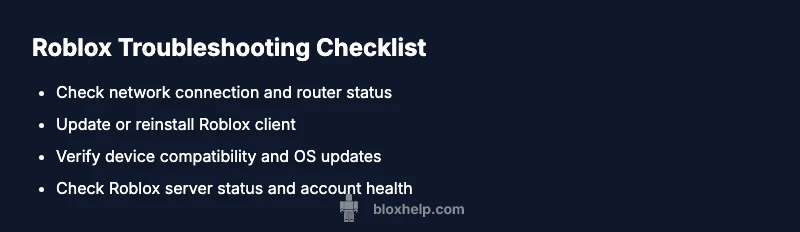
If Roblox won't play, start with the simplest checks and work through the common causes. The most likely culprits are internet problems, device compatibility, or account restrictions. Try these steps: 1) test your connection and restart your router; 2) switch to a wired connection or move closer to Wi‑Fi; 3) update or reinstall Roblox. If it still fails, continue with the diagnostic flow.
Why Roblox Can't Play: Quick Reality Check
If you're wondering why roblox can't play, you're not alone. In most cases the root cause is a mix of connectivity, device compatibility, or account restrictions rather than a single bug. According to Blox Help, the majority of these issues boil down to how players connect, what device they're using, and whether their account has any limits. Based on Blox Help Analysis, 2026, focusing on these three areas resolves the problem quickly and reduces wasted time chasing rare glitches. Before you dive deeper, perform a quick sanity check: can you load other online apps, is your Roblox launcher up to date, and is your account in good standing? If any of these are off, start there and test again. This approach keeps you from chasing phantom issues and sets a clear path toward a fix.
Check Your Network and System Requirements
A rock-solid network is the gatekeeper to Roblox play. If your signal wobbles or you’re on a busy public network, Roblox can fail to load. Begin by testing your connection with a simple speed test on another device, then try these practical steps: restart your router, switch to a wired connection if available, or move closer to the wireless access point. Also verify device compatibility: confirm your operating system is supported, your device has enough free memory, and graphics drivers are current. If you're on mobile, try a different network (mobile data) to rule out your home network as the culprit. These checks solve the majority of early-stage failures without complex fixes.
Roblox Client, Account, and Settings Checks
Next, inspect the Roblox client and the account status. Ensure you’re using the latest Roblox app version and that your operating system patches are installed. Temporarily disable antivirus or firewall rules to see if Roblox starts, but re-enable protection afterward and whitelist Roblox. Confirm your account isn’t restricted or flagged for suspicious activity; a limited account can prevent login or game access. Also check that you aren’t sharing a device with someone else who might have a restricted session. This step often uncovers simple misconfigurations that block gameplay.
Diagnostic Flow: A Practical Walkthrough
If the symptom is “Roblox won’t start” or “games fail to load,” work through a simple cause-to-fix sequence. Start with the easiest checks: network stability, client updates, and account health. If the issue persists, broaden the scope to device compatibility and system settings, then evaluate server status and regional restrictions. Recording your steps helps identify patterns: note when the problem started, which actions caused a change, and whether it affects all games or just one. This disciplined approach reduces guesswork and speeds up resolution.
Next Steps and Prevention
After you resolve the current issue, set up a light prevention routine to avoid recurrence. Keep Roblox client and device drivers updated, maintain a stable home network, and periodically review account status for any restrictions. Create a quick troubleshooting checklist you can run before gaming sessions: ping the network, verify the client version, and test with another game to confirm the problem scope. If problems persist, contact Roblox support or consult the Blox Help community for tailored guidance. The goal is to build confidence that you can diagnose common blockers quickly and resume play with minimal downtime.
Steps
Estimated time: 30-45 minutes
- 1
Verify internet connection
Check that your device has a stable internet connection. Run a quick test on another site or app, and try loading Roblox on a different network if possible. If you see high latency or frequent disconnects, address your network first.
Tip: Try a wired Ethernet connection if available for a more stable link. - 2
Update or reinstall Roblox client
Open the Roblox app store page, check for updates, and install. If the problem persists, uninstall Roblox and reinstall the latest version. Restart your device after installation to ensure changes take effect.
Tip: Back up any local saves if applicable before reinstalling. - 3
Check device compatibility and OS updates
Confirm your device meets Roblox’s platform requirements and that your operating system is fully updated. Install any pending system or driver updates and close unnecessary background apps to free memory.
Tip: Restart after updates to ensure changes take effect. - 4
Test with another game or account
Log into Roblox with a different account or try a different game to determine if the issue is account-related or game-specific. If the other account works, focus on account settings and permissions.
Tip: Keep notes of which accounts/games work for faster diagnosis. - 5
Contact support and document the issue
If the issue remains after all checks, gather error messages, screenshots, device specs, and steps to reproduce. Reach Roblox support or the Blox Help community for tailored guidance.
Tip: Provide exact error codes and timestamps for faster support.
Diagnosis: Roblox won't start or games won't load
Possible Causes
- highUnstable or blocked internet connection
- highOutdated or corrupted Roblox client
- mediumServer outages or regional restrictions
- lowAccount restrictions or parental controls
Fixes
- easyTest and stabilize your internet; reboot router
- easyUpdate Roblox client or reinstall if needed
- easyCheck Roblox server status and regional restrictions
- easyReview account status and parental controls; contact support if needed
Questions & Answers
Why won't Roblox load after a recent update?
Updates can introduce compatibility changes. Ensure you have the latest Roblox client and restart after install; if problems continue, consider reinstalling. Check for known issues on the official status page.
Updates can cause temporary issues. Make sure you have the latest Roblox client and restart after installing; if it still won’t load, try reinstalling.
Why can I play other games but not Roblox?
This often points to Roblox-specific issues like client corruption or account restrictions. Try reinstalling the client and verifying your account status.
If other games work but Roblox doesn’t, reinstall the Roblox client and check your account status.
How do I check Roblox server status?
Visit Roblox’s official status page or their social channels to see current outages and regional blocks. If service is down, wait for updates from the official sources.
You can check Roblox’s official status page or their social channels for outages.
Could firewall or antivirus block Roblox?
Security software can block Roblox. Temporarily disable them to test, then whitelist Roblox and re-enable protection.
Sometimes security software blocks Roblox; whitelist the app to allow play.
Is Roblox playable on mobile if PC can't load?
Mobile can be an alternative if the desktop version fails, but issues may still occur due to account or regional restrictions. Try logging into the mobile app to test.
If the PC fails, try the mobile app to see if the issue is device-specific.
Will reinstalling Roblox erase my progress?
Reinstalling Roblox typically does not erase progress stored on Roblox servers, but locally saved data can be affected. Sign back in to confirm saves.
Reinstalling usually won’t delete your server-stored progress; just sign back in.
Watch Video
The Essentials
- Check network first to fix most issues
- Update or reinstall Roblox client before deeper fixes
- Verify server status and account health
- Follow the diagnostic flow for faster resolution