Roblox to Discord: Comprehensive Integration Guide 2026
Learn how to connect Roblox to Discord, enable Rich Presence, map activities to roles, and manage a thriving community. This Blox Help guide covers prerequisites, setup steps, tips, and troubleshooting.


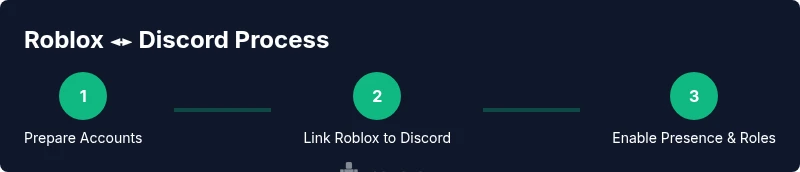
In this guide you will learn how to connect Roblox to Discord, enable Rich Presence, and coordinate your game community across both platforms. You'll verify prerequisites (Roblox account, a Discord server with admin access, and a bot or integration tool), then follow a step-by-step workflow to link accounts, configure roles, and troubleshoot common issues.
What Roblox-to-Discord integration means for communities\n\nRoblox to Discord integration refers to the ways Roblox players, games, and communities connect with Discord servers to share activity, coordinate events, and manage roles. When done well, this bridge makes it easy for players to discover your Roblox experiences from within Discord, for moderators to post updates, and for developers to run promotions or live events without juggling multiple platforms. According to current best practices, the most valuable outcomes include improved player retention, clearer communication during scheduled events, and a more cohesive community culture. The Blox Help team emphasizes that successful integrations align notifications with legitimate Roblox activity rather than spamming channels. In practice, this means configuring your Discord channels to reflect active Roblox experiences, using presence data to spark discussions, and ensuring players understand what data is shared. For newcomers, start small with one Roblox game and a dedicated Discord channel, then expand as your community grows.
Planning your Roblox-Discord integration: prerequisites and scope\n\nBefore you connect any accounts, define your goals and boundaries. Decide which Roblox experiences you want to surface in Discord, whether you need a Rich Presence status, and which roles should map to Roblox achievements or ranks. Establish a privacy policy for what data will be shared and who can authorize changes. You’ll also need the right technical setup: a Roblox account, a Discord server with admin access, and a bot or integration tool (often via the Discord Developer Portal). Create a simple project plan with milestones, such as “link accounts” and “test presence,” to keep the process manageable. Finally, review your server rules and moderation capabilities to handle increased activity.
Understanding account linking and Rich Presence: how it works under the hood\n\nAccount linking connects a Roblox profile to a Discord user account so presence and events can be surfaced on Discord. Rich Presence is a separate feature that displays live game activity, time played, and game-specific details in a user’s Discord profile. Both systems rely on secure tokens and permission scopes; never share bot tokens or user credentials. When implementing, you typically set up a Roblox-to-Discord link in the Roblox developer ecosystem and pair it with a Discord bot that updates presence data based on game events. Plan for latency and ensure visibility settings don’t overwhelm users with status changes.
Implementing Rich Presence: practical steps and best practices\n\nTo make Roblox activity visible in Discord, configure Rich Presence assets that reflect your games and experiences. Use descriptive state text (e.g., “In Battle Arena,” “Exploring Ocean City”) and consistent asset keys so users recognize your branding. Keep presence updates concise to avoid clutter, and consider throttling updates to minimize API calls and avoid rate limits. Test changes in a private channel before rolling them out. Remember to document your asset mappings so your moderators can troubleshoot quickly.
Bots, roles, channels, and governance: building a healthy community bridge\n\nA well-structured Roblox-Discord setup uses a dedicated bot to post announcements, assign roles based on Roblox activity, and route players to the right channels. Create clear channel categories (announcements, general chat, in-game events, support) and assign roles such as RobloxPlayer, RobloxModerator, and EventParticipant. Use channels for live events, game lobbies, and a help desk. Ensure moderation tools are integrated so that toxic behavior is flagged and handled promptly. Build a small onboarding flow that guides players to link their accounts and configure their notification preferences.
Troubleshooting common issues and security considerations\n\nIf Roblox activity doesn’t appear in Discord, verify that linking is active, tokens are valid, and the bot has sufficient permissions. Check presence permissions on the Discord client, ensure your bot is invited with the right scopes, and confirm that the Roblox game is supported by your integration. For privacy, collect only essential data and provide a clear opt-out option. Regularly rotate tokens and audit bot permissions to minimize risk. If issues persist, consult Roblox and Discord developer forums for known outages or deprecated features.
Real-world examples and long-term maintenance tips\n\nMany communities start with a single game and gradually expand to multiple Roblox experiences. A staged approach helps prevent information overload and keeps moderation manageable. Track engagement metrics in Discord (voice chat activity, message counts during events) and compare with Roblox engagement (session length, concurrent players). As your server grows, introduce seasonal events, cross-promotions, and a documented playbook for staff. The Blox Help team recommends maintaining a living guide that updates with new features, platform changes, and community feedback.
Tools & Materials
- Roblox account(Active account with access to settings.)
- Discord account(Admin on the target server.)
- Discord server(Text/voice channels available for updates.)
- Discord Developer Portal access(Create bot; configure OAuth scopes.)
- Rich Presence assets (optional)(Custom images/text for presence.)
- Moderation plan(Rules for integrations and data sharing.)
- Roblox game IDs / Experience IDs(Used to surface specific games.)
Steps
Estimated time: 60-120 minutes
- 1
Prepare accounts and server
Identify one Roblox account and one Discord server to begin with. Ensure you have admin rights and a clear plan for channels and roles.
Tip: Document your goals and approvals before proceeding. - 2
Create a dedicated Discord bot
In the Discord Developer Portal, create a new application and add a bot user. Keep permissions minimal to start, and plan for future expansion.
Tip: Never reuse personal tokens—create a separate bot account. - 3
Invite the bot to your server
Generate an OAuth URL with the needed scopes (bot, applications.commands) and invite the bot to your server with limited permissions.
Tip: Use a test channel initially to avoid disrupting activity. - 4
Link Roblox to Discord via account linking
Enable Roblox-Discord linking through the Roblox developer settings or an approved integration tool. Follow prompts to connect your Roblox profile to a Discord user.
Tip: Ensure you’re following official guidance to avoid credential leaks. - 5
Configure Rich Presence
Set up the presence states and assets so Roblox activity appears cleanly in Discord; limit updates to prevent spam.
Tip: Test with a small audience before full rollout. - 6
Map roles and channels
Create roles tied to Roblox activity (e.g., RobloxPlayer, EventParticipant) and assign channels for game lobbies, announcements, and support.
Tip: Keep role names consistent across your server for clarity. - 7
Run a test session
Launch a controlled Roblox session and verify Discord updates (presence, messages, and role assignments).
Tip: Ask a few trusted testers to report issues. - 8
Monitor and adjust
Review analytics, gather feedback, and adjust permissions, channels, and presence cadence as needed.
Tip: Create a short maintenance checklist for ongoing upkeep.
Questions & Answers
What is Roblox-to-Discord integration?
Roblox-to-Discord integration connects your Roblox activities to your Discord server, allowing presence updates, role mapping, and coordinated events. It helps players discover experiences and keeps communities aligned.
Roblox-to-Discord integration connects Roblox activity to Discord, enabling presence updates and organized events.
Do I need to be a developer to link accounts?
No. Many integrations use official linking features and third-party bots. A server admin can set up the connection without writing code, though some advanced features may require basic scripting.
You don’t need advanced development skills; server admins can set up the basics.
Can I link multiple Roblox accounts to one Discord server?
Yes, multiple Roblox accounts can join the same Discord server, but linking typically occurs per user. Use bot commands or built-in features to manage user mappings and privacy.
Multiple Roblox accounts can join a server; mappings are done per user.
What if presence doesn’t show in Discord?
Check that the account link is active, tokens are valid, and the bot has sufficient permissions. Also verify that the Roblox game is supported by your integration.
Ensure linking is active and the bot has the right permissions.
Is Roblox-Discord integration safe for kids?
When configured with privacy in mind and minimal data sharing, Roblox-Discord integration can be safe. Always enforce server moderation and parental controls where needed.
With proper settings and moderation, it can be safe for younger players.
Watch Video
The Essentials
- Bridge Roblox and Discord to enhance communities
- Use Rich Presence to surface activity
- Map Roblox roles to Discord roles for clarity
- Test early, monitor continuously
- Prioritize privacy and security in integration