What happened to Roblox? Urgent Troubleshooting for Outages in 2026
Urgent guide to diagnosing Roblox outages, reading status updates, and applying fast fixes. Learn how to verify issues, follow a diagnostic flow, and stay online with practical steps.


What happened to roblox? In most cases, outages stem from Roblox servers undergoing maintenance, traffic spikes, or regional routing issues. This quick answer from Blox Help explains how to verify outages, read the Roblox Status page, and perform fast fixes so you can get back online quickly. Stay calm, don’t flood support with repeated attempts, and use the diagnostic flow to isolate local problems.
What happened to Roblox? Understanding outages in 2026
Roblox outages can feel sudden and disruptive, especially when you’re in the middle of a build session or about to finish a game. When players ask, 'what happened to roblox?' the short answer is: outages occur when the platform's servers, networking gear, or content delivery pathways are temporarily unable to handle demand or are undergoing maintenance. These events are not necessarily tied to your device; they reflect broader service-level issues across Roblox's global infrastructure. According to the Blox Help team, outage patterns often align with scheduled maintenance windows and regional routing changes, which can temporarily limit access for some players while others experience minimal disruption. In most cases, Roblox works quickly to reroute traffic, restart affected services, and publish updates on the Roblox Status page and official social channels. The key takeaway is to stay informed and follow the recommended steps in this guide rather than retrying incessantly, which can add load to the system and prolong the outage for others.
Common outage patterns and initial checks
Outages can manifest in several ways: inability to load the game, long login times, failing to join friends, or in-game features not loading properly. The first step is to verify whether the issue is widespread or isolated to your account or network. Start by checking the Roblox Status page; if the site shows maintenance or degraded performance nationwide or regionally, you’re dealing with a platform-side issue. Next, scan social channels and Roblox’s official X/Twitter for real-time reports from other players in your area. If many players report the same symptoms, wait for Roblox to resolve the incident. If the status page appears green but you still can’t access Roblox, the problem may be local or related to your network. In that case, test on a different device or network (for instance, switch from Wi‑Fi to mobile data). Also confirm your account is in good standing and that parental controls or account restrictions aren’t blocking access. While you troubleshoot, avoid deleting and reinstalling the app repeatedly, which can waste time and data.
Steps
Estimated time: 45-60 minutes
- 1
Check Roblox Status and incident details
Open status.roblox.com or the official Roblox social channels to verify if there is a known incident. Note the region, incident number, and any suggested workarounds. This confirms whether the issue is platform-wide or local to you.
Tip: Save the incident number and regional details to track updates. - 2
Test a different network
If you’re on Wi‑Fi, switch to mobile data, or vice versa. Disable any VPNs or proxies that could affect routing. If the issue resolves on a different network, the problem may be local to your connection.
Tip: Different networks can reveal whether the outage is regional or device-specific. - 3
Flush DNS and reset network gear
On Windows, run ipconfig /flushdns and renew your network adapter. On macOS, use sudo dscacheutil -flushcache; sudo killall -HUP mDNSResponder. Restart your router and modem if needed.
Tip: A fresh DNS cache can clear stale routing paths that block Roblox access. - 4
Clear app cache and update software
Clear Roblox app cache, then check for updates for both the app and your device’s OS. If you’re on a desktop, ensure the Roblox client is the latest version; on mobile, visit the store to update.
Tip: Outdated clients are more prone to compatibility issues after outages. - 5
Relogin and test features
Log out, restart the app, and sign back in. Try joining a friend or launching a smaller experience first to verify basic connectivity. If issues persist with specific games, those games may be impacted by the outage.
Tip: Relogin can refresh authentication tokens and restore access sooner. - 6
Escalate if necessary
If the outage continues beyond a reasonable window, contact Roblox Support with device details, regional information, and incident numbers from the status page. Document steps you already tried to speed up support.
Tip: Provide precise information to help agents diagnose quickly.
Diagnosis: User cannot load Roblox or sign in during suspected outage
Possible Causes
- highPlatform outage or maintenance
- mediumRegional routing or DNS issues
- lowLocal network or device problems
Fixes
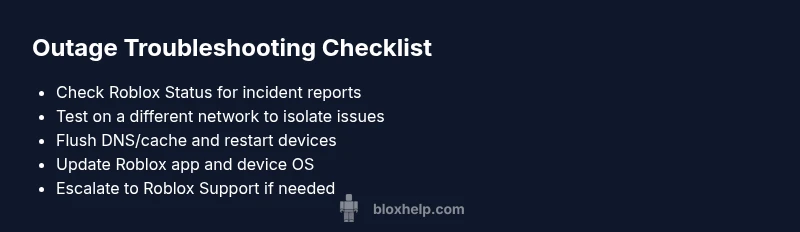
- easyCheck Roblox Status page and official channels for outage updates
- easySwitch networks or disable VPN, then retry
- easyFlush DNS/cache and restart devices
- easyUpdate Roblox app and device OS, then re-login
- easyIf the issue persists, wait for official remediation, or contact support
Questions & Answers
What happened to Roblox?
Roblox outages occur when the platform’s servers are undergoing maintenance, experiencing high traffic, or encountering regional routing issues. Check the Roblox Status page for real-time updates and follow the recommended fixes to reconnect.
Outages on Roblox usually come from maintenance or regional routing problems. Check the status page and try basic fixes to reconnect.
How long do outages last?
Duration varies based on the root cause and scale of the incident. Monitor the Roblox Status page and official channels for the latest updates and estimated remediation times.
Outages vary in length; watch Roblox Status for updates and follow the recommended steps.
Is it down for everyone or just me?
If many players report the same symptoms and the status page shows an incident, the outage is platform-wide. If only you are affected, check your network and device settings.
If a lot of players are affected and Roblox status shows an incident, it’s a platform outage.
What should I do first when Roblox won’t load?
Start with the Roblox Status page, then try switching networks, clearing caches, and updating the app. These steps fix most common issues quickly.
First check status, then switch networks and clear caches to fix loading problems.
When should I contact support?
If you’ve completed the diagnostic flow and the issue persists, reach Roblox Support with device details, incident numbers, and steps you’ve tried. Persistence after official remediation may indicate a device-specific problem.
Contact support if the issue continues after trying the recommended fixes.
The Essentials
- Check Roblox Status first before troubleshooting.
- Different networks help identify local vs. platform issues.
- Update apps and clear caches to resolve common failures.
- Follow the diagnostic flow for efficient fixes.
- If issues persist, contact Roblox Support with details.