What Roblox Code 279 Means and How to Fix It Fast
An urgent, practical guide to Roblox error code 279 meaning, quick fixes, diagnostic steps, and safety tips to get you back into Roblox games fast. Learn how to diagnose and fix this common client-side issue with clear steps and expert tips from Blox Help.


Roblox error code 279 is a client-side connectivity issue that blocks loading or joining games. In practice, it means your device or network can’t reach Roblox servers reliably at that moment. Quick fixes include checking your internet, disabling VPNs, updating the Roblox client, and temporarily adjusting firewall settings. If problems persist, try a different network or device as part of the full fix guide.
What does Roblox code 279 mean?
What does roblox code 279 mean? In plain terms, it signals a client-side connectivity or loading problem that prevents Roblox from reaching servers or loading a game. It's not usually a game bug; it's typically an issue on your end or a temporary Roblox-side hiccup. According to Blox Help, this error is most often resolved with quick network checks, software updates, and a few configuration tweaks. As we move through 2026, players may encounter it during peak times or after a platform update, but the remedy is consistent and fast when you follow a proven workflow. This article explains the meaning, how to diagnose, and a practical, step-by-step fix to reduce downtime and get you back in-game quickly. The goal is to minimize downtime and keep your Roblox experience smooth, especially for newcomers who rely on quick, reliable fixes as they jump into new titles.
Signs you’re dealing with error 279 and what to compare
Common signals include a persistent loading screen, a message that the game failed to load, or an outright error popup labeled 279. On PC you might see a time-out error in the console or a browser message; on mobile, you may get a retry prompt or a blank screen. These symptoms help differentiate a transient network blip from a deeper issue. According to industry guidance, many players resolve 279 by performing a small set of steps, then verifying whether the problem recurs after each change. Keeping track of the timing — whether it happens only on Wi‑Fi, only on mobile data, or across both — dramatically narrows down the root cause and speeds up the fix.
Quick checks you can run now
Before you deep-dive, run a few fast checks: test a different app or website to confirm your internet is working, switch from Wi‑Fi to mobile data or vice versa, and try a different Roblox title to see if the issue is game-specific. Disable any VPNs or proxies temporarily, then reattempt. If you still see 279, you know you’re likely dealing with connectivity, firewall, or client issues rather than a server-side outage. In this guide, we’ll map symptoms to fixes in a practical path that minimizes downtime and keeps your play session intact.
Diagnostic flow at a glance
A systematic approach helps you avoid guesswork. Start with the easiest checks, move to client updates, then verify network paths, and finally consider device-specific settings. We’ll outline a diagnostic flow that prioritizes high-likelihood causes first and provides quick fixes before moving to deeper troubleshooting. This structure aligns with best practices in tech support and, as highlighted by the Blox Help team, reduces frustration and speeds up resolution when every minute counts.
Most common fix path: practical steps you can take
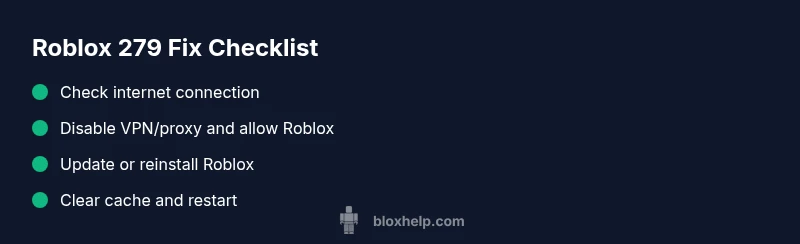
Begin with the basics: confirm your internet, disable VPNs, and ensure Roblox is up to date. Then, check firewall rules and antivirus software to confirm Roblox traffic is allowed. If the problem persists, clear the Roblox cache and reinstall the client. These steps are designed to be performed by most players without specialized tools and can resolve the majority of code 279 cases in under 30 minutes. If needed, escalate to a network reset or hardware check with a professional.
Deeper-dive: when quick fixes aren’t enough
If quick fixes fail, the issue may be tied to router configuration, ISP routing, or device-specific network settings. In such cases, you might try a wired Ethernet connection, disable QoS features temporarily to test throughput, or set Roblox as a trusted exception in the firewall. For consoles, ensure the console’s firmware is current and that NAT settings aren’t restricting traffic. Always verify whether Roblox’s own status page reports maintenance or outages before proceeding with hardware changes.
Safety, data, and when to call for help
Safety first: avoid sharing account credentials, and don’t funnel sensitive information through non-secure channels. If you’re seeing persistent 279 across multiple networks or devices, reach out to Roblox Support with device details, OS version, and Roblox version. If you’re considering professional help for a router or ISP-level issue, expect typical service call ranges (roughly $50–$150) depending on the provider and complexity. In all cases, document what you changed so you can revert if needed.
Prevention: keeping 279 from returning
Once fixed, adopt simple habits to prevent recurrence: keep Roblox up to date, maintain a stable home network, and periodically review firewall and antivirus rules to ensure Roblox traffic remains unblocked. If you use VPNs, test without them occasionally to ensure they aren’t the source of the problem. Regularly reboot your router, and clear cache after major updates to avoid stale data causing issues during peak playtimes.
Steps
Estimated time: 30-45 minutes
- 1
Verify symptoms and gather details
Document when the error occurs, which device you’re using, and whether it affects all games or only specific ones. Note the network type (Wi‑Fi vs mobile data) and any recent changes (updates, new software, or router tweaks). This information will guide the next steps.
Tip: Keep a quick log of events and timestamps to identify patterns. - 2
Test your internet connection
Open a browser and run a speed test; compare results against your typical speeds. If speeds are degraded, try rebooting your router and reconnecting. Also test another device on the same network to confirm if the issue is network-wide.
Tip: If you notice high latency or packet loss, switch to a wired connection where possible. - 3
Disable VPN/proxy and check firewall
Turn off any VPNs or proxies and temporarily disable firewall protections for Roblox. If Roblox loads, re-enable protection but add Roblox as an allowed program or port. This helps verify whether traffic is being blocked.
Tip: Only disable protection briefly for testing and re-enable immediately afterward. - 4
Update or repair Roblox
Ensure you’re running the latest Roblox client. If updates fail, uninstall and reinstall Roblox from the official site to guarantee a clean install and correct configuration.
Tip: Back up any saved data if applicable before reinstallation. - 5
Clear cache and reset network settings
Clear Roblox cache on your device or console, sign out and back in, and reset network settings to default where appropriate. This removes corrupted data that can trigger 279 on startup.
Tip: On consoles, you may need to restart after cache clearing for changes to take effect. - 6
Test on an alternate device or network
If possible, try signing in on another device or connect through a different network (e.g., a mobile hotspot) to determine if the issue is device- or network-specific.
Tip: If the problem moves with the device, focus troubleshooting on the device; if it moves with the network, focus on the router/ISP. - 7
Escalate if it persists
If 279 still occurs after all steps, contact Roblox Support with your device details, OS version, Roblox version, and a summary of changes you’ve made.
Tip: Include a link to the Roblox status page if you’ve checked for outages.
Diagnosis: Error code 279 appears when attempting to join a game or load Roblox
Possible Causes
- highPoor or unstable internet connection
- mediumVPN/proxy or firewall blocking Roblox traffic
- lowOutdated Roblox client or corrupted cache
Fixes
- easyTest and improve internet stability (wired connection if possible)
- easyDisable VPN/proxy and allow Roblox through firewall/ antivirus
- easyUpdate Roblox to the latest version and clear the app cache
- mediumReinstall Roblox or reset network equipment if needed
Questions & Answers
Is Roblox error code 279 a server-side issue or a client-side one?
Code 279 is most often a client-side connectivity or loading issue rather than a server outage. However, occasional outages can coincide with your symptom, so check Roblox's status page if you see widespread reports.
Code 279 usually means a client-side problem, but always check Roblox status if many players are affected.
Can a VPN or proxy cause error 279?
Yes. VPNs or proxies can interfere with Roblox traffic and trigger 279. Temporarily disable them to test access, then reconfigure your network with VPNs as needed.
A VPN can cause 279; try turning it off to test access.
Will reinstalling Roblox fix error 279?
Reinstalling Roblox can resolve corrupted files or misconfigurations that trigger 279. It’s a common, effective step when updates fail or caches are corrupted.
Reinstalling Roblox often fixes 279 when files are corrupted.
Should I clear my device cache to fix 279?
Clearing the Roblox cache can remove corrupt data that blocks loading. Do this before reinstalling to avoid losing other data.
Clearing cache helps remove bad data that blocks loading.
When should I contact Roblox support for 279?
If 279 persists after all standard fixes across multiple networks and devices, contact Roblox Support with device details and steps you’ve tried.
If it still won’t load, reach out to Roblox Support with details.
Watch Video
The Essentials
- Resolve 279 by testing network first.
- Disable VPNs and allow Roblox through firewall.
- Update or reinstall Roblox if needed.
- If persists, test on another device/network and contact support.