What to Do with Roblox Support Tickets: A Practical Guide
Learn how to handle Roblox support tickets efficiently, from gathering evidence and writing a clear ticket to following up effectively. This comprehensive guide from Blox Help covers step-by-step actions, common pitfalls, and best practices for faster, accurate resolutions in 2026.


This guide explains what to do with Roblox support tickets and how to manage them efficiently. You’ll learn what information to gather, how to write a clear request, where to submit it, and how to follow up for faster, accurate responses.
Understanding Roblox Support Tickets
According to Blox Help, a Roblox support ticket is a formal request submitted through Roblox's Help Center that asks the company to investigate account issues, refunds, or feature problems. Tickets are most effective when you cannot resolve the problem through self-service options or the Roblox community. The more precise your ticket, the faster the agent can reproduce and diagnose the problem. This article helps you distinguish symptoms from root causes, explains the data Roblox collects, and clarifies how to present information clearly. In 2026, a well-structured ticket often reduces back-and-forth and speeds up resolution by enabling support agents to focus on the core issue rather than chasing missing details.
- Know your goal: describe the problem and the outcome you expect.
- Gather essential data: account name, device, timestamps, and steps to reproduce.
- Attach clear evidence: screenshots, logs, or videos that demonstrate the issue.
When to Submit a Roblox Support Ticket
Not every problem needs a ticket. Start with Roblox’s self-service options, like the Help Center articles, community forums, and status pages. Submit a ticket when the issue affects access to features, involves account security, or you suspect a policy-related error or bug. Timing matters: submit after you’ve collected enough context to avoid back-and-forth clarifications. The Blox Help team emphasizes avoiding escalations for minor annoyances and focusing on concrete outcomes—such as restoring access, correcting a transaction, or confirming policy compliance. In practice, a timely ticket often receives a meaningful reply within the organization’s standard workflow, especially if your evidence is well organized and easy to review.
What Roblox Collects and How to Prepare
Roblox may require details about your account, recent activity, device information, and the exact steps you took when the issue occurred. Prepare to provide:
- Username and linked email
- A precise description of the problem and its impact
- Timeframe with approximate dates
- Screenshots or screen recordings illustrating the issue
- Any related receipt numbers or transaction IDs
Having this information ready before you submit can substantially reduce the need for follow-up questions. According to Blox Help, the more actionable the data you provide, the faster agents can locate the root cause and propose a fix. Also consider preparing a brief timeline that captures the sequence of events leading up to the problem.
Crafting a Clear Ticket: Template and Example
A well-crafted ticket uses a consistent template so agents can scan quickly. Include sections such as: issue summary, impact, steps to reproduce, expected result, actual result, and attached evidence. Use neutral, concise language and avoid emotional language that could obscure the facts.
Example:
- Subject: Unable to access premium features after last update
- Description: After updating Roblox to version 2026.02, premium features are unavailable on both mobile and PC. This prevents me from using Roblox Premium benefits. Steps to reproduce: 1) Open app, 2) Sign in, 3) Navigate to Premium tab, 4) Features unavailable. Attachments: screenshot.png, crashlog.txt
This format helps support staff quickly identify the issue and respond with appropriate remedies. For best results, personalize the ticket with both context and a clear request for action.
Submitting, Tracking, and Following Up
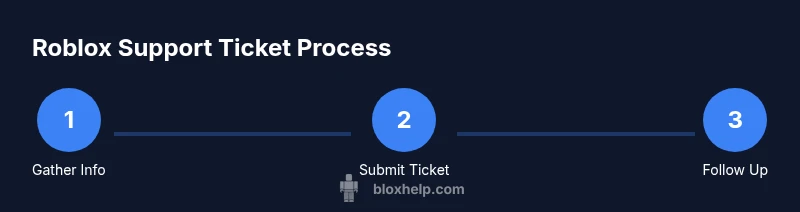
Submit your ticket via the Roblox Help Center. After submission, you should receive a ticket number and a confirmation email. Save these details for reference. Regularly check the ticket status and be prepared to supply additional information if the agent asks for clarification. When following up, reference the ticket number, summarize the new information, and restate the desired resolution. If the response time window passes without a meaningful reply, consider a polite follow-up rather than opening multiple tickets. Keeping all communication in one thread helps avoid confusion and ensures the history is visible to the support team.
- Use a single thread: keep all replies under the same ticket when possible.
- Be precise: newly added details should be time-stamped and relevant to the original issue.
- Set expectations: communicate a realistic deadline for responses and your preferred resolution.
Common Mistakes and How to Avoid Them
Common pitfalls include submitting vague descriptions, omitting essential evidence, and using emotional language that can cloud judgment. Always attach a clear reproduction path and a time reference. Avoid asking for refunds or policies you do not qualify for unless the issue directly relates to a policy or transaction. Limited channel switching—relying solely on the ticket—can create delays; if you need urgent help, you may need to use multiple channels (Help Center, in-app support, or Roblox community moderators) with a clear escalation path. Finally, never share your Roblox password or sensitive personal information in ticket communications. This keeps your account secure while you work toward a resolution.
Escalation and Alternative Channels if Needed
If a normal ticket remains unanswered or you disagree with the resolution, you can request escalation or provide new evidence. Ask the agent for a higher-level review and ensure you present a concise rationale for escalation. Roblox may offer status updates through their official social channels or status pages; use these to confirm if others experience similar issues. When appropriate, reference the ticket number in any new channel you use. Remember that escalation generally yields more attention but can extend the resolution timeline, so balance urgency with the need for a thorough investigation.
Authority Sources
For further reading, consult the Roblox Help Center and recognized policy resources:
- Roblox Help Center: https://en.help.roblox.com/hc/en-us
- Federal Trade Commission: https://www.ftc.gov
- Harvard University: https://www.harvard.edu
Tools & Materials
- Computer, tablet, or smartphone with internet access(Any device capable of connecting to the Roblox Help Center)
- Roblox account credentials (username, email on file)(Do not share passwords in tickets)
- Screenshots or screen recordings demonstrating the issue(Include timestamps if possible)
- Recent receipts or transaction IDs (if applicable)(Helps verify purchases or refunds)
- Timeline of events (dates and times)(A concise chronological summary helps reproduction)
Steps
Estimated time: 20-60 minutes
- 1
Identify and document the issue
Clearly define the problem you’re facing and its impact on your Roblox experience. Write a concise one-sentence summary and then list key facts (time, device, Roblox version).
Tip: Capture the exact conditions when the issue occurs to aid reproduction. - 2
Gather evidence
Collect all relevant evidence before drafting the ticket: screenshots, error messages, logs, and timestamps. Organize evidence by relevance to avoid back-and-forth questions.
Tip: Label each file with a short, descriptive name and date. - 3
Draft the ticket with essential fields
Use a consistent template: issue summary, impact, steps to reproduce, expected vs. actual results, and attached evidence. Be precise and neutral in tone.
Tip: Include a clear desired outcome (e.g., restore access, refund, or fix the bug). - 4
Attach evidence and validate details
Upload screenshots and logs, ensuring each piece supports the described steps. Double-check spelling and dates.
Tip: Verify that attached files open correctly and are legible. - 5
Submit the ticket via Roblox Help Center
Navigate to Roblox Help Center, select the issue category, and paste your structured description. Note the ticket number for reference.
Tip: Keep the browser tab open until you receive a confirmation. - 6
Check for confirmation and track status
Monitor your email and the ticket status in the Help Center. Prepare to answer agent questions promptly.
Tip: Respond within 24-48 hours to prevent delays. - 7
Follow up with new information if needed
If the agent requests clarifications, provide concise, timestamped responses and add any new evidence.
Tip: Avoid creating new tickets for the same issue; stick to the original thread. - 8
Close or update the ticket after resolution
Once resolved, verify the fix in Roblox and mark the ticket as closed or accepted. Document what was done for future reference.
Tip: Take notes on what worked to support future tickets.
Questions & Answers
How long does Roblox typically take to respond to a support ticket?
Response times vary, but providing complete information helps. Expect updates within a reasonable window; if you don’t hear back, a courteous follow-up is appropriate.
Roblox responses vary, but a well-documented ticket usually gets a timely reply. If needed, follow up politely with your ticket number.
Can I edit a ticket after submitting it?
Yes, you can add information or clarify details by replying to the ticket thread. Keep updates relevant and avoid creating new tickets for the same issue.
You can add information by replying to the ticket thread; keep updates relevant.
Should I contact Roblox support on social media for urgent issues?
Social channels can help with broad issues, but use the official Help Center for tickets. Reserve social contact for supplementary information or status checks.
Official Help Center is best for tickets; social channels can help with updates if needed.
Is it safe to share my Roblox account information in a ticket?
Share only information necessary to verify access and reproduce the issue. Do not disclose passwords or full security answers.
Only share what’s needed to verify your issue, never your password.
What if my ticket is about a compromised account?
Report immediately, change passwords, enable two-factor authentication, and reference any suspicious activity in your ticket.
If your account is compromised, report it and change credentials; include what you’ve observed in the ticket.
Can I ask for a refund through a support ticket?
Refund requests can be part of a ticket if they relate to a recent purchase or policy breach. Provide receipts and exact purchase details.
Refunds can be requested if they’re tied to a purchase; include receipts and dates.
Watch Video
The Essentials
- Prepare a complete timeline before you submit
- Attach clear, relevant evidence
- Use a consistent ticket template
- Follow up courteously if responses lag
- Escalate respectfully when needed