Where Do Roblox Captures Go: A Practical Guide
Learn where Roblox captures go, how to locate screenshots and clips on Windows, macOS, and mobile, and tips to organize and back up your Roblox captures.


Where do Roblox captures go? Roblox captures—screenshots and videos—typically save to your device or cloud storage depending on your settings and platform. According to Blox Help, most users find images in their Pictures folder or a Roblox subfolder, while clips may appear in the Videos or Roblox clips folder. To locate them, search for common file types (.png, .jpg, .mp4) and check app-specific paths.
What counts as a capture in Roblox?
For Roblox players, a capture means any image or video you create while playing, whether you used the in-game screenshot tool or a separate recording method. These files are not part of your game data and are typically treated as media assets. When you ask, "where do roblox captures go?", you’re really asking where the media files end up on your device. In practice, most captures end up in standard media folders on your operating system, or in a Roblox-designated subfolder within those folders. The exact path can vary by platform, but the principle remains the same: captures are stored as image or video files that your OS and Roblox player can access later. This distinction matters for storage planning and backups, especially for players who frequently capture highlights or generate large clips.
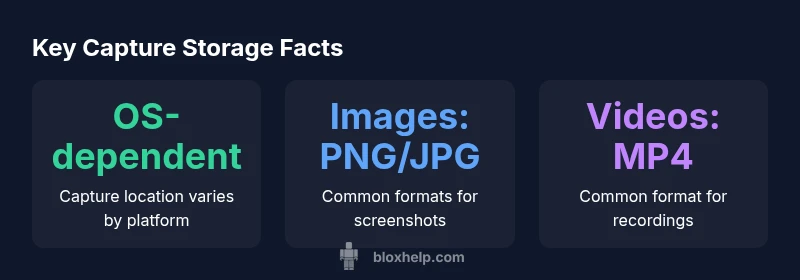
According to Blox Help, recognizing the difference between screenshots and recordings helps you locate them faster. Screenshots are typically PNG or JPG files, while videos use formats like MP4. The file extensions are reliable search targets across Windows, macOS, and mobile platforms. Keeping a mental map of where to look—especially the Pictures or Videos directories—reduces time spent hunting for your captures after a long session.
How Roblox saves images vs videos and what changes with platforms
Roblox captures operate in a way that aligns with your platform conventions. Images are usually saved as stills, while recordings are saved as video clips. The paths Roblox uses are not universally fixed, and there can be small differences between Windows, macOS, and mobile builds. On many setups, images appear under a Pictures folder with a Roblox subfolder, and videos appear under a Videos or Roblox Clips folder. If you’re using a mobile device, saving behavior may depend on the device’s media library permissions and the Roblox app’s own settings. Being aware of these platform-specific nuances helps you set expectations about where to find your captures and how to manage storage space across devices.
Pro tip: keep file extensions consistent in your searches (.png, .jpg for images; .mp4 for videos) to filter results quickly. This approach also supports quick backups or transfers to external storage when you’re preparing for long-form content or montages.
Platform-by-platform storage realities: Windows, macOS, and mobile
Storage locations for Roblox captures aren’t identical across all platforms, so a quick map helps. On Windows, many users find screenshots in the Pictures directory, sometimes under a Roblox or Captures subfolder. Videos often mirror this structure in the Videos folder. On macOS, the Pictures folder is again the primary target, with a Roblox subfolder that can house both images and clips. Mobile devices (iOS and Android) rely on the device’s media library and the Roblox app’s internal folders; permissions play a big role in whether Roblox can write directly to the Gallery or Photos app. In all cases, you can typically locate captures by searching for image or video file types and scanning the most common media directories. If your path isn’t obvious, a system-wide search by file type is your fastest route to discovery.
This platform-aware perspective is essential for planning your storage strategy and avoiding mixed media clutter. As you accumulate more captures, organizing by date, game, or event can prevent future headaches when you’re building montages or compiling progress logs.
How to locate captures quickly: a step-by-step guide
To find Roblox captures efficiently, start with a broad OS-wide search for image and video extensions. On Windows, open File Explorer and use the search box in the top-right, filtering by "*.png OR *.jpg OR *.mp4". Then narrow the results by date or by the likely Roblox subfolders (e.g., Pictures/Roblox or Videos/Roblox). On macOS, use Finder’s search with the same extensions and then filter by created date. Mobile devices may require opening the Gallery or Photos app and looking for a Roblox-album or using the app’s internal browser to locate saved files. If you still can’t locate them, check the Roblox settings for any specify save location options or permission prompts that might redirect captures to a different folder.
- Use file type filters to quickly identify captures.
- Check the most likely top-level media folders first.
- Consider enabling a dedicated capture folder in your app settings to simplify future finds.
Changing save locations and permissions: what to expect
Some Roblox builds allow you to influence where captures are stored, but this capability isn’t uniform across platforms. In Windows, you might find a setting under generic app preferences that points to a specific folder, while macOS users may encounter a similar option in Roblox Studio or the main app settings. Mobile users are often limited by system permissions; you may need to grant the Roblox app access to Photos/Gallery to ensure saves appear in your media library. If the option exists, choose a location that’s easy to back up and separate from your personal documents to reduce accidental deletions.
If you don’t see a dedicated path option, plan around the default folders and set up a routine backup that covers both the Pictures and Videos directories.
Troubleshooting: missing captures and corrupted media
If your captures seem to be missing, verify that the Roblox app has permission to write to storage on your device, then re-run a capture in a known session to generate a new file. Use a system search for the target extensions, and include hidden folders in your search if you’re on platforms that store hidden media by default. It’s also worth checking if the file was saved under a temporary folder due to a crash or if a media library sync occurred after the capture. Finally, inspect your storage quota; low space can sometimes cause incomplete saves or failed recordings. Keeping a consistent backup routine helps prevent loss due to device failures or app glitches.
Best practices for organizing Roblox captures
Create a simple, repeatable folder structure to keep your captures organized. For example, use a top-level Roblox Captures folder, with subfolders by year/month or by game title. Maintain a naming convention that includes the date, game, and capture type (IMG or VID). Regularly back up your captures to an external drive or cloud storage to avoid losing your clips during device failure. Consider pruning older captures periodically to maintain a manageable library, and use tags or metadata where supported to speed up future searches.
Typical storage locations by platform
| Platform | Default Capture Location | Notes |
|---|---|---|
| Windows | Pictures/Roblox or Roblox/Captures | Screenshots and clips saved by Roblox client |
| macOS | Pictures/Roblox | Includes both images and video clips |
| Mobile (iOS/Android) | Roblox app media folder or device Gallery | Location varies by device permissions |
Questions & Answers
Where are Roblox captures stored on Windows?
On Windows, look in the Pictures folder and in Roblox subfolders under Pictures. If you don’t see them, try a system-wide search for .png, .jpg, or .mp4 files and check any Roblox-specific folders.
Windows users should search the Pictures directory for Roblox folders and filter by image or video file types.
Where are Roblox captures stored on macOS?
On macOS, captures typically appear in the Pictures folder, often under a Roblox subfolder. If missing, search for .png, .jpg, or .mp4, and review Roblox settings for save location options.
Mac users should check Pictures/Roblox and use file-type searches if needed.
Can I change where Roblox saves captures?
Yes, some Roblox clients offer a save location setting in the app or Studio preferences. If available, point it to a dedicated folder to simplify backups and organization.
You can usually change the save location in Roblox settings if the option exists.
What file types are Roblox captures saved as?
Images are typically PNG or JPG; videos are usually MP4. Use these extensions as search anchors when locating captures.
Images are usually PNG/JPG and videos MP4.
What should I do if I can’t find my captures?
Run a comprehensive search by file type, check all media folders, verify app permissions, and review any recent changes to save paths. Reproducing a capture can also confirm where the files are stored.
Search by type and verify permissions; try re-capturing to locate the new files.
“Roblox captures are generally stored locally, but the exact path depends on your OS and app version. A quick file-type search is the fastest way to locate them.”
The Essentials
- Search by file type to locate captures quickly
- Check Pictures and Videos directories first
- Inspect in-app settings for save location options
- Mobile captures depend on device permissions
- Back up captures regularly to avoid data loss