Where Do Roblox Screenshots Go? Find, Access, and Manage
Discover where Roblox screenshots are saved on Windows, macOS, and mobile, how to access them quickly, and tips to organize and back up your Roblox moments in 2026.


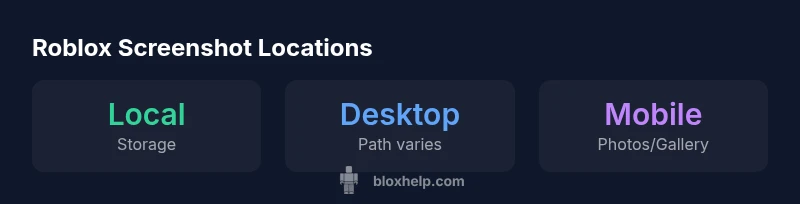
Where Roblox screenshots go? By default, they are saved locally on your device. On desktop, you’ll typically find them in the Roblox/Screenshots folder within your user directory (path varies by OS). On mobile, screenshots appear in your device’s Photos (iOS) or Gallery (Android). You can access them from Roblox’s in-game menu or your OS file manager. This guide covers desktop and mobile locations and how to manage them.
Where do roblox screenshots go
Where do roblox screenshots go? This is a common question for new players and developers. According to Blox Help, Roblox saves screenshots locally by default to your device, not on a persistent online album unless you enable cloud features. On desktop, you’ll typically find them in the Roblox/Screenshots folder within your user directory (path varies by OS). On mobile, screenshots appear in your device’s Photos (iOS) or Gallery (Android). You can access them from Roblox’s in-game menu or your OS file manager. This article explains where to look, how to access the folders quickly, and how to organize your Roblox moments for easy sharing.
Desktop storage: Windows and macOS
Desktop storage for Roblox screenshots differs by operating system, but the pattern is the same: local copies saved on your device. On Windows, a common default path is inside your user Documents folder under Roblox/Screenshots. On macOS, look for a Roblox/Screenshots folder within your Library or Application Support area. Remember, folder locations can vary by Roblox version and whether you used in-game capture vs. a system-level screenshot tool. The key is that these are local files you manage with your OS.
Tip: Start by searching your user directory for keywords like “Roblox” or “Screenshots” if you’re unsure where they landed.
How to locate Roblox screenshots quickly
If you want to jump straight to your Roblox screenshots, use quick OS tricks:
- Windows: Open File Explorer and search for “Roblox” or “Screenshots”; sort by date and open the Roblox/Screenshots folder.
- macOS: Use Finder or Spotlight to search for “Roblox” or “Screenshots.”
- In-game: Some Roblox versions offer an option to open the screenshots folder directly from the menu. If available, use it to jump straight to the folder.
If you’ve customized your setup, you may also need to check any redirected folders or backup locations you use for media. This ensures you don’t miss recent captures when cleaning up spaces.
Roblox Studio vs Roblox Player: where shots land
Both Roblox Studio and the Roblox Player generally save screenshots to your system’s default location for photos and media, but behavior can vary by version. If you captured from Studio, look in the same Roblox/Screenshots path you’d use for regular Roblox captures. Some versions provide a direct link to open the capture folder from the Studio or Player UI. In all cases, the files are stored locally unless you’ve enabled cloud syncing.
Mobile storage: iOS and Android
On mobile devices, Roblox screenshots are saved to your device’s media library: iOS places them in the Photos app, while Android apps typically save to the Gallery or Photos app. You can view, edit, or share them directly from those apps. If you want to move screenshots to a computer, export or upload from Photos/Gallery and organize them in a Roblox-specific folder on your computer.
Managing and organizing Roblox screenshots for peak productivity
Organization matters when you accumulate dozens or hundreds of captures. Create a dedicated Roblox folder structure on your device:
- Desktop: Roblox/Screenshots/YYYY-MM-DD or by project name
- Mobile: Roblox_Screenshots/[Album]-[Date]
Use descriptive file names, add tags in metadata where possible, and back up regularly. If you share moments with friends or teammates, maintain a separate folder for shared media. Regular housekeeping (monthly) prevents clutter while keeping your best moments easy to locate.
Troubleshooting common issues with Roblox screenshots
If you don’t see recent screenshots:
- Verify the capture method used (in-game vs OS screenshot).
- Check the typical save location by OS and version, as paths can vary.
- Ensure the app has permission to write to the device storage (on mobile, sometimes permissions block saves).
- Look for hidden or moved folders if you recently reorganized your media.
If a screenshot seems corrupted, re-capture and save to a known location to test consistency.
Best practices for privacy, backup, and sharing
- Keep a separate backup for Roblox screenshots to avoid losing memories.
- When sharing public drops, crop or blur sensitive UI elements.
- Regularly review your Roblox screenshots to remove duplicates.
- Consider naming conventions that indicate date, game, and objective (e.g., 2026-02-roblox-obby-win).
- Use cloud backups or offline archives to protect important captures.
Quick-start checklist for new players
- Create a dedicated Roblox screenshots folder on your device.
- Learn the default capture method and where it saves on your OS.
- Bookmark or note the folder path for quick access.
- Enable cloud backup or set up a routine backup to prevent loss.
- Practice organizing new shots with clear filenames and dates.
- Periodically audit your collection to remove duplicates.
- Consider a short naming convention for easier searching later.
- If you’re collaborating, create a shared folder for team screenshots.
Summary and next steps
Understanding where Roblox screenshots go helps you manage, back up, and share moments efficiently. With a clear workflow across Windows, macOS, and mobile, you’ll save time and reduce frustration when tracking your best Roblox moments.
Common screenshot save locations by platform (paths vary by version)
| Platform | Default Save Location (approx) | Access/Change Method |
|---|---|---|
| Windows | Documents\Roblox\Screenshots (typical) | In-game open folder or File Explorer search |
| macOS | Library/Application Support/Roblox/Screenshots (typical) | In-game open folder or Finder search |
| Mobile (iOS/Android) | Photos app / Gallery | In-app view or OS Photo app export |
Questions & Answers
Where are Roblox screenshots saved by default on desktop?
On desktop, screenshots are saved to a local Roblox folder within your user directory. The exact path can vary by OS and Roblox version, so it’s best to search your user folder for Roblox or Screenshots if you don’t see them right away.
On desktop, Roblox saves locally. Try searching for Roblox or Screenshots in your user folder to locate the images.
Can I change the save location for Roblox screenshots?
Roblox does not typically offer a built-in UI option to change the default save folder. To relocate files, you can move the folder manually or use OS-level features to redirect storage, then keep a consistent naming convention to stay organized.
There isn’t a direct in-game setting to change where files save; you’ll move them manually or redirect storage at the OS level.
Where do Roblox screenshots go on mobile devices?
On iOS, Roblox screenshots appear in the Photos app; on Android, they go to the Gallery or Photos app. You can export or share them from there, or move them to a Roblox-specific folder on your computer during backup.
Screenshots on mobile go to your Photos or Gallery app; you can share or transfer them from there.
How can I quickly access the latest Roblox screenshot?
Use OS search with the keywords Roblox or Screenshots, then sort by date. If your Roblox version supports it, open the folder directly from the in-game menu.
Search for Roblox or Screenshots to quickly find the newest capture, or open the folder via Roblox if available.
Do Roblox screenshots back up to the cloud automatically?
Roblox itself stores screenshots locally by default. Cloud backup depends on additional services or OS-level backups you enable. Check your device or cloud settings to confirm backups.
Roblox stores locally; cloud backups depend on your OS or third-party services you enable.
“"Organizing Roblox screenshots isn't just about saving space; it's about making moments easy to find and share when you need them most."”
The Essentials
- Know where Roblox saves screenshots on each device
- Use OS search to locate new captures quickly
- Organize files with consistent naming and folders
- Back up regularly to prevent data loss