Where Is Roblox File Located: A Practical Guide to Roblox File Paths
Learn where Roblox stores its launcher, Studio, and game files on Windows and macOS. A practical guide to locate, backup, and manage Roblox files safely, with OS-specific steps and troubleshooting tips.


To locate Roblox files, start by checking your OS user profile: Windows users usually find Roblox under C:\\Users\\YourUserName\\AppData\\Local\\Roblox\\Versions; macOS users often store files in the user Library/Application Support/Roblox/Versions. Roblox Studio and Roblox Player share these locations; use search to confirm exact paths.
Windows: Locating Roblox Files
According to Blox Help, Windows installations typically place Roblox launcher data under the user profile, inside the hidden AppData folder. The most commonly referenced subdirectory is within AppData\Local\Roblox, where different game versions are stored in a numbered Versions directory. Users often access this path by opening File Explorer, enabling hidden items, and pasting the path. If you installed Roblox via the standard launcher, the Versions folder is where downloaded game assets and launcher data accumulate. For many players, this makes backups and manual diagnostics straightforward because the Versions directory is the central repository for downloaded components. If you cannot see the AppData folder, ensure you have hidden files visible and that you’re checking the correct user profile.
- Steps to reveal hidden folders on Windows: Open File Explorer, click View, select Show hidden items, and navigate to C:\Users\YourUserName\AppData\Local\Roblox.
- Use Windows Search to locate Roblox-related executables (e.g., RobloxPlayerBeta.exe) to verify the active installation location.
- If your Roblox launcher has moved to a different drive, you’ll still typically find a Roblox folder under your user profile with versioned subfolders.
Tip: Always back up the Versions folder if you plan to transfer or reinstall Roblox. This can save time if you need to restore game data without re-downloading assets.
Windows
Roblox file location quick reference
| OS | Typical Location | Notes |
|---|---|---|
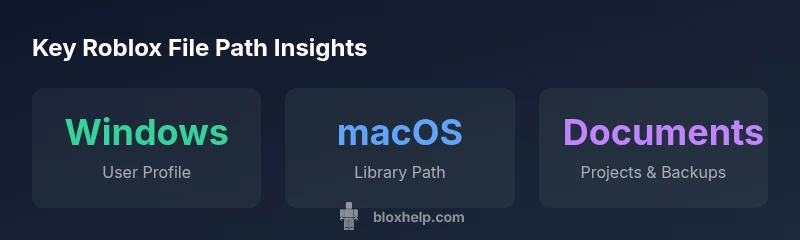
| Windows | C:\\Users\\YourUserName\\AppData\\Local\\Roblox\\Versions | Launcher data and game versions |
| macOS | /Users/YourUserName/Library/Application Support/Roblox/Versions | Launcher data and game versions |
| Documents | Documents/Roblox | Projects and assets |
Questions & Answers
Where is Roblox installed on Windows?
On Windows, Roblox launcher data is typically stored under your user profile, in AppData\Local\Roblox and a Versions subfolder for downloaded game assets. The exact path can vary by user and version, so use the search tool to locate Roblox-related executables if needed.
Windows users usually find Roblox data under AppData\Local\Roblox in a Versions folder; search for RobloxPlayerBeta.exe to confirm.
Is Roblox Studio stored in the same location as Roblox Player?
Roblox Studio and Roblox Player generally share the same base directory under your user profile, but Studio may also create additional folders within Documents for projects. If you can’t find Studio data, search for RobloxStudioLauncher or RobloxStudio.app on macOS.
Studio and Player usually share the main Roblox folders, with Studio adding Documents projects.
What if I can’t see hidden files?
Hidden folders like AppData (Windows) or Library (macOS) won’t appear unless you enable hidden items. In Windows, enable Show hidden items in File Explorer; on macOS, use Finder to go to the Library folder via the Go menu holding Option to reveal Library.
Turn on hidden files visibility to see AppData or Library folders.
Can I move Roblox files to another drive?
It’s generally not recommended to relocate core Roblox folders because the launcher expects them in their default locations. If you need more space, consider moving non-essential assets or backing up the Versions folder before attempting any drive changes.
Relocating core Roblox folders isn’t usually advised; consider backups or re-linking through the launcher settings.
What should I do if Roblox files are missing or corrupted?
Run a repair or reinstallation through the Roblox launcher. If files are missing, use search to locate the Versions folder, back up its contents, then reinstall to restore the correct file set.
Try repairing via the launcher or reinstalling to restore missing data.
“Roblox file locations tend to follow the user profile rather than a universal install path, which makes locating them rely on your OS settings and visibility of hidden folders.”
The Essentials
- Locate Roblox files via the user profile folders
- Use search to confirm active Roblox paths
- Enable hidden folders to view AppData or Library locations
- Keep a backup of the Versions folder for quick recovery
- Check whether Roblox Studio and Roblox Player share the same base path