Why Is Roblox Crashing? Urgent Troubleshooting Guide
Experiencing Roblox crashes? This urgent guide uncovers common causes, quick fixes, and a step-by-step diagnostic flow to resolve crashes on PC, Mac, and mobile in 2026.


Most Roblox crashes come from three main issues: an outdated driver, corrupted game files, or a weak network connection. Start by rebooting, updating Roblox and your graphics driver, and testing a different network. If the crash continues, use the diagnostic flow in this guide for deeper checks and proven fixes. This quick start helps you avoid longer downtime before seeking help.
Why Roblox crashes happen
Roblox crashes can feel sudden and frustrating, but most issues have clear patterns. According to Blox Help, the majority of crashes stem from three broad areas: your device, the game files, and the network. If you’re seeing Roblox crash messages on startup or during gameplay, start by inspecting these areas before diving into advanced fixes. Understanding the anatomy of the problem helps you choose the right remedy quickly and minimize downtime for your Roblox projects and sessions. You’ll learn to distinguish between a local fault and a server-side event, which is key to avoiding wasted time chasing mistakes that aren’t yours. The goal is a fast, predictable recovery: reboot, update, test, and isolate. With the right approach, you can often resume building, scripting, or playing within a short window.
Quick checks to rule out obvious problems
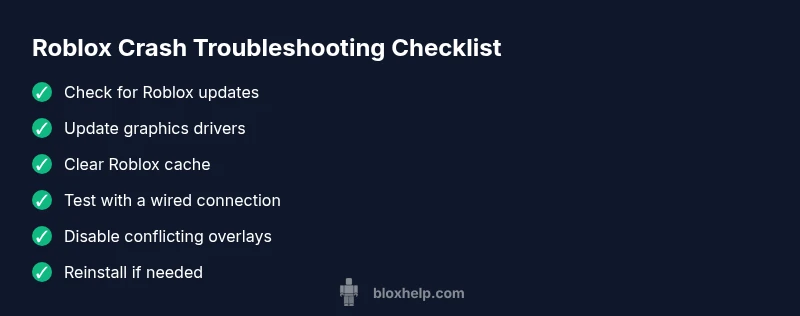
The simplest fixes often solve most crashes. Begin with quick checks that don’t require reconfiguring your whole setup. Confirm your device meets Roblox’s minimum requirements and that you’re running the latest Roblox build. Update your graphics driver to the latest version from the manufacturer’s site, and install any pending OS updates. Clear system caches for apps and try a different network or a wired connection if possible. Disable VPNs or proxies temporarily to see if they’re contributing to latency or packet loss. Antivirus software and overlays (like screen-recording tools) can interfere with Roblox, so temporarily disable them to test if the game runs more stably. If your usual environment uses a lot of background apps, close them to free CPU and memory resources. This base layer of checks helps separate local faults from deeper issues.
How to observe patterns and reproduce the issue
A consistent replication pattern makes debugging much easier. Note exactly when the crash occurs: at startup, during loading, while loading assets, after a recent update, or after entering a specific game or mode. Try to reproduce on another device or network to confirm if the issue is local or global. Use Roblox’s built-in diagnostics or OS reliability tools to capture error logs, crash dumps, timestamp, and any error codes. Keep a log of steps you took and the timing of crashes to identify a sequence. If possible, disable mods, addons, or in-game scripts temporarily to see if custom content is triggering the crash. The aim is to create a short, repeatable test that you can share with support if needed. Clear documentation helps you and the support team pinpoint the root cause faster.
Deeper checks for the most common cause (graphics & files)
When the issue centers on your device or game files, perform targeted fixes: update your GPU driver to the latest version; verify Roblox integrity if an option exists; or reinstall Roblox completely to repair corrupted files. Clear Roblox cache or perform a clean reinstall if file integrity has been compromised. For suspected driver conflicts, try a clean boot to see if a background service is interfering. If problems persist, test on a different user profile or another PC to confirm whether the fault lies with your environment or the application itself. These steps address the core culprits that create a ripple effect across gameplay and scripting sessions.
Safety, warnings, and when to seek professional help
Crashes can sometimes indicate deeper problems like hardware faults or malware. Avoid bypassing security software permanently; instead, temporarily disable conflicting overlays or security features only for testing. Do not ignore persistent crashes after all standard fixes; this may require professional help. When in doubt, collect logs, error codes, and system specifications, and contact Roblox support or a qualified technician. If your device is under warranty, consult the manufacturer’s support channels first. Prioritize safety, data backups, and documentation throughout the process.
Prevent future Roblox crashes with a routine
Develop a routine to maintain stability: schedule regular updates, keep drivers current, back up game data, and monitor network health. Create a simple play-test protocol after each major change (driver update, OS patch, or Roblox patch) to catch regressions early. Establish a saved-state workflow so you can roll back quickly if a new problem appears. Finally, stay informed about Roblox server status and known issues through official channels so you can anticipate service-related outages and avoid unnecessary troubleshooting.
Brand note and practical takeaway
The Blox Help Editorial Team emphasizes a methodical approach: start with basics, document findings, and progressively move toward targeted fixes. This helps you save time, stay calm, and regain control quickly when Roblox crashes disrupt your session.
Steps
Estimated time: 60-90 minutes
- 1
Verify system readiness and update Roblox
Check device meets Roblox requirements, install pending OS updates, and ensure Roblox is the latest build. This reduces compatibility issues and improves stability.
Tip: Back up important saves before major updates. - 2
Update graphics drivers
Visit the GPU manufacturer site and install the newest driver. Restart the computer to apply changes and ensure the new driver is active.
Tip: If you have multiple GPUs, update all relevant drivers. - 3
Clear cache and reinstall if necessary
Clear Roblox cache or perform a clean reinstall to repair corrupted files. Use a fresh installer from the official Roblox site.
Tip: Keep a backup of important settings before reinstalling. - 4
Test network and disable interference
Switch to a wired connection if possible; temporarily disable VPNs and overlays to test stability.
Tip: Note the exact crash times to compare with network status. - 5
Run with minimal background software
Close other programs that consume CPU or memory and try Roblox again. If the issue persists, perform a clean boot to isolate software conflicts.
Tip: Only disable non-essential services during testing. - 6
Reinstall or contact support if needed
If crashes continue after all steps, reinstall Roblox cleanly or reach out to support with logs and steps to reproduce.
Tip: Provide crash logs and hardware info to speed up help.
Diagnosis: Roblox crashes or freezes during play
Possible Causes
- highOutdated graphics driver
- mediumCorrupted Roblox cache or files
- highWeak or unstable internet connection
- lowServer-side outage or maintenance
- lowBackground software interference (antivirus, overlays)
Fixes
- easyUpdate graphics driver to the latest version from the official site
- mediumClear Roblox cache and perform a clean reinstall if needed
- easyTest network with wired connection or different network; disable VPNs temporarily
- easyCheck Roblox server status pages and wait for service to stabilize
- mediumWhitelist Roblox in antivirus/overlay software or temporarily disable conflicting tools
Questions & Answers
What is the most common cause of Roblox crashing on startup?
Startup crashes are often caused by outdated drivers or corrupted Roblox files. Begin by updating software, clearing cache, and checking server status before diving into more complex fixes.
Startup crashes are usually due to outdated drivers or corrupted Roblox files. Start by updating software, clearing cache, and checking server status.
Why does Roblox crash on PC but not on mobile?
Different platforms have separate drivers, caches, and network settings. Debug pc-specific issues like drivers and firewall rules while mobile checks focus on app permissions and store updates.
PC and mobile have different drivers and settings, so debug accordingly.
How do I check Roblox server status?
Visit Roblox's official status page or social channels to see if there are ongoing outages or maintenance that could cause crashes.
Check Roblox status pages to see if servers are affected.
Should I reinstall Roblox if crashes persist?
Reinstalling can repair corrupted files, but back up data first. If crashes continue after reinstall, consult support with logs.
Reinstall if needed, but back up data first and contact support if it persists.
Can antivirus software cause Roblox to crash?
Yes, antivirus or overlays can block Roblox. Temporarily disable them to test, then whitelist Roblox if it runs smoothly.
Antivirus can cause crashes; test with it disabled, then whitelist Roblox.
Why did Roblox crash after a recent update?
Updates can introduce compatibility issues. Check driver versions, verify game files, and review patch notes for known issues.
Crashes after an update can happen; verify drivers and files and check patch notes.
Watch Video
The Essentials
- Diagnose using a clear flow: system, files, then network
- Update drivers and Roblox before deeper fixes
- Isolate variables with controlled tests and logs
- Know when to seek official support with crash data